
How good is Windows Defender in its current iteration? The simple answer is that it’s fundamentally different from the lightweight, frankly weak product it used to be years ago.
Microsoft rebranded it to Microsoft Defender Antivirus and built it out into a comprehensive, integrated security platform that is now a serious contender in the endpoint protection space.
It’s no longer just a basic signature based malware scanner; it incorporates sophisticated behavioral analysis, cloud powered intelligence, and deep hooks into the Windows operating system itself.
For the average user, and even for many small businesses, the built in security suite is now a robust, sufficient defense. It is the default baseline security, and it’s a very high baseline indeed.
1. The Core Protection Layer

The protection offered by Defender starts with real time scanning.
It constantly monitors file activity, incoming downloads, and system processes for anything matching known malware signatures. This is the traditional antivirus functionality, and it performs extremely well in tests by independent organizations like AV-Test and AV-Comparatives.
But the actual defense goes deeper than just file names. The heuristic analysis looks for suspicious behavior instead of just matching exact code. If a seemingly harmless script starts trying to modify critical system registry keys or encrypt files, Defender blocks it immediately because that’s the behavior of ransomware, regardless of whether it knows the specific signature.
Crucially, because it is built into the kernel of the operating system, its ability to integrate and respond quickly is unparalleled. It can see things third party software sometimes struggles to detect.
This tight integration means it consumes fewer system resources than older, heavy security suites, which used to be a major pain point for users.
2. Cloud Based Intelligence
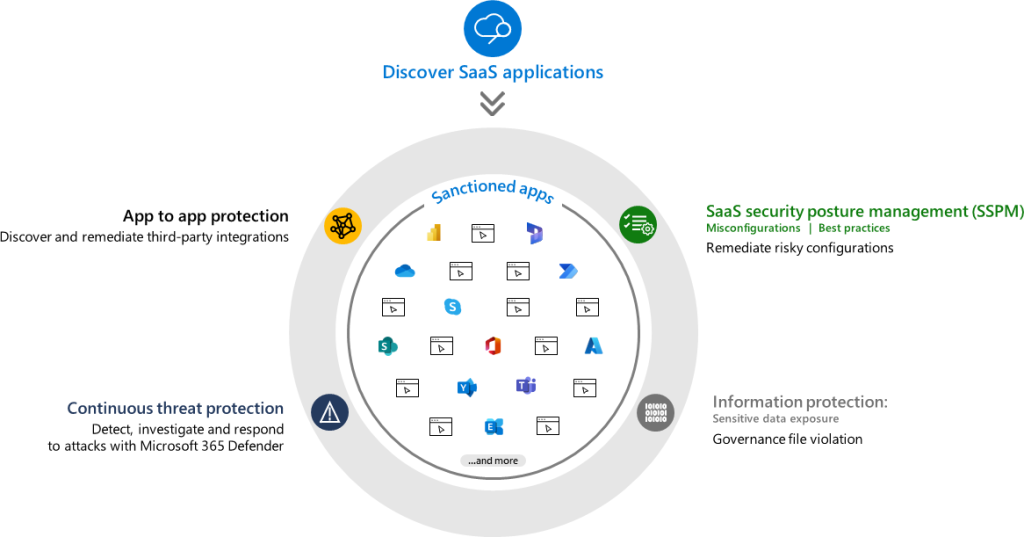
A significant reason how good is Windows Defender has become is its connection to the Microsoft Intelligent Security Graph.
Every time a new threat is detected on any Windows machine globally, that information is instantly fed back to Microsoft’s cloud intelligence.
This global threat data is then almost instantaneously used to update the protection on every other connected Windows machine.
This cloud fueled protection means that Defender doesn’t have to wait for a daily or weekly signature update; it gains near real time zero day protection against emerging threats.
This collective defense capability is something that only a company with Microsoft’s reach can offer. It means your machine is protected by the experience of millions of other machines.
The ability to process and distribute threat intelligence at scale is what truly differentiates the modern Defender from its previous self and most basic competitors.
3. Ransomware Mitigation

Ransomware is arguably the most financially damaging threat facing individuals and businesses today.
Defender includes a specific feature called Controlled Folder Access.
This feature is straightforward but incredibly powerful. It prevents unauthorized applications from making changes to designated critical folders, typically your Documents, Pictures, and Desktop folders.
If a piece of ransomware tries to start encrypting your photos, Controlled Folder Access blocks the encryption process because the ransomware is an unrecognized application trying to access a protected resource.
You have to manually allow specific, trusted applications, like your photo editor or backup software, to modify these folders.
This layer of defense is often disabled by default, which is a mistake. Users should enable and configure Controlled Folder Access immediately for robust ransomware protection.
It’s an easily overlooked answer to the question of how good is Windows Defender at protecting your most important files.
4. Application and Browser Control
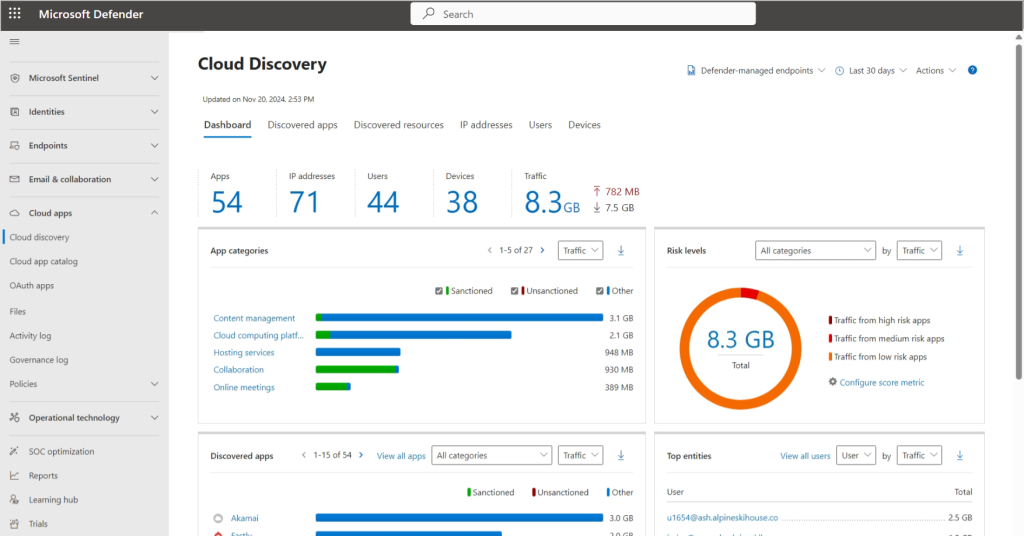
Defender’s protection extends into your browsing and application habits.
The SmartScreen feature, for instance, checks the reputation of websites you visit and files you download against Microsoft’s cloud database.
If you click a link that leads to a known phishing site or try to download a file with a bad reputation, SmartScreen issues a prominent, intrusive warning and often blocks the action entirely.
This protection is integrated directly into the Edge browser, but also extends its checks to third party browsers and downloaded files, preventing you from executing code that is known to be malicious.
Furthermore, the Potentially Unwanted Application, or PUA, Protection setting targets software that isn’t technically malware but is often bundled with other downloads, such as intrusive ad-ware or persistent toolbars. Enabling PUA protection helps keep your system clean and fast.
5. Performance and Resource Usage
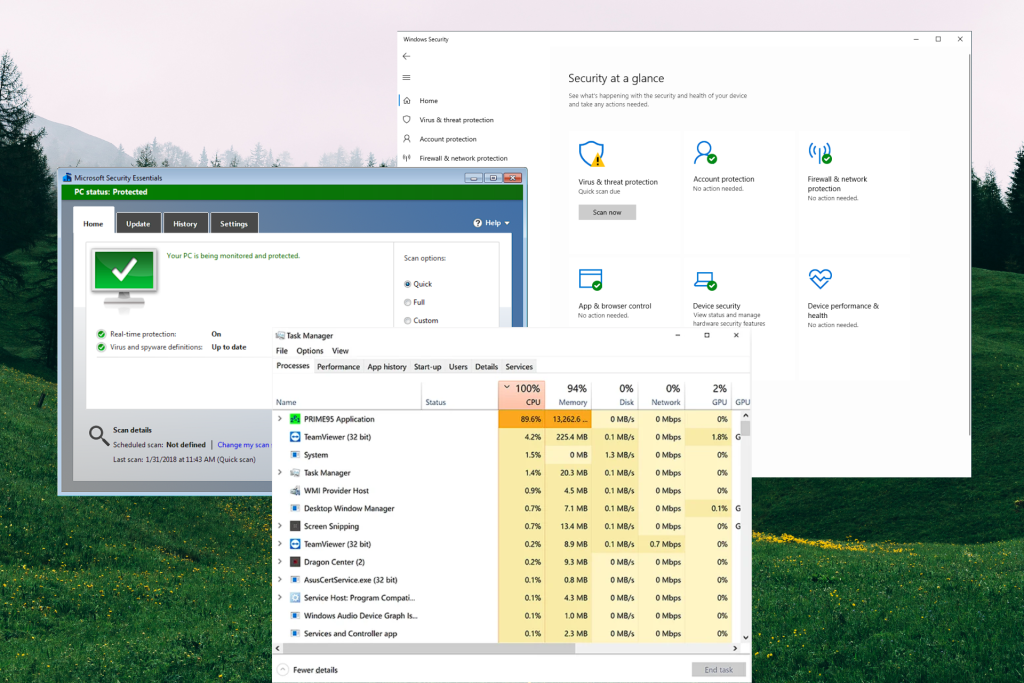
In the past, third party antivirus suites were notorious for being heavy, resource intensive applications that visibly slowed down the computer, making people actively look for ways to disable them.
One great factor defining how good is Windows Defender now is its minimal performance impact.
Because it is so deeply integrated into Windows, it operates much more efficiently than external software trying to hook into system processes.
It uses scheduled, low impact scanning that often happens when the computer is idle, and its real time monitoring is lightweight.
Independent tests consistently show that Defender has a very low impact on system boot times, application launch times, and general file copying operations.
This low resource consumption is a significant advantage. A security solution that slows down the user’s work is a security solution the user will try to circumvent.
6. The Firewall Component
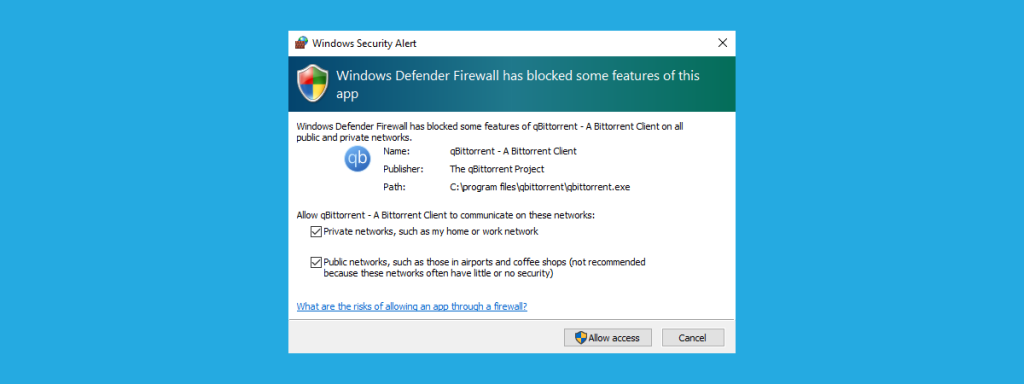
The Windows Firewall is a critical, often silent, part of the Defender suite.
It controls incoming and outgoing network traffic, preventing unauthorized external access to your system and blocking internal applications from communicating suspicious data out to the internet.
For the average home user, the default settings are highly effective, automatically blocking potentially dangerous inbound connections while allowing necessary traffic.
For professional users, the firewall offers granular control over application specific rules, allowing administrators to precisely define which programs can access the network and which ports are open.
It’s a robust, mature firewall that provides effective perimeter defense against network level attacks, adding another layer to the overall security posture.
7. Comparing to Third Party Suites

So, with all this capability, is there any reason to use a third party antivirus suite?
For the vast majority of general users and home use, the answer is usually no. Defender offers excellent detection rates, low performance impact, and is constantly updated.
However, the question of how good is Windows Defender shifts slightly when talking about advanced needs.
Third party suites often provide extra features that go beyond core endpoint protection, such as bundled VPN services, dedicated password managers, dark web monitoring for compromised credentials, or parental controls.
In enterprise environments, third party endpoint detection and response, or EDR, platforms often offer more complex centralized management, forensic investigation tools, and integrated compliance auditing features than the basic business versions of Defender.
But for protection against the standard threats: viruses, common ransomware, and phishing, Defender is statistically on par with, and sometimes outperforms, its paid competitors.
8. The Human Factor in Security

No matter how sophisticated the software, the biggest vulnerability remains the user.
A sophisticated defense like Windows Defender can block an infected email attachment, but it cannot stop a user from willingly giving away their login credentials on a well designed phishing website.
Security software is a technical measure against a technical problem. Social engineering is a human problem requiring human vigilance.
Multi Factor Authentication, or MFA, strong password hygiene using a password manager, and critical skepticism toward unsolicited communications are still the user’s most effective tools.
Relying on any single layer of defense, even one as capable as Microsoft Defender, is poor security practice. It must be part of a broader, behavioral security strategy.
9. Historical Evolution and Trust

The past weakness of the product is why many people still ask how good is Windows Defender today.
For years, it was merely an anti-spyware tool bundled to satisfy basic requirements, and it was often necessary to disable it to install a more robust third party product.
Microsoft made a strategic, large scale investment in the security division over the last decade. They leveraged their cloud infrastructure and machine learning capabilities to turn Defender into a modern, integrated security system.
This history of transformation is important because the perception often lags behind the reality. What was once a joke in the security community is now a formidable competitor.
The current version of Defender is a security product built on massive resources and real time global threat intelligence. You can absolutely trust it as your primary line of technical defense.
You May Also Like:
- 10+ Best Internet Safety Tips That Reduce the Risk online
- McAfee Review 2026 – Features, Pricing & Verdict
- Webroot Review 2026 – Features, Pricing & Verdict
Frequently Asked Questions
Is Windows Defender good enough to use alone?
Yes, for the average home user who practices good digital hygiene, Windows Defender is generally considered good enough to be used alone. Independent testing shows its malware detection rates and performance are on par with or better than many paid third party antivirus products.
Does Windows Defender slow down my computer?
The modern version of Windows Defender is deeply integrated into the operating system and has a minimal performance impact. Unlike older antivirus suites, it runs efficiently in the background and does not typically cause noticeable slowdowns during common tasks or boot-up.
Should I enable Controlled Folder Access?
You should definitely enable Controlled Folder Access within Windows Defender. This feature provides powerful protection against ransomware by preventing unauthorized applications from modifying your critical files in folders like Documents and Pictures, adding an essential layer of security.
Does Windows Defender protect against phishing?
Yes, the Windows Defender suite includes the SmartScreen feature, which actively checks the reputation of websites and downloads in real time. This helps protect against phishing attacks by blocking access to known malicious sites and preventing the download of dangerous files.