



How to scan for viruses on Android is a common question, but the premise is often slightly off. The Android operating system is structured differently from a desktop Windows machine, making traditional viruses much less common.
What you are typically dealing with is malware: intrusive adware, aggressive spyware, or malicious applications designed to steal credentials or financial data.
The architecture uses sandboxing to isolate apps, but threats still get through, usually via sideloaded apps or social engineering.
The solution is not a single scan, but a layered security approach that relies on native tools, smart habits, and careful review.
1. Utilize Google Play Protect

Google Play Protect is the built in malware scanner for the Android ecosystem, and it’s the first line of automated defense.
It runs constantly in the background, checking the applications on your device, both the ones you install from the Play Store and the ones that may have come from elsewhere.
Play Protect performs two main functions: it scans apps before you download them from the Play Store, and it continuously monitors all apps after they are installed on your device.
To initiate a manual scan, you just need to open the Google Play Store app, tap your profile icon, and look for the Play Protect option.
Tapping “Scan” forces it to immediately recheck all your installed applications against Google’s threat database.
This is the simplest, most fundamental answer to how to scan for viruses on Android, and since it’s deeply integrated, it’s also highly effective against known threats distributed through official channels.
It gives a quick health status and will flag any app it deems potentially harmful, prompting you to uninstall it.
2. Manual App and Permissions Audit
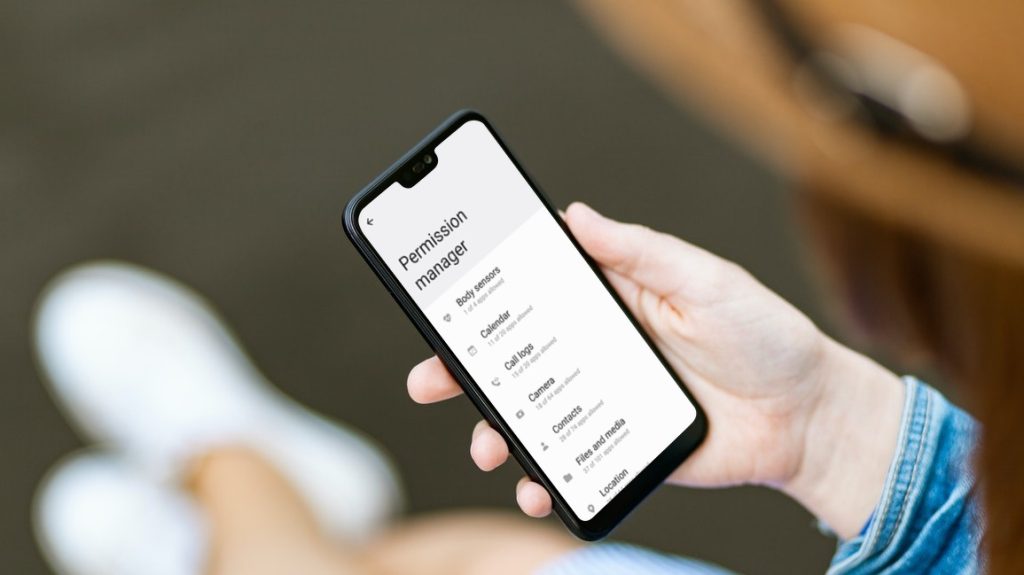
Sometimes, a malicious app uses legitimate permissions to execute harmful functions, slipping past automated scanners. This requires a manual check, which is a surprisingly effective method for identifying suspicious activity.
Go through your Settings and review your list of installed applications. Look for anything that you don’t recognize, haven’t used in months, or that has a generic or suspicious name.
The next step is to examine the permissions for any suspect app. Does a calculator app really need access to your microphone and contacts list? Does a simple game need device administrator privileges?
If an application requests excessive or illogical permissions, it’s a huge red flag for malware trying to overreach its intended sandbox.
For a true manual scan, you are acting as the security auditor, questioning every app’s need for its requested access. Uninstall any app that raises these obvious permissions issues immediately.
This vigilance is a crucial part of knowing how to scan for viruses on Android and identify threats that rely on tricking the user.
3. Use Third Party Mobile Security Apps
While Android’s built in security is strong, some users feel more comfortable with a dedicated, feature rich third party mobile security app.
Many reputable antivirus companies offer Android versions of their software that provide additional layers of protection, particularly useful for users who sideload apps outside the Play Store or engage in high risk browsing.
These apps often include features that Google Play Protect does not prioritize, such as Web Protection that blocks malicious URLs in all browsers, privacy audits, and anti theft features like remote lock and wipe.
When looking for a third party scanner, stick to established, internationally recognized brands. Do not download the first free, unfamiliar scanner you see, as those can sometimes be malware in disguise.
Running a full, deep scan with a proven third party tool can sometimes catch things that are new or specialized, offering a comprehensive check beyond the basic how to scan for viruses on Android methods.
You will need to be prepared for the fact that these applications sometimes consume more battery life or resources than the native tools.
4. Boot into Safe Mode for Removal

If you are certain you have malware, especially one that is preventing you from accessing settings or uninstalling itself, booting your Android device into Safe Mode is often the cleanest method for removal.
Safe Mode temporarily disables all third party applications, allowing only the core operating system and pre installed apps to run. This prevents the malicious app from executing its code, essentially neutralizing it.
To enter Safe Mode, the process varies slightly by device, but usually involves pressing and holding the Power button and then long pressing the Power Off option until the prompt for Safe Mode appears.
Once in Safe Mode, navigate directly to Settings, find your list of applications, and uninstall the malicious app without interference.
This technique is essential for dealing with persistent or aggressive malware that uses common anti removal tactics. After removal, simply reboot the device normally.
Knowing this specific technical maneuver is part of the advanced knowledge regarding how to scan for viruses on Android and fix the problem effectively.
5. Check Downloaded Files and Storage

Malware often hides in the general storage of your device before it’s executed or disguised as a legitimate file.
Using your device’s File Manager app, you should manually navigate through your storage, particularly the Download folder.
Look for any recent files with suspicious extensions, especially .apk files you didn’t deliberately download or files with highly obfuscated or random names.
Delete anything that seems out of place or was downloaded unintentionally.
Sometimes, the malicious app is disguised as a system update or a document, so careful review of file creation dates and sizes is necessary.
Also, be vigilant for excessive storage usage by a specific app.
If a messaging application is suddenly using 5 gigabytes of data and you haven’t received that many messages, it suggests the app is storing or collecting large amounts of potentially unwanted data, a sign of spyware.
A clean up of the downloaded files and the application cache is a good preventative measure, completing the routine for how to scan for viruses on Android using built in tools.
You May Also Like:
- 10+ Best Internet Safety Tips That Reduce the Risk online
- McAfee Review 2026 – Features, Pricing & Verdict
- Webroot Review 2026 – Features, Pricing & Verdict
- Avast Antivirus Review 2026 – Features, Pricing & Verdict
Frequently Asked Questions
Is it necessary to scan for viruses on Android?
Yes, while true viruses are rare, it is necessary to scan for malicious apps and spyware on Android. The device’s security relies heavily on the continuous background scanning provided by Google Play Protect and regular manual review of installed applications and their permissions.
How often should I manually check my apps?
You should manually check your app list and permissions every few weeks or immediately after you notice any sudden changes in device performance, unusual advertisements, or excessive battery drainage. This manual review is a critical layer in knowing how to scan for viruses on Android effectively.
What is the best way to remove stubborn malware?
The best way to remove stubborn malware that resists uninstallation is by booting your Android device into Safe Mode. This prevents the malicious app from running, allowing you to access the device settings and successfully uninstall the offending application without interference.
Does sideloading increase my risk?
Yes, sideloading, which means installing apps from sources other than the official Google Play Store, significantly increases your risk of encountering malware. The primary protection provided by Google Play Protect is bypassed, making it harder to scan for viruses on Android unless a high quality third party scanner is used consistently.