

How to scan Mac for malware is a question that reveals a misunderstanding of how the macOS security stack works. Macs are not invulnerable; that’s an old myth that’s frankly dangerous.
They are simply architecturally more difficult to infect than Windows.
Apple builds in several layers of defense, but malware, particularly adware and spyware, still finds a way onto systems, usually by piggybacking on legitimate software downloads or tricking the user.
The actual scanning process relies on leveraging these native defenses and, when necessary, calling in specialized tools to dig deeper than the operating system’s surface checks.
It’s about being proactive, not panicking, when you feel that telltale drag on your system performance.
1. Trust Apple’s Native Security System

The core defense on a Mac is handled by three interconnected native tools: Gatekeeper, Notarization, and XProtect.
Gatekeeper is what checks software integrity when you first run an application. It confirms that the app is signed by an identified developer.
Notarization is Apple’s process that scans developer submissions for malicious content before they are even allowed to be distributed outside the App Store.
But the actual built in malware scanner is XProtect.
XProtect runs silently in the background, constantly checking files against a database of known malware signatures. Whenever Apple updates this database, it’s pushed automatically to your Mac, and XProtect immediately scans for those new threats.
You, the user, can’t manually initiate an XProtect scan because it’s always running. The best answer to how to scan Mac for malware using the native system is simply to ensure your macOS is always updated.
An update not only fixes security vulnerabilities but also contains the latest XProtect signature definitions. If XProtect finds anything, it isolates and notifies you immediately.
The system is designed to handle common, known threats without you ever having to lift a finger or run a dedicated program, saving you the headache and the disk space.
2. Run a Deep Third Party Scan

While Apple’s native tools are excellent at catching common and known threats, they are conservative by design and often lack the aggressive, heuristic deep scanning capabilities offered by dedicated commercial tools.
This is where a specialized third party malware scanner becomes necessary, especially if you are experiencing persistent browser pop ups, unauthorized redirects, or slow performance that indicates adware or spyware.
These third party scanners go beyond XProtect’s signature database. They use complex behavioral analysis to identify suspicious activity, not just known file names. They look for applications that are installing unwanted browser extensions, creating hidden startup items, or trying to inject code into other processes.
When considering how to scan Mac for malware deeply, choose a reputable, established security vendor that has a proven track record specifically with macOS. Don’t download a random free tool off the internet; you risk downloading the very thing you are trying to remove.
A deep scan can take a long time, sometimes hours, as it checks every file and hidden folder. If it finds a threat, these applications usually handle the entire remediation process, including deleting the payload, removing hidden system files, and cleaning up browser traces.
The occasional use of a high quality, specialized scanner is the best way to catch the low level adware or Potentially Unwanted Programs, or PUPs, that Apple’s basic defenses might miss.
3. Perform a Manual System Audit
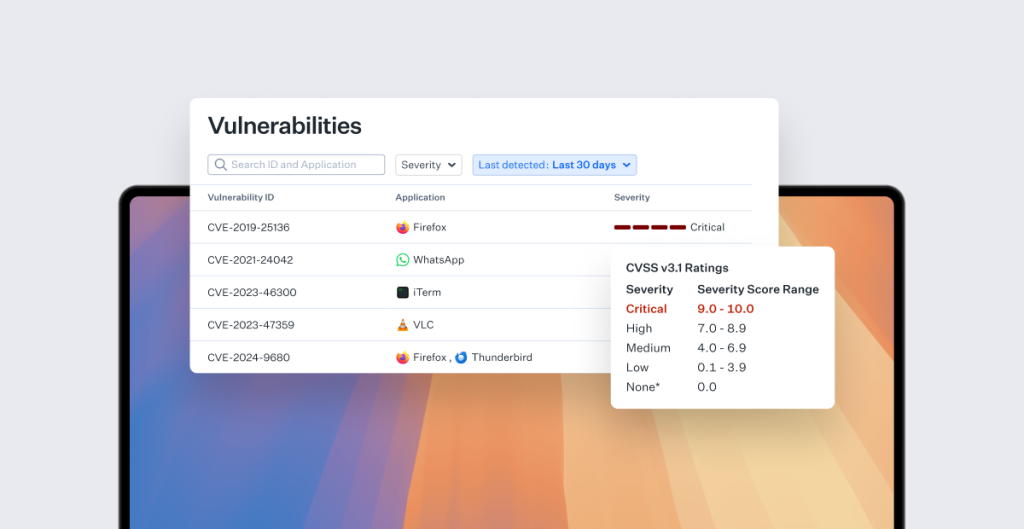
The third, often overlooked, and incredibly practical step is performing a manual audit of your system’s most vulnerable areas. This is your chance to spot the human error that allowed the malware in.
You need to check three key locations.
First, examine your Login Items in System Settings. Any application listed here automatically launches when you boot your Mac, and malware loves to hide itself here to ensure persistence. If you see a program you don’t recognize or explicitly need to start every time, disable it.
Second, audit your Applications folder. Look for anything that looks generic, has a strange name, or appeared recently without your intentional installation. If you find a suspect application, manually drag it to the Trash.
Third, check your web browser extensions. Many common forms of Mac malware are actually just malicious browser extensions that hijack your searches and display excessive ads. Go into your browser settings, review the installed extensions, and remove anything that is unnecessary or suspicious.
Sometimes, the simplest way to answer how to scan Mac for malware is to physically go in and remove the unwelcome guest yourself. It demands a moment of focus and a bit of discipline.
If you are dealing with a particularly tricky piece of adware, you might need to combine the manual check with booting into Safe Mode. Safe Mode limits the system to essential files and prevents most third party malware from launching, allowing for an easier, cleaner manual deletion.
4. Understanding the User’s Role

The primary infection vector on macOS is almost always the user.
It doesn’t usually happen through a zero click exploit; it happens because someone clicks on a convincing link, or, more commonly, downloads a pirated piece of software, perhaps a cracked version of a popular application, that bundles the malicious payload.
This is called bundling or masquerading. The user is prompted to enter their administrator password to install the legitimate sounding software, essentially giving the malware permission to bypass Gatekeeper.
The most effective protection, far stronger than any scanning tool, is recognizing the inherent risk of downloading software from non official or untrusted sources.
Your skepticism level should be high. If a website offers a free version of an expensive application, you should feel a small knot of worry in your stomach. That feeling is the most critical part of your security stack.
No amount of scanning can fix the lapse in judgment that allows the initial infection to take hold.
5. Reviewing System Integrity Protection
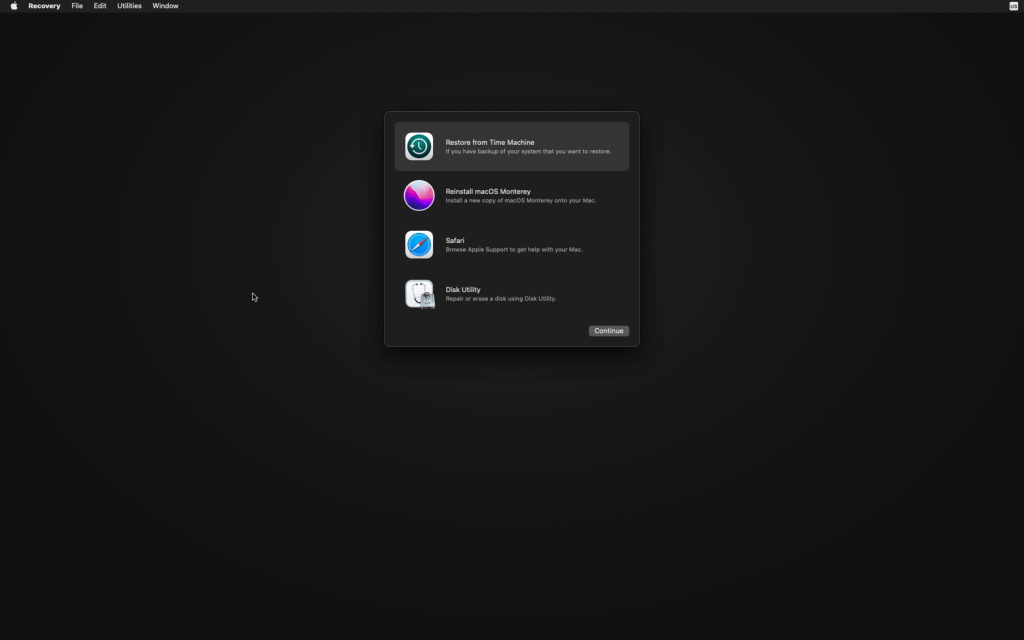
System Integrity Protection, or SIP, is a fundamental, low level defense that is essential to the modern macOS security model.
SIP prevents even users with administrator privileges, and therefore any malware running with those privileges, from modifying system protected files and folders.
This means that even if a piece of malware gains root access, it cannot modify the core operating system files, which severely limits the damage it can inflict and its ability to achieve deep persistence.
SIP is one of the reasons that traditional rootkits are much less effective on macOS than on older Windows systems.
It’s always on, you don’t interact with it daily, but understanding its function is important for recognizing the depth of Apple’s built in defenses.
When you ask how to scan Mac for malware, remember that SIP is constantly working underneath the surface to prevent the most dangerous types of infection from taking root in the first place.
6. The Threat Landscape on Mac

The type of malware prevalent on Macs has shifted dramatically as Apple has tightened its defenses.
We are not seeing a lot of traditional, destructive viruses that erase hard drives. Instead, the landscape is dominated by financially motivated threats.
This means adware that redirects traffic to generate revenue for the attacker, spyware that records credentials and keystrokes, and increasingly, crypto mining malware that secretly uses the Mac’s processing power.
The solutions focus on adware removal and privacy protection, rather than just file quarantine.
Recognizing this threat evolution dictates your strategy.
A simple anti-virus might catch a known file, but a modern security strategy needs tools that can detect unauthorized network activity and privacy compromise, which is what the manual audit and the specialized third party scanners excel at.
You May Also Like:
- How to Scan for Viruses on Android and Avoid Future Security Risks
- How Good Is Windows Defender and Why Many Users Trust It
- 10+ Best Internet Safety Tips That Reduce the Risk of Online Scams
Frequently Asked Questions
Is an external antivirus needed for Mac?
For most users who only download apps from the official App Store, an external antivirus is not strictly necessary due to Apple’s built in XProtect and Gatekeeper. However, an external scanner is recommended for a deeper, heuristic scan to catch adware and low level spyware that the native system might overlook.
How do I check for suspicious login items?
You can check for suspicious login items by navigating to System Settings, selecting General, and then clicking on Login Items. Review the list of applications set to open automatically. Disable any entry you do not recognize or intentionally authorize for startup.
How to scan Mac for malware using only Apple tools?
To scan Mac for malware using only Apple tools, you must ensure your macOS is completely up to date. This ensures the native XProtect malware scanner has the latest threat definitions. XProtect runs automatically in the background, providing constant defense against known signatures.
What is the most common Mac malware?
The most common form of Mac malware is adware and Potentially Unwanted Programs, or PUPs. These threats primarily hijack web browsers to redirect searches and display intrusive advertisements, often bundled with seemingly legitimate or pirated software downloads.