

How to create a Gantt chart is a necessity for any project manager operating in a predictive, or Waterfall, environment.
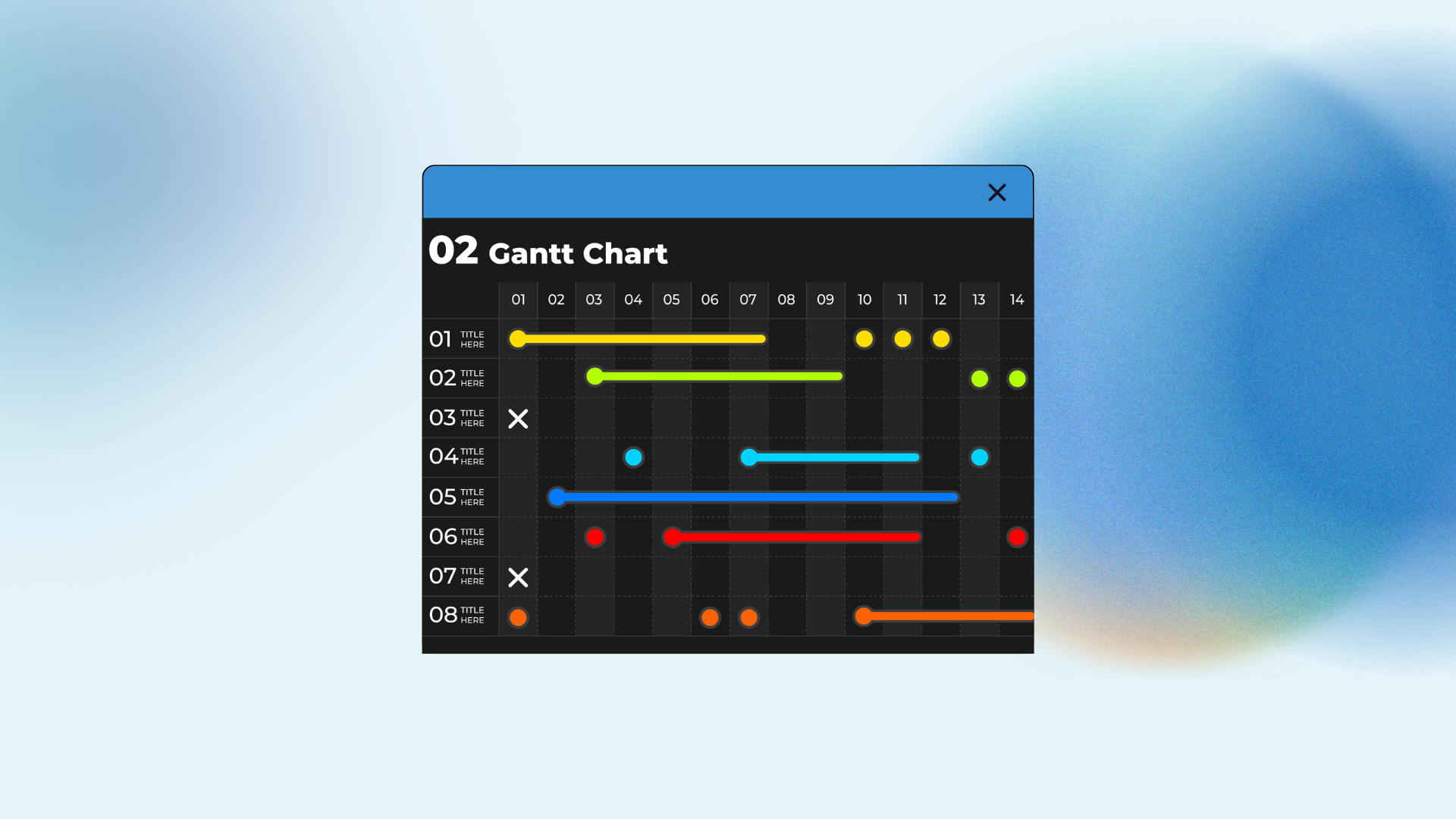
This visual tool is far more than a simple bar graph; it’s the operational picture of your entire schedule.
It takes the abstract concept of “work” and lays it out in a concrete, time-phased manner, showing the sequence, the dependencies, and the duration of every task required to deliver the project scope.
When you look at a well constructed Gantt chart, you immediately know what should be happening now, what is coming next, and where your project is most vulnerable to delays.
It’s the primary instrument for communicating the schedule and tracking progress against the planned baseline.
The process of building it is systematic, starting from the smallest unit of work and scaling up to the full project timeline.
1. Define and Structure the Work
You cannot build a schedule until you know exactly what work needs to be done. This is the fundamental prerequisite for how to create a Gantt chart.
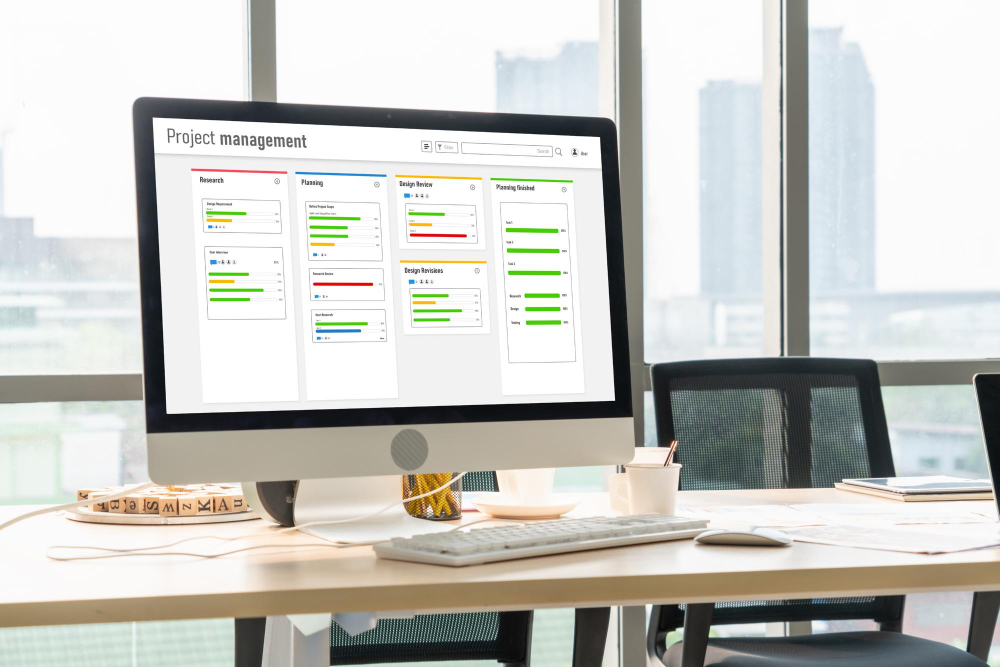
The initial step is to take your approved scope statement and decompose it into a Work Breakdown Structure (WBS).
The WBS is a hierarchical, deliverable oriented breakdown of the project work. It starts with the final output and recursively drills down into phases, sub deliverables, and finally, the lowest level: the work package.
A work package should be small enough to be realistically estimated and assigned to a specific owner, usually requiring no more than 80 hours of effort, often less. It is the fundamental building block of the entire chart.
List all of these work packages in the leftmost column of your charting tool. Organize them hierarchically using indentation to show which work packages roll up into which larger deliverables and phases.
This structure immediately makes your project readable and measurable.
Avoid listing activities that are purely administrative, unless they consume significant effort. Focus the WBS on the tangible, project specific deliverables. If your WBS is fuzzy, your Gantt chart will be useless.
2. Estimate Task Duration and Effort
Once you have the definitive list of work packages, you must estimate two key things for each: the effort required and the duration.
Effort is the actual amount of person hours or person days required to complete the work.
This is estimated by the people who will actually perform the work, not by the project manager alone.
Consult with the engineers, designers, or procurement specialists to get realistic figures.
Duration is the elapsed time between the start and finish of the task. This is where effort meets availability.
If a task requires 40 hours of effort but the resource assigned to it is only available half time, the duration will be two weeks.
When estimating, avoid just picking a single number. Use techniques like Three Point Estimating, which considers an optimistic estimate (O), a pessimistic estimate (P), and a most likely estimate (M).
This gives a weighted average estimate (E) that is more grounded in reality: E=(O+4M+P)/6. This simple calculation reduces the inherent human optimism that often plagues project schedules.
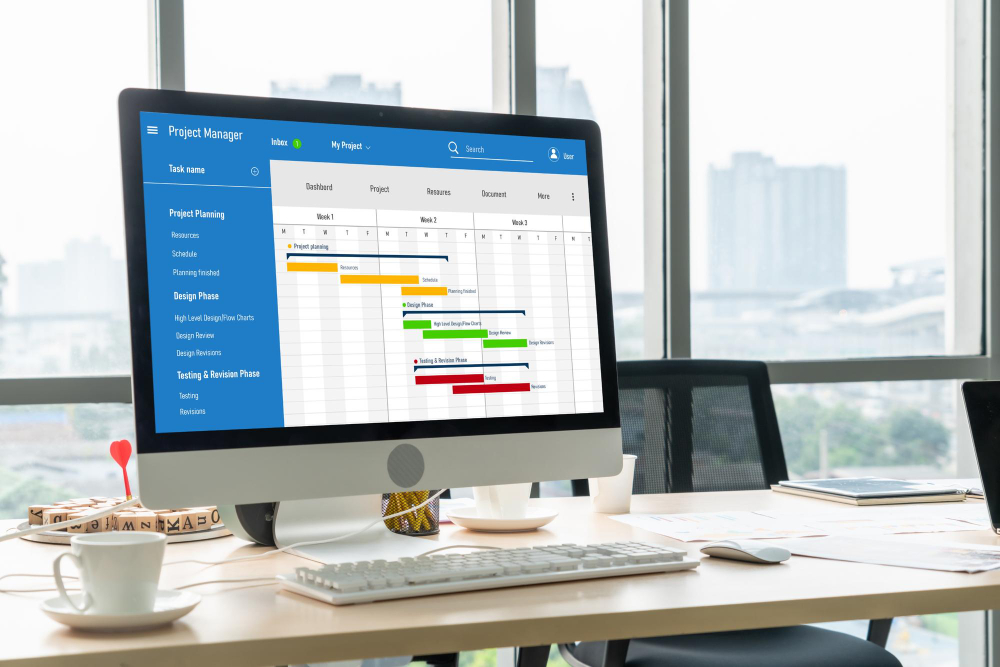
Enter these resulting duration estimates into the appropriate column next to the task list. This provides the length of the bars that will eventually populate the Gantt chart.
3. Define Task Dependencies and Logic

This is the most critical stage in learning how to create a Gantt chart effectively because it determines the sequence and flow of the entire project. Dependencies show the logical relationships between tasks.
For almost every work package, there is another task that must precede it. The four common types of dependency relationships are:
- Finish to Start (FS): Task B cannot start until Task A finishes. This is the most common type. Example: Writing the code must finish before Unit Testing can start.
- Start to Start (SS): Task B cannot start until Task A starts. Example: Reviewing documentation can start as soon as the documentation team starts drafting it.
- Finish to Finish (FF): Task B cannot finish until Task A finishes. Example: Final documentation sign off cannot finish until the final code review finishes.
- Start to Finish (SF): Task B cannot finish until Task A starts (very rare in practice).
You must meticulously document the predecessor for every single task in your chart. If you miss a dependency, the task will schedule incorrectly, and you will hit an unexpected roadblock during execution.
Once dependencies are defined, the software automatically sequences the tasks, creating the flow from project start to project end.
4. Assign Resources and Level the Schedule

A schedule is useless if the resources required to execute the tasks are not available when the task is scheduled to start.
Resource Assignment: Assign a specific person or team to each work package. This assigns accountability and allows the system to check for overload.
Resource Overload (Overallocation): If the schedule shows that one engineer is assigned to 120 hours of work next week, that is a resource overload. The schedule is immediately unrealistic.
Resource Leveling: This is the process of adjusting the schedule to resolve resource overloads.
The most common technique is delaying the start of lower priority tasks that have schedule slack, freeing up the overloaded resource to focus on the higher priority tasks, especially those on the Critical Path.
Leveling will inevitably extend the project duration, but it produces a realistic and achievable schedule.
After leveling the schedule, identify the Critical Path. This is the longest duration path through the network of activities.
The Critical Path has zero float or slack, meaning any delay to these tasks will delay the entire project completion date. It dictates the overall project timeline and requires your highest attention.
The Gantt chart should visually highlight these Critical Path tasks, usually in red.
5. Establish the Baseline and Track Progress

The final stage is turning the preliminary schedule into the official project baseline and using it for control.
Establish the Baseline: Once the scope, schedule, and cost are approved by the stakeholders, you set the baseline.
This is a snapshot of the approved plan. The baseline shows the planned start and finish dates and the planned cost for every task.
Monitoring and Control: As the project progresses, you track the actual start dates, the actual finish dates, and the percentage complete for each task.
The Gantt chart then visually compares the actual progress against the approved baseline.
If the actual start date of a task is later than the planned start date, the bar on the chart will visually lag behind the baseline, immediately signaling a schedule variance.
You use this visualization to communicate delays and to take corrective action, such as crashing the schedule by adding resources or fast tracking by performing dependent activities in parallel.
The Gantt chart is a dynamic tool. It is updated constantly with progress data. Its function is to answer the simple, direct question: “Are we on track?” If the actual progress bars are aligned with or ahead of the baseline, the answer is yes. If they are lagging, you have a documented problem to address.
Advanced Gantt Chart Considerations

Simply listing tasks and dependencies is the minimum requirement. For managing complex, multi year projects, you need to incorporate advanced concepts into your Gantt chart.
Milestones: These are zero duration events that represent a significant point in the project, such as “Design Complete” or “Phase 1 Sign Off.”
They are vital for executive reporting and often represent payment triggers or formal gate reviews. Milestones are always easy to spot on the chart, usually represented by a diamond symbol.
Lag and Lead Times: These fine tune the dependency relationships. A Lag time is mandatory waiting time introduced between tasks.
Example: Foundation concrete must set for 7 days (lag) after pouring (Task A) before framing (Task B) can begin.
A Lead time allows an acceleration of the successor task before the predecessor task is fully complete.
Example: Testing (Task B) can begin 2 days before Development (Task A) is entirely finished. Using these correctly adds precision to the schedule logic.
Summary Tasks (Rollups): These are the higher level phases or deliverables from your WBS.
The duration and completion percentage of the summary task are automatically calculated based on the tasks nested beneath it.
This allows executives to view the project at a high level without getting lost in the details of hundreds of work packages. This is a common requirement for senior management status reports.
Baselines Management: For long term projects, you might save multiple baselines to track the project’s evolution.
If you have a massive scope change approved midway through, you save the current status as a new baseline to measure future performance against, while still retaining the original baseline for historical context and comparison.
This historical tracking is essential for accurate change management.
Resource Calendars: Resources rarely work a perfect 9 to 5, five day week. Developers might work 4 ten hour days.
Concrete crews don’t work holidays. The project scheduling software allows you to assign specific calendars to resources, ensuring that the duration estimates in the Gantt chart account for these real world non working times.
Ignoring resource calendars is a guaranteed way to build a schedule that will fail in execution.
External Dependencies: Sometimes your project relies on the delivery of an item or service from outside the project scope or even outside the organization.
This is an external dependency. It must be clearly represented in your Gantt chart, usually as a task with a designated owner who is responsible for managing that external relationship.
This task is often high risk because you have limited direct control over its schedule.
You May Also Like:
- How to Become a Project Manager From Beginner to Leader
- How to Create a Project Plan to Keep Work on Track
- Stages of CRM Implementation Every Business Should Know
Frequently Asked Questions
What is the purpose of the Gantt chart?
The main purpose of the Gantt chart is to provide a comprehensive, visual representation of the project schedule. It maps all tasks against a timeline, showing start and finish dates, dependencies, and resource assignments. It serves as the primary tool for communicating the project timeline to stakeholders and tracking actual progress against the planned baseline.
How do I identify the Critical Path in the chart?
You identify the Critical Path by looking for the continuous sequence of tasks that determines the project’s earliest completion date. These tasks have zero slack or float. In professional project management software, the Critical Path is typically calculated automatically and visually highlighted, often using a distinct color, like red.
How to create a Gantt chart when requirements are vague?
If requirements are vague, you should limit the detail in the how to create a Gantt chart process to only the near term, fully defined work packages, such as the initial planning and analysis phase. The remaining phases should be represented by high level summary tasks with large duration buffers. This is a phased approach, where detailed schedules are built just in time as scope clarity emerges.
What is the difference between effort and duration?
Effort is the actual amount of labor hours or days required to complete a task, regardless of how long it takes. Duration is the elapsed time from the start to the finish of the task on the calendar, taking into account resource availability, calendar non working time, and any mandatory lag time, such as waiting for concrete to cure.
Why is the WBS crucial before making the Gantt chart?
The Work Breakdown Structure, or WBS, is crucial because it provides the definitive, hierarchical list of all the work packages that must be included in the project. You cannot accurately create a Gantt chart or a budget if you haven’t first decomposed the total project scope into these manageable, estimable components.