


how to use trello for project management, you really have to start thinking of it as a highly flexible visual database, not just a simple checklist tool.
Trello takes the traditional concept of a Kanban board, which is about visualizing work flow, and makes it digital, collaborative, and entirely customizable.
It provides a simple structure of Boards, Lists, and Cards that you can twist to fit almost any methodology or team size.
The benefit here is immediate clarity; everyone sees the current status, who owns what, and what needs attention next.
It moves work out of email chains and into a visible, shared space. Understanding how to use trello for project management effectively means adopting that visual mindset first and then layering in the features.
1. Structure The Board
The foundation of how to use Trello for project management is the Board itself. A Board represents the project, the workflow, or the department.
Think of the Board as a whiteboard in a physical office. It’s the container.
The lists on that Board represent the stages of your process. This is the critical part.
For a simple software development project, your lists might be: Ideas, To Do, In Progress, Review, and Done.
For a content creation team, the lists could be: Topic Brainstorm, Drafting, Editing, Scheduled, Published.
The lists need to reflect the actual movement of work. If a task physically moves from one person or stage to another, it should have its own list.
The key to good list structure is keeping them few, clear, and action oriented. Too many lists, and the team starts getting lost.
Keep it visual. I always feel a wave of anxiety looking at a board with more than seven lists. Six is usually the sweet spot.
2. Configure Basic Cards
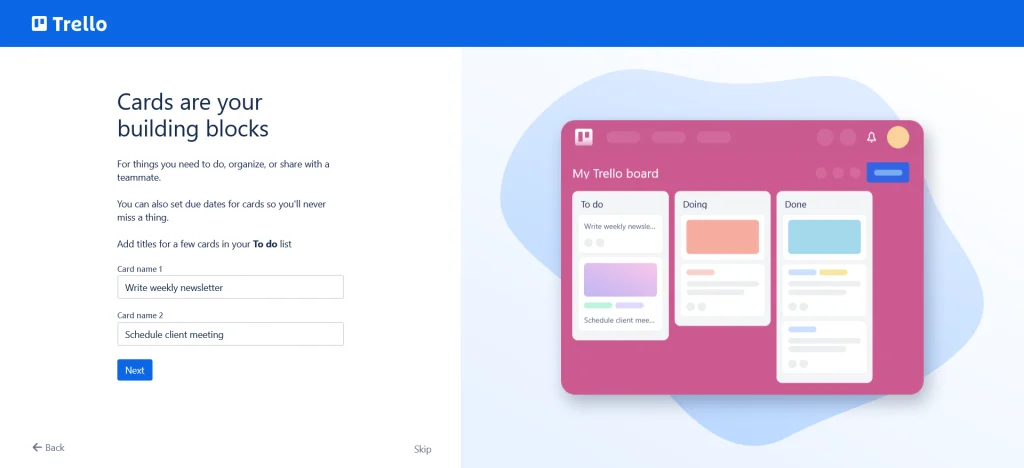
The Card is the individual unit of work, the task. It needs to hold all the information required to complete that specific piece of work without needing to refer to anything else.
Start with a clear, specific Card title. Don’t title a card “Marketing.” Title it “Write Q3 Instagram Ad Copy.”
Inside the card, you need to populate a few sections.
- Description: This is where you put the full brief, the context, the goal, and any essential links. Write this once, write it well.
- Checklist: Break the task into subtasks. A large card becomes manageable when it has a checklist of 5 to 10 smaller steps. The satisfaction of checking those off is a genuine motivator.
- Due Date: Set a realistic date. Trello will automatically highlight cards nearing or past their due date, which is a great visual pressure mechanism.
- Members: Assign the card to the person responsible. Clear ownership prevents confusion. If three people are involved, assign all three, but use the checklist to clarify who is responsible for which subtask.
It’s often a minor headache when people forget to put key details in the description, so I tell teams to pretend the Card is the only thing they have to work with.
3. Mastering Labels and Filtering
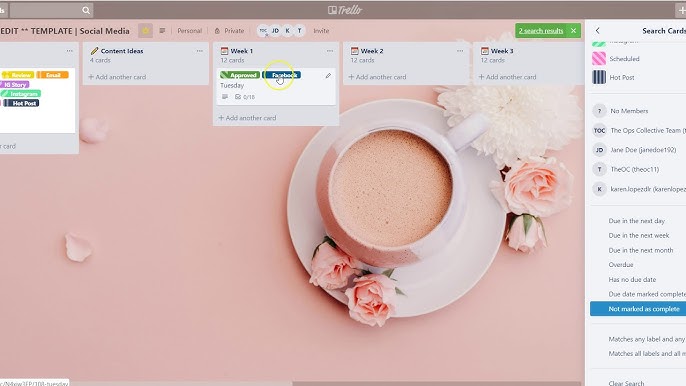
Labels are one of the most underutilized features when people first learn how to use trello for project management. They are more than just colors. They are meta data for your cards.
Use Labels to categorize work that doesn’t fit into the workflow lists.
For example, labels can define:
- Priority: High, Medium, Low.
- Department/Workstream: Design, Engineering, Operations, Sales.
- Type of Work: Bug, Feature Request, Documentation, Maintenance.
The trick is to keep the label names short, just one or two words.
The power of labels comes when you need to view the project through a specific lens. The filtering option allows you to instantly hide everything except cards labeled “High Priority” or everything assigned to the “Design” team.
This saves time in status meetings. Instead of scrolling, you just filter by the department currently speaking. I filter Boards constantly, multiple times a day.
4. Setting Up Project Automation
Trello’s automation feature, called Butler, removes the need for tedious manual steps. This is where Trello stops being just a simple task tracker and starts handling some of the project management load.
Look for repetitive actions. If a card moves from “Review” to “Done”, what needs to happen?
You can set up a rule: When a card is moved to the list “Done”, then remove all members from the card, mark the due date as complete, and post a comment saying “Project phase finished, well done!”
Another great automation rule: Every Monday at 9 AM, create a “Weekly Status Report” card in the “To Do” list, and assign it to the Project Manager.
Automation reduces cognitive load. It prevents simple, forgettable errors and saves those cumulative five minutes a day that truly add up over a quarter. It feels good when the system works for you, and Butler is the engine for that.
5. Utilizing Power Ups
Power Ups are essentially plugins that extend Trello’s functionality. They connect your project work to other tools or provide specialized features like Gantt charts or time tracking.
If you need a calendar view, you add the Calendar Power Up. This shows your cards with due dates on a calendar grid.
For teams that need a more formal agile approach, the Scrum for Trello Power Up allows you to estimate effort and track story points right on the cards.
A highly practical one is the Custom Fields Power Up. This allows you to add specific data fields to your cards that aren’t native to Trello, like a budget number, a client ID, or a specific release version number.
Choosing Power Ups depends on your team’s specific needs. Don’t add them just because they exist. Only install what genuinely streamlines your workflow or provides essential reporting. Too many Power Ups clutter the interface and slow things down.
6. Integrating for Reporting and Tracking
For many teams, Trello is the operational layer, but the management team needs data aggregated elsewhere, perhaps in a business intelligence tool or a reporting sheet.
This is where integrations become key when you want to truly master how to use trello for project management.
Tools like Zapier or Automate.io are often used to bridge the gap. For instance, When a card is moved to the “Done” list, a connection can automatically log that card’s details (Title, Date Completed, Owner) into a Google Sheet.
This creates a historical data log for measuring cycle time, which is the time from when a task starts to when it finishes. You need cycle time data to predict future performance accurately.
Another useful integration is with a communications platform, like Slack or Microsoft Teams. Set up an alert so that When a new high priority card is created, a message is posted in the #project_alert channel. This is immediate, targeted communication.
I’ve spent hours manually aggregating this data, but the automation hooks make the reporting frictionless. It just happens.
7. Managing the Backlog
If you are using Trello for product development or any project with an ever growing list of potential tasks, you need a dedicated strategy for managing the backlog.
The backlog is usually the first list on the far left of the Board. It should contain prioritized, but unscheduled, future work.
The key to a healthy backlog is grooming. The cards here should not sit indefinitely.
Establish a recurring meeting, perhaps every two weeks, dedicated only to reviewing and refining the cards in the backlog.
During grooming, you assign labels, ensure descriptions are clear, and, most importantly, you order the cards. The task at the very top of the backlog should be the next task pulled into the To Do list.
If a task has been in the backlog for six months without movement, be ruthless and archive it. It’s better to remove stale ideas than to let the visual clutter weigh down the team. A heavy backlog is heavy on the mind.
8. Handling Cross Board Dependencies
A single Trello Board works fine for one team or one project. But what happens when you have a Marketing Team Board and a Product Development Board, and a task on one depends on the completion of a task on the other?
Trello offers a few solutions, but the most straightforward is using the Card Linking feature, which is often a built in Power Up or a feature of an integration.
You can link Card A on Board 1 to Card B on Board 2. This creates a visual connection, and often, you can see the status of the linked card without leaving your current Board.
Another method is creating a Master Project Board. This board only contains cards representing major milestones from the other, specific team boards.
For example, a Master Card: Launch New Website on the Master Board would have links to the Design Complete Card on the Design Board and the Code Freeze Card on the Engineering Board.
This nested structure allows executives and stakeholders to track high-level progress without getting bogged down in the daily minutiae of how to use trello for project management on the front lines. It keeps everyone sane.
9. Team Structure and Collaboration Norms
The tool is only as good as the team using it. You need clear, established rules for how the team interacts with Trello.
Movement Rules: Define who can move cards between lists. Often, a Card Owner can move it into the next functional list (To Do to In Progress), but only a reviewer can move it into the final list (Review to Done).
Comment Etiquette: Use comments for discussion related to the task. Keep communications about task completion or roadblocks on the card.
Do not let discussions drift back to email. If someone asks a question about a task in a chat, the correct response should be: “I’ve commented on the Trello card.”
Notification Management: Encourage team members to only watch the cards they own or those where they are mentioned (@username).
Too many notifications lead to people ignoring the tool entirely, which defeats the entire purpose of how to use trello for project management.
Archiving: When a project is truly finished, archive the entire board. Not deleting it, just archiving it. This removes the clutter from the main view but preserves the history for audit or reference.
It requires a little discipline initially, but once the team gets into the rhythm of moving the cards and keeping the information current, Trello becomes a seamless part of the day.
10. Advanced Reporting with Custom Fields
We touched on custom fields earlier, but for true managerial oversight, they are essential. Most people trying to figure out how to use trello for project management get stuck here.
Trello’s native reporting is basic, focused on counting cards. Custom fields allow you to inject rich data that makes real reporting possible.
You should establish fields like:
- Estimated Effort (Numeric): Use a scale, perhaps 1 to 10 or T-shirt sizes (S, M, L). This is crucial for capacity planning.
- Customer Impact (Dropdown): High, Medium, Low. This helps prioritize the backlog objectively.
- Budget Line Item (Text): Ties the task back to the formal project budget document.
Once these fields are on the cards, you can use integrations to pull this structured data into a spreadsheet.
A script can then analyze the total estimated effort of all cards in the “In Progress” list to give you a real time workload capacity report.
This shifts the tool from being just a visual tracker to a true resource allocation tool.
Without injecting your own metrics via custom fields, you are constantly exporting data and massaging it in Excel, which is a massive waste of time.
I know people who still do that, and frankly, it just makes me tired thinking about it.
11. Security and Permissions
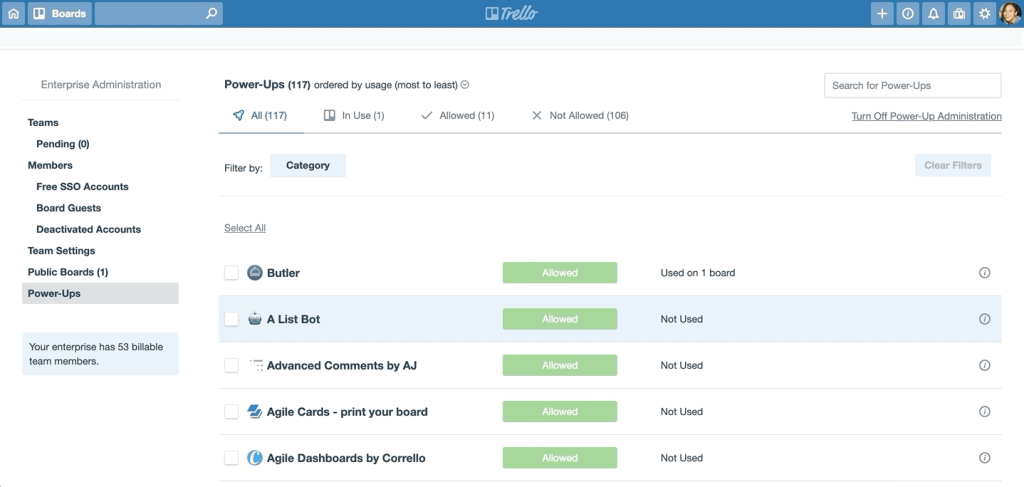
It’s easy to overlook security, especially on smaller teams, but as Trello scales, you need boundaries.
When you are determining how to use trello for project management with external clients or large teams, this is critical.
Boards can be set to:
- Private: Only invited members can see and edit. This is the default and should be the rule for internal project work.
- Workspace Visible: Anyone in your organization’s Trello Workspace can view the board. Use this for general informational or company wide announcement boards.
- Public: Anyone on the internet can see the board. Use this sparingly, maybe for a public roadmap or a help center. Never put sensitive information here.
You can also control what members can do within the board. You can set some members as Observers, meaning they can view cards and comment, but they cannot move cards or edit the list structure.
This is perfect for stakeholders who need to be kept informed but not involved in the execution.
It is sensible to limit who can invite new members to a Board. One rogue invite and you can expose sensitive project data to the wrong person. Permissions are simple, but they need to be defined at the start of the project.
12. Using Templates for Repeatable Work
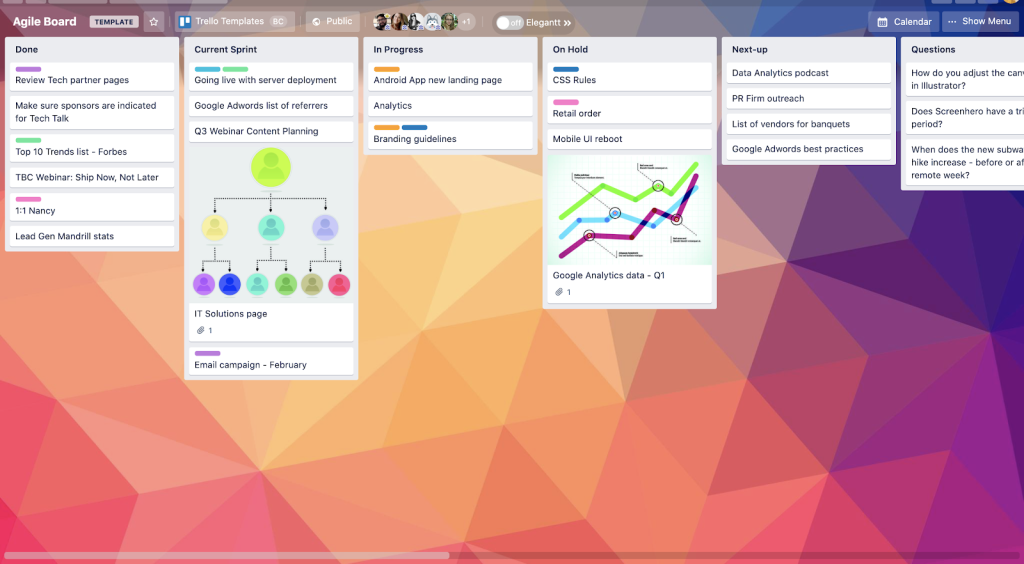
If your organization has processes that are repeated often, such as onboarding a new client, launching a new product version, or conducting a quarterly review, you should template them.
Create a Board that contains all the standard lists, cards, descriptions, checklists, and assignments for that specific process.
For example, a Client Onboarding Template Board would have lists like Contract Signed, Kick Off Scheduled, Access Granted, Initial Data Migration. The cards would have all the standard subtasks preloaded.
Then, when a new client signs, you simply click “Create Board from Template.” The new project Board is instantly populated with a structured, tested workflow.
This eliminates the time spent recreating the process and, more importantly, ensures consistency.
You guarantee that no critical step is ever missed because the process is baked into the template. The effort to build the template initially is repaid tenfold over repeated use.
The sheer volume of repetitive tasks in any organization is staggering, and templates are a quiet, simple productivity booster that completely changes how you manage recurring work.
13. Collaborative Drafting with Checklists
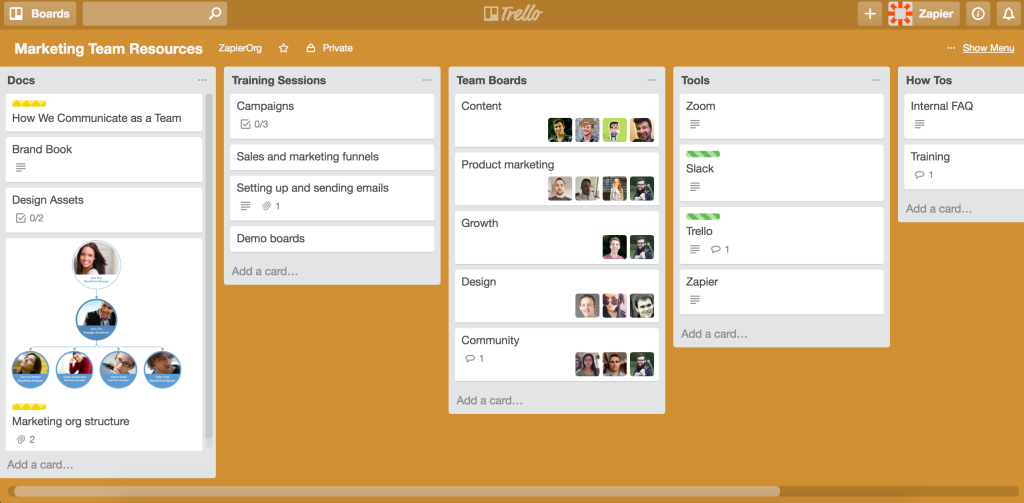
I have found a brilliant, low friction way to handle collaborative content drafting using Trello cards. Forget attaching external documents immediately.
Instead, use a card to track the Drafting phase. The description holds the brief. The Checklist is where the actual writing happens.
Each item on the checklist is a paragraph, a section header, or a key point. Multiple team members can work on the content right there by adding or checking off items.
Example Checklist:
- Draft Introduction (Assigned to John)
- Research Market Stats (Assigned to Jane)
- Write Section 1: Product Overview
- Write Section 2: Pricing Strategy
This keeps the content in the tool, visible to everyone, and tracks progress by the number of checks completed.
When the checklist is 100% complete, the full content is ready to be copied out into the final publishing tool or moved into the Editing list.
This avoids the endless version control issues you get with shared documents and makes the writing process transparent.
It’s a very simple, very effective use of the checklist feature when you figure out how to use trello for project management of creative tasks.
14. Trello and Agile Methodology
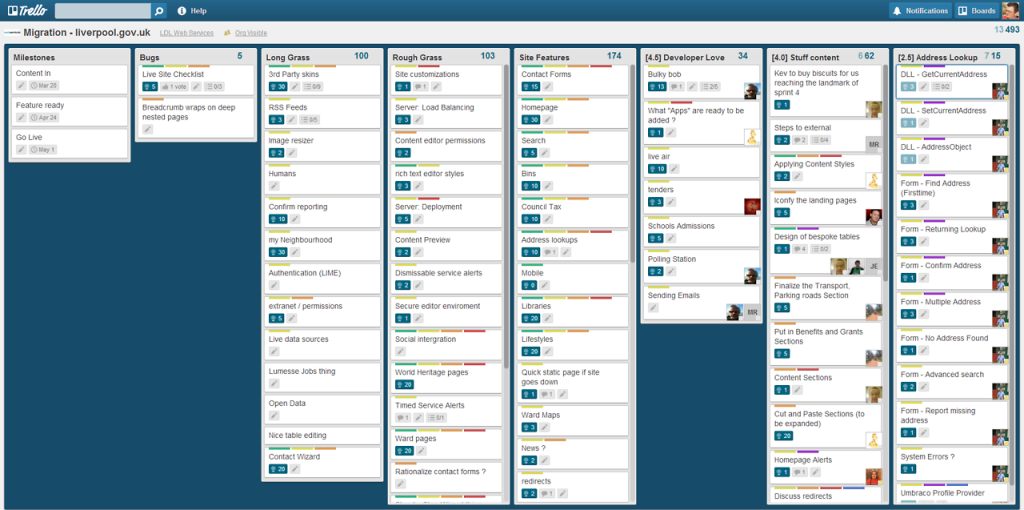
Trello is inherently designed for Kanban, but it can absolutely handle the basics of Scrum or other agile frameworks.
For a Scrum sprint, you would structure your lists slightly differently: Backlog, Current Sprint, In Progress, Testing, Done.
The entire team sits down before the sprint and moves cards from the Backlog into the Current Sprint list. Only those cards are worked on.
For managing your daily scrum meeting, you simply go through the Current Sprint list, starting with the rightmost column and working left. “What is in testing? What is in progress?”
The key feature here is Swimlanes, which isn’t a native Trello feature, but can be achieved with a Power Up or by using Labels to visually distinguish different threads within a single list.
For example, using a “Blocker” label for cards that are stuck.
The critical insight here is that the tool doesn’t define the methodology. The team defines the methodology, and Trello is flexible enough to visualize it.
You just need to be deliberate with the list and label structures to support the framework. The visualization is why these tools exist in the first place.
15. The Art of Archiving and De-Cluttering
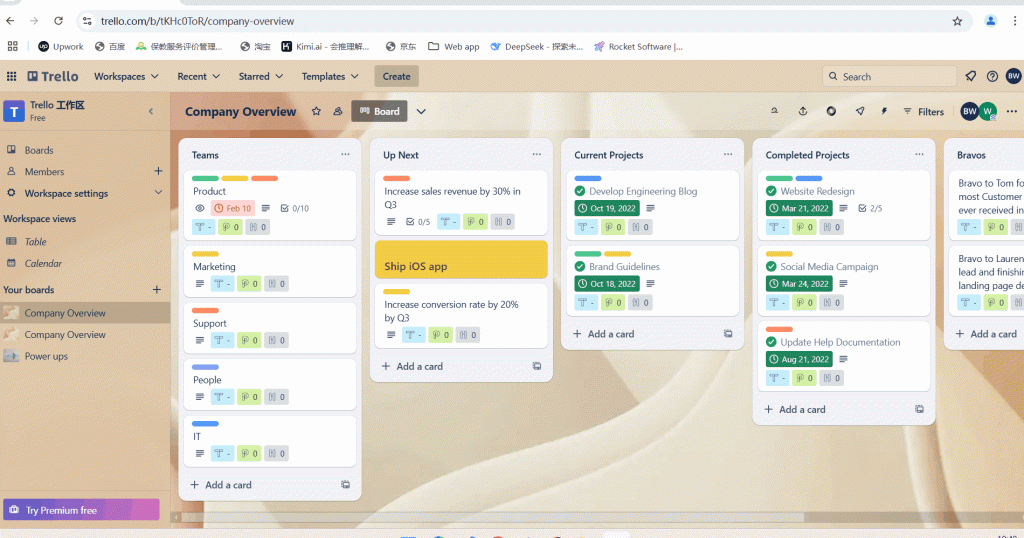
A messy Trello board is a dead Trello board. When you look at the board, you should immediately feel a sense of control, not chaos.
The single most important rule of visual management is to move completed work out of sight.
As cards are completed, they should move into the final Done list. But the Done list itself can become enormous.
Set an automation rule using Butler: Every first day of the month, archive all cards in the “Done” list that were last modified more than 30 days ago.
This keeps the Done list small, showing only recent accomplishments, while removing the bulk of historical tasks. The archived cards are still fully searchable and recoverable.
If you don’t enforce archiving rules, your “Done” list will scroll for days, creating a depressing visual weight that makes the whole project feel endless.
A clean workspace, even a digital one, is essential for focus and psychological wellness.
It is a simple tool maintenance step that has an oversized impact on team morale.
You May Also Like:
- Trello Review 2026 – Features, Pricing & Verdict
- Jira Software Review 2026 – Features, Pricing & Verdict
- Asana Software Review 2026 – Features, Pricing & Verdict
- Top 30+ Best Project Management Software in 2025
Frequently Asked Questions
How can I best organize projects using Trello lists and cards?
To use Trello for project management effectively, structure your board with lists that represent the distinct, sequential stages of your workflow, like To Do, In Progress, and Review. Each card should represent a single, actionable task and contain a clear description, a due date, and an assigned member. The key is using lists to visualize the process flow.
What are Trello Power Ups, and which ones are most useful?
Trello Power Ups are integrations that add specialized functionality to your boards, making it easier to use Trello for project management that requires advanced features. Highly useful Power Ups include Calendar for deadline visualization, Custom Fields for adding specific metrics like budget or effort size, and Time Tracking tools to monitor actual task completion duration.
Can Trello handle complex reporting needs for managers?
Trello’s native reporting is basic, but you can achieve complex reporting by using the Custom Fields Power Up to inject structured data (like budget, priority, or estimated hours) into your cards. You then use automation tools like Zapier to extract this data into an external spreadsheet or database for detailed analysis of workload, cycle time, and overall project performance.