

how to use smartsheet for project management means understanding that it’s essentially a structured, dynamic spreadsheet platform built for organizational scale.
It is not just a fancy version of Excel or Google Sheets.
The core functionality is about taking standard tabular data and immediately giving it the capacity for visual scheduling, workflow automation, and structured reporting.
This bridging of the familiar spreadsheet interface with powerful project features like dependencies and resource allocation is what defines its utility.
You start with the grid, but you quickly pivot to the visual views and the automated processes.
The real value is in centralizing all your project artifacts, communications, and tracking in a way that minimizes manual data entry.
Knowing how to use smartsheet for project management is knowing how to build a flexible project model.
1. Structure The Grid
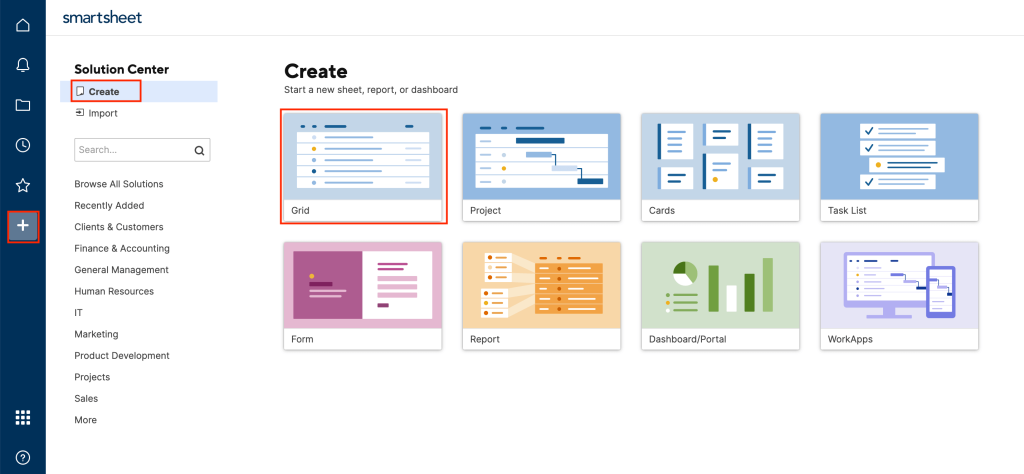
The foundation of any Smartsheet project is the Grid View, the sheet itself. If you mess this up, everything that follows falls apart.
You need to establish the absolute mandatory columns first. These are the task structure columns, the task owners, and the scheduling columns.
The first column, always, is your Primary Column. This is where your Task Names or Deliverables go. Utilize the hierarchy feature here, indenting subtasks under parent tasks. This defines your Work Breakdown Structure right from the start.
Then you need Assigned To (Contact List), Start Date (Date), End Date (Date), and Duration (Text/Number).
Using the specific column types is mandatory. Smartsheet needs to know the difference between a date and a generic text field to enable the Gantt and Calendar Views. A generic text column cannot drive a schedule.
If you don’t use the hierarchy correctly, your dependencies and rollup summaries will be meaningless. It requires discipline to maintain that structure, but it’s the key.
2. Enable Dependencies
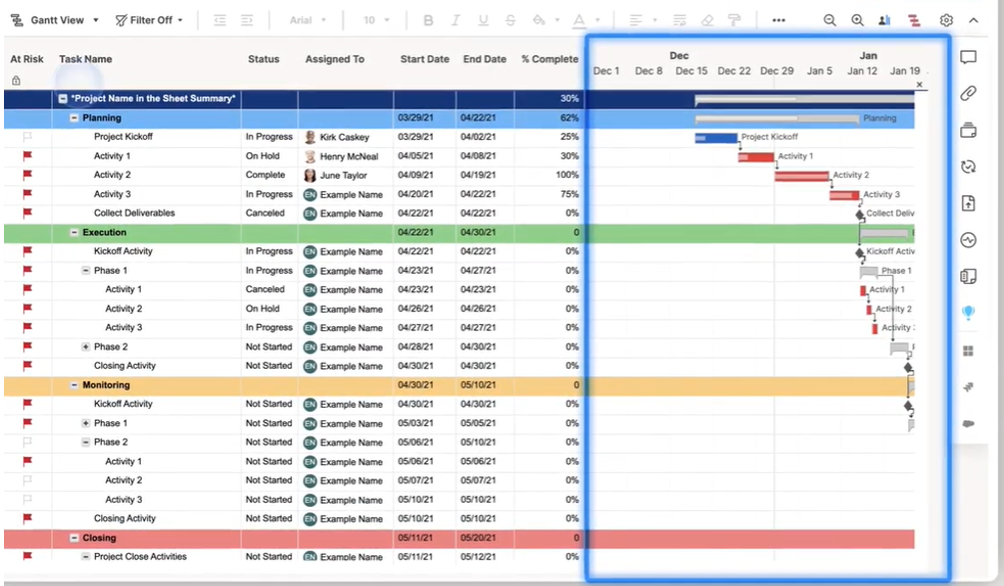
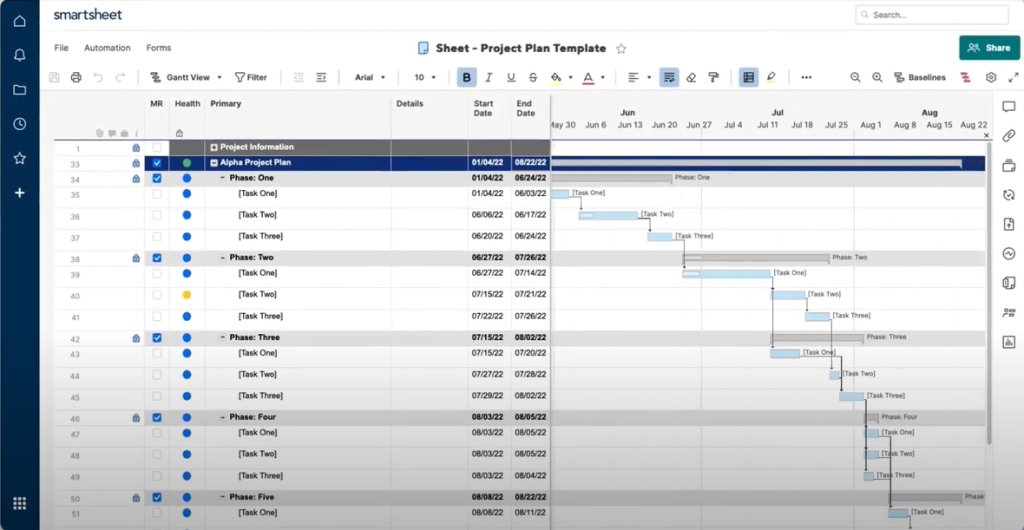
This is the functional leap Smartsheet takes beyond a flat spreadsheet. To use the Gantt chart for predictive scheduling, you must enable dependencies.
In the Gantt Chart Settings menu, you toggle the dependency tracking on.
Once enabled, Smartsheet automatically adds a Predecessors column and an Elapsed Duration column.
The Predecessors column is where you enter the row number of the task that must be completed before the current task can start. For example, entering 3 means the current task cannot start until the task on row 3 is finished.
Smartsheet will then use the duration and predecessors to auto calculate the Start and End Dates of subsequent tasks. Change the duration of an early task, and the entire downstream schedule shifts instantly.
This automated scheduling is a massive time saver, but be warned: if you have inaccurate duration estimates, the resulting schedule will also be garbage. Garbage in, garbage out, as always.
3. Configure Status Columns
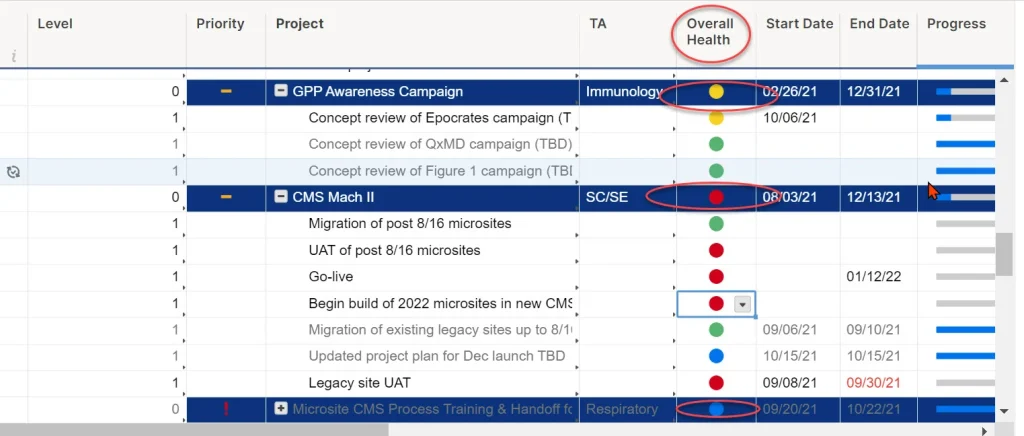
You need a way to track the progress of the tasks themselves, which is where standardized status columns come in.
Never use an open text field for status. That leads to chaos like “Done,” “Finished,” “Complete,” “Donezo,” all meaning the same thing but destroying your ability to filter or report.
Create a column type called a Dropdown List. Define the specific, controlled status options: Not Started, In Progress, Complete, Blocked, On Hold.
These standardized statuses are what you will use to build your reports and dashboards later. They also drive the visual progress on the Gantt chart if you connect them correctly.
It is also helpful to add a Status Comment column, which is an open text field where the assignee can briefly explain why a task is Blocked or what was completed. That gives context without cluttering the main status.
4. Setting Up Rollup Formulas
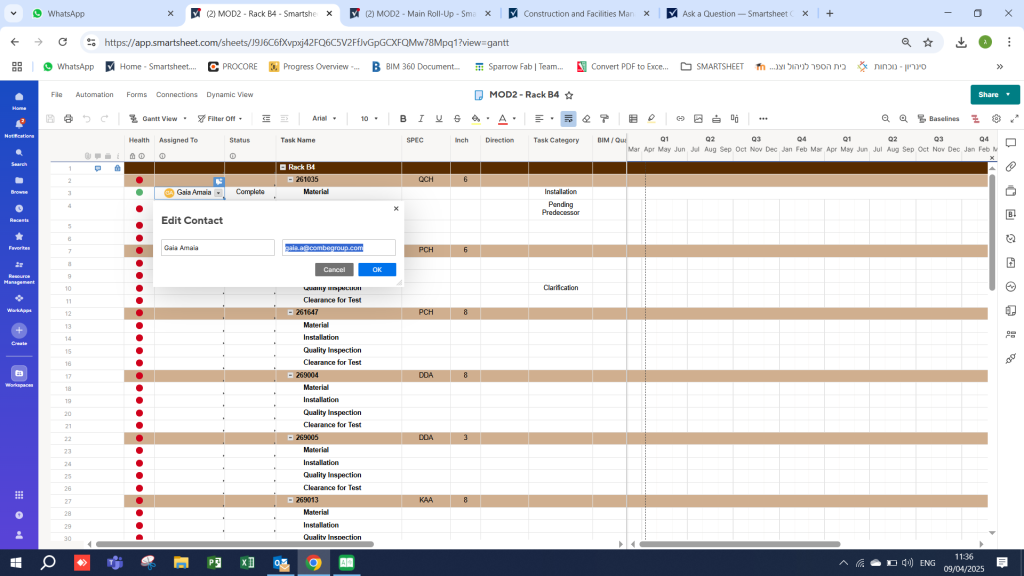
When you use the hierarchy, the Parent Row needs to summarize the state of its Child Rows. This is where automation or formulas come in.
For example, to track the percentage of a parent task completed, you use a formula. If you are tracking progress via a % Complete column, the Parent Row needs to display the weighted average of its children’s progress.
Smartsheet has specific functions for this, like CHILDREN().
You would write a formula on the parent row to calculate the average of the CHILDREN() of the % Complete column. This is crucial for high level reporting; you shouldn’t have to manually update the parent task progress.
Another critical rollup is for dates. The parent task’s start date should always be the earliest start date of its children, and the parent’s end date should be the latest end date of its children. This accurately portrays the overall phase timeline.
If the rollup formulas are not correct, the high level Gantt view will be misleading, making project review meetings feel frantic.
5. Leveraging Automation Workflows
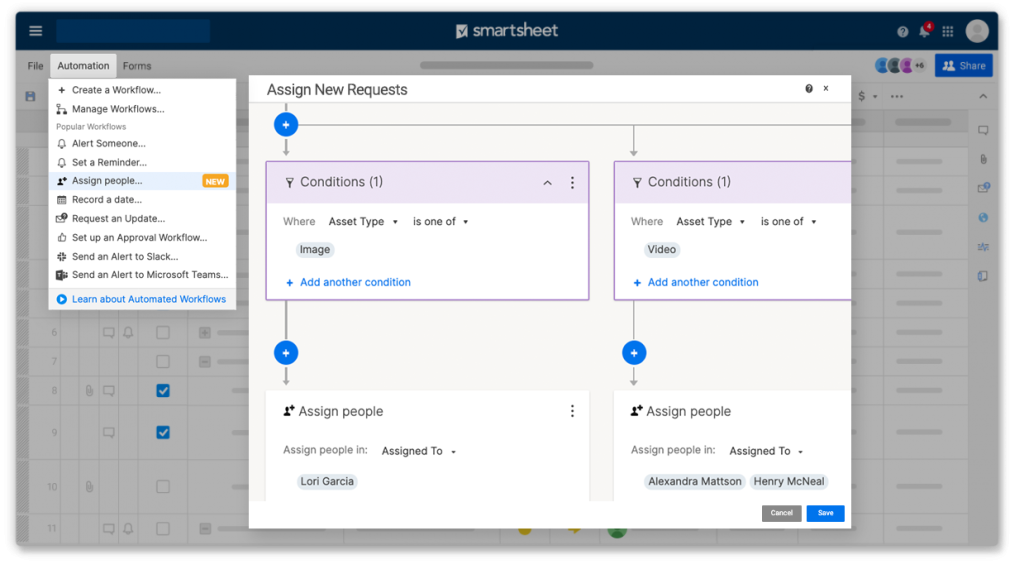
Smartsheet automation significantly reduces the friction of project management. This is where you remove repetitive, manual administrative work.
Think about notifications. Instead of constantly checking the sheet, you can set a rule: When the Status column changes to “Blocked”, then Alert the Project Manager (using the Project Manager’s assigned contact field).
Another powerful automation is for approvals. When a task reaches “Ready for Review”, an automation can Send an Approval Request to the stakeholder, allowing them to accept or reject the deliverable right from their email inbox, which updates the sheet automatically.
The most common automation is reminding task owners. You can set a rule: Daily, check for tasks where the Due Date is today and the Status is “Not Started”, then Send Reminder to Assigned Contact.
These automation rules keep the project moving without you having to constantly crack the whip, which is a wonderful relief. The machine does the nudging.
6. Utilizing Different Views

While the Grid View is for data entry and structure, people absorb information better in different formats. Smartsheet allows you to pivot your data into different visual views instantly.
Gantt View: This is essential for visualizing the schedule, seeing the dependencies, and tracking the Critical Path. You can clearly see task durations and overlaps.
Card View: This visualizes your workflow stages. It takes your Status column (e.g., Not Started, In Progress, Complete) and turns them into columns on a Kanban board. Team members can drag and drop cards to update the status, which immediately updates the underlying Grid data. It’s a great tool for daily standups.
Calendar View: Best for communicating deadlines to stakeholders who do not need to see the complexity of the Gantt chart. It shows all tasks plotted by their start or end dates on a month-by-month calendar.
Remember that these are just different ways of looking at the same underlying data. There is only one sheet, but multiple visual perspectives.
7. Integrating Data with Forms
For structured data input, like collecting new project requests or capturing bug reports, Smartsheet Forms are the way to go.
A Form is a custom external entry point that feeds directly into a specific sheet. It prevents people from messing up the core sheet data.
You design the form fields to match the columns in your sheet. For instance, a New Project Request Form would collect the Project Name (Primary Column), Requested Start Date, and Requester (Assigned To).You can also include conditional logic in the form, showing or hiding fields based on previous answers. For example, if the user selects “High Priority,” then a required field for justification appears.
Forms ensure the data is clean, complete, and formatted correctly before it hits your project structure. This is critical for data quality, especially for larger organizations using Smartsheet to govern intake processes.
8. Mastering Formulas and Logic

To truly leverage how to use smartsheet for project management, you need to use the formula language. It’s slightly different from Excel, but extremely powerful.
Beyond the basic rollup functions, you will constantly use conditional logic with IF statements.
For example, creating a Health column: =IF(% Complete = 1, "Green", IF(TODAY() > [End Date]1, "Red", "Yellow"))This formula automatically changes the task health to Red if the due date is passed and the task is not 100% complete. This automated conditional logic saves the project manager from constantly policing dates. It makes the sheet a self governing tool.
You’ll also use lookups like VLOOKUP or INDEX/MATCH to pull data from other linked reference sheets, like a resource availability sheet or a budget template. This linking of data across multiple sheets is what allows for powerful portfolio management.
9. Building Dashboards for Stakeholders

Stakeholders do not want to wade through a massive grid sheet. They want the high level summary. This is what Smartsheet Dashboards are for.
A Dashboard is a visual, customizable display that pulls summarized data, charts, metrics, and links from various sheets across your organization.
You use Widgets on the Dashboard to display specific information.
- Metric Widgets: Show key numbers like “Total Tasks Completed,” “Current Budget Spend,” or “Tasks Overdue.” These are usually driven by simple formulas in a summary section of your sheet.
- Chart Widgets: Display visual trends, like a burn down chart or a percentage breakdown of tasks by department.
- Report Widgets: Embed a real time filtered report, such as “All High Priority Tasks Assigned to the Leadership Team.”
The dashboard is the clean, executive summary that keeps everyone informed without overloading them with operational detail. It is the reporting layer, designed for quick, visual consumption.
10. Resource Allocation Insights
Smartsheet has a specific functionality for resource management that is often overlooked in initial deployment. You can assign resources and then track their planned vs. actual workload.
For this to work, your Assigned To column must use the specific Contact List column type. You must also input consistent Estimated Hours per task.
Once configured, the Resource View will show you exactly who is overallocated, displaying a clear visual warning when a team member is assigned more hours than they can handle in a given period.
This moves the management process from guessing to objective data. If the sheet is showing Jane is booked at 120% capacity for the next three weeks, you need to reallocate tasks before Jane burns out or the schedule slips. You need to respect the data here.
This view is essential for portfolio management, allowing you to see capacity across an entire department or project portfolio, not just a single sheet.
11. Reporting Across Multiple Sheets
The real power of an enterprise tool like Smartsheet isn’t in managing one project, but in managing a portfolio of projects. This requires reports that pull data from several sheets at once.
A Smartsheet Report is essentially a dynamically generated view that filters data from one or more selected sheets based on criteria you define.
For example, you can create a single Portfolio Status Report that includes:
- All tasks across all active projects where the Status is “Blocked.”
- All tasks across all projects where the Assigned To is “John Smith.”
- All Parent Tasks (level 1 of the hierarchy) for every project with an End Date this quarter.
The report updates in real time as the underlying sheets change. This allows a Project Management Office (PMO) to get a consolidated, instantaneous view of the organization’s entire workload and risk areas. You do the work once in the sheet, and the reports handle the aggregation automatically.
12. Document Management and Attachments
A project artifact is any file or document that relates to a task: a design mock up, a signed contract, a project charter. These files often get lost in email or shared drives.
Smartsheet allows you to attach files directly to a row or to the sheet itself.
You can link files from Google Drive, OneDrive, Box, or upload them directly.
Attaching files to the specific row they relate to keeps the documentation contextualized. If you are reviewing Task 5, the relevant contract or brief is right there, attached to Row 5.
This simplifies auditing and team collaboration. No more shouting across the office, “Where is the final logo file?” It’s attached to the task card in Smartsheet.
This small organizational detail saves hours of cumulative search time over the course of a large project.
You May Also Like:
- Smartsheet Review 2026 – Features, Pricing & Verdict
- How to Use Trello for Project Management Step by Step
- How to Create a Gantt Chart in Google Sheets in 7 Simple Steps
- How to Use Jira in 7 Steps That Make Project Tracking Simple
Frequently Asked Questions
What is the most critical first step when I learn how to use Smartsheet for project management?
The most critical first step is structuring the grid properly. This involves defining the Work Breakdown Structure using the Primary Column’s hierarchy feature and correctly setting the column types for scheduling, specifically using the Date type for Start and End Date columns to enable the Gantt View and automated scheduling.
How does Smartsheet manage dependencies and schedule shifts?
Smartsheet manages dependencies by activating the Predecessors column in the Gantt Chart settings. By linking a task’s row number to its preceding task, Smartsheet automatically calculates and adjusts all subsequent task Start and End Dates whenever the duration of an upstream task changes. This ensures the entire project schedule remains dynamically connected.
Can Smartsheet create management reports from multiple projects?
Yes, one of the primary features of how to use Smartsheet for project management at scale is its ability to generate reports from multiple sheets. You use the Smartsheet Reporting function to define specific criteria, such as “all high priority tasks” or “tasks blocked,” and the system pulls and aggregates that live data across your entire portfolio of project sheets into one unified, real time view.