



Check for a virus on mac starts with a fundamental understanding of how macOS manages its background operations and system resources.
While the operating system is built on a Unix foundation that includes robust permissions and sandboxing, it is not immune to malicious software or persistent adware.
Users often notice a compromise when the machine begins to run hot for no apparent reason or when the browser redirects to unfamiliar search engines.
To effectively check for a virus on mac, you must look beyond the surface of the user interface and investigate the underlying processes, hidden launch files, and browser configurations that might have been altered without your explicit consent.
1. Monitor System Resources

The first place to look when you want to check for a virus on mac is the Activity Monitor.
This utility is located in the Applications folder under the Utilities subfolder and it provides a live view of every process running on your machine.
You should pay close attention to the CPU tab to see if any unfamiliar processes are consuming a high percentage of your processing power.
Malware, particularly cryptocurrency miners, will often use as much CPU as possible, which causes your fans to spin loudly and your battery to drain rapidly.
If you see a process with a strange name that you do not recognize, you can double click it to see more details about its origin.
Sometimes legitimate system processes like mds or mdworker might use high CPU while indexing files, which is normal behavior.
However, if a process has a random string of characters or mimics a system name with a slight misspelling, that is a red flag.
The Memory tab is also useful to check for a virus on mac because some adware programs leak memory, causing your Mac to become sluggish.
Look for processes that are using several gigabytes of RAM but do not correspond to any app you currently have open.
The Network tab in Activity Monitor can reveal if a malicious program is sending your data to a remote server.
A sudden spike in outgoing data when you are not uploading files is a strong indicator that you should further check for a virus on mac.
Identifying these anomalies early can prevent data theft and stop a minor infection from becoming a major system failure.
2. Review Login Items
Persistent malware often tries to ensure it starts up every time you turn on your computer.
Checking your login items is a direct way to check for a virus on mac because it shows you exactly what has permission to run at boot.
Open System Settings and navigate to General, then click on Login Items.
Look at the list of applications that open automatically and remove anything that looks suspicious or that you did not intentionally add.
Below that list, there is a section for Allow in the Background.
This area is often where modern Mac malware hides its persistent components.
You might see names of developers you do not recognize or generic descriptions that seem out of place.
Turning these off can break the persistence of a simple adware infection.
It is common for legitimate apps like Zoom or Spotify to have background items, so you have to be discerning.
If you see an item with no icon or a name that is just a series of numbers, it is a candidate for removal.
This manual audit is a core part of how to check for a virus on mac without relying on automated tools that might miss newer threats.
A clean login list ensures that only the software you trust is consuming your system resources from the moment you log in.
3. Audit Browser Extensions
Most Mac infections today are not traditional viruses but rather browser hijackers and adware.
These programs change your search engine and insert unwanted ads into your web browsing experience.
To check for a virus on mac that specifically targets your browser, you must examine your extensions in Safari, Chrome, or Firefox.
In Safari, go to Settings and then the Extensions tab.
If you see an extension that you do not remember installing, especially one that claims to improve your search or provide coupons, uninstall it immediately.
Malicious extensions often have permissions to read and alter all data on the websites you visit.
This is a massive security risk that can lead to credential theft.
Also check your browser homepage settings and the default search engine.
If your browser keeps reverting to a site like Search Marquis or Yahoo when you have set it to Google, a hijacker is active.
Sometimes these settings are locked by a configuration profile, which is another area to check for a virus on mac.
Go back to System Settings and search for Profiles.
If you are not using a managed work computer and you see a profile there, it is likely malicious and should be deleted.
These profiles are used by malware to force browser settings and prevent you from changing them back.
Cleaning your browser environment is often the most effective way to restore the speed and privacy of your Mac.
4. Check Hidden Folders
The most persistent malicious files on a Mac are hidden in specific library folders that the average user never sees.
To check for a virus on mac thoroughly, you need to look into the LaunchAgents and LaunchDaemons folders.
Open Finder and use the Go to Folder command under the Go menu.
Type in ~/Library/LaunchAgents and look at the files inside.
These files are typically PLIST files that tell the system to run certain scripts.
Check for files with names that look like reverse domain names, such as com.pc.updater.plist.
Repeat this process for the main /Library/LaunchAgents and /Library/LaunchDaemons folders.
Be very careful in these folders, as deleting a legitimate system file can cause your Mac to fail to boot.
If you find a file that corresponds to a suspicious process you saw in Activity Monitor, you can move it to the Trash.
You will likely need to enter your administrator password to make these changes.
Looking in these folders is a high level technique to check for a virus on mac that even some security software might overlook.
Malware authors love these folders because they are part of the standard macOS architecture and are often ignored by users.
Keeping these directories clean is a sign of a well maintained and secure system.
5. Use Built In Tools
Apple includes a variety of invisible security features that work in the background to protect your machine.
One of these is XProtect, which is a signature based malware detection system.
Another is the Malware Removal Tool, which periodically checks for and removes known threats during system updates.
Even though these tools are automatic, you can check for a virus on mac by ensuring your system is fully up to date.
Apple pushes silent security configuration updates that don’t always require a full restart.
You can verify if these are installed by going to System Settings, then General, then Software Update.
Click the small i icon next to Automatic Updates and make sure Install Security Responses and System Files is turned on.
If your Mac is acting strangely and you are fully updated, it might mean you are dealing with a zero day threat.
In such cases, you can check for a virus on mac by using the built in macOS Recovery mode to run a disk repair.
Restart your Mac and hold Command and R until the Apple logo appears.
Use Disk Utility to run First Aid on your startup disk.
While this does not directly find viruses, it can find corrupted system files that were altered by a malicious program.
Relying on the official Apple security stack is the foundation of a safe user experience.
6. Analyze Network Activity
Suspicious network traffic is a definitive sign of a compromised system.
If you want to check for a virus on mac, you can use a tool like Little Snitch or a free alternative like LuLu.
These programs alert you every time an application tries to connect to the internet.
When you first install them, it can be overwhelming because so many legitimate apps communicate with servers.
However, if you see a background process trying to connect to a foreign IP address or a suspicious domain, you should block it.
This is a proactive way to check for a virus on mac by monitoring data exfiltration in real time.
You can also use the Terminal to see current network connections.
Open Terminal and type netstat, then press enter.
This will show you all active connections, though the output is technical and can be difficult to read.
Look for connections that are established to unknown hosts.
If your Mac is sending large amounts of data while you are not using it, a virus could be using your machine as part of a botnet.
Monitoring your bandwidth usage through the Network tab in Activity Monitor is a simpler way to perform this check.
A quiet network usually means a clean Mac.
7. Run External Scans
If your manual checks do not yield results but the Mac still feels off, it is time to use a dedicated scanner.
To check for a virus on mac effectively, you should use a reputable tool like Malwarebytes for Mac.
This software is specifically designed to find the types of adware and PUPs that are common on macOS.
The free version allows you to run a manual scan that can find hidden files in the library folders we discussed earlier.
Avoid using generic cleaning apps that promise to speed up your Mac, as many of these are actually bloatware themselves.
A good security tool will provide a detailed report of what it found and where the files were located.
This information helps you understand how the infection happened so you can avoid it in the future.
Running a scan once a week is a good habit to check for a virus on mac and maintain long term performance.
I have seen many cases where a simple scan finds several small adware components that were collectively slowing down the system.
Once the scan is complete and the items are quarantined, restart your Mac.
This ensures that any malicious processes currently in memory are cleared out.
A clean scan result provides peace of mind that your manual efforts were successful.
Physical Signs of Infection
Sometimes the hardware itself will tell you when you need to check for a virus on mac.
Thermal throttling is a common symptom where the computer slows down its processor to prevent overheating.
If your Mac is sitting on a desk and the fans are at full blast while you are just reading an email, something is wrong.
Touch the bottom of the casing or the area above the keyboard.
If it feels excessively hot, a hidden process is likely maxing out the hardware.
Battery life is another physical indicator.
A sudden drop in how long your MacBook lasts on a single charge can be caused by a virus running in the background.
You can check which apps are using the most energy by clicking the battery icon in the menu bar.
If an app you don’t recognize is listed under Using Significant Energy, that is a clear signal to check for a virus on mac.
Also, look for strange behavior with your webcam or microphone.
If the green light next to your camera flickers or stays on when you aren’t in a call, your privacy has been compromised.
Modern macOS versions have icons in the menu bar that show when the mic or camera is in use.
Pay close attention to these indicators as they are hardware level notifications of software activity.
Protecting Your System Integrity
Maintaining the security of your Mac is a continuous process that involves more than just an occasional check.
System Integrity Protection, or SIP, is a technology that prevents even an administrator from modifying certain core system folders.
You should never disable SIP unless you are a developer with a specific reason to do so.
To check if SIP is enabled, you can type csrutil status in the Terminal.
If it says enabled, your core system files are protected from most types of malware.
Another layer of protection is FileVault, which encrypts your entire hard drive.
While this does not stop viruses, it prevents a malicious actor from accessing your data if they gain physical access to your machine.
Using a non administrator account for daily tasks is another way to check for a virus on mac indirectly.
When you are not logged in as an admin, malware needs your password to make any significant changes to the system.
This extra prompt can be enough to alert you that something is trying to install itself.
Keep your Gatekeeper settings on App Store and Identified Developers.
This prevents unsigned and potentially dangerous software from running when you first download it.
A combination of these settings creates a hardened environment that is difficult for viruses to penetrate.
Recovering From a Compromise
If you find a virus and remove it, the job is not quite finished.
You need to ensure that no backdoors were left behind and that your data is still secure.
Change your passwords for your Apple ID, email, and banking accounts if you suspect a keylogger was present.
Check your recent downloads folder and delete any DMG or PKG files that you do not recognize.
Clear your browser history and all website data to remove tracking cookies and cached scripts from malicious sites.
If the infection was severe, you might consider a clean install of macOS.
This involves backing up your important documents, erasing the drive, and installing a fresh copy of the OS.
This is the ultimate way to check for a virus on mac by ensuring that every single file on the disk is legitimate.
It is a time consuming process, but it guarantees a clean slate.
After a clean install, be very selective about which apps you reinstall.
Only download software from official sources or the Mac App Store.
This prevents you from accidentally reintroducing the same malware that caused the problem in the first place.
A recovered Mac often runs faster than it did before the infection because you have cleared out years of digital clutter.
Understanding Modern Mac Threats
The landscape of Mac security has changed significantly over the last decade.
In the past, people thought Macs were immune to viruses, but that was never true.
Today, the threats are more subtle and focused on stealing information or using your hardware for profit.
Shlayer and Bundlore are two common families of Mac malware that often disguise themselves as Adobe Flash Player updates.
Since Flash is now obsolete, any website telling you to update it is a guaranteed source of malware.
Adware like Genieo can be very difficult to remove because it spreads files across many different system folders.
Ransomware for Mac exists but is currently less common than it is on Windows.
However, the potential for a ransomware attack is a good reason to keep a regular backup using Time Machine.
If your files are encrypted by a virus, having a physical backup that is not connected to the computer can save you from losing everything.
Staying informed about these threats is part of the work required to check for a virus on mac effectively.
Knowledge of how malware enters a system allows you to build better habits.
Avoid clicking on popups that tell you your Mac is infected or that you have a virus.
These are almost always scams designed to get you to download actual malware.
The only place you should trust for system health notifications is the macOS notification center or your trusted security software.
Terminal Commands for Experts
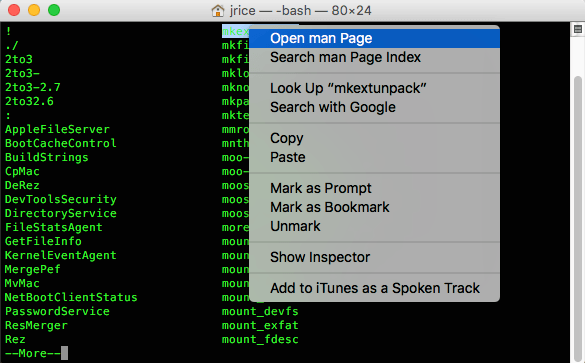
For those who are comfortable with a command line interface, the Terminal offers powerful ways to check for a virus on mac.
The command sudo lsof -i -n -P will list all open internet files and the processes that own them.
This gives you a clear view of which apps are talking to the internet at any given moment.
You can also use the ps -aux command to see a detailed list of every process running on the system.
This output includes the user who started the process, the CPU and memory usage, and the exact path to the executable file.
If you see a process running from a temporary folder or a hidden directory, it is worth investigating.
The command ls -la /Library/LaunchAgents will show you the hidden files in that directory with their full permissions and creation dates.
Check for files that were created recently if your problems started just a few days ago.
Another useful command is kextstat, which shows all loaded kernel extensions.
Kernel extensions have high level access to the system and are a prime target for sophisticated malware.
Apple is moving away from kexts in favor of system extensions, which are safer.
If you see an unsigned or unrecognized kernel extension, it is a significant security risk.
Using these tools requires caution, as typing the wrong command can delete data or crash the system.
However, for a professional, the Terminal is the fastest way to get an unfiltered view of system health.
You May Also Like:
- How to Scan Mac for Malware in Simple Secure Steps
- How to Scan for Viruses on Android and Avoid Future Security Risks
- How Good Is Windows Defender and Why Many Users Trust It
Frequently Asked Questions
Can a Mac get a virus from a website?
While a website itself cannot usually install a virus without your interaction, it can trigger a download of a malicious file or use a browser exploit to gain access. Most often, websites use social engineering to trick you into clicking a fake update or a security warning. To check for a virus on mac after visiting a suspicious site, you should clear your browser cache and check your extensions.
Does Activity Monitor show all viruses?
Activity Monitor shows every process that is currently using system resources, including hidden ones. If a virus is active, it will appear in this list, though it might be disguised with a name that looks like a legitimate system process. It is a very effective tool to check for a virus on mac if you know what to look for, such as high CPU usage or unrecognized developer names.
Is XProtect enough to keep me safe?
XProtect is a great baseline of defense and it is very good at blocking known, widespread Mac malware. However, it is not a complete security solution because it does not have the advanced heuristic analysis of dedicated security software. You should still manually check for a virus on mac periodically if you notice performance issues or strange browser behavior.
How do I remove a virus I found in a Library folder?
If you find a suspicious PLIST file in a LaunchAgents or LaunchDaemons folder, you can drag it to the Trash. You will likely need to enter your admin password. After moving the file, you should restart your Mac to ensure the process it was controlling is stopped. This is a common manual step used to check for a virus on mac and stop it from reloading after a reboot.
Why is my Mac fan so loud suddenly?
A loud fan usually means your CPU is working at maximum capacity, which generates heat. This can be caused by a legitimate task like video rendering, but it is also a classic sign of malware like a crypto miner. When the fan stays loud even when you aren’t doing anything, you should immediately check for a virus on mac using Activity Monitor.