

Skedda Log In
How to Skedda log in is the first thing you need to know to manage your space bookings.
This process is your gateway to reserving desks, rooms, or equipment, but sometimes it is not as straightforward as it should be.
Maybe you have forgotten your password, or your single sign on is not cooperating. This guide walks through every single method to access your Skedda account.
We will cover the standard email login, the faster SSO options, and what to do when things go wrong. You will learn how to get back in quickly, and how to stay in securely.
1. Accessing the Skedda Login Page
The first step is always finding the right door. The primary Skedda login page is located at skedda.com/login.
You can type this directly into your browser’s address bar.
Do not just search for “Skedda” on Google and click the first result, as that will take you to the marketing homepage. You need the specific login portal.
Many organizations use a custom branded portal for their Skedda login. In this case, your login URL will be different. It typically follows the format of yourorganization.skedda.com or a completely custom domain that your company has set up.
If you are unsure of your custom URL, your system administrator or the person who invited you to Skedda is the best source for this information.
They should have provided it in the initial invitation email.
Always double check that you are on the correct webpage before entering your credentials, as phishing sites can sometimes mimic login screens.
A quick look at the web address in the bar can save you a lot of trouble.
2. Logging In With Email and Password
This is the most common method for individual users.
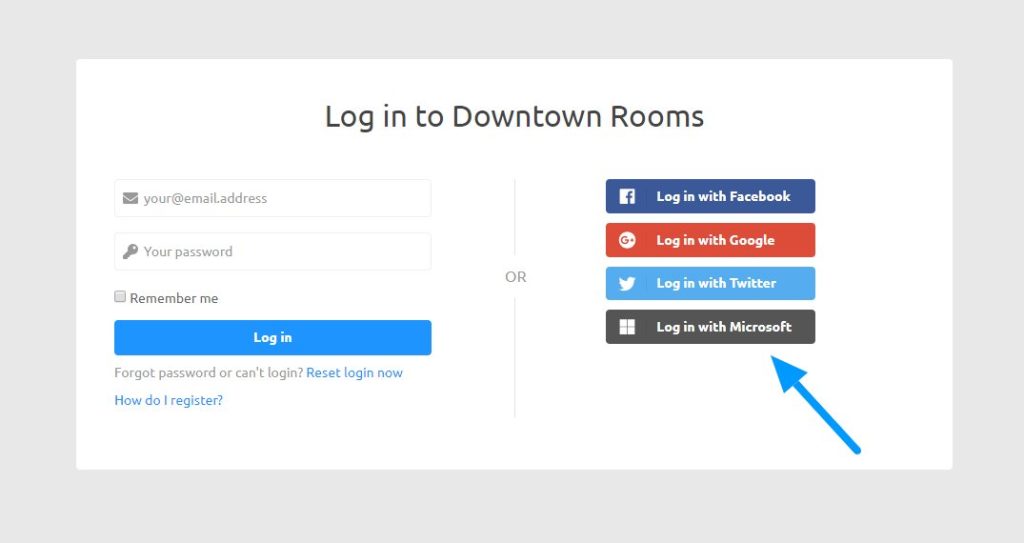
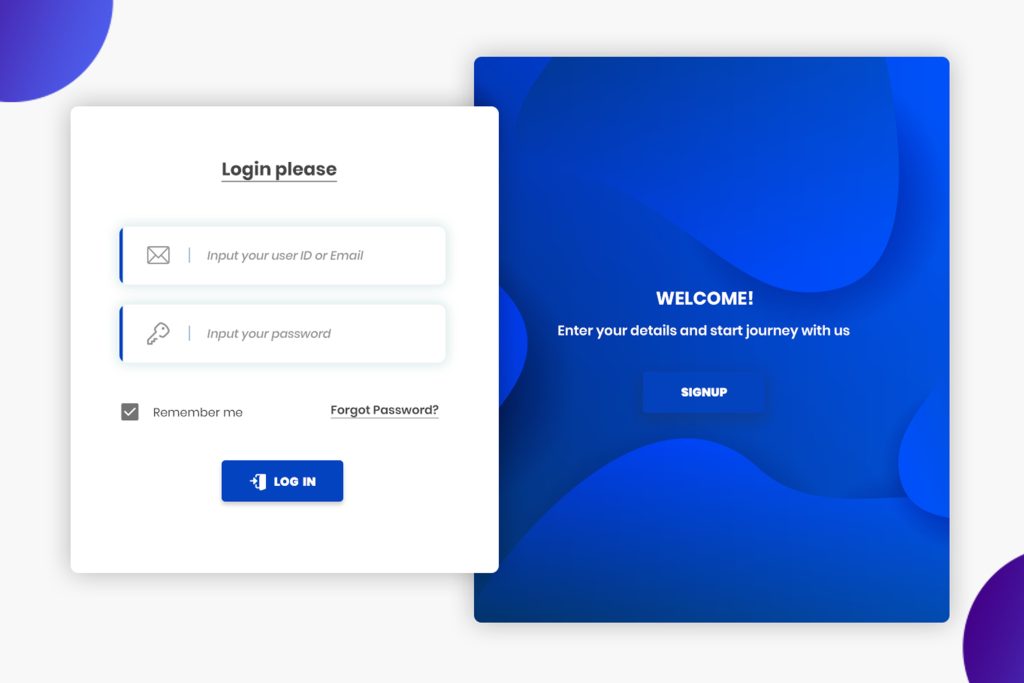
Once you are on the correct Skedda login page, you will see two main fields, one for your email address and one for your password.
You must enter the exact email address that is associated with your Skedda account.
This is not the place for typos. If you signed up with your.name@company.com, do not try to log in with yourname@company.com. The system sees those as two completely different accounts.
After typing your email, enter your password. Passwords are case sensitive. If your password is Booking2024, typing booking2024 will not work.
If you are on your own personal computer and you are the only person who uses it, you can check the “Remember me” box.
This will keep you logged in for a longer period, saving you time on future visits. However, never do this on a public or shared computer.
Once your credentials are entered, click the “Log in” button. The system will verify your details and, if they are correct, redirect you to your organization’s booking calendar or your personal dashboard. The whole process should only take a few seconds if your information is right.
3. Logging In With Microsoft or Google (SSO)
Single Sign On, or SSO, is a much faster and more secure way to handle your Skedda log in.
It allows you to use your existing Microsoft 365 or Google Workspace credentials to access Skedda without creating a separate password.
This is incredibly common in business environments. On the Skedda login page, you will see buttons labeled “Log in with Microsoft” or “Log in with Google.”
Do not enter your email and password in the standard fields if you use SSO. Clicking the correct button is crucial.
When you click, for example, “Log in with Microsoft,” a new pop up window from Microsoft itself will appear.
This is a secure authentication window. You will enter your organizational email and password into Microsoft’s site, not Skedda’s. This is a key security feature. Skedda never actually sees or handles your password.
Once Microsoft confirms your identity, it sends a secure token back to Skedda saying, “Yes, this person is who they claim to be,” and Skedda then lets you in.
If the pop up window does not appear, check your browser’s pop up blocker settings and allow pop ups for the Skedda site.
This method streamlines the process and enhances security by centralizing password management.
4. Resetting or Recovering Your Password
It happens to everyone. You draw a complete blank on your password. Do not panic, the process to reset it is simple.
On the Skedda login page, directly below the password field, you will find a link that says “Forgot your password?”.
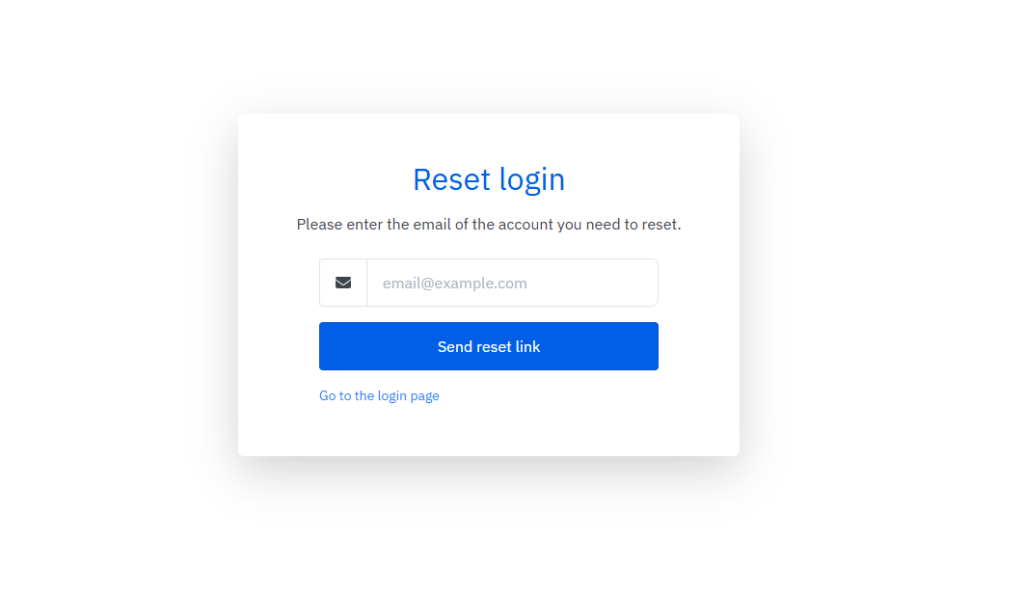
Click that link. You will be redirected to a new page that asks for the email address associated with your Skedda account.
Type it in carefully and click the “Send reset instructions” button.
Almost immediately, you should receive an email from Skedda, specifically from the address no-reply@skedda.com.
The subject line will be something like “Reset your Skedda password.” Sometimes this email can be mistakenly filtered into your spam or junk folder.
If you do not see it in your main inbox within five minutes, check those folders.
The email will contain a link to create a new password. This link is time sensitive, usually expiring after a few hours for security reasons.
Click the link, and you will be taken to a page where you can enter a new, strong password.
Once you confirm the new password, you can return to the main Skedda login page and use your email and the new password to access your account.
Remember, if you use SSO with Microsoft or Google, you cannot reset your password through Skedda. You would need to reset it through your Microsoft or Google admin portal.
5. Common Login Issues and Fixes
Sometimes, despite doing everything right, you still cannot get in. Here are the most frequent problems and how to solve them.
Incorrect Login URL
You are trying to log in at the main Skedda.com site instead of your organization’s custom portal. Solution, find and use the correct custom URL provided by your admin.
Wrong SSO Method
Your company uses Microsoft for email, but someone set up Skedda with Google SSO, or vice versa. You click the wrong button and it fails.
Solution, try the other SSO button. If you are unsure, ask your administrator which identity provider is configured.
Browser Cache and Cookies
Old or corrupted data stored in your web browser can interfere with the Skedda login process.
Solution, clear your browser’s cache and cookies for the Skedda site. Then, close the browser completely and reopen it to try again.
Popup Blockers
SSO login requires a pop up window to appear. If your browser is blocking pop ups, the login process will seem to stall.
Solution, allow pop ups for the Skedda domain in your browser settings.
Account Does Not Exist
You see an error message that says “An account for this email does not exist.”
This means the email you entered has not been invited or registered within that specific Skedda venue.
Solution, contact your Skedda administrator to ensure you have been invited and that the email address is correct.
CAPTCHA Failure
After several failed login attempts, Skedda might present a CAPTCHA challenge to ensure you are a human and not a bot.
If you fail this, or it does not load properly, you will be blocked.
Solution, carefully complete the CAPTCHA, or wait a few minutes for the security lock to clear before trying again.
6. Security Tips for Safe Access
Protecting your Skedda login is part of protecting your entire digital workspace.
First, use a strong, unique password for Skedda if you are not using SSO.
Do not reuse a password from another site. A strong password is long, uses a mix of upper and lowercase letters, numbers, and symbols.
Even better, use a passphrase, a sequence of random words that is easy for you to remember but hard for others to guess.
Enable two factor authentication, 2FA, if your organization has it available. This adds a second layer of security.
Even if someone steals your password, they cannot log in without also having your phone to approve the access request.
Always be wary of phishing emails that pretend to be from Skedda asking you to log in.
Check the sender’s email address carefully and never click on a login link in a suspicious email.
Go directly to the Skedda login page yourself by typing the known URL.
Finally, always log out when you are finished using Skedda on a shared or public computer. Simply closing the browser tab is not enough.
7. Logging Out Properly
Logging out is a critical security habit, especially on any computer that is not your own.
When you are done with your bookings, look for your profile icon or name in the top right corner of the Skedda interface. Click on it to open a small dropdown menu.
Within that menu, you will see the “Log out” option. Click it.
The system will immediately terminate your session and redirect you back to the public login page.
To confirm you are logged out, you can try to refresh the page or navigate back to the booking calendar. It should prompt you to log in again.
This ensures that the next person who uses that computer cannot access your account, see your booking history, or make changes posing as you.
It is a simple, one click step that protects your privacy and your organization’s data.
Conclusion
Knowing how to Skedda log in reliably is a small but essential skill for managing your shared spaces.
Whether you use an email and password, a convenient SSO provider, or need to recover your access, the process is designed to be straightforward once you know the steps.
The key takeaways are to always use the correct URL, understand your organization’s preferred login method, and never hesitate to use the password reset feature when needed.
By following these guidelines and adhering to basic security practices, you can ensure that accessing your booking system is a quick, secure, and painless task every single time.
You May Also Like:
- 4 Best Hot Desk Booking System – Tested and Reviewed in 2025
- Condeco Desk Booking Review: Features & Pricing Reviewed
- Skedda Review: 10 Powerful Reasons It Leads Workspaces
- 10 Point Envoy Review: Optimize Hybrid Work Efficiency
Frequently Asked Questions
What is the main Skedda login URL?
The primary login page is skedda.com/login. However, many organizations use a custom URL, which you should get from your administrator.
Why is my Microsoft login not working?
The most common reason is a pop up blocker. Ensure your browser allows pop ups from the Skedda site. Also, confirm your organization uses Microsoft and not Google for SSO.
I did not get a password reset email.
First, check your spam or junk mail folder for an email from no-reply@skedda.com. If it is not there, ensure you are typing the correct email address on the reset page.
Can I change my Skedda login email?
You cannot change it yourself. Your email address is your unique identifier. To change it, you need to contact your Skedda system administrator.
Is it safe to use “Log in with Google”?
Yes, it is very safe. This method, known as Single Sign On, is often more secure than a separate password because Skedda never handles your actual Google password.