

When you are trying to stream something, and the app decides to throw an error code or you get double billed, the last thing you want is a scavenger hunt just to talk to a person.
- 1. The Mandatory First Step
- 2. Prioritizing Live Chat Support
- 3. Using the Email Contact Form
- 4. What About Phone Support
- 5. Social Media as an Escalation Path
- 6. Billing and Third Party Subscriptions
- 7. Technical Troubleshooting Deep Dive
- Further Support Structure and Escalation
- 8. Understanding the Tier System
- 9. Logging Your Case IDs
- 10. The Special Case of Account Access
- 11. Subscription Through Third Party Devices
- 12. Utilizing External Consumer Resources
- 13. Understanding the Refund Policy
- 14. The Importance of Specificity
- 15. The Timing Advantage
- You May Also Like:
- Frequently Asked Questions
Figuring out how to contact Peacock TV customer service quickly is the whole game. Like most modern streaming services, they funnel everyone through automated help centers first.
The reality is that they want you to fix it yourself, and if you cannot, they want you to use the lowest cost channel for them, which is usually chat or email.
But for complex issues, you need to understand the fastest path to a live human and know the exact information to give them to avoid the runaround.
I’ll walk you through the system’s structure and the best way to navigate it to get your issue resolved.
1. The Mandatory First Step
Every time, absolutely every time, you must start with the Peacock Help Center. I know it is annoying, but skipping this step actually slows you down.
The system is designed to check if your issue is covered by an existing knowledge base article.
If you try to jump directly to a contact form without selecting a category first, the system gets confused and often puts you in a general queue that moves slowly.
Log in to your account and look for the Help or Contact Us link, which is usually at the bottom of the page or under your profile menu.
You will be presented with top categories: Account Management, Billing and Payments, Technical Issues, or Using Peacock.
Be precise and pick the category that most accurately describes your problem. If you have a billing problem, pick Billing. If the app keeps crashing, pick Technical.
Drill down through the subtopics. For instance, if you select Technical Issues, the first thing they will show you are troubleshooting guides: restart your device, check your connection, clear the cache. This is their Tier 0 support.
If those suggested fixes do not work, you must tell the interface, clearly, that the information did not resolve your issue.
Only then will the options for live contact channels start to appear. You have to exhaust the automated steps to unlock the actual support gates.
2. Prioritizing Live Chat Support
The single best and fastest way to get a resolution when trying to figure out how to contact Peacock TV customer service is through their Live Chat feature.
This is the channel with the best balance of speed and documentation.
When you are in the Help Center and have navigated past the automated articles, the Live Chat option typically surfaces around the bottom corner of the screen, sometimes labeled Chat with an Expert or something similar.
They usually operate within specific hours, often 9:00 AM to 1:00 AM ET, so check that window before you start.
Click that chat link immediately. Do not hesitate.
The initial interface will usually be a bot, the Peacock Helper Bot. Do not try to argue with the bot.
Respond with keywords or short, direct sentences like “Live Agent” or “Billing Dispute” to try and bypass the simple diagnostics and get routed to a human faster.
When the live agent finally connects, you need to be ready. Have your full name, the email address associated with your Peacock account, and a summary of the issue prepared.
Be clear and concise in your first message to the agent. Something like, “My account, email address X, has a duplicate charge of $7.99 from Tuesday, November 5th.
I need this refunded immediately.” Providing all the data upfront cuts the average interaction time significantly.
Remember, the chat creates a permanent, timestamped transcript. If the resolution falls apart later, you have documented proof of what was promised.
Always save or screenshot the final confirmation.
3. Using the Email Contact Form
Email is definitely the slowest path when you need to know how to contact Peacock TV customer service, but it is still a necessary option for two key reasons: complexity and attachments.
If your issue involves sending screenshots of the error code, pictures of your smart TV’s information screen, or a copy of your bank statement showing the erroneous charges, email is the right choice. It is also suitable for non urgent issues that require a paper trail.
Within the Contact Us section of the Help Center, you will find the option to Get in Touch or send a message. This takes you to a structured form, which is crucial.
Do not try to find a generic support email address and send a message there. Use the form provided on their website.
The form forces you to categorize the problem and attaches a system identifier to your case before it ever hits an agent’s queue. This pre categorization means it goes to the right team faster.
When writing your email, be professional and factual. Use bullet points or numbered lists to describe the sequence of events.
State your desired outcome clearly at the end. For example, “I expect a full refund of $7.99 for the unauthorized second charge.”
Expect a response time of anywhere from 24 to 72 hours. This is not a fast resolution channel, and you will need patience.
I only recommend this if chat is closed or if the documentation is absolutely required to prove your claim.
4. What About Phone Support
Many people immediately ask about a phone number when trying to figure out how to contact Peacock TV customer service.
The reality is that like many digital services, Peacock does not heavily promote a direct customer service phone line and prefers the lower cost digital channels.
The platform is designed for self service and chat first.
If you search around, you might find an old number, maybe one connected to their parent company, but relying on an unofficial, potentially outdated number is a gamble.
You risk getting routed to a different department, or worse, talking to a representative who cannot actually access your Peacock account data because they are in the wrong system.
The most reliable way to handle the phone issue is to stick to the digital channels.
If your issue is truly complex and requires voice interaction, use the chat feature to ask the agent if a callback can be arranged, or if there is a direct phone number for the specific department you need, such as Billing or Technical.
The agents in the chat have internal tools and escalation paths. If they determine the issue cannot be solved via chat, they are the ones who can arrange the next step, including a scheduled call from a Tier 2 specialist.
You have to go through the initial digital filter to get the human voice interaction.
5. Social Media as an Escalation Path
Social media is a tactical tool, not a primary contact method. It is a good option when you are stuck, maybe after two failed chat attempts, and you are starting to feel the frustration build.
Peacock maintains active support accounts on platforms like X, formerly Twitter, usually under a handle like @PeacockTVCare.
Companies monitor these public channels very closely because they are highly visible. An unresolved public complaint looks bad for their brand.
Do not post your account details, email address, or payment information publicly. That is a massive security risk.
Instead, post a short, polite, factual summary of your issue and tag the support account. Something like, “App is still showing Error 307 despite troubleshooting. Two chat attempts failed. Please assist.”
This almost always results in a fast response from the social media team asking you to move the conversation to a Direct Message (DM). This is exactly what you want.
The social media support teams often have greater leeway to escalate issues and they are measured on response speed.
They can sometimes cut through the red tape that binds the Tier 1 chat agents. Use this as a pressure valve when traditional routes are failing, but keep it professional.
6. Billing and Third Party Subscriptions
Billing is often the trickiest issue, mainly because of the third party subscription complexity. Many users do not subscribe to Peacock directly.
They subscribe through Apple TV, Roku, Google Play, Amazon Fire TV, or even a promotional offer with a cable provider.
Before you even attempt to contact Peacock TV customer service about a charge, you must confirm who is actually billing you.
You can usually find this information in the Plans & Payment section of your Peacock account.
If the bill shows up as a charge from Apple or Roku, Peacock agents cannot access that billing system, period. They are locked out.
Your only path is to contact the third party billing provider directly. You need to use the respective support channels for Apple or Roku to resolve that payment issue.
If the charge comes directly from Peacock, then you follow the standard chat or email process. For erroneous charges or disputes, be very precise with dates and amounts, and reference your bank statement.
Be aware of their refund policy, which is generally non refundable, reserving the right to issue refunds at their discretion.
This is standard for streaming, but it makes billing disputes challenging. You must prove the charge was a system error, not a simple change of mind about the service.
7. Technical Troubleshooting Deep Dive
For technical issues, the Tier 1 agents are trained to run through the most common fixes.
If you want to speed up your interaction, do the standard troubleshooting checklist before you even initiate the chat.
The agent will ask you to do it anyway, so you might as well save the time.
The basic checklist is this:
- Close and Relaunch: Completely close the Peacock application and any other background apps on your streaming device.
- Power Cycle: Fully restart the streaming device, whether it’s a smart TV, Roku stick, or game console. Unplug it, wait 20 seconds, and plug it back in. This often clears up temporary memory glitches.
- Internet Check: Verify your internet connection speed. Peacock requires a minimum stable bandwidth, and a slow connection will cause error codes that look like an app fault.
- Clear Cache/Data: Find the app settings on your device and clear the application cache and data. This logs you out but often resolves corrupted data files.
- Reinstall: The final step before contacting support is deleting the Peacock app entirely and reinstalling it from the device’s app store.
If you have done all five steps and the error persists, you can open the chat and immediately tell the agent, “I have completed all five troubleshooting steps, including a clean reinstall and power cycle, and I am still receiving Error Code 307 on my Roku Ultra.”
This instantly signals that you are an informed customer and usually gets you past the scripted responses to a Tier 2 agent much faster.
This systematic approach is how to contact Peacock TV customer service for technical problems without wasting half an hour on basic fixes you already tried.
Time is important, and you need to manage the agent’s time just as much as your own. You are providing them with the necessary technical data to start their advanced diagnosis.
Further Support Structure and Escalation
The structure of Peacock support is typical for a subscription service: high volume, low complexity, and a heavy reliance on automation.
The key to successful interaction is always knowing the next step, the level above the one you are currently interacting with.
8. Understanding the Tier System
Peacock’s support is tiered, even if they do not explicitly label it that way in the chat.
The people you first reach via Live Chat are typically Tier 1. They work from a manual, mostly handling account management, password resets, and basic billing questions.
If your issue is simple, they can close the ticket quickly.
If your issue is complex, like an unusual error code that requires a log file, or a billing dispute that is more complicated than a simple refund, you need to push for escalation.
Politely tell the Tier 1 agent, “Since the standard troubleshooting did not work, can you please submit a ticket to your advanced technical team for review?” or “I need to speak with a supervisor who can authorize this refund, as it seems to be a system error.”
Using precise language like “advanced technical team” or “supervisor authorization” shows you understand the process and often expedites the transfer.
The goal is to move your case from a simple support queue to an internal problem solving team. You have to be the one to drive that movement.
9. Logging Your Case IDs
When you are trying to figure out how to contact Peacock TV customer service for an ongoing issue, your greatest asset is your paper trail.
Do not rely on them to track everything perfectly across multiple interactions.
Every time you interact, whether by chat or email, ask for a Case ID or Reference Number. Write this number down immediately, along with the date and the name of the agent.
If you have to contact them again, your opening line should be, “I am following up on Case ID 45678, which was opened on Monday, regarding Error 307.
The agent at that time advised me that the technical team would look into it.”
This immediately changes the dynamic of the conversation. You are not starting a new problem; you are forcing them to look at an existing one.
It prevents you from wasting 15 minutes explaining the history of the issue to a brand new agent.
I have found that agents are much more helpful and attentive when they know you are tracking their performance and follow through on a documented case.
This is a crucial administrative step that most users overlook.
10. The Special Case of Account Access
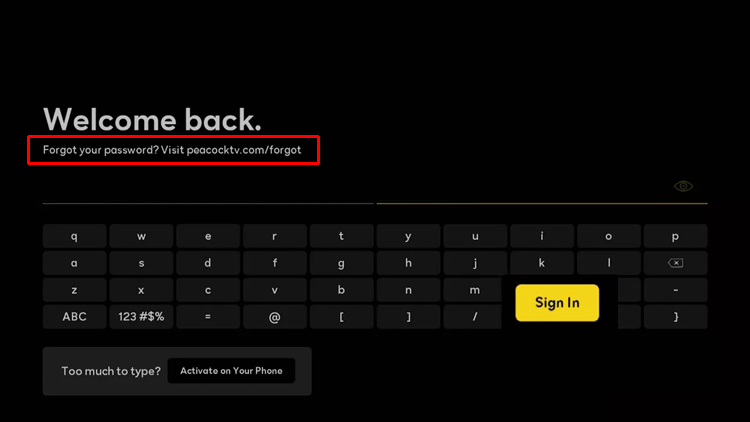
If you cannot log into your Peacock account, all the regular contact methods are compromised because they are designed to authenticate you first. This is a very specific challenge.
If you forgot your password, the standard Forgot Password link is your only real starting point. Make sure you check your spam folder for the reset email, as they often land there.
If the email address associated with the account is no longer accessible, that is a bigger problem.
You will likely need to use a general Contact Us form and state clearly that you cannot log in and cannot access the associated email.
You will need to provide as much identifying information as possible: the full name on the account, the last four digits of the credit card used for the subscription, the phone number, and any known order history. You need to prove ownership outside of the login credentials.
This specific type of request is often handled by a fraud prevention or account security team, which operates on its own schedule.
It requires patience and a complete, factual submission of all possible identifying data. This is a necessary detour in learning how to contact Peacock TV customer service.
11. Subscription Through Third Party Devices
There is a subtle but important difference in subscribing via Roku versus subscribing via a cable company, and it directly impacts how to contact Peacock TV customer service.
If you subscribed through a device platform like Roku, Apple, or Google, your billing is managed by them, as mentioned before.
If your subscription is bundled through a cable company like Xfinity, the service might be included as a promotional offer.
If you have a billing issue with a cable bundle, you must contact the cable company first. They are the ones who manage the eligibility and the link.
Peacock is just providing the content feed. The cable company is managing the authorization.
If the issue is technical, like the app not loading on your device, then you contact Peacock. If the issue is, “Why am I being charged $4.99 instead of getting it for free with my plan,” that is a question for the cable provider.
This confusion is common, and sorting out the correct payer is vital.
12. Utilizing External Consumer Resources
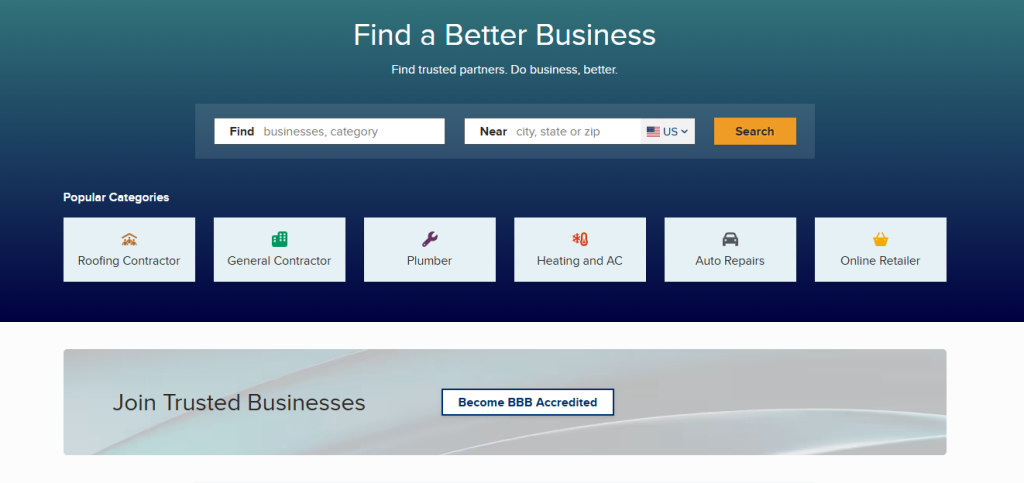
When internal support channels fail repeatedly, it is time to look outside the company’s ecosystem. This is for persistent, unresolved issues, not just a five minute delay in chat response.
Websites like the Better Business Bureau (BBB) or consumer advocacy groups maintain records of customer complaints and often provide a formal mechanism for resolution.
Filing a complaint with the BBB, for instance, sends a formal notice to the company’s corporate relations department.
This is a way to get your case reviewed by a higher level team that is focused on reputation management and regulatory compliance, not just daily ticket flow.
Similarly, if the issue involves potential fraud or major deceptive practices, contacting your state’s Attorney General’s office or a dedicated consumer protection agency is a serious escalation.
These external channels should be reserved for disputes involving significant money or continued poor service that is going unaddressed.
Do not use them for a simple password reset. They are the tactical nuclear option in the battle for customer satisfaction.
13. Understanding the Refund Policy
A key challenge when trying to figure out how to contact Peacock TV customer service for billing issues is understanding the refund policy.
Most streaming services are non refundable once the charge is processed.
Peacock’s policy states that charges are generally non refundable, but they reserve the right to issue refunds at their sole discretion.
This means you must frame your request not as a simple cancellation, but as a justified claim for a system error.
You have to prove:
- Duplicate Charge: The same subscription was billed twice on the same day.
- Unauthorized Charge: A charge occurred after you successfully cancelled the service.
- Technical Failure: The service was completely unusable for a long period due to a system fault on their end, not your internet.
If you are just cancelling because you watched everything, you are unlikely to get a refund for the current month.
If you can prove a technical or administrative error, your chances of getting the discretion used in your favor are much higher. You must provide the evidence to support your claim.
14. The Importance of Specificity

When you are in the chat, the agent is handling multiple conversations at once, and they are moving fast. You cannot afford to be vague.
Instead of saying, “My app is broken,” say, “The Peacock app crashes on my Samsung Smart TV, model UN55KU6300, immediately after trying to launch The Office episode six.”
Instead of saying, “I have a weird charge,” say, “I see a charge of $11.99 on my Visa ending in 4567 on November 8th, but my subscription is Premium Plus at $9.99.”
This level of detailed specificity cuts through the initial back and forth and allows the agent to pull up the exact error logs or billing data instantly.
It is about feeding the system the correct inputs to get the desired output.
Vague language is the enemy of fast customer service resolution, especially when learning how to contact Peacock TV customer service where the agents are heavily script dependent.
15. The Timing Advantage

Just like any call center, support for streaming services gets swamped at certain times. Being strategic about when you reach out can significantly reduce your wait time for a Live Chat agent.
The peak hours are typically weekday evenings, from about 6 PM to 10 PM ET, when most people get home from work and settle in to stream.
That is when the service gets the most use, and that is when the glitches and questions pile up.
The absolute best time to contact is generally mid morning on a weekday, like 10 AM to 1 PM ET, or very late at night, after 11 PM ET. The queues thin out considerably, and the agents are under less pressure.
If you try to chat at 8 PM on a Sunday night, expect a wait. If you try at 11 AM on a Tuesday, you will likely connect instantly.
A little tactical awareness goes a long way in managing your frustration level and getting a faster resolution.
You May Also Like:
- Definitive Guide | How to contact customer service Amazon
- Smart Powerful 7 Steps: Workflow Optimization Examples
- Simple Secure 5 Steps: GDPR Compliance for Small Business
Frequently Asked Questions
What is the fastest way to get help with account access?
The fastest way to get direct assistance for a login or account issue is to use the Live Chat option, which is available within the Peacock Help Center during operating hours. You should start the conversation by immediately stating that you cannot access your account and be prepared to provide identifying information like the email on file and the last four digits of the payment method to prove ownership. This is the quickest path to learning how to contact Peacock TV customer service for login issues.
Does Peacock TV have an official phone number for support?
Peacock TV primarily relies on digital channels like Live Chat and email support forms, which are accessible through their website’s Contact Us page. They do not widely publish a direct, primary customer service phone number. If a phone call is required, you should use the Live Chat feature to request a callback from a specialized Tier 2 agent.
How do I resolve a billing issue if I subscribed through Roku?
If you were charged through a third party like Roku or Apple, you must contact that third party’s customer support directly. Peacock TV agents cannot access or alter billing details managed by external payment processors. Check the Plans & Payment section of your Peacock account to confirm who is handling your subscription charges before reaching out.
What should I do before contacting support for a technical problem?
Before you initiate a chat to contact Peacock TV customer service for a technical issue, you should always complete the five key troubleshooting steps: close and relaunch the app, power cycle your streaming device, check your internet connection, clear the application cache and data, and finally, reinstall the app. Inform the agent immediately that you have completed this entire checklist.