

How to link Todoist to Google Calendar involves establishing a two way synchronization between your task manager and your digital schedule so that actions taken in one application reflect in the other.
- 1. Native Integration Basics
- 2. Setting Up Sync
- 3. Real Time Behavior
- 4. Troubleshooting Sync Delays
- 5. Time Blocking Strategies
- 6. Managing Recurring Tasks
- 7. Privacy and Sharing
- 8. Advanced Automation Options
- 9. Handling Multiple Accounts
- 10. The Mobile Experience
- 11. Long Term Maintenance
- You May Also Like:
- Frequently Asked Questions
This process allows you to visualize your deadlines alongside your appointments, creating a unified view of your time commitments.
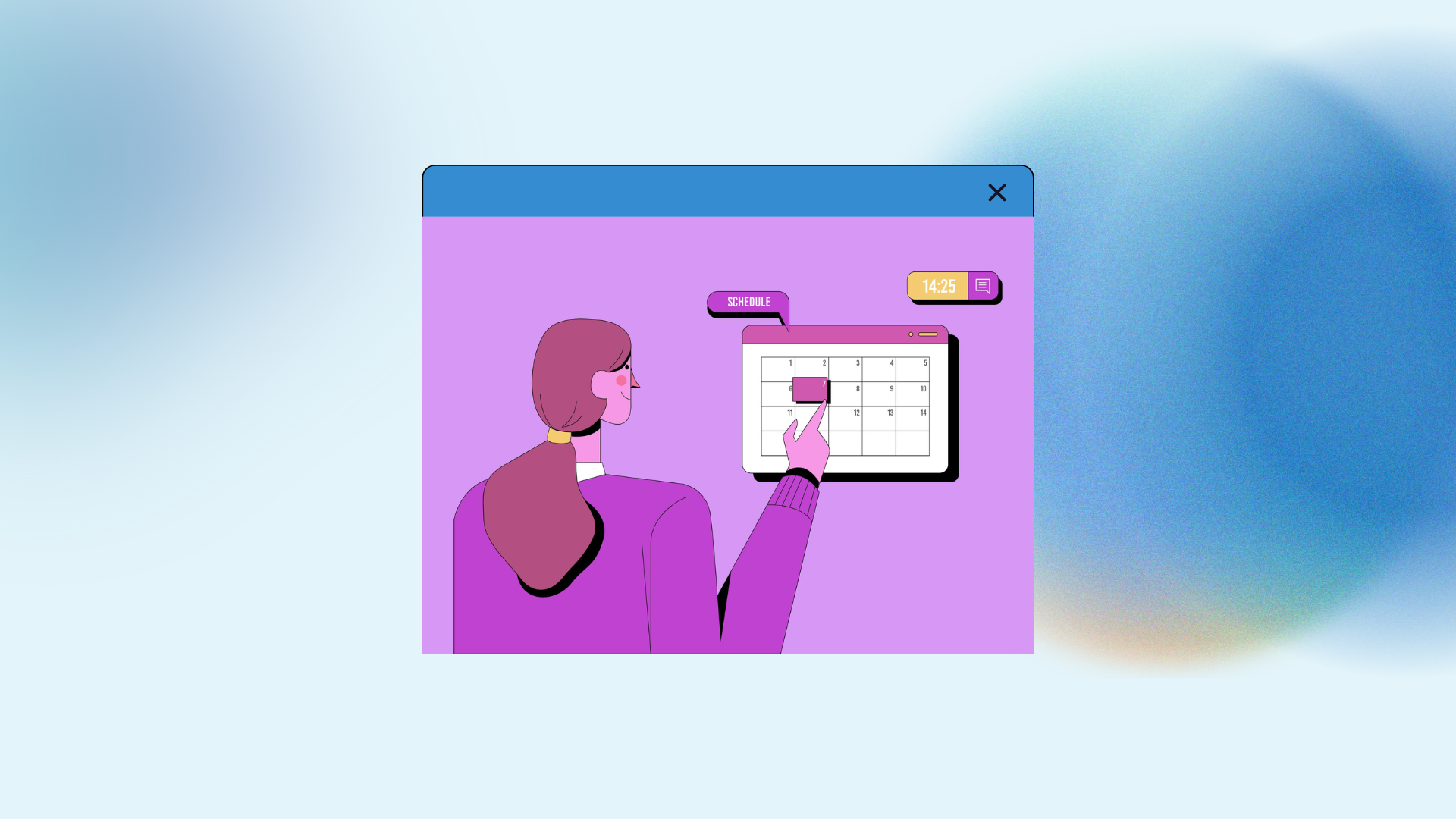
By connecting these platforms, a task with a specific due date and time in Todoist automatically appears as an event in Google Calendar, while moving or renaming that event in the calendar updates the corresponding task.
This integration is designed to reduce the friction of switching between apps and helps prevent overcommitment by showing exactly how much time your to do list requires.
1. Native Integration Basics
The most direct method to sync these tools is through the built in integration provided by the developers.
This is a real time connection that handles both existing and new tasks. When setting this up, you have to decide if you want to sync all projects or just a specific one.
I find that syncing everything can quickly clutter a calendar, making it difficult to see actual meetings. It is often better to create a specific project for time blocked tasks and only sync that one.
Once the connection is live, you can choose the duration of the events created from tasks. If a task doesn’t have a specific duration set, the system usually defaults to 60 minutes. You can also decide whether completed tasks stay on the calendar or vanish.
I prefer keeping them there because it provides a historical record of what I actually achieved during the day, which is helpful for weekly reviews.
2. Setting Up Sync
Getting the two platforms to talk to each other requires a few clicks in the settings menu. You need to be logged into both accounts on a desktop browser for the smoothest experience.
Step 1: Open the Todoist web app and click on your profile icon to access the Integrations tab in the settings.
Step 2: Find Google Calendar in the list of available services and select the option to Connect Calendar.
Step 3: Follow the Google OAuth prompts to grant permission for Todoist to view and edit your calendar events.
Step 4: Choose which calendar you want to link. You can create a brand new calendar specifically for tasks to keep them separate from your primary schedule.
Step 5: Configure your sync preferences, specifically choosing between All Projects or a Single Project, and deciding if you want tasks without a due time to be synced as all day events.
Step 6: Click Connect to finalize the link. Your tasks should begin appearing in your Google Calendar within a few seconds.
3. Real Time Behavior
The beauty of a two way sync is the fluidity it brings to a workday. If I am looking at my calendar and realize a meeting is going long, I can click and drag a task event to a later slot. That change flows back to Todoist instantly.
This prevents the dreaded situation where your task list says you should be doing one thing while your calendar shows you are busy with another.
There are some technicalities to keep in mind regarding labels and priorities. If you use certain syntax in Todoist, like duration brackets, the calendar reads those and adjusts the event length accordingly.
For example, adding [30m] to a task name tells the calendar to make that event thirty minutes long. This is a powerful way to manage deep work sessions without manually adjusting every event in the Google interface.
4. Troubleshooting Sync Delays
Sometimes the connection hangs, and you might notice that a task deleted in Todoist is still sitting on your calendar. Usually, this is a caching issue.
I have found that toggling the integration off and back on fixes most minor glitches. It is also important to check that you haven’t hit any API limits, though that is rare for individual users.
Another common issue arises when people use third party apps like Zapier or IFTTT alongside the native integration.
This can cause duplicate entries because two different systems are trying to create the same event. If you are using the official native link, you should disable any other automation recipes targeting the same calendar. Clean data is essential for a system you can actually trust.
5. Time Blocking Strategies
Using the calendar as a visual guide for your task list changes how you plan. When you see your tasks as physical blocks of time, you realize that a list of twenty items is physically impossible to complete in an eight hour window. This realization forces better prioritization.
I use the sync to see the white space in my day. If I see a two hour gap between meetings, I will go into Todoist and assign a high energy task to that specific time.
The moment I give it a time, it claims that territory on my Google Calendar, effectively protecting that time from being booked by someone else if I work in a collaborative environment.
6. Managing Recurring Tasks
Recurring tasks can be tricky in a sync environment. If you have a daily task to check email, Todoist handles the recurrence perfectly.
However, Google Calendar might only show the next upcoming instance depending on how the sync is configured.
When you complete a recurring task in the task manager, the event on the calendar for that day is marked as done or removed, and the next instance is created.
It is important not to delete the event on the calendar if you want the task to persist in Todoist. Deleting a calendar event that is synced will often delete the task entirely, which is a mistake that is hard to undo if you have a complex recurring schedule.
7. Privacy and Sharing
If you share your Google Calendar with a team or a partner, you need to be careful about what tasks are syncing. By default, anyone who can see your calendar might be able to see the titles of your tasks. If you have private reminders or sensitive work tasks, you should ensure they are synced to a private calendar or use a specific Todoist project that isn’t linked to the shared view.
You can also adjust the visibility settings within the integration setup. You can set the synced events to appear as “Busy” or “Private” to others while still seeing the details yourself.
This maintains your privacy while still letting colleagues know when you are unavailable for meetings because you are working through your to do list.
8. Advanced Automation Options
While the native integration is excellent, power users sometimes look for more granular control. Tools like Make or Zapier can allow you to filter which tasks get synced based on priority levels or specific labels. For instance, you could create a rule where only tasks with a “P1” priority and a “Calendar” label get moved to Google.
This prevents the calendar from becoming a dumping ground for minor chores. If I have a task to “Buy milk,” I don’t need that on my calendar.
I only want the big, time intensive projects that require dedicated focus. Custom automation allows for this level of filtration, though it requires more initial effort to set up than the standard toggle.
9. Handling Multiple Accounts
Many of us juggle a work Google account and a personal one. Todoist allows you to connect multiple Google Calendar integrations.
You can link your “Work” project to your corporate calendar and your “Personal” project to your private Gmail.
This keeps life separate but manageable within a single task interface. When I look at Todoist, I see the whole picture.
When my boss looks at my work calendar, they only see my professional commitments. It is a clean way to maintain boundaries while ensuring that a personal appointment doesn’t get scheduled over a major work deadline.
10. The Mobile Experience
Syncing becomes even more valuable on mobile devices. Both apps have high quality widgets for iOS and Android.
By linking the two, you can use a calendar widget on your home screen to see your tasks for the day without even opening the Todoist app.
The mobile sync is generally just as fast as the desktop version. If I add a task via voice command while driving, it hits the Todoist server, triggers the integration, and pops up on my calendar by the time I reach my destination.
This seamless flow is what makes a productivity system feel reliable. If there is a lag, it usually stems from the mobile device’s background refresh settings rather than the integration itself.
11. Long Term Maintenance
Every few months, it is worth reviewing your sync settings. As your workflow evolves, you might find that you no longer need certain projects on your calendar. I like to prune my integrations to keep things fast and focused.
Check for any broken links or unauthorized apps in your Google Security settings periodically. Since you are giving Todoist permission to edit your calendar, you want to ensure the connection remains secure.
If you ever change your Google password, you will likely need to re authorize the link to keep the sync active.
You May Also Like:
- How to Create a Personal Planner with 7 Brilliant Steps
- How to Upload File to Google Drive: 5 Fast Expert Ways
- How to Use Google Suite: 10 Best Productivity Secrets
Frequently Asked Questions
Fixing sync delays
Sync delays are often caused by API throttling or temporary server issues. Usually, waiting ten minutes resolves the problem. If it persists, try disconnecting the Google account within Todoist settings and reconnecting it. This forces a fresh handshake between the two platforms and usually clears any stuck tasks.
Syncing multiple calendars
Yes, you can connect multiple calendars to a single Todoist account. You can map different Todoist projects to different Google Calendars, which is ideal for separating work, home, and school schedules. Each connection can have its own unique settings for how tasks are displayed.
Tasks without times
Tasks that have a due date but no specific time will typically appear as all day events at the top of your Google Calendar. You can change this in the integration settings if you prefer them not to show up at all. Using all day events is a great way to keep track of deadlines that aren’t tied to a specific hour.
Deleting synced events
If you delete an event in Google Calendar that was created by Todoist, the corresponding task will also be deleted in Todoist. This is because the sync is two way. If you only want to remove it from your view without deleting the task, you should hide the specific task calendar in your Google settings instead of deleting the individual event.
Seeing completed tasks
In the integration settings, you can choose whether completed tasks remain on your calendar or are removed. Keeping them visible is useful for time tracking and productivity audits, as it shows you exactly when you finished a piece of work. If you prefer a clean calendar, set them to disappear upon completion.