


How to protect your phone from being hacked is no longer a niche concern for high value targets, it’s a standard operational requirement for anyone carrying a device connected to their bank accounts, their work network, and their entire personal life.
- 1. Hardening the Device Basics
- 2. Multi Factor Authentication
- 3. App Permissions Review
- 4. Network and Wi Fi Caution
- 5. Managing Updates and Software
- 6. Recognizing Phishing and Social Engineering
- 7. The Corporate and Travel Perimeter
- 8. App Acquisition and Sideloading
- 9. Password Management Strategy
- 10. Device Encryption Status
- 11. Security Audit and Clean Up
- 12. Advanced Threats: Zero Click Exploits
- 13. Setting Up Find My Device
- 14. The Principle of Least Privilege
- You May Also Like:
- Frequently Asked Questions
Mobile devices are the weakest point in most people’s security posture, a constant window into everything.
The device is always on, always connected, and always transmitting data.
The attack surface is huge, covering everything from sketchy apps on third party stores to sophisticated zero click exploits targeting vulnerabilities you don’t even know exist yet.
You must assume that your phone is a highly desirable target and operate with what we call a “zero trust” mindset toward every piece of software you install and every link you tap.
Your phone security relies less on magical software and more on relentless, consistent behavioral discipline.
1. Hardening the Device Basics
You have to start with the fundamental physical security of the device, the initial access point.
If someone can simply pick up your phone and unlock it, the rest of the security measures are almost irrelevant.
First, lock screen security is non negotiable.
Use the longest alphanumeric passcode the operating system allows, something genuinely complex, not a simple four or six digit PIN.
The biometric features, fingerprint or face ID, are great for speed and convenience, but they must be backed by that strong, complex passcode.
Remember, a simple PIN can be easily observed over your shoulder, a technique called shoulder surfing.
Next, you need to manage your screen lock timeout.
Set it to the absolute minimum, maybe 30 seconds, so the phone locks itself quickly when not in use.
Leaving your phone unlocked on a desk while you grab coffee is an invitation for someone to quickly install surveillance software or change your settings.
Also, be sure to disable any pre login access to features like Control Center on iOS or certain quick settings on Android.
This prevents someone from being able to switch on Airplane Mode or turn off Wi Fi without unlocking the device first, which could disrupt your ability to track it if it is lost or stolen.
These small, foundational steps are the first line of defense for how to protect your phone from being hacked.
The physical security is paramount.
2. Multi Factor Authentication
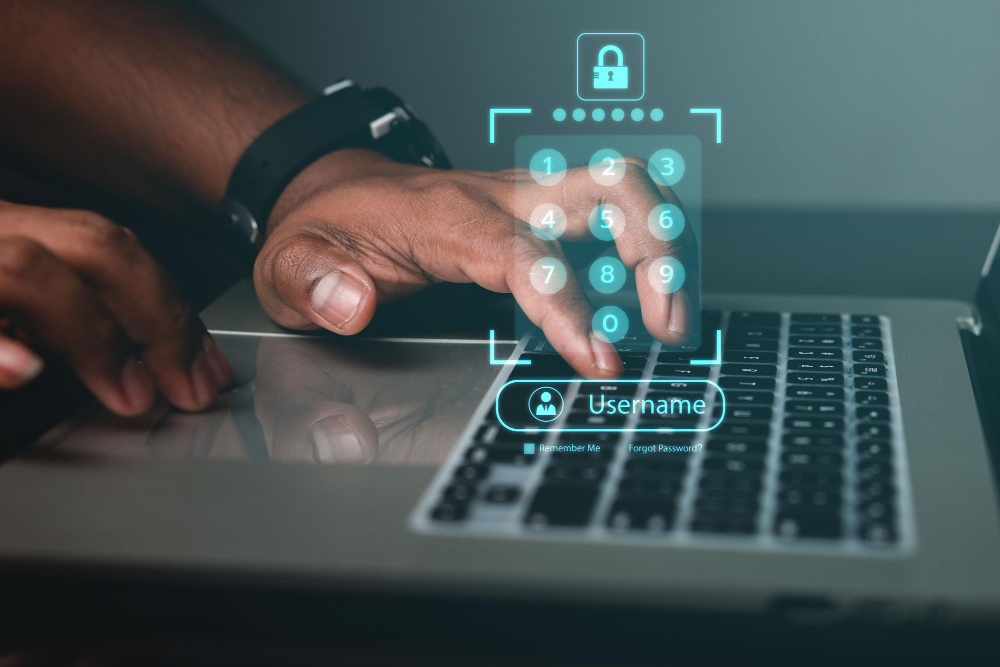
This is the single biggest security uplift you can implement for almost zero cost and minimal hassle.
Multi factor authentication, or MFA, takes your password, which is something you know, and adds something you have, which is your device.
But you have to be smart about how you implement it.
Avoid SMS based MFA wherever possible.
SMS is vulnerable to SIM swap attacks, where an attacker convinces your carrier to port your number to their device, intercepting your security codes.
The preferred method is using dedicated authenticator apps, like Google Authenticator or Authy.
These apps generate time sensitive, six digit codes that reside purely on your device, making them much harder to intercept.
Another robust option is using hardware security keys, like Yubikeys, which offer the strongest protection against phishing because the key physically verifies the website’s legitimacy before releasing the second factor.
Apply MFA to every critical account: email, banking, social media, and any service that links to financial data or sensitive personal information.
If an attacker manages to steal your password, MFA ensures they still hit a brick wall.
It is a simple process, but the security return on investment for MFA is enormous, absolutely enormous.
If you only implement one thing from this guide, make it this one.
3. App Permissions Review
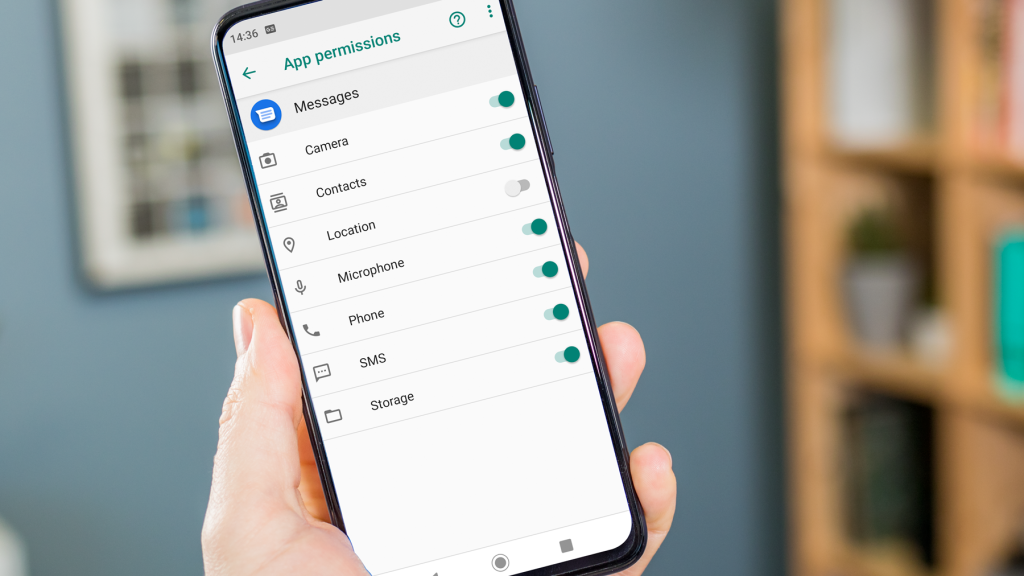
The apps you install are essentially small programs you trust with a piece of your phone’s functionality and data.
Most people blindly click “Accept” when an app asks for permissions, and that is a major security flaw.
You need to operate with extreme scrutiny over what each app is allowed to access.
Does a calculator app really need access to your location, your microphone, or your contacts list? Absolutely not.
Go into your device settings, look at the permissions granted to every single app, and revoke anything that isn’t strictly necessary for the app to function.
This is a continuous process, not a one time task.
Apps are constantly updating and often trying to sneak in new permissions.
Be particularly suspicious of apps asking for “Accessibility” access.
This specific permission is extremely powerful and can allow an app to read the contents of your screen, effectively acting as a keylogger or spy.
Only grant Accessibility to trusted, high utility apps, like a password manager.
This scrutiny helps protect your phone from being hacked through malicious or even overly invasive legitimate software that can be exploited later.
If an app feels grabby with data, it is best to simply delete it.
4. Network and Wi Fi Caution

Your phone is constantly looking for networks, and this is a primary vector for opportunistic attackers.
Avoid using public, open Wi Fi networks for anything sensitive.
Never log into your bank, check work email, or do any financial transactions while sitting in a coffee shop using their free Wi Fi.
These networks are often unencrypted and are perfect hunting grounds for “man in the middle” attacks, where an attacker intercepts your data as it travels between your phone and the network router.
If you absolutely must use public Wi Fi, run a quality Virtual Private Network, a VPN, on your phone.
A VPN encrypts all your traffic before it leaves your device, making it much harder for someone on the same network to snoop on what you are doing.
Another crucial setting: turn off automatic joining of Wi Fi networks.
If your phone automatically connects to every known network, it can inadvertently connect to a malicious network set up by an attacker, often named something generic like “Free Public Wi Fi.”
Also, when you are not actively using Bluetooth, turn it off.
Bluetooth vulnerabilities are regularly discovered and the risk of unauthorized connections, even if low, is unnecessary when the function is dormant.
Be paranoid about connections, I mean that seriously.
5. Managing Updates and Software

One of the easiest ways for an attacker to gain a foothold is by exploiting a known, unpatched vulnerability in your operating system or in an application.
The software vendor releases a patch, an update, but if you don’t install it, you are sitting there exposed with a widely known flaw.
You must, must, must keep your operating system updated.
Enable automatic updates for both your OS and all your applications.
Don’t ignore those notifications, those are fixes for critical security holes.
The minute an update is released, security researchers publish details about the vulnerability it fixes, essentially handing an attacker the roadmap to exploit unpatched phones.
Older devices that no longer receive security updates from the manufacturer are inherently insecure and need to be replaced.
Once a device reaches “end of life,” you are running on borrowed time, exposed to every new zero day that is discovered.
If you are worried about how to protect your phone from being hacked, running outdated software is the equivalent of leaving the front door wide open.
This is tedious, I know, but it is entirely necessary.
6. Recognizing Phishing and Social Engineering

Technical defenses, the software and the MFA, can only take you so far.
The human element is the easiest to exploit, and this is primarily done through phishing and social engineering.
Phishing attacks are getting ridiculously sophisticated.
They no longer look like generic emails from Nigerian princes.
They look like texts from your bank, an urgent email from your CEO, or a notification about a package delivery.
Always be wary of unsolicited links or requests for information, especially those that trigger a sense of urgency, excitement, or panic.
Never, ever enter your password or financial details after clicking a link in a text message or email.
If you get a notification that seems legitimate, close the message and navigate directly to the official website or app yourself.
Do not use the provided link.
Another vector is Smishing, which is phishing via SMS.
These texts often contain links that install malware or take you to a malicious site.
If you don’t recognize the sender, delete the message.
The attacker’s goal is to bypass all your technical defenses by manipulating you, the person holding the phone, into giving up the keys.
This requires constant vigilance and a healthy skepticism toward everything you receive digitally.
7. The Corporate and Travel Perimeter
If your phone is connected to a corporate network, you have additional responsibilities and risks.
Many companies require you to install Mobile Device Management, or MDM, software.
This software allows the IT department to enforce security policies, such as the minimum passcode length or the requirement for encryption.
While it can feel intrusive, it is a crucial security layer for protecting corporate assets.
When traveling, especially internationally, the risk profile changes dramatically.
Be aware of “juice jacking,” where public charging stations, like those at airports, are rigged to install malware or steal data while you charge.
Never use an unknown public charging port.
Always carry your own charging brick or battery pack, or use a “USB condom,” which is a small adaptor that only allows power transfer, blocking data transfer.
I once saw a colleague’s phone wiped clean because they used an unsecured airport kiosk to top up their battery, the stress was immediate and severe.
Also, be cautious about border crossings.
In some jurisdictions, border agents have the right to request access to your device.
If you carry highly sensitive data, consider leaving the device at home or using a “burner” phone with minimal data during the trip.
Protecting your phone from being hacked means thinking about the physical world too, not just the digital one.
The perimeter of risk extends far beyond your home network.
8. App Acquisition and Sideloading
The official app stores, Apple’s App Store and Google’s Play Store, are not perfect, but they offer the strongest guarantee of vetting for applications.
They act as a necessary gatekeeper, inspecting code for known malware and policy violations.
The practice of “sideloading,” installing apps from outside the official stores, dramatically increases your exposure to risk.
These apps bypass the security checks entirely.
Sideloading is a common method for distributing spyware, keyloggers, and banking Trojans.
Unless you are a developer testing your own code, or your company requires a proprietary in house app, avoid sideloading completely.
For Android users, you should disable the “Install unknown apps” permission for all your browsers and file managers.
This prevents a drive by download from automatically installing software on your device.
It is a simple toggle in the security settings, but it provides a critical defense against one of the oldest attack vectors.
Always verify the legitimacy of the application developer before downloading, even from the official store.
Look at the total number of downloads, the quality of the reviews, and the last update date.
If an app from a generic, unknown developer has low download numbers but asks for access to your camera and contacts, skip it.
It’s just not worth the risk if you want to know how to protect your phone from being hacked.
9. Password Management Strategy
A major vulnerability in mobile security is the reuse of weak or identical passwords across multiple services.
If an attacker compromises a small, non critical service, they immediately have the password to your email, bank, and social media accounts.
The fix is a dedicated password manager application.
These apps, such as 1Password or LastPass, create and store strong, unique passwords for every single service.
The password manager is locked behind one strong master password and often requires MFA for access.
This means you only need to remember one extremely complex password, and the app handles the rest.
Using a password manager is far superior to trying to remember a dozen complex, unique passwords, which nobody can truly do.
Many modern password managers also offer built in monitoring, alerting you if one of your passwords has appeared in a known data breach.
This gives you a chance to change the compromised password before an attacker can use it.
Treat your master password like the key to your digital life; it should be long, random, and never written down.
10. Device Encryption Status
Modern mobile operating systems, both iOS and Android, encrypt your data by default, provided you have a screen lock passcode set.
This is a huge security advancement.
If your phone is lost or stolen, the encryption ensures that the data on the device is unreadable to anyone who can’t enter your passcode.
An attacker cannot simply remove the storage chip and read the data directly.
For Android devices, you need to verify that encryption is enabled and enforced.
For older devices or custom ROMs, sometimes the encryption can be disabled.
If you don’t use a passcode, the device isn’t encrypted, or the encryption key is too weak, and the data is exposed.
The act of setting a strong lock screen passcode ties directly to the effectiveness of the encryption layer.
The two are inextricably linked.
If you feel your phone is acting sluggish or hot, it might be running background processes, which is one of the signs of potential compromise.
But the first, simplest defense against physical compromise is that robust, modern encryption, which is enabled by your passcode.
11. Security Audit and Clean Up
You need to schedule a regular, maybe quarterly, security audit of your device.
This isn’t about running antivirus software, though that can be useful on Android.
It’s about a manual, deep dive into the settings and behaviors.
First, check the list of installed applications.
Delete anything you haven’t used in the last month.
Every unused app is a potential attack vector, a piece of old code that could be exploited.
Second, review your privacy permissions again, looking for any recent changes or newly installed apps with excessive access.
Third, look at your usage data.
Is your battery draining far faster than it should? Is your device getting unusually warm when not under load? Are you seeing unexpected increases in data usage?
These are all classic signs of covert surveillance software running in the background, consuming resources while uploading data.
For iOS users, also check for configuration profiles.
If a configuration profile has been installed without your knowledge, it can give an attacker significant control over your device settings and traffic.
If you suspect compromise, a full factory reset is often the only truly reliable remediation, a drastic but sometimes necessary step to protect your data.
12. Advanced Threats: Zero Click Exploits

You need to understand that the threat landscape is evolving beyond simple phishing.
There are now “zero click” exploits.
These are highly sophisticated attacks that require absolutely no action from the user.
You don’t have to tap a link or download a file.
The attack happens entirely in the background, often through receiving a specially crafted message or call that you don’t even need to open.
These are usually targeted at high value individuals, but the exploit methods eventually leak down to less sophisticated actors.
The defense against a zero click exploit is difficult, as it targets flaws in the operating system’s core code.
The only real defense against these advanced threats is keeping your operating system current, religiously.
When Apple or Google issue a security update, it often contains patches for these invisible, zero click flaws.
Running an old OS means running with known, critical vulnerabilities that can be exploited entirely silently.
The risk of a zero click is precisely why the mantra of “update, update, update” is so crucial for how to protect your phone from being hacked.
13. Setting Up Find My Device
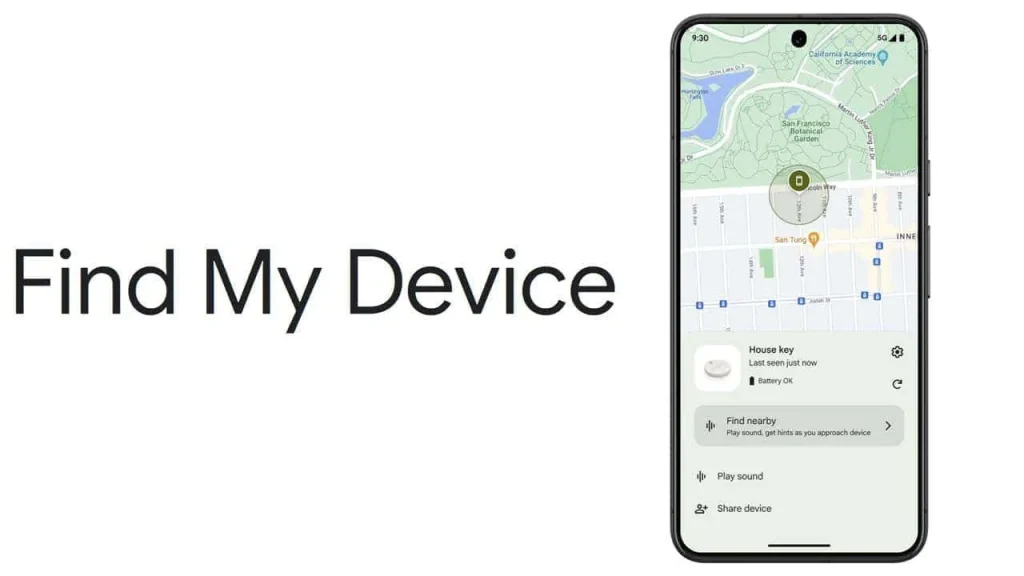
If your phone is lost or stolen, the immediate concern is not the theft of the hardware, but the immediate access to the data.
Both iOS and Android have “Find My Device” features that need to be fully enabled and configured before an incident occurs.
This allows you to remotely locate the device, lock it with a message, or, critically, remotely wipe the data.
The ability to wipe your phone from a separate computer or trusted device is the ultimate failsafe.
It destroys the data before the attacker can access it.
You should test this feature periodically to ensure you remember how to use it and that it is fully operational.
Furthermore, set up your device to display a contact number on the lock screen if it is lost.
This gives an honest finder a way to return the phone without having to bypass your security.
A little bit of preparation now saves massive heartache and data exposure later.
14. The Principle of Least Privilege
This is a core security principle that applies perfectly to mobile use.
The principle of least privilege means that you should only grant the necessary permissions for an application or a user to perform its intended function, and nothing more.
In practice, this means being ruthless with every permission request.
If a messenger app asks for permanent background access to your location, ask why.
If a service offers a login via Google or Facebook, but then requests permission to post on your behalf, deny it.
The more privileges you grant, the more pathways an attacker has to move laterally from one compromised app to critical data.
Review your connected accounts in the security settings of your Google or Apple profile.
See what third party services you have granted access to your email, drive, or calendar data.
You will likely find dozens of old, unused services that still have full read and write access to your most sensitive cloud data.
Revoke access for anything you don’t actively use.
This practice, while tedious, significantly reduces the blast radius of any successful intrusion.
It’s a foundational step in truly understanding how to protect your phone from being hacked.
You May Also Like:
- AVG Antivirus Review 2026 – Features, Pricing & Verdict
- Malwarebytes Review 2026 – Features, Pricing & Verdict
- Bitdefender Mac Review 2026 – Features, Pricing & Verdict
- Bitdefender Review 2026 – Features, Pricing & Verdict
Frequently Asked Questions
What are the earliest signs of a hacked phone?
The earliest signs of a hacked phone often include rapid, unexplained battery drain, the device running noticeably hot when not under heavy load, unexpected spikes in data usage, and applications crashing frequently or behaving erratically. You might also notice calls or texts that you don’t remember sending.
Does turning off my phone prevent hacking?
Turning off your phone will stop active remote access and malware processes from running, providing temporary protection. However, sophisticated zero click exploits can sometimes persist or reactivate upon startup. The key to long term safety is always installing all available software security updates.
Should I use antivirus apps on my phone?
On iOS, due to the closed nature of the operating system, traditional antivirus software is generally unnecessary. On Android, using a reputable antivirus app from a known vendor can provide an extra layer of defense against sideloaded malware and malicious links, but it does not replace the need for strong MFA and good user habits.
What is the simplest way how to protect your phone from being hacked?
The simplest and most effective way how to protect your phone from being hacked is to enable Multi Factor Authentication, or MFA, on every critical account. This simple step renders stolen passwords useless to attackers and blocks the majority of basic credential theft attacks.
Is public Wi Fi safe for my banking apps?
No, public Wi Fi is generally not safe for banking or any sensitive transactions because the connection often lacks encryption, making it vulnerable to “man in the middle” data interception. If you must use public Wi Fi, always connect through a paid, high quality Virtual Private Network, a VPN, to encrypt your data.