

Learning how to use Zoho CRM effectively starts with looking at how customer data flows through a typical sales cycle.
- 1. Organizing Your Data
- 2. Managing the Lead Lifecycle
- 3. Mastering Sales Automation
- 4. Email Integration and Tracking
- 5. Working with Deals and Pipelines
- 6. Utilizing Reports and Dashboards
- 7. Mobile and External Access
- Setting Up Security and Roles
- Cleaning and Maintenance Tasks
- Integrating with the Zoho Ecosystem
- Customizing the User Experience
- You May Also Like:
- Frequently Asked Questions
This software is built to handle the heavy lifting of lead organization and contact management, but its real value shows up when you configure the automation rules to match your specific daily operations.
Setting up the system properly means more than just importing a spreadsheet of names. It requires a clear understanding of modules, custom fields, and the way records transition from a lead state to a closed deal.
By following a structured approach to the interface, you can reduce manual entry and focus on actual sales conversations.
1. Organizing Your Data
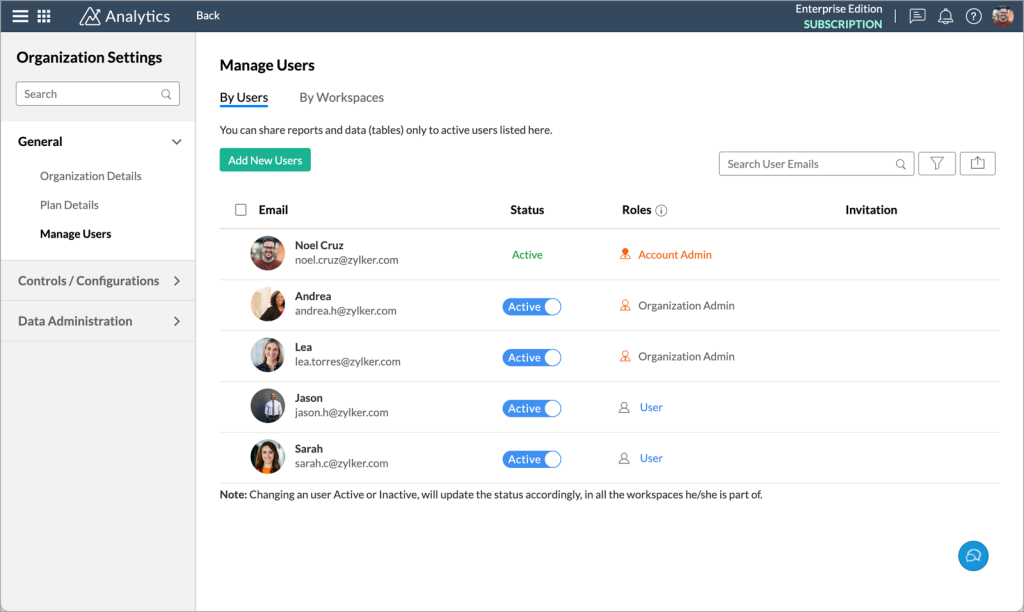
The first thing I do when I open a new account is look at the modules. Zoho comes with standard ones like Leads, Accounts, Contacts, and Deals.
It is easy to get these mixed up. Leads are your raw, unverified people. Contacts are people you actually know. Accounts are the companies they work for.
Keeping these separate is how to use Zoho CRM without creating a mess of duplicate data.
I often find that people skip the mapping part of the setup. When you convert a lead, you need to be sure the data moves to the right place.
If you have a custom field for a lead’s favorite color, that field needs to exist in the Contact module too.
Otherwise, that information just disappears during the conversion. It is frustrating to lose data because of a simple mapping oversight.
Custom fields are where the personalization happens. Standard fields like phone number and email are fine. However, you probably need fields for industry specific details.
Maybe you need to track a specific license number or a renewal date. Adding these early prevents you from having to go back and edit thousands of records later.
I suggest keeping the layouts clean. If you do not use the Twitter or Skype fields, hide them. A cluttered screen makes the team slower.
Focus on the information that actually helps you make a phone call or send an email. The less noise there is on the page, the better the adoption rate will be among your staff.
2. Managing the Lead Lifecycle
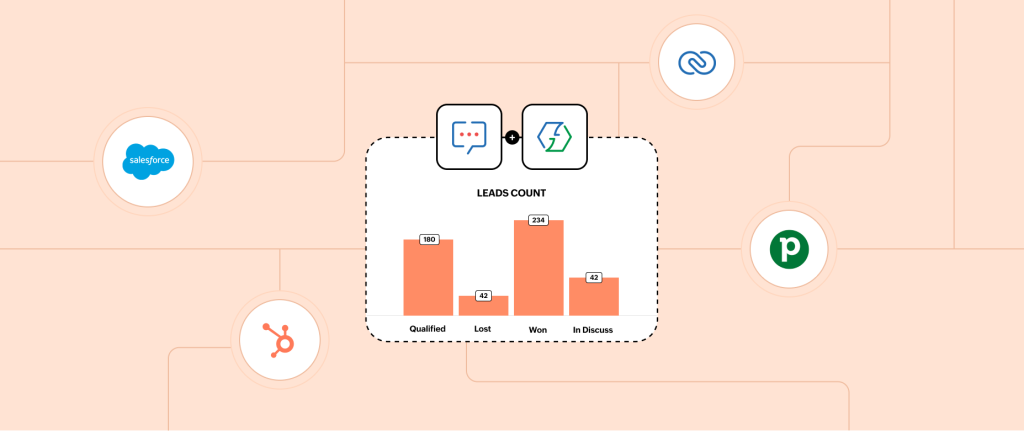
Moving a lead through the pipeline is a manual chore if you do not use the status field correctly. The status should tell you exactly where that person sits in your world.
Are they attempted to contact? Are they qualified? Are they junk? Using these labels consistently is how to use Zoho CRM to forecast your future revenue.
I like to use the Canvas builder for certain views. It makes the data look less like a spreadsheet and more like a profile.
This helps when you are on a call and need to see the most important notes quickly. Scanning a wall of text for a specific detail is a waste of time. Good design in a CRM is about speed, not just looks.
Lead assignment rules are a lifesaver. Instead of one person manually handing out names, the system can do it. You can set it up by territory, by industry, or just a simple round robin.
This ensures no lead sits in the inbox for three days because someone was on vacation. Speed to lead is usually the difference between a win and a loss.
Scoring rules are another layer to consider. You can tell Zoho to add points when someone opens an email or visits your website.
This helps you prioritize who to call first in the morning. If someone has a score of 100, they are clearly more interested than someone with a score of zero. It takes the guesswork out of your daily to-do list.
3. Mastering Sales Automation
Automation is where most people get stuck because they try to do too much at once. Start with the workflow rules.
A simple one is sending an email notification when a big deal is closed. Or, you can set a task for a salesperson to follow up three days after a quote is sent. These small nudges keep the momentum going without you having to remember every detail.
I have spent a lot of time in the Blueprint section. A Blueprint forces people to follow a specific path. For example, you cannot move a deal to “Closed Won” unless a contract is attached.
This creates a standardized process across the entire company. It prevents the sales team from skipping steps or entering incomplete data.
Macros are great for repetitive actions. If you find yourself sending the same three emails and updating the same field every day, make a macro.
You click one button, and Zoho performs all those actions at once. It might only save you thirty seconds per record, but that adds up over a month. Efficiency is built on these small time savings.
Webhooks and functions are for the more advanced users. They allow Zoho to talk to other software that might not have a direct integration.
I use these to send data to accounting software or custom internal databases. It requires a bit of coding knowledge, usually Deluge, but it makes the CRM the center of all your digital tools.
4. Email Integration and Tracking
Connecting your email provider is a non-negotiable step. Whether you use Gmail or Outlook, you want those emails to show up inside the CRM record.
This way, anyone on the team can see the latest communication. You do not have to ask your colleague what was discussed; you just look at the timeline. This transparency is a massive benefit for customer support teams too.
Email templates are often underutilized. I do not mean the fancy HTML ones that look like newsletters.
I mean simple, text-based templates for common questions. Using these ensures your brand voice stays consistent. It also allows you to track which templates are getting the best open and response rates.
Mail Merge is another powerful feature. If you need to send a personalized letter or a contract to a customer, Mail Merge pulls the data directly from the record.
It saves you from typing out names and addresses manually. You can even use it with Zoho Sign to get digital signatures handled instantly.
- Integrate your IMAP or POP3 account immediately.
- Set up sharing permissions so the right people see the right emails.
- Use the “Wait” feature in sequences to space out follow-ups.
- Track link clicks to see what content interests your leads.
5. Working with Deals and Pipelines
The Deals module is where the money is tracked. A deal represents a specific sales opportunity. It is different from a contact because you might have five deals with one contact over several years. Understanding this distinction is how to use Zoho CRM to track your historical growth.
I suggest customizing your pipeline stages. The default stages are often too generic. Your business might have stages like “Site Visit,” “Technical Review,” or “Legal Approval.” Make sure the stages reflect your actual reality. If the CRM stages don’t match your real-world process, nobody will use them.
The Kanban view is my favorite way to look at deals. It lets you drag and drop deals from one stage to another. It gives a visual sense of where your bottlenecks are.
If you see fifty deals stuck in the “Negotiation” stage, you know where to focus your coaching efforts for the week.
Expected revenue is a field that many people ignore. It multiplies the deal value by the probability of the stage.
This gives you a much more realistic view of your coming month than just looking at the total pipeline. It helps with budgeting and setting expectations with the leadership team.
6. Utilizing Reports and Dashboards
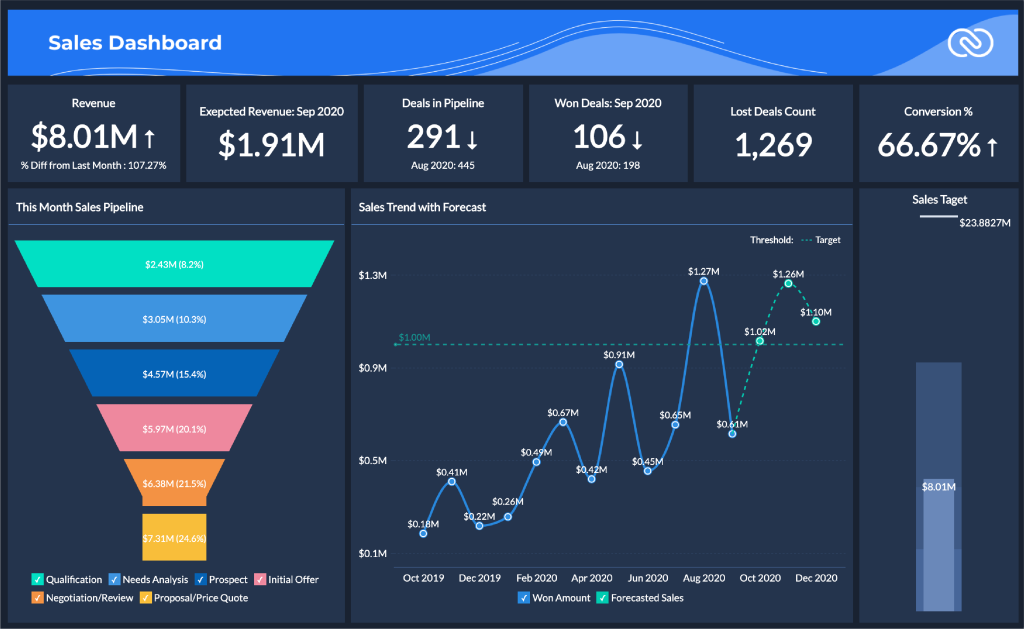
Data is useless if you cannot read it. Zoho’s reporting tool is quite deep, but it can be intimidating. I always start with a few basic reports: Lead source by month.
Sales by person. Average time to close a deal. These three give you a very clear picture of the health of the business.
Dashboards are the visual version of these reports. You can pin them to your home screen so they are the first thing you see.
I like to have a chart showing the “Sales Gap.” This shows the difference between where you are today and where your monthly goal is. It keeps the team motivated and focused on the target.
Advanced Analytics is a separate add-on, but it is worth it for big data. It allows you to do cross-functional reporting.
For example, you can compare your CRM sales data with your Google Ads spend. This shows you exactly how much it costs you to acquire a customer. Without this, you are just guessing which marketing channels actually work.
- Schedule reports to be emailed to you every Monday morning.
- Use the “Anomalies” detector to find weird spikes in data.
- Group reports by “User” to see individual performance.
- Export raw data to Excel only when you need to do heavy cleaning.
7. Mobile and External Access
The Zoho CRM mobile app is surprisingly capable. It is not just a read-only version of the desktop site.
You can log calls, add notes via voice-to-text, and even check into a client’s location. For people who are out in the field, this is how to use Zoho CRM to stay updated without carrying a laptop.
The check-in feature is particularly useful for managers. It creates a geocoded timestamp when a salesperson arrives at a meeting. It is a simple way to verify that meetings are actually happening. It also allows the salesperson to quickly find nearby clients if a meeting gets canceled.
Portals are a way to give your customers access to their own data. They can log in and see the status of their deals or projects.
It reduces the number of “status update” emails you have to answer. However, you have to be careful with what fields you make visible. You do not want a customer seeing your internal profit margin notes.
Zia, the AI assistant, is also available on mobile. You can ask her things like “Show me my deals closing this month.” It is a bit faster than clicking through menus when you are on the go.
The more data you feed the system, the smarter Zia becomes at predicting which deals are likely to fail.
Setting Up Security and Roles
Security is often an afterthought until something goes wrong. You need to define who can see what. In Zoho, this is handled through Roles and Profiles.
Roles define the hierarchy (who reports to whom). Profiles define the permissions (who can delete, edit, or view).
I always suggest turning off the “Export” permission for most users. You do not want a disgruntled employee downloading your entire client list on their last day.
Keep that power limited to the owners or trusted managers. It is a simple step that protects your most valuable asset.
Two-factor authentication is a must. With so much customer data in one place, a leaked password can be a disaster.
Make sure everyone on the team has 2FA enabled. It is a minor inconvenience that prevents a massive security breach.
Field-level security is also an option. Maybe you want everyone to see a contact’s name, but only the accounting team should see their credit limit.
You can hide specific fields from certain profiles. This keeps the UI clean for the users and keeps sensitive data private.
Cleaning and Maintenance Tasks
A CRM gets dirty over time. People enter “Apple Inc” and “Apple, Inc.” and “Apple.” The deduplication tool in Zoho is your best friend. Run it once a month to merge these records. It keeps your data clean and prevents multiple salespeople from calling the same company.
Mass updates are useful when things change. If a salesperson leaves, you can mass update all their leads to a new owner.
Or, if you change the name of a product, you can update it across all deals at once. Just be very careful with this tool; one wrong click can change thousands of records in a way that is hard to undo.
Data backup should be automated. Zoho allows you to schedule a full data export twice a month for free (on most plans). Download these files and keep them in a secure cloud storage.
If you ever accidentally delete a module or lose access, you have a physical copy of your data.
Audit logs are there for a reason. If a record disappears or a field changes unexpectedly, the audit log tells you who did it and when.
It is not about being a “big brother,” but about understanding how the data is being handled. It helps you identify if a team member needs more training on the system.
Integrating with the Zoho Ecosystem
Zoho CRM works best when it is connected to other Zoho apps. Zoho Books integration is probably the most popular.
It allows you to see if a customer has paid their invoices directly from the CRM screen. Salespeople don’t have to pester the accounting department for payment status.
Zoho Desk is another great one. When a customer submits a support ticket, it shows up in the CRM. Before a salesperson calls a client, they can see if that client is currently angry about a technical issue.
It prevents awkward calls where you are trying to sell something to someone who is waiting for a bug fix.
Zoho Projects integration is helpful if you sell services. Once a deal is closed, you can automatically create a project.
It passes the information from the sales team to the fulfillment team. This creates a smooth handoff and ensures nothing is lost in translation.
- Connect Zoho Cliq for instant notifications on deal wins.
- Use Zoho Survey to send automated feedback forms after a deal is closed.
- Sync Zoho Campaigns to manage your email marketing lists.
- Use Zoho Forms for your website lead capture.
Customizing the User Experience
The “Home” tab in Zoho CRM is your cockpit. Don’t settle for the default view. Customize it with the components you actually need.
I like to see my “Tasks Due Today,” my “Top Deals,” and a “Recent Activity” feed. This gives me an immediate sense of my priorities for the day.
The “Feeds” module is like a social network for your data. You can follow specific big deals or important accounts.
Whenever something happens to them, you get a notification. It is a great way for managers to keep an eye on high-priority items without digging through reports.
User signals are another way to stay updated. If a lead is on your website right now, Zoho can pop up a notification.
You can even start a chat with them if you have Zoho SalesIQ integrated. Reaching out to someone while they are thinking about your product is incredibly effective.
You May Also Like:
- Zoho Books Review 2026 | Features, Pricing & Verdict
- FreshBooks Review 2026 – Features, Pricing & Verdict
- Xero Review 2026 | Features, Pricing & Verdict
Frequently Asked Questions
How do I import my contacts?
You can import contacts via CSV or Excel files. Go to the module, click the Import button, and map your columns to the Zoho fields. Make sure your data is clean before you start, as fixing errors after an import is much harder.
Can I use Zoho CRM for free?
Yes, there is a free version for up to three users. It includes basic lead and contact management but lacks many of the automation and integration features found in the paid tiers. It is a good way to test the interface before committing.
How do I stop duplicate entries?
Zoho has a built-in “Check for Duplicates” feature. You can set it to prevent people from entering the same email address or phone number twice. You can also run the “De-duplicate” tool on existing records to merge them.
What is the difference between a lead and a contact?
A lead is an unqualified person or business that you haven’t done business with yet. Once you verify they are a good fit and there is a potential deal, you convert them into a contact and an account.
How do I automate follow-up emails?
You can use Workflow Rules to trigger an email based on a date or an action. For example, you can set a rule that sends an email 24 hours after a new lead is created if the status hasn’t changed.