



To use Jira for project management effectively, you need to set up a structure that reflects how your specific team actually handles tasks every day.
- 1. Organizing Project Backlogs
- 2. Configuring Custom Workflows
- 3. Implementing Agile Boards
- 4. Utilizing Issue Types
- 5. Setting Up Components
- 6. Mastering Issue Linking
- 7. Tracking Time Effectively
- 8. Automating Routine Tasks
- 9. Creating Meaningful Reports
- 10. Managing Team Permissions
- You May Also Like:
- Frequently Asked Questions
This software handles everything from simple task tracking to complex software release cycles, but the configuration must remain grounded in reality to be useful.
When teams use Jira for project management without a clear plan, the boards often become cluttered with stale tickets.
Success comes from defining clear issue types, mapping out logical transitions, and ensuring that every person involved knows exactly what is expected when a ticket moves from one status to another.
1. Organizing Project Backlogs
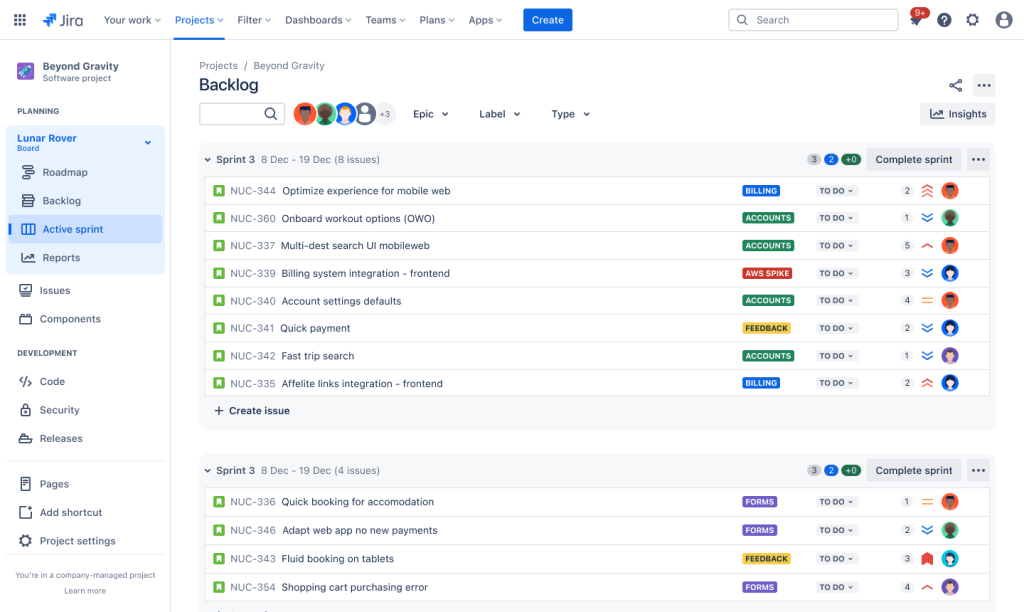
When you use Jira for project management, the backlog is where everything starts. It is the list of all work that needs to be done. A messy backlog makes it impossible to plan.
Keep the backlog clean by reviewing it once a week. If a task has been sitting there for three months and no one has touched it, it probably is not a priority. Delete it or move it to a separate document.
Use different issue types to separate your work. Standard tasks, bugs, and stories help you see what kind of work is taking up the most time.
Prioritization is the next step. Drag the most important items to the top. This ensures that when a new sprint starts, the team knows exactly what to pull in first.
2. Configuring Custom Workflows
The default workflow in Jira is often too simple for most teams. To use Jira for project management properly, you should customize the steps a task goes through.
A basic To Do, In Progress, Done setup usually misses the nuances of professional work. You might need statuses like Under Review, Blocked, or Testing.
Avoid creating too many statuses. If a workflow has fifteen different steps, people will get confused. They will stop updating their tickets.
Keep the transitions logical. A ticket should not be able to jump from Backlog to Done without passing through some form of active work or verification.
3. Implementing Agile Boards
Agile boards are the visual representation of your progress. Most people choose between Scrum and Kanban when they use Jira for project management.
Scrum boards are for teams that work in fixed time blocks, usually two weeks. It helps in measuring how much work a team can handle in that specific window.
Kanban boards are better for continuous work where priorities change daily. It focuses on flow and limiting work in progress to prevent burnout.
Customize the columns on your board to match your workflow statuses. If you have a Peer Review status, make sure there is a Peer Review column so the work is visible.
Planning Your Sprints
Sprints require a clear goal. Without a goal, a sprint is just a random collection of tickets.
Use the sprint planning view to see the capacity of your team. Do not overbook. It is better to finish ten tickets well than to start twenty and finish five.
Using Kanban Limits
Work in Progress limits are essential for Kanban. If you allow twenty tickets in a Doing column for a five person team, nothing is actually getting done.
Set a limit for each column. When the limit is reached, the team must focus on moving those tickets to the next stage before pulling in new ones.
4. Utilizing Issue Types
Every piece of work is not the same. To use Jira for project management, you must distinguish between a bug that breaks the site and a new feature request.
- Epics: Large bodies of work that can be broken down into smaller tasks.
- Stories: Features or requirements from the perspective of the user.
- Tasks: General work that needs to be done but does not fit as a story.
- Bugs: Problems that need to be fixed.
Using these correctly allows you to filter your reports. You can see if your team is spending eighty percent of their time on bugs instead of building new things.
5. Setting Up Components
Components are subsections of a project. They help you categorize work based on technical areas or departments.
If you are working on a website, you might have components for Frontend, Backend, and Database. This makes it easier to assign tickets to the right people.
You can set default assignees for specific components. If every Database ticket goes to the same person, Jira can automate that assignment for you.
This saves time during the planning phase. It also helps in long term reporting to see which part of the system is the most active or problematic.
6. Mastering Issue Linking
Tickets rarely exist in a vacuum. To use Jira for project management, you need to show how tasks relate to each other.
Use the Linked Issues feature to show dependencies. If Task A must be finished before Task B can start, mark Task B as blocked by Task A.
This prevents people from starting work they cannot finish. It also helps project managers see where the bottlenecks are in the schedule.
You can also link tickets across different projects. This is helpful if the marketing team is waiting on a feature from the engineering team.
7. Tracking Time Effectively
Knowing how long things take is the only way to improve your estimates. Jira has built in time tracking that is quite robust.
Encourage the team to log their hours directly on the ticket. It does not have to be perfect, but it should be consistent.
Original estimates should be entered before the work starts. Later, you can compare the actual time spent against that estimate.
This data is vital for future planning. If the team consistently takes double the estimated time for backend tasks, you can adjust your expectations for the next project.
8. Automating Routine Tasks
Automation saves everyone from clicking the same buttons over and over. You can set up rules to handle repetitive actions when you use Jira for project management.
For example, when all subtasks of a story are moved to Done, the parent story can automatically move to Done.
You can also set up notifications. If a ticket has been in the same status for five days without an update, Jira can send an email to the assignee.
Do not over-automate. Too many automated messages become noise, and people will start ignoring their notifications entirely.
9. Creating Meaningful Reports
Data is only useful if you can read it. Jira provides several reports that show the health of your project.
The Burndown Chart is the most common for Scrum. It shows how much work is left versus the time remaining in the sprint.
Control Charts are great for Kanban. They measure the cycle time of your issues, showing you exactly how long a ticket takes to move from start to finish.
Cumulative Flow Diagrams help identify bottlenecks. If one color in the chart is getting wider and wider, it means work is piling up in that specific status.
Building Custom Dashboards
Dashboards give you a high level view of multiple projects at once. You can use gadgets to show pie charts of issue types or lists of overdue tasks.+1
Keep your dashboard simple. Focus on the metrics that actually drive decisions, like the number of high priority bugs or the current sprint progress.
10. Managing Team Permissions
Atlassian Documentation
Security and organization go hand in hand. You do not want everyone to have the ability to delete entire projects or change the global workflow.
Use Project Roles to define what different people can do. Developers might need to transition tickets, while clients might only need to view them and leave comments.
Permission schemes allow you to apply the same rules across many projects. This keeps the administration side of Jira manageable as your company grows.
Always have at least two people with administrative access. If one person is away, you do not want your entire project management system to be locked down.
Handling External Stakeholders
If you need to show progress to people outside your immediate team, use the Share feature or exported reports.
You can also set up a specific view for them that hides technical details but shows the overall timeline and completion percentage.
You May Also Like:
- Jira Software Review 2026 – Features, Pricing & Verdict
- Asana Software Review 2026 – Features, Pricing & Verdict
- Top 30+ Best Project Management Software in 2025
Frequently Asked Questions
How do I start using Jira for project management?
First, create a project and choose a template like Scrum or Kanban. Add your team members and start building your backlog by creating issues for every task that needs to be completed.
Can Jira handle non technical projects?
Yes, Jira is very flexible. Many teams use Jira for project management in marketing, human resources, and legal departments by creating custom workflows that match their specific business processes.
What is an Epic in Jira?
An Epic is a large task that can be broken down into smaller stories or tasks. It usually represents a major feature or a phase of a project that takes several weeks or months to finish.
How do I track progress in Jira?
You can track progress using boards to see the status of individual tasks or by using reports like Burndown Charts and Dashboards to see the overall health of the project.
Is Jira difficult to learn?
It can be complex because of the many features, but starting with a simple Kanban board is the best way to learn. Most teams find it becomes much easier once the initial workflow is set up.