


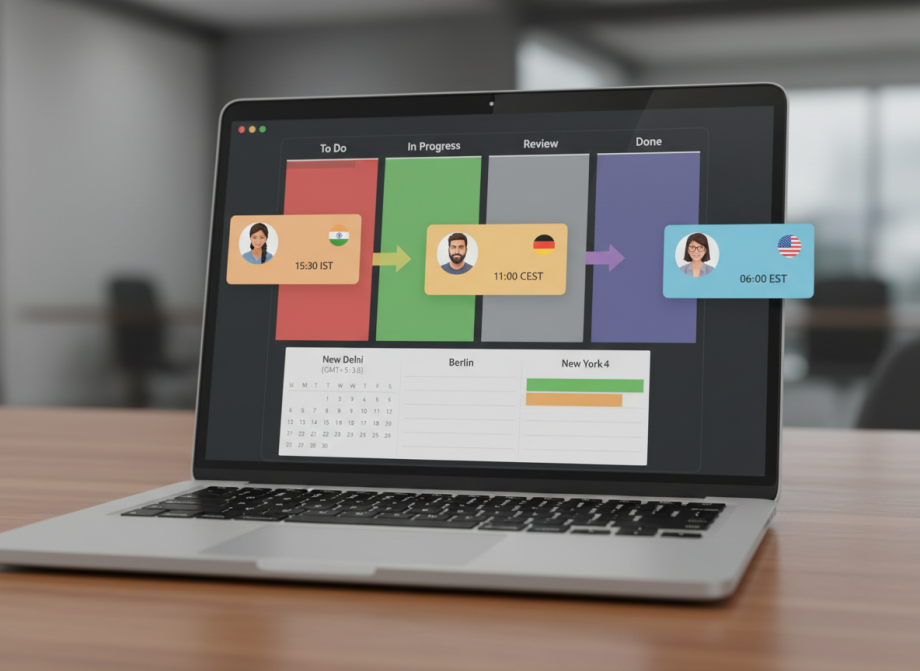
Best project management software for remote teams solves the core problem distributed work creates: nobody’s in the same room, communication happens across time zones, and context gets lost in Slack threads.
You need a system where information lives in one place, people know what to do without constant check-ins, and progress is visible to everyone regardless of when they’re working.
Remote work changed what project management actually means. It’s not about managing people anymore. It’s about making work visible, removing blockers across distance, and enabling people to work asynchronously without constant synchronous meetings.
The right tool handles this. The wrong tool creates more confusion and requires more meetings to explain what’s happening.
Why You Can Trust This Review

This review comes from running remote operations across time zones, using these tools daily with distributed teams, and understanding specifically what remote work demands from software. The focus stays on real remote scenarios, not hypothetical ones.
Does the tool handle asynchronous updates? Can people in different zones coordinate without daily standups? Can someone jump into a project after sleeping through their team’s workday and immediately understand what happened?
The analysis includes testing with actual remote teams, measuring how often these tools created misunderstanding versus prevented it, and tracking which tools remote teams actually opened versus abandoned.
The information is current 2026 pricing, actual implementation times with distributed teams, and features that matter when you can’t tap someone on the shoulder to clarify something.
1. Asana for Distributed Coordination
Asana works well for remote teams because it makes dependencies explicit and visible across distance. You can’t coordinate distributed work by assuming people know what’s happening. Asana forces explicit coordination.
How Remote Teams Use Asana
When someone completes a task, the next person in the chain sees it immediately. You don’t need a meeting to communicate that something’s ready. The tool shows it. This reduces synchronous communication while increasing actual information flow.
The timeline view is especially valuable for remote teams. You see which tasks are blocking others. You understand cascading delays instantly. You don’t need someone to send an email explaining that project B is delayed because project A slipped. The timeline shows it.
Remote team members in different zones can see the full project state whenever they log in. They don’t need to sit through a sync meeting to understand progress. They see tasks, deadlines, and dependencies all at once. This saves actual hours every week.
Asynchronous Features
Asana handles asynchronous work well. Someone updates a task. Comments notify relevant people. They respond in their working hours, not immediately. The conversation threads stay attached to the work instead of getting lost in email.
Custom fields let you add context that remote teams need. Client time zone. Approval status. Urgency level. These visible fields reduce the need for explanatory conversations.
The portfolio view helps distributed team leads understand what’s happening across projects without scheduling 15 status meetings. You see where delays are happening before they become crises.
Mobile and Offline Considerations
Asana’s mobile app works well. Remote team members can update tasks from anywhere. But Asana requires internet connection. You can’t truly work offline.
This is rarely a problem for remote workers who are usually in stable internet environments. But if your team includes people with spotty connectivity, it matters.
Setup for Remote Teams
Getting Asana running with a remote team takes 12 to 18 hours of configuration and training. You need to design workflows that work across time zones. You need to think about how people in different zones will communicate through the tool.
Document your workflows explicitly. Remote teams can’t rely on hallway conversations to explain how things work. It needs to be in the tool or in documented processes.
Pricing Reality for Remote Teams
Asana charges per user. The free plan is limited to one project. Once you need multiple projects, you’re paying.
For a remote team of 10 people, expect to spend 135 to 270 dollars monthly depending on which paid tier you choose. This is reasonable for what you get.
The cost doesn’t escalate with time zones or geographic distribution. It scales with user count, period.
2. Monday.com for Custom Remote Workflows
Monday.com lets you build exactly how your remote team communicates and coordinates. This flexibility is powerful when your team has unique needs.
Customization for Remote Scenarios
Remote teams often have custom workflow needs. Maybe you need approval stages across multiple people in different zones. Maybe you need clear blocking dependencies. Maybe you need visibility into which team members are contributing versus ghosting.
Monday lets you build all of this. You design columns for your specific stages. You add fields for information remote teams need. You set up automations so updates flow automatically without someone manually pushing information.
Automation and Notifications
Asynchronous work demands smart automation. Monday excels here. When a task moves to a certain stage, automatically notify the right people in their local time zone (through Slack, email, or in-app). When someone updates a task, only notify people who need to know. When a deadline passes, flag it visually.
These automations prevent communication overload while ensuring important information reaches relevant people.
Time Zone Awareness
Monday doesn’t have native time zone intelligence, but you can build it. Custom fields can track time zones. Automation can time notifications to people’s working hours through Zapier integrations.
This requires setup work, but it’s possible. For teams distributed across many zones, this is worth the effort.
Slack Integration for Remote Teams
Monday’s Slack integration is strong. Team members can update tasks from Slack. They can receive notifications about progress without opening a separate app. For remote teams living in Slack, this integration is essential.
You can configure which notifications go to which channels. Status updates go to client channels. Blocker alerts go to team channels. This keeps information flowing without noise.
Implementation Timeline
Getting Monday running with a distributed team takes 15 to 20 hours of setup. You’re not just installing software, you’re designing how your remote team communicates through it.
The customization is valuable but requires clear thinking about your workflows. Remote teams often have implicit processes that work in person. You need to make these explicit in Monday.
Pricing for Remote Operations
Monday charges per user per month for paid tiers, but the free plan is quite generous. Many small remote teams run entirely on the free plan.
For teams needing advanced features, the Basic plan at 99 dollars monthly covers up to 10 users. Scale adds cost.
3. ClickUp for All-in-One Remote Management
ClickUp combines tasks, time tracking, and goal management in one platform. For remote teams where visibility and productivity measurement matter, ClickUp consolidates your needs.
Native Time Tracking for Remote Teams
ClickUp has time tracking built into the platform. Remote team members log time directly against tasks. This data shows where effort actually goes, not where you think it goes.
For remote teams, time tracking serves two purposes. First, it provides accountability without micromanagement. Everyone logs their time. You see actual work distribution. Second, it gives you data for future project estimation. You know exactly how long similar work takes.
Task Dependencies Across Zones
ClickUp handles task dependencies well. You can see when someone’s waiting on work from another team member in another zone. The system flags blockers. You prevent the common remote work problem of someone sitting idle because they’re waiting for something, but nobody knows they’re waiting.
Goals and Progress Visibility
ClickUp lets you set goals and cascade them down to individual tasks. Remote team members see exactly how their daily work contributes to company objectives. This alignment is harder to achieve remotely, but ClickUp makes it visible.
You can see progress toward goals in real time. No status meetings needed to explain how you’re tracking against quarterly targets.
Documentation and Knowledge Sharing
ClickUp includes native document creation. You can build team documentation, standard operating procedures, and onboarding materials right in the same platform where work happens.
For remote teams, having documentation directly connected to the work is valuable. Someone new can see how a task was done previously by checking similar historical tasks.
Performance and Speed
ClickUp is fast. Pages load quickly. Notifications come through immediately. For teams across time zones, responsiveness matters because delays create communication friction.
The interface is dense initially, but remote teams quickly adapt because they’re using it constantly for all coordination.
Pricing Reality
ClickUp’s free plan is actually usable for small teams. You get unlimited tasks, basic integrations, and standard features.
Paid plans start at 7 per user per month for Unlimited tier. A remote team of 12 people costs 84 dollars monthly on the lowest paid tier. This is competitive.
4. Slack with Built-in Tools for Simple Remote Teams
If your remote team is small and your projects are simple, you can use Slack as your project management system with built-in features and integrations.
Slack’s Project Management Features
Slack added Canvas, a collaborative document feature. You can create project briefs, track progress, and collaborate without leaving Slack.
Slack Workflows let you automate task creation and updates. When someone writes a specific message, it creates a task automatically. When a task is completed somewhere, it posts an update to Slack.
The Advantage of Staying in Slack
Remote teams live in Slack anyway. If project management lives in Slack, there’s no context switching. People see assignments and updates naturally as they’re working.
The disadvantage is that Slack isn’t designed for project management. Your Slack channel becomes a mix of conversation and work tracking. This creates noise. Important work updates get lost in random commentary.
Integration with Other Tools
You can connect Slack to Asana, Monday, ClickUp, and other tools. This lets you stay in Slack for notifications and updates while the actual work tracking lives elsewhere.
This hybrid approach works for teams that want Slack as their information hub without sacrificing robust project management.
Cost Consideration
Slack costs 8 to 12 dollars per user per month depending on your plan. If you’re already paying for Slack, using it for project management adds no incremental cost.
For small remote teams with simple work, this is attractive. You’re not adding another monthly expense.
5. Notion for Remote Knowledge Management
Notion works well for remote teams that need to consolidate documentation, processes, and project tracking in one searchable space.
Documentation and Context
Remote teams need explicit documentation. You can’t rely on people knowing how things work through osmosis. Notion lets you build comprehensive documentation right where your team works.
Each project can have its own documentation. Each team can have its own handbook. Each process can be documented. Remote team members can search for answers instead of waiting for email responses across time zones.
Database Linking for Workflow Visibility
Notion’s ability to link databases together creates visibility into how different projects relate. You can see all projects for a specific client. You can see all tasks assigned to a specific person. You can see all deadlines in the next week.
This creates natural visibility for remote teams without requiring synchronous meetings.
Collaboration in Asynchronous Mode
Notion handles asynchronous collaboration well. Multiple people can update a document simultaneously. You can see who changed what and when. Comments stay attached to content instead of getting lost.
For distributed teams with members in many time zones, this matters. Someone can work while others sleep, and their contributions are visible when others wake up.
Performance Issues for Remote Teams
Notion is slower than other options. Pages take a moment to load. This creates friction in remote workflows where people are constantly jumping between tasks.
In an office, a delay of a second or two is barely noticed. Across a distributed team using the tool constantly, this friction compounds into daily frustration.
Offline Functionality Limitations
Notion requires internet connection. You can’t work offline. For most remote teams this is fine, but if your team travels frequently or works in areas with spotty connectivity, it’s a limitation.
Setup and Training
Getting Notion running takes 30 to 40 hours of setup work. You’re building your entire operational system from scratch. You’re designing databases, creating templates, setting up automations.
For remote teams, this setup time is valuable. You’re creating a knowledge system that supports asynchronous work.
Pricing
Notion’s pricing is a flat monthly rate regardless of user count. A team of 15 people pays the same as a team of 3 people. This changes the economics compared to per-user pricing.
For larger remote teams, this becomes very attractive.
6. Jira for Remote Engineering Teams
If your remote team builds software, Jira is built for distributed development.
Development Workflow Integration
Jira connects directly to GitHub, GitLab, and Bitbucket. Code commits automatically link to issues. Pull requests reference tickets. Your entire development workflow is visible in one place.
For remote engineering teams, this integration prevents the common problem of work happening in code repositories while project management happens somewhere else. Everything’s connected.
Sprint Planning Across Time Zones
Jira’s sprint planning works asynchronously. You can plan sprints, assign story points, and organize work without requiring a synchronous planning meeting. Remote team members review the backlog and pull in work when they’re ready.
Status Visibility Without Meetings
A distributed engineering team can see exactly what’s being worked on, what’s blocked, what’s in review, and what’s done. No need for daily standups explaining the same thing verbally.
This doesn’t eliminate all synchronous communication. But it reduces it to discussions that actually need real time conversation.
Burndown Charts and Velocity Tracking
Jira generates detailed reports about sprint progress and team velocity. As a manager of a remote team, you see exactly how you’re tracking against sprint goals without asking.
This data drives conversations. You notice when velocity drops or blockers appear. You address problems early instead of wondering why the sprint finished late.
Performance and Reliability
Jira is stable. It doesn’t slow down or become unreliable as team size grows. For distributed teams relying on the tool constantly, this reliability matters.
Learning Curve for Non-Technical Teams
Jira is complex. If you have non-technical remote team members, they’ll struggle. The terminology assumes engineering knowledge. The interface is dense.
This is fine if your remote team is purely engineering. It’s a problem if you’re mixing disciplines.
Pricing
Jira pricing is based on team size and starts free for small teams. As you grow, you pay per user or per instance depending on your deployment.
7. Comparing Remote Specific Features
Different tools handle remote work differently. Here’s how they compare on features that actually matter for distributed teams.
Asynchronous Communication Support
Asana excels at asynchronous workflows. Updates don’t require immediate response. Comments stay attached to work. Remote teams in different zones communicate through the tool naturally.
Monday is good. Slack integrations make async communication possible. But the core interface is designed for synchronous teams.
ClickUp is excellent. Time tracking creates natural async accountability. Comments and updates flow naturally.
Slack is designed for synchronous communication. Using it for project management fights against its nature.
Notion is good at async. Multiple simultaneous edits work smoothly. Time stamps show who changed what.
Jira is good. Development workflows are inherently async. Code review happens across time zones naturally.
Time Zone Handling
Asana doesn’t natively handle time zones, but the tool doesn’t need to. Distributed work is all visible simultaneously.
Monday requires custom setup to be time zone aware.
ClickUp also requires custom setup.
Slack can schedule messages and notifications for specific times.
Notion doesn’t handle time zone complexity.
Jira doesn’t need special time zone handling. Development work doesn’t depend on specific times.
Notification Intelligence
Asana’s notifications are configurable. You choose what notifies you.
Monday’s automation can target specific people.
ClickUp’s notifications are smart. You only get alerted about relevant changes.
Slack’s notifications are noisy by default.
Notion’s notifications are basic.
Jira’s notifications are good. They target relevant developers.
Context Preservation
Asana keeps context attached to tasks. You see the history of decisions and changes.
Monday similarly preserves context.
ClickUp preserves context well.
Slack loses context quickly as conversations scroll away.
Notion preserves context excellently through database relationships.
Jira preserves context through issue history.
8. Integration Ecosystem for Remote Teams
Your project management tool connects to other software your remote team uses daily.
Slack Integration Strength
All major tools integrate with Slack. The quality varies.
Asana’s Slack integration is good. You get notifications and can create tasks.
Monday’s integration is strong. You can manage tasks from Slack.
ClickUp integrates deeply with Slack.
Slack is Slack.
Notion integrates at a basic level.
Jira integrates excellently because Atlassian owns both products.
For remote teams living in Slack, this integration quality matters more than any other feature.
Calendar Integration
Asana integrates with Google Calendar and Outlook. Deadlines appear on calendars automatically.
Monday requires power-ups or integrations for calendar sync.
ClickUp has native calendar integration.
Slack has limited calendar integration.
Notion can be connected to calendars through integrations.
Jira syncs with development calendars.
Email Integration
Asana can create tasks from email. You can reply to emails to update tasks.
Monday has email integration but it’s limited.
ClickUp accepts email commands to create tasks.
Slack receives emails.
Notion has minimal email functionality.
Jira creates issues from email.
For remote teams, being able to work from email reduces context switching. If email integration works well, many people work entirely through email updates.
File Storage Connection
All tools let you attach files. Better tools connect to cloud storage you’re already using.
Asana integrates with Google Drive, OneDrive, and other storage.
Monday has integrations but requires setup.
ClickUp connects to major cloud storage systems.
Slack connects to cloud storage for file sharing.
Notion stores documents internally.
Jira connects to development repositories.
For remote teams, having file storage connected to project management prevents file scattering. Everything’s connected.
9. Implementation Strategy for Remote Teams
Rolling out project management software to a remote team requires different approach than co-located teams.
Phase 1: Document Your Current Process
Before installing anything, document how remote work actually happens. Don’t document how it’s supposed to happen. Document reality.
Track three real projects. Write down every communication. Note where context got lost. Note where people got confused. Note where decisions happened.
This takes two to four hours but reveals what your tool actually needs to solve.
Phase 2: Identify Remote Specific Needs
Remote teams have specific requirements. Do you have distributed across many time zones? Do people work at completely different times? Do some people live on-site with others remote?
These scenarios require different solutions. A tool for a fully distributed team differs from a tool for a partly remote team.
Phase 3: Test with Real Remote Scenarios
Create free accounts in your top choices. Have your distributed team use them for a full week. Do this across a real week, not a compressed test week, so people actually experience time zone challenges.
Notice which tool your team gravitates toward. Notice which one causes confusion.
Phase 4: Design Async Workflows
If you pick a tool, design how asynchronous work will flow through it. Don’t assume it’ll work like synchronous office work. It won’t.
Define when people update tasks. Define how blockers get communicated. Define what notifications mean. Define escalation paths for urgent situations.
This design work takes 10 to 15 hours but prevents confusion later.
Phase 5: Parallel System Period
Run both old and new systems for one week. Everything gets entered in both. This removes pressure while people adjust to new tools.
After one week, commit completely. Stop using the old system. All new work goes in the new tool.
Phase 6: Train Your Distributed Team
Schedule a training call in each major time zone. Show people where things live. Show them how to update their work. Show them how they’ll see updates from teammates in other zones.
Make training optional for people who already understand from testing. Make it required for people who need support.
Phase 7: Monitor and Adjust
For the first month, watch for communication breakdowns. These reveal workflow problems. Make small adjustments. Don’t redesign everything.
Common problems include people not seeing updates because notifications went to the wrong place, or people unsure how to handle blockers that span time zones.
10. Common Remote Implementation Failures
Businesses fail at remote project management regularly. Learning from failures prevents repeating them.
Failure 1: Synchronous Tool for Async Work
You pick a tool designed for co-located teams and try to use it remotely. The tool requires constant check-ins and synchronous updates. Your remote team ends up in more meetings, not fewer.
This fails because you’ve added overhead. The tool isn’t helping anymore.
Failure 2: Too Many Tools
You have project management in one place, time tracking in another, documentation somewhere else, file storage somewhere else. Your remote team spends hours jumping between systems.
This fails because the overhead of coordination increases. You’ve made life harder.
Failure 3: Inadequate Context
You expect remote team members to figure out work from vague task descriptions. They have questions but you’re asleep. They wait for answers or make wrong assumptions.
This fails because you haven’t provided the context that was previously provided through hallway conversations.
Failure 4: Wrong Notification Settings
You configure notifications to alert people about everything. Your team gets spammed. They turn off notifications completely. Now nobody sees important updates.
This fails because you’ve destroyed the signal to noise ratio.
Failure 5: No Escalation Path
Your tool handles normal updates well, but you have no way to raise urgency for real problems. People don’t know how to flag blockers that need immediate attention.
This fails because normal tools don’t solve crisis communication.
Failure 6: Not Documenting Why
When you change how work flows through tools, people don’t understand why. They resist because it feels like extra work.
This fails because you haven’t explained the benefit.
Failure 7: Switching Too Early
You go live Monday. By Friday, someone complains. You switch tools. You haven’t given anyone time to adjust.
This fails because initial awkwardness is normal. You need to push through it.
11. Scaling Remote Operations
As your remote team grows, your software needs change.
From five people to fifteen people, you can use simple tools. Context is still somewhat shared.
From fifteen people to thirty people, you need structured tools. Context gets lost easily. Structure prevents this.
From thirty people and beyond, you need advanced features. Portfolio views, resource planning, and sophisticated reporting become essential.
Asana scales well. The portfolio view becomes more valuable as you grow. You’re managing 30 projects. You need to see the full picture.
Monday scales well. Custom features let you adapt as complexity grows.
ClickUp scales very well. Time tracking and resource planning help manage larger teams.
Trello doesn’t scale well past 15 to 20 projects. You need portfolio views.
Notion scales if you invest in architecture. It’s not automatic.
Jira scales to very large engineering teams.
Smartsheet scales to enterprise complexity.
The tool you pick at 8 people might not be the tool you want at 25 people. Think about where you’re headed.
Product Specification Table
| Feature | Asana | Monday.com | ClickUp | Notion | Jira | Slack |
|---|---|---|---|---|---|---|
| Asynchronous Task Updates | Excellent | Good | Excellent | Good | Good | Fair |
| Time Zone Awareness | Limited | Requires Setup | Requires Setup | Limited | Limited | Good |
| Notification Intelligence | Good | Good | Excellent | Fair | Good | Poor |
| Document Storage | Linked | Linked | Linked | Native | Limited | Cloud Link |
| Time Tracking | Third Party | Third Party | Native | Third Party | Limited | Third Party |
| Portfolio View | Yes | Limited | Yes | No | No | No |
| Slack Integration | Good | Strong | Strong | Basic | Strong | Native |
| Mobile App | Excellent | Good | Good | Fair | Good | Excellent |
| Offline Capability | None | None | None | Limited | None | Limited |
| Learning Curve | Moderate | Moderate | Moderate | Steep | Steep | Easy |
| Free Plan Quality | Limited | Good | Good | Fair | Limited | Free |
| Per User Cost | Yes | Yes | Yes | Flat Rate | Scaled | Yes |
Pricing and Plans
Asana for Remote Teams
Asana’s free plan covers one project, which is limiting for most remote teams.
Standard plan costs 13.49 per user per month. This includes portfolio view and advanced automation.
Premium plan costs 26.99 per user per month. This adds goals and advanced reporting.
A remote team of 12 people on Premium pays roughly 323 dollars monthly.
Setup for distributed teams takes 12 to 18 hours of configuration and training. Remote specific workflows require thought.
Monday.com for Remote Teams
Monday’s free plan is usable for small remote teams with simple workflows.
Basic plan costs 99 monthly for unlimited team members and covers core features.
Standard plan costs 199 monthly and adds advanced automation and timeline view.
Premium plan costs 499 monthly with advanced integrations and resource management.
Most remote teams start on Basic or Standard. Your cost depends on features needed.
Setup takes 15 to 20 hours for distributed teams. Automation setup for time zone awareness requires additional effort.
ClickUp for Remote Teams
ClickUp’s free plan is quite generous. You get unlimited tasks and basic integrations.
Unlimited plan costs 7 per user per month. This is attractive for remote teams because the cost stays low as you grow.
Business plan costs 12 per user per month and adds advanced reporting and resource planning.
For a distributed team of 12 people, the Unlimited plan costs 84 dollars monthly.
Setup takes 15 to 20 hours. Time tracking configuration is crucial for remote team visibility.
Notion for Remote Teams
Notion pricing is flat regardless of user count.
Free plan is limited and outdated quickly for active remote teams.
Plus plan costs 10 per month for unlimited blocks and features. This covers most remote team needs.
Business plan costs 18 per month with governance features.
Setup takes 30 to 40 hours. You’re building your entire operational system. This is significant upfront work but pays dividends.
Jira for Remote Engineering Teams
Jira pricing is complex and depends on deployment type.
Cloud plan starts free for up to 10 users. This covers small remote engineering teams.
As you grow, you pay per user. Pricing increases with team size.
Setup takes 10 to 15 hours for a distributed engineering team. Integration with development tools is immediate.
Slack for Remote Teams
Slack costs 8 dollars per user per month for the Pro plan. This is your baseline if your team uses Slack.
Enterprise Grid costs more for large organizations but adds advanced management features.
Slack alone isn’t project management, but with integrations and built-in tools, it can supplement your primary tool.
Alternatives and Related Options
Other tools might fit your remote team’s specific needs.
Basecamp is email based project management. Everything flows through email. For fully distributed teams with minimal synchronous meetings, this works well. It’s simple and reduces notification overload.
Asana focuses on coordination while Basecamp focuses on simplicity. Different philosophies for different teams.
Airtable is database software like Notion but with better performance. If Notion feels slow, Airtable is faster and still supports custom workflows.
Wrike combines project management with resource planning. It’s between ClickUp and Smartsheet in complexity and power.
ProofHub is all in one with invoicing included. If you’re billing clients through your project tool, ProofHub integrates this tight.
Teamwork is designed for agency and service work. If you’re managing client projects with tight budgets, Teamwork speaks your language.
Zapier isn’t project management but it’s crucial for remote teams. It connects everything. You can automate context flowing between tools so people don’t need to manually move information.
Why Remote Teams Matter

Remote work isn’t a temporary exception anymore. It’s how businesses operate. The software you choose either enables remote work or creates friction against it.
The right tool lets remote team members work asynchronously. Someone finishes something. The next person sees it immediately in their time zone. They pick it up when they’re working. No waiting. No meetings explaining what happened.
The wrong tool requires constant synchronous communication. People are waiting for clarification. Things get lost. You end up in more meetings, not fewer.
Frequently Asked Questions
How do remote teams handle time zone coordination?
Using explicit task dependencies and clear status updates. Tools like Asana show what’s blocking work. Tools like ClickUp track time to show effort across zones. Smart automation notifies relevant people without spam. The key is making work visible so people understand what’s happening even when their team is sleeping.
Can we use multiple tools for different remote needs?
Technically yes, but practically it adds complexity. Your team jumps between systems. Information doesn’t flow automatically. They lose context. One consolidated tool works better than five specialized tools. If you must use multiple tools, use Zapier to connect them so information flows automatically.
What prevents remote projects from failing?
Clear documentation, explicit communication, and tool support for asynchronous work. Write everything down because you can’t rely on hallway conversations. Make decisions visible in the tool. Set up notifications so people know when something needs attention. Use a tool built for async work, not one designed for co-located teams.
How often should remote teams synchronize?
Only when necessary for decisions that can’t happen asynchronously. Daily standups are often waste if your tool shows progress. Weekly syncs work. Monthly all hands work. Critical escalations happen immediately. The key is that most communication happens through the tool, not in meetings.
Does remote project management cost more?
Not necessarily. You might pay the same for software. But you might pay more for setup because remote workflows require more explicit design. You also might save money by reducing meetings and improving coordination efficiency. The net cost depends on your starting point.