

How to Install Windows 11 on a PC That Fails Hardware Checks
By Evander Thorne · November 12, 2026
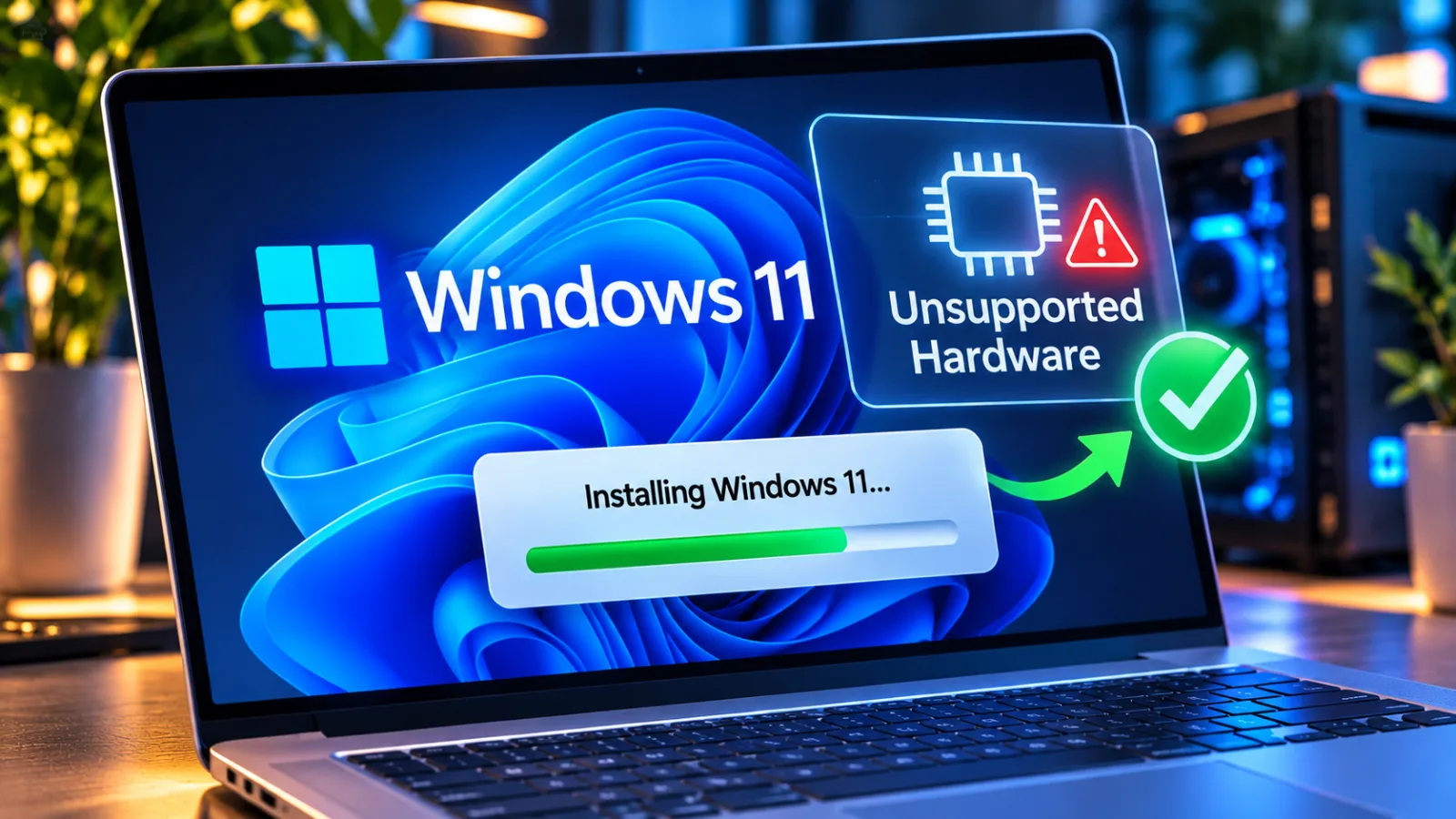
Table of contents
What Unsupported Means
You can install Windows 11 on many computers that fail Microsoft's official hardware checks by creating a modified installation USB with Rufus.
The method can bypass checks for TPM 2.0, Secure Boot, RAM and processor eligibility.
It cannot add missing processor instructions, guarantee driver compatibility or make an unsupported computer eligible for Microsoft's technical support and update commitments.
Installing Windows 11 on unsupported hardware means running the operating system on a computer that does not meet one or more of Microsoft's minimum system requirements.
The installer normally blocks these devices, but tools such as Rufus can modify the installation media to skip selected checks.
The resulting installation remains unsupported, regardless of whether Windows starts and works normally.
Microsoft's position is explicit.
Its support documentation states that unsupported devices may experience compatibility problems, will not receive Microsoft support and are not guaranteed to receive updates, including security updates.
The company also warns that damage caused by incompatibility may not be covered by the manufacturer's warranty.
These conditions apply even if the installation completes successfully.
The distinction between an installation check and a hardware capability matters.
A TPM check can be bypassed when the installer refuses a computer that lacks TPM 2.0, but a software tool cannot create a physical security chip.
Similarly, skipping a processor model check does not change the processor's architecture or provide features that the chip does not contain.
Check Before Installing
Start by identifying exactly which requirement prevents the installation.
Windows 11 has several minimum hardware conditions, and they do not all have the same consequences when ignored.
A computer with an unsupported processor model may still have the technical ability to run the operating system, while a machine with insufficient memory or an incompatible processor architecture can have more serious limitations.
Microsoft lists the following minimum requirements for Windows 11:
Processor: A compatible 64 bit processor or system on a chip running at 1 GHz or faster, with at least two cores.
Memory: At least 4 GB of RAM.
Storage: A storage device with at least 64 GB of capacity.
Firmware: UEFI firmware with Secure Boot capability.
Security: Trusted Platform Module version 2.0.
Graphics: A graphics card compatible with DirectX 12 or later, with a WDDM 2.0 driver.
Display: A high definition display of at least 720p, with a diagonal size of 9 inches or greater.
These are minimum specifications, not recommendations for a comfortable experience.
A computer with exactly 4 GB of RAM may technically meet the memory requirement but can struggle with several applications open.
Windows updates and installed applications also consume storage, so a drive with only 64 GB of total capacity leaves little room for future use.
Identify The Failure
Use Microsoft's PC Health Check application to determine whether the computer meets the official requirements.
The application identifies compatibility problems and helps distinguish a processor restriction from a missing TPM or an issue with Secure Boot.
You can also inspect the processor model in Settings or System Information before deciding whether to proceed.
Check the firmware settings before assuming that a computer lacks TPM or Secure Boot.
Some motherboards have firmware based TPM support that is disabled by default.
Intel systems may expose this setting as Platform Trust Technology, commonly called PTT, while AMD systems may use firmware TPM, commonly called fTPM.
Enabling the appropriate option can resolve a TPM eligibility problem without bypassing the requirement.
Secure Boot also deserves a separate check.
A computer may support UEFI and Secure Boot but have Secure Boot disabled in firmware.
The setting is usually available in the firmware interface under Boot, Security or Authentication, although the exact location depends on the manufacturer.
Do not change the boot mode casually: switching between Legacy BIOS and UEFI can make an existing Windows installation fail to start if its system disk uses a different partition scheme.
Check The Processor
Processor eligibility is more complicated than checking clock speed and core count.
Microsoft maintains lists of supported processor models, and a processor can meet the basic speed and core requirements while remaining outside the supported list.
That is why an older Intel Core i5 or AMD Ryzen processor may be rejected even when its performance appears adequate for ordinary desktop work.
There is a more serious limitation with Windows 11 version 24H2 and later.
These releases depend on processor instructions such as POPCNT and SSE4.2.
If a processor does not support the required instructions, bypassing the setup compatibility check will not solve the problem.
Rufus's own documentation warns that systems missing these capabilities cannot run the newer Windows releases correctly.
This distinction should determine whether you continue.
A computer rejected only because its CPU model is absent from Microsoft's supported list may be a candidate for an unofficial installation.
A processor that lacks instructions required by the operating system is a different case, and attempting to force installation is unlikely to produce a usable system.
Rufus Installation
Rufus is the most straightforward option for preparing Windows 11 installation media on a computer that fails selected hardware checks.
It creates a bootable USB drive from a Windows ISO and provides options that modify how Windows Setup evaluates certain requirements.
Its bypass functions rely on mechanisms available in Microsoft's installation process, rather than replacing the operating system with a modified Windows build.
For most home users, this is the practical method to consider first.
You need a separate working computer to prepare the USB drive, an official Windows 11 ISO and a flash drive with at least 8 GB of capacity.
The USB creation process erases the existing contents of the selected drive, so copy any important files elsewhere before starting.
Prepare The USB
Download the Windows 11 ISO from Microsoft's official download page and obtain Rufus from its official website.
Avoid unofficial Windows images distributed through file sharing sites, modified ISO packages or download pages that bundle installation tools with unrelated software.
Using an official ISO helps preserve the integrity of the operating system files even when you change the installation checks.
Connect the USB flash drive to the working computer and follow these steps:
Open Rufus and select the correct USB drive under Device.
Check the drive name and capacity carefully because the next stage will erase its contents.
Select the Windows 11 ISO through the Boot selection field.
Allow Rufus to identify the image before continuing.
Confirm the partition scheme and target system settings for the computer where Windows 11 will be installed.
GPT and UEFI are appropriate for most modern computers, but older systems may have different requirements.
Select Start to open the Windows User Experience options.
The available choices depend on the Windows image and Rufus version.
Enable the option to remove the requirements for TPM 2.0, Secure Boot and the specified minimum RAM, if those are the restrictions affecting the target computer.
Review the other available options carefully.
Rufus may offer account setup and privacy related choices, but these are separate from the hardware compatibility bypass.
Confirm the warning that the USB drive will be formatted and wait for Rufus to complete the process.
Rufus versions and Windows installation images can change the wording and availability of these options.
Pureinfotech's April 2026 instructions describe the process for Windows 11 version 25H2, including the option to remove hardware requirements.
The Rufus FAQ also explains that its bypass functions depend on installation mechanisms Microsoft may change or remove in future releases.
Run Windows Setup
After Rufus finishes creating the USB drive, safely eject it and connect it to the unsupported computer.
Start the computer and open its boot menu, which is commonly accessed through a manufacturer specific key such as F12, F9, F8 or Esc.
Select the USB drive and allow Windows Setup to load.
The installation process then follows the usual Windows sequence.
Choose the language and keyboard layout, select the installation type and follow the instructions on screen.
If you are performing a clean installation, pay particular attention to the disk and partition selection page.
Choosing the wrong drive or deleting the wrong partition can permanently remove personal files and existing operating systems.
A clean installation is generally easier to troubleshoot than an in place upgrade because it avoids carrying forward old applications, drivers and configuration problems.
However, it also removes existing data from the selected Windows installation.
If you need to preserve applications and personal settings, an in place upgrade may be more appropriate, provided the setup process offers that option and the existing installation is healthy.
Before proceeding, make sure you have a backup that you can actually restore.
A copy of documents on the same computer is not a reliable backup if the installation fails or the drive is formatted.
Keep a separate copy of important files on an external drive or another trusted storage location, and make sure you have access to the relevant application installers and account credentials.
Alternative Installation Methods
Rufus is not the only way to bypass Windows 11 installation checks.
Advanced users can modify the Windows Registry during setup, while Ventoy offers another way to prepare bootable installation media.
These methods are useful in specific circumstances, but they involve different levels of complexity and should not be treated as interchangeable solutions.
The best choice depends on the current operating system, the type of installation and the hardware restriction.
A clean installation from USB is appropriate when you can erase the target system drive.
A registry method may be more relevant when you want to use standard Windows installation media.
An upgrade method can preserve existing files and applications, but it carries its own compatibility risks.
Registry Modification
Windows Setup supports registry settings that can change how it evaluates some hardware requirements.
Microsoft previously documented a workaround for certain unsupported upgrades, although the company limited that guidance to systems with TPM 1.2 and UEFI firmware with Secure Boot enabled.
This is not a general Microsoft endorsement of installing Windows 11 on any unsupported computer.
For an installation that uses standard media, advanced users may encounter instructions to open Command Prompt during setup and use Registry Editor to create compatibility settings.
The specific registry path and values depend on the method and installation stage.
A mistake in the Registry can affect the setup process or the installed operating system, so do not apply commands copied from an unrelated Windows version without checking their purpose.
Rufus itself documents that some of its bypass options rely on registry keys such as those used for TPM and Secure Boot checks.
Its FAQ also makes an important distinction: bypassing selected checks does not mean every requirement can or should be removed.
The developer specifically warns about performance, crashes and update problems when users attempt to bypass requirements that reflect genuine hardware limitations.
Ventoy Media
Ventoy is another tool for creating bootable USB drives.
It allows users to place ISO files on a USB drive and select an image from a boot menu when the computer starts.
This makes it convenient for technicians who maintain several operating system installers or diagnostic images on one drive.
Ventoy does not automatically make every Windows 11 ISO compatible with unsupported hardware.
The installation still needs a suitable bypass method, and the result remains subject to the same CPU instruction, driver and update limitations.
Before using it, verify that the particular Ventoy release and Windows installation method support the changes you intend to make.
For a single Windows 11 installation, Rufus is usually easier to understand because its Windows User Experience options are presented during USB creation.
Ventoy is more useful when the same technician needs a reusable multiboot drive.
Neither tool changes Microsoft's support policy or turns unsupported hardware into officially supported hardware.
The CPU Limit
The most important limitation of unofficial Windows 11 installations is the difference between a compatibility restriction and a processor capability.
A setup check can be skipped when it evaluates a model number or a configurable security feature.
A processor instruction is implemented in the chip itself, and software cannot add it when the hardware does not support it.
Microsoft's move to Windows 11 version 24H2 introduced a practical boundary for older processors.
Rufus's official FAQ specifically identifies POPCNT and SSE4.2 as required CPU capabilities for 24H2.
If Windows Setup reports that the processor lacks one of these features, treat that message as a stop condition rather than searching for another registry key or modified ISO.
This is one of the most frequently missed details in guides about unsupported installations.
Many tutorials describe bypassing TPM, Secure Boot or CPU model checks, then imply that the same approach works for every older computer.
It does not.
A bypass can change the installer's decision, but it cannot rewrite the processor's instruction set or guarantee that the Windows kernel will operate on a chip that lacks a required capability.
The practical implications are significant for anyone maintaining older PCs.
A system that ran an earlier Windows 11 release after a bypass may not be able to move to a later release if the hardware lacks required instructions.
Before upgrading an existing unsupported installation, check the target Windows release and processor capabilities rather than assuming that a previously successful installation proves future compatibility.
Risks After Setup
A successful installation does not settle the question of long term reliability.
Microsoft explicitly warns that unsupported devices may malfunction, may not receive updates and are not eligible for normal support.
A computer can boot, connect to the internet and run applications while still being outside the update and compatibility commitments Microsoft makes for supported devices.
Microsoft also states that unsupported installations may display a watermark on the desktop and a notification in Settings.
These notices indicate that the computer does not meet the system requirements.
They are not necessarily evidence of a failed installation, but they do make the unsupported status visible to the user.
Updates And Security
Windows Update is a particular concern.
Microsoft does not guarantee that unsupported computers will receive updates, including security updates.
Some devices may continue to receive certain updates for a period, but that observed behavior should not be treated as a permanent policy or a reliable maintenance plan.
A machine used for email, online banking, business administration or access to company systems needs predictable security maintenance.
If an unsupported PC stops receiving a security update, the user may have no supported route to resolve the problem.
This risk is especially relevant for computers that store sensitive documents or connect to internal business networks.
There is also a difference between receiving a cumulative update and being eligible for a feature upgrade.
A computer may install one monthly update and still fail when a later feature release changes its requirements.
The Rufus FAQ documents that Microsoft can remove or alter the installation mechanisms on which bypass tools depend.
That means a workaround that works with one ISO should not be assumed to work with the next.
Drivers And Stability
Driver support can be a separate problem from the Windows installer.
An older laptop may install Windows 11 successfully but lack current graphics, wireless, audio or chipset drivers from its manufacturer.
Windows may supply generic drivers, but these do not necessarily expose every feature or provide the same stability as a driver designed for the exact hardware.
Check the manufacturer's support page for the specific computer model before installing.
Look for Windows 11 drivers where available, and confirm whether the manufacturer has published firmware updates or compatibility notices.
If the vendor only provides Windows 10 drivers, the hardware may still function, but there is no guarantee that every device component will work correctly.
Power management and sleep behavior deserve attention on laptops.
An older device can appear stable during ordinary desktop use but fail to resume correctly from sleep, drain its battery while closed or experience intermittent wireless problems.
Test these functions before relying on the computer for work, travel or any task where unexpected downtime would cause a problem.
Bypassing a Windows 11 installation check changes what Setup permits.
It does not change the hardware, guarantee future updates or make the computer officially supported.
Choose The Right Path
The decision to install Windows 11 on unsupported hardware should depend on the computer's role and the consequences of failure.
A spare desktop used for testing has a different risk profile from a company workstation that handles payroll, customer information or business applications.
The ability to complete the installation is only one part of the decision.
For a secondary computer, an unofficial installation may be acceptable if the owner understands the limitations and keeps a complete backup.
For a primary work computer, the absence of guaranteed security updates and manufacturer support is a serious reason to avoid the workaround.
Businesses should also consider software vendor requirements, endpoint security policies and the cost of downtime before changing an unsupported device.
There are several practical choices when a PC fails the compatibility check:
Enable existing features: Check whether TPM, Intel PTT, AMD fTPM or Secure Boot is available but disabled in firmware.
This can resolve a configuration problem without bypassing the requirement.
Upgrade compatible components: Add RAM or replace a storage drive if the computer supports those changes.
A CPU upgrade may be possible on some desktops, but motherboard and firmware compatibility must be verified.
Use Rufus cautiously: Consider this option when the processor has the required instruction support and the main restriction is an unsupported model, TPM or Secure Boot.
Keep a supported operating system: If the computer cannot run a current Windows 11 release reliably, use an operating system that still receives security maintenance and supports the hardware.
Replace the computer: For business critical use, a supported computer may cost less over time than maintaining an unsupported system with uncertain updates and driver support.
Windows 10 reached the end of standard support on October 14, 2025.
That makes the decision more difficult for owners of older PCs, but it does not remove the risks of forcing Windows 11 onto unsuitable hardware.
Users who remain on Windows 10 should investigate the available support options for their edition and circumstances rather than assume that ordinary free security updates will continue indefinitely.
The most defensible approach is to identify the exact incompatibility, check the processor's instruction support and decide whether the computer can tolerate an unsupported operating system.
If the limitation is a disabled firmware feature, fix the setting.
If the processor lacks instructions required by the current Windows release, stop.
If the only restriction is an unsupported model and the machine is suitable for low risk use, Rufus provides a practical installation route, with the limitations clearly understood.
Frequently Asked Questions
Can Windows 11 Run On A 10 Year Old PC?
Will Unsupported Windows 11 Receive Security Updates?
Does Rufus Bypass Every Windows 11 Requirement?
Can I Upgrade Windows 10 Without Losing Files?
How Do I Return To Windows 10?
Sources4
- Microsoft Learn on Supported Intel Processors
- iTechGuides on Windows 11 25H2 Unsupported PCs
- Rufus on Windows 11 Installation Restrictions
- Microsoft on Removing BypassNRO
External pages are independent third-party sources. Desking App does not control or endorse their content and accepts no responsibility for it. Visiting them is at your own responsibility and risk.