

VPN not connecting? Fix connection problems on iPhone, Mac and Windows
By Dr. Isabella Gunn · November 17, 2026
Table of contents
- VPN not connecting? How to fix it on every device
- 1. Diagnose the failure
- 2. VPN not connecting on iPhone
- 3. VPN not connecting on Wi-Fi
- 4. VPN not connecting on iPad
- 5. VPN not connecting on a laptop
- 6. VPN not connecting on iPhone Wi-Fi
- 7. VPN not connecting on mobile data
- 8. VPN not connecting to the internet
- 9. VPN not connecting on Windows 11
- 10. VPN not connecting on Mac
- 11. Restore a reliable connection
- 12. Conclusion
- Frequently Asked Questions
VPN not connecting? How to fix it on every device
A VPN that refuses to connect usually fails at one of four points: the device cannot reach the internet, the network blocks the VPN protocol, the service rejects authentication, or the encrypted tunnel connects but cannot carry traffic correctly.
The distinction determines which fix will work.
A VPN that fails only on office Wi-Fi needs a different investigation from one that fails on every network.
Start by disconnecting the VPN and opening a few websites.
If ordinary internet access also fails, repair the Wi-Fi or mobile connection first.
If browsing works without the VPN, test another network, change the VPN server, and inspect the app's protocol and connection settings.
This approach avoids unnecessary reinstalls and helps identify whether the fault belongs to the device, the VPN provider, or the network.
The steps below cover iPhone, iPad, Windows 11, macOS, laptops, Wi-Fi, and mobile data.
They also address the separate problem in which the VPN reports a successful connection but websites and applications remain offline.
1. Diagnose the failure
1.1 Identify the symptom
VPN connection problems do not all mean the same thing.
The application may remain stuck on Connecting, display an authentication error, connect and disconnect repeatedly, or show Connected while internet traffic fails.
Each symptom points to a different part of the connection process.
A failed connection attempt often indicates a problem with the server address, credentials, protocol negotiation, firewall, or network access.
A tunnel that connects but cannot load websites may involve DNS resolution, routing, a kill switch, or a problem on the VPN server.
Repeated disconnections can point to unstable Wi-Fi, mobile signal changes, sleep settings, or an application that loses its network session.
1.2 Run the basic test
Before changing settings, establish whether the device has a working internet connection without the VPN.
Disconnect the VPN and open at least two websites that you do not normally use.
If they fail to load, test another device on the same network and check whether the router or mobile provider has an outage.
If ordinary browsing works, reconnect the VPN and record the exact error message.
Then test the same VPN on another network, such as a phone hotspot.
A VPN that works on a hotspot but fails on the original Wi-Fi points towards network filtering or router configuration.
If it fails everywhere, investigate the app, account, server, or device configuration.
1.3 Change one variable
Change only one setting at a time and repeat the same connection test.
If you change the server, protocol, DNS, firewall, and router settings together, you will not know which adjustment solved the problem.
Keep a record of the original configuration, particularly on a company device or a manually configured VPN.
Check the VPN provider's service status before assuming that the device is at fault.
A server outage, maintenance window, account restriction, expired subscription, or authentication service failure can prevent connections across several devices.
If the provider confirms an outage, local configuration changes are unlikely to help.
2. VPN not connecting on iPhone
2.1 Check the iPhone connection
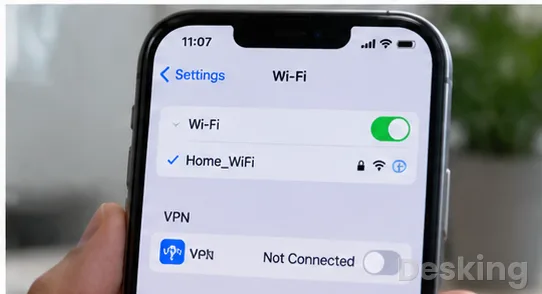
An iPhone needs a working Wi-Fi or cellular connection before a VPN can establish its tunnel.
Open Safari with the VPN disconnected and load a few websites.
If they do not open, check the Wi-Fi connection, cellular signal, Airplane Mode, and mobile data settings before troubleshooting the VPN application.
If ordinary browsing works, open the VPN app and disconnect any session that appears stuck.
Close the application, reopen it, and try again.
A stale session can remain visible after the phone changes from Wi-Fi to mobile data, even though the original tunnel is no longer usable.
2.2 Review VPN settings
Open Settings > General > VPN & Device Management.
Depending on the iOS version and configuration, the VPN section may also appear directly in Settings.
Check whether the expected VPN configuration is present and whether the connection is active.
If you use a third-party VPN app, open it and reconnect so iOS can request permission to add or use the VPN configuration when required.
Approve the request only if the application is the service you intend to use.
If the VPN belongs to an employer or school, do not remove its configuration profile without the administrator's approval.
2.3 Check account and permissions
Confirm that the VPN subscription or work account is active and that the application is signed in with the correct credentials.
Some services require a fresh login after a password change, subscription renewal, or security verification.
If the provider uses multifactor authentication, complete the approval process and check whether the authentication request has expired.
Also verify that the VPN application is allowed to use cellular data.
Open Settings > Cellular and review the app list.
If cellular access is disabled for the VPN app, it may work on Wi-Fi but fail as soon as the iPhone switches to mobile data.
2.4 Update or reinstall
Install available updates for the VPN application from the App Store.
An outdated client may have compatibility problems with the installed iOS release or the provider's current server configuration.
Check for an iOS update as well, particularly if the connection stopped after a system upgrade.
Reinstall the application only after confirming that you know the account credentials and any required configuration details.
A company VPN may depend on certificates, device management, or a profile installed by IT.
Removing those settings can make it harder to reconnect, so managed devices should be handled through the organization's support process.
3. VPN not connecting on Wi-Fi
3.1 Check the Wi-Fi network
A VPN may fail on one Wi-Fi network while working normally on another.
Public networks in hotels, airports, cafés, universities, and offices can require a sign-in page before allowing general internet traffic.
The device may show that it is connected to Wi-Fi even though the network has not granted full internet access.
Disconnect the VPN and open a browser.
If a sign-in or terms acceptance page appears, complete that process first.
Once normal browsing works, reconnect the VPN.
On a network you do not control, do not attempt to bypass access restrictions; ask the network operator whether VPN connections are permitted.
3.2 Test another network
Connect the same device to a different Wi-Fi network or a mobile hotspot.
If the VPN connects successfully there, the original wireless network is the likely source of the problem.

NordVPN
This NordVPN Review for 2026 covers its server network, no logs policy, security features, pricing tiers, and what you get for your money.
- Massive server network globally
- RAM only servers for privacy
- Prices jump after first year
- Fewer features in basic plan
Its router, firewall, DNS configuration, or internet provider may be blocking or interfering with the protocol used by the VPN.
If the VPN fails on several unrelated networks, investigate the application, account, server, and device instead.
This comparison is more useful than repeatedly restarting the same router because it separates a local network issue from a wider service failure.
3.3 Change the VPN protocol
VPN applications may support several protocols, such as WireGuard, OpenVPN, and IKEv2.
They differ in how they establish and maintain the encrypted connection.
Some networks allow one protocol but block or interfere with another, particularly when the network applies strict firewall rules.
Open the VPN application's settings and look for Protocol, Connection type, or a similarly named option.
If the provider supports automatic selection, try that first.
Otherwise, select another protocol officially supported by the service and reconnect.
Do not choose a protocol that the provider does not support or alter a work VPN profile without approval.
3.4 Inspect router restrictions
On a home or office network, router security settings may interfere with VPN traffic.
Firewall rules, parental controls, traffic filtering, custom DNS, and restrictions on particular protocols can prevent the tunnel from establishing.
Some networks also have packet size or MTU problems that allow a connection to start but cause larger data transfers to stall.
If you administer the router, review recent configuration changes and check whether VPN traffic is being blocked.
Do not disable the firewall as a general troubleshooting measure.
If a specific rule is responsible, adjust only that rule and restore the original security settings after testing.
On managed office Wi-Fi, ask the network administrator to inspect the relevant firewall logs.
4. VPN not connecting on iPad
4.1 Check iPadOS connectivity
The iPad uses the same basic VPN troubleshooting process as the iPhone.
Disconnect the VPN and test Safari over Wi-Fi.
If the iPad has cellular capability, test mobile data separately.
This identifies whether the failure follows the device or occurs only on one network.
If the iPad connects to Wi-Fi but cannot browse, check whether other devices can use the same network.
If all devices fail, investigate the router or internet service.
If only the iPad fails, inspect its saved Wi-Fi network, VPN configuration, and any installed security or management profiles.
4.2 Inspect VPN configuration
Open Settings > General > VPN & Device Management and review the installed VPN configuration.
Confirm that the profile belongs to the correct service and that it has not expired or been replaced.
If the VPN is managed by an employer or school, its certificate and authentication settings may be controlled centrally.
For a consumer VPN, open the provider's application and sign in again if necessary.
Confirm that the service supports the installed iPadOS version.
An application update may be required after a major operating system release, particularly if the provider has changed its supported versions.
4.3 Check managed profiles
A supervised or managed iPad may have restrictions that affect VPN connections.
Organizations can deploy VPN profiles, certificates, per-app VPN rules, and Always On VPN policies through device management.
These settings can determine which applications use the tunnel and whether the device is allowed to connect without it.
If the iPad belongs to a company or school, contact its IT administrator before deleting profiles or changing restrictions.
Removing a managed configuration may interrupt access to corporate email, internal applications, or other protected resources.
Personal devices should also be checked for old VPN profiles left behind by applications that are no longer installed.
4.4 Reset only as a last resort
If the iPad cannot connect to any Wi-Fi network and other troubleshooting steps have failed, a network settings reset may help.
Open Settings > General > Transfer or Reset iPad > Reset > Reset Network Settings.
The device will restart its network configuration.
This operation removes saved Wi-Fi networks and passwords and can remove or reset VPN and other network settings.
Make sure you have the Wi-Fi password and any required VPN details before proceeding.
Do not use this reset as the first response to a single VPN server failure.
5. VPN not connecting on a laptop
5.1 Separate app and system VPNs
A laptop may use a VPN application supplied by a commercial provider or a connection configured directly in the operating system.
These are not necessarily interchangeable.
A third-party client may install its own network adapter, firewall rules, DNS settings, and background service, while a built-in VPN profile uses the operating system's VPN platform.
Identify which type is in use before making changes.
If the VPN is managed by an employer, confirm whether the organization requires a particular client, certificate, authentication method, or device compliance status.
Installing a second VPN application can introduce conflicts with the existing configuration.
5.2 Check security software
Antivirus products, endpoint protection, firewalls, and other network filtering applications can interfere with VPN traffic.
This is especially relevant when a VPN stopped working after a security software update or when two products attempt to control the same network connection.
Review recent changes and check the security application's logs for blocked connections.
Do not permanently disable endpoint protection to make a VPN work.
If a temporary test is necessary, perform it only with the administrator's approval, disconnect from sensitive networks, and restore protection immediately after the test.
5.3 Inspect network adapters
On Windows laptops, open Settings > Network & internet > Advanced network settings and inspect the available adapters.
A VPN client may create a virtual network adapter.
If that adapter is disabled, missing, or reporting an error, the VPN application may not be able to establish its tunnel.
On macOS, open System Settings > Network and review the available network services.
Check whether the VPN service is listed and whether Wi-Fi or Ethernet is active.
If the VPN service has disappeared, use the provider's official instructions to repair or reinstall its client rather than downloading drivers from an unknown source.
5.4 Check sleep and network changes
Laptops frequently move between Wi-Fi networks, Ethernet docks, mobile hotspots, and sleep states.
A VPN session may fail to recover after the computer wakes or changes its network connection.
Disconnect and reconnect the VPN after the network becomes available again.
If the problem occurs only after sleep, update the VPN client and operating system, then check the provider's guidance for reconnect behaviour.
On a managed laptop, avoid changing power policies or network adapter settings without approval because those settings may be part of the organization's security configuration.
6. VPN not connecting on iPhone Wi-Fi
6.1 Compare Wi-Fi and cellular
If the VPN works on cellular data but fails on the iPhone's Wi-Fi connection, focus on the wireless network first.
The application, account, and VPN server have already demonstrated that they can work on another connection.
This makes the router, Wi-Fi firewall, DNS service, or network access policy the more likely source of the failure.
Turn off Wi-Fi from the iPhone's Settings or Control Center, confirm that cellular data is active, and connect the VPN.
Then reconnect to the original Wi-Fi and repeat the test.
If the results differ consistently, record the network name, VPN protocol, server, and error message.
These details help the router administrator or VPN provider identify the restriction.
6.2 Clear the sign-in page
Public Wi-Fi often requires a captive portal before it allows internet traffic.
The iPhone may join the wireless network successfully while the portal still expects you to accept terms, enter a password, or provide a room number.
A VPN started before that step may remain stuck because the network has not authorized its traffic.
Disconnect the VPN, open Safari, and visit a regular website.
Complete the sign-in page if one appears, then verify that browsing works before reconnecting the VPN.
If Safari does not display the portal, disconnect and reconnect to the Wi-Fi network or ask the network operator for its sign-in address.
Do not enter account credentials into a page unless you can verify that it belongs to the network provider.
6.3 Check router filtering
Home routers can apply parental controls, security filters, access schedules, or device restrictions to individual clients.
Check whether the iPhone appears in the router's connected-device list and whether its profile has internet access.
If the router recently received a firmware update or a configuration change, review those settings as well.
Some routers also offer VPN passthrough or application filtering controls.
Their names and behaviour vary by manufacturer, so use the documentation for the exact router model.
Do not disable the entire firewall or expose router administration to the internet to test a VPN.
If the network belongs to an employer, school, hotel, or public venue, ask its administrator whether the VPN protocol is permitted.
7. VPN not connecting on mobile data
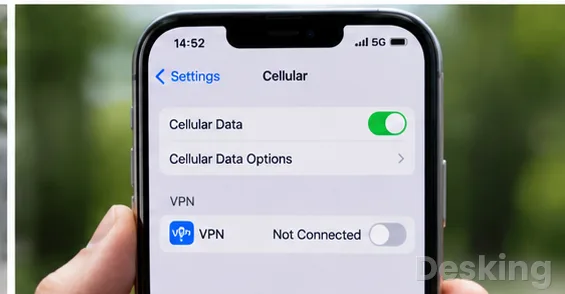
7.1 Confirm cellular access
A VPN cannot connect through mobile data if the phone itself has no usable cellular internet connection.
Disconnect the VPN and open websites using the mobile network.
Check the signal indicator, confirm that Airplane Mode is off, and verify that the mobile plan has available data.
On an iPhone, open Settings > Cellular and confirm that Cellular Data is enabled.
Check the VPN application's permission in the app list below.
If the application is not allowed to use cellular data, it may connect over Wi-Fi but fail as soon as the phone leaves that network.
7.2 Check roaming restrictions
When travelling, mobile data may depend on roaming permissions and the terms of the carrier's plan.
Open Settings > Cellular > Cellular Data Options and review Data Roaming if you are outside your home network.
The exact options depend on the carrier and the iPhone model.
A roaming connection can provide ordinary browsing while still applying restrictions to particular traffic.
If the VPN works on the home carrier but fails on a roaming partner, test another supported VPN server or protocol and contact the mobile provider.
Do not assume that enabling roaming automatically removes every network restriction or additional charge.
7.3 Change the connection protocol
Some mobile networks handle VPN protocols differently.
A connection may fail during tunnel negotiation, or it may establish briefly and then disconnect as the device moves between coverage areas.
The VPN provider may offer an alternative protocol or connection mode designed for networks with restrictive filtering.
Open the VPN app and check its connection settings.
Try the provider's automatic option first, then test another supported protocol if necessary.
Keep the server location unchanged during the first test so that you can identify whether the protocol made a difference.
If the provider offers diagnostic logs, save the connection error before contacting support.
7.4 Check data saving
Mobile operating systems and network management applications can restrict background activity or data use.
A VPN that loses its background connection may stop working when the screen locks or when the application is no longer in the foreground.
NordVPN
This NordVPN Review for 2026 covers its server network, no logs policy, security features, pricing tiers, and what you get for your money.
- Massive server network globally
- RAM only servers for privacy
- Prices jump after first year
- Fewer features in basic plan
Battery optimization and data saving are particularly relevant on Android, while iPhone users should check cellular permissions and any installed management profiles.
Test the connection with the VPN app open and the screen active.
If it works only while the application remains open, consult the VPN provider's instructions for background connection support on that operating system.
Do not remove corporate management controls or disable device security features without authorization.
8. VPN not connecting to the internet
8.1 Understand connected status
A VPN application can display Connected while websites remain inaccessible.
That status usually indicates that the encrypted tunnel has been established with the VPN server.
It does not guarantee that DNS requests are working, that internet routes are correct, or that the VPN server can reach the destination website.
First, disconnect the VPN and test ordinary browsing.
If the internet works, reconnect and test more than one website and application.
If every application fails only while the VPN is active, inspect the kill switch, DNS, routing, and server settings.
If only one website fails, the issue may be specific to that destination or its treatment of VPN traffic.
8.2 Inspect the kill switch
A kill switch blocks internet traffic when the VPN tunnel is unavailable.
Its purpose is to prevent the device from sending traffic outside the encrypted connection, but it can make the device appear completely offline when the tunnel fails.
Open the VPN application's settings and look for Kill Switch, Network Lock, or a similarly named feature.
Check its status and read the provider's explanation before changing it.
If a temporary diagnostic test requires disabling the feature, do so only when you understand the privacy implications and restore the protection immediately after testing.
On a company device, follow the organization's security policy instead of changing this setting yourself.
8.3 Test DNS resolution
DNS translates a website name into the network address that the device needs to reach it.
If the VPN connects but its assigned DNS server does not respond, websites may fail to load even though the tunnel is active.
This can affect all browsers or only applications that depend on a particular DNS configuration.
Compare access to several unrelated websites and check whether the VPN app provides a DNS setting or diagnostic tool.
If the provider supports an automatic DNS configuration, use it for a controlled test.
Avoid entering arbitrary DNS addresses into a work VPN, because the organization may require internal DNS servers to resolve private company names and services.
8.4 Check routing and subnet overlap
A VPN may provide access to a private office network as well as the public internet.
If the local network uses the same IP subnet as the remote office, the computer may send traffic to the wrong interface.
This is known as subnet overlap and can prevent access to internal servers even when the VPN reports a successful connection.
For example, a home router and a remote office may both use the same private address range.
The VPN administrator may need to change one network's addressing plan or configure specific routes.
Do not attempt to fix this by randomly changing the laptop's IP address.
Provide the administrator with the local subnet, VPN connection status, and the destination address that fails.
8.5 Check packet size
A VPN adds information to network packets to provide encryption and tunnelling.
This overhead can cause problems when the network path cannot carry packets of the expected size without fragmentation.
The result may be a tunnel that connects but stalls when loading larger pages, transferring files, or opening particular services.
If small websites load but larger pages hang, test another server or supported protocol first.
If the provider offers an MTU setting, follow its recommended values rather than guessing.
On business VPNs, ask the network administrator to inspect path MTU and fragmentation across the client, firewall, and VPN gateway.
Changing MTU values without understanding the path can create further connectivity problems.
9. VPN not connecting on Windows 11
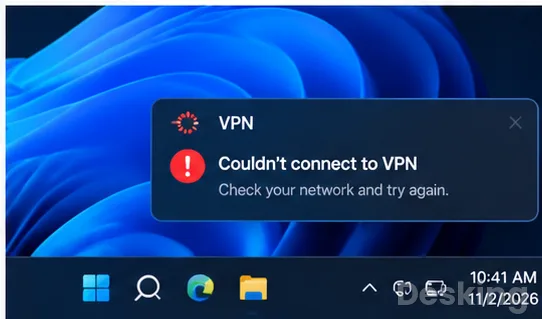
9.1 Check the VPN profile
Windows 11 supports VPN connections through its built-in client and through third-party applications.
If you use the built-in client, open Settings > Network & internet > VPN and select the connection.
Confirm that the server address, VPN type, and sign-in method match the details supplied by the VPN provider or company administrator.
A profile can stop working after a password change, certificate renewal, server migration, or modification to the organization's authentication policy.
Do not guess the VPN type or replace the server address with one found online.
If the connection is for work, request the current configuration from IT.
9.2 Reconnect the profile
Open Settings > Network & internet > VPN and select the affected connection.
Choose Disconnect if Windows shows it as active, wait a few seconds, and select Connect again.
Enter the required credentials if Windows requests them.
If the connection fails, record the complete error message and any error code.
A message that indicates an authentication failure requires a different response from a timeout or unreachable server.
Repeatedly entering the same password will not correct an expired certificate, an incorrect server name, or a firewall blocking the VPN protocol.
9.3 Check Windows networking
Confirm that Windows 11 has internet access before starting the VPN.
Open a browser with the VPN disconnected and test several websites.
If browsing fails, open Settings > Network & internet > Advanced network settings and check the status of the Wi-Fi or Ethernet adapter.
You can also inspect the network configuration from Terminal or Command Prompt.
Run ipconfig /all and check the active adapter, default gateway, DNS servers, and IP address.
If the laptop has no valid gateway or has received an unexpected address, repair the local connection before investigating the VPN tunnel.
9.4 Inspect firewall rules
Windows Defender Firewall or a third-party security product may block VPN traffic.
This can happen after a firewall policy change, security update, or installation of another network application.
Check whether the VPN client is permitted by the active firewall profile and whether the security software has logged a blocked connection.
Do not turn off the firewall permanently.
If you administer the computer, review the specific application and network rules and compare them with the VPN provider's requirements.
For a company laptop, ask IT to check both endpoint protection and the organization's network firewall.
A client-side rule may be correct while an upstream firewall still blocks the connection.
9.5 Review VPN services
Some VPN applications rely on background services and virtual network adapters.
If a service is stopped or an adapter is damaged, the app may remain stuck at Connecting or fail immediately.
Open Settings > Network & internet > Advanced network settings and inspect the network adapters.
If the VPN application provides a repair option, use its official repair procedure.
You can also restart Windows and install the latest supported version of the VPN client.
Avoid deleting unfamiliar network adapters because they may belong to business software, virtualization platforms, or other essential services.
9.6 Read Windows error codes
Windows VPN errors can help narrow the investigation.
Error 809, for example, can indicate that the client cannot establish a connection to the remote server because a router, firewall, or network address translation device is not allowing the required traffic.
Microsoft documents this type of failure for IPsec and L2TP connections, including the need to check the relevant UDP ports and network path.
Other errors may indicate that the authentication method configured on the client does not match the VPN server.
An administrator should compare the client profile, server policy, certificates, and authentication logs.
Do not apply registry changes or modify security protocols simply because an online post recommends them for a similar error number.
10. VPN not connecting on Mac
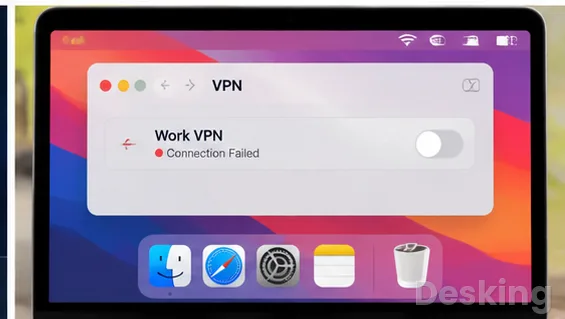
10.1 Check macOS network access
Disconnect the VPN and test ordinary internet access in Safari.
If websites do not load, check Wi-Fi or Ethernet before changing the VPN configuration.
Open Apple menu > System Settings > Network and confirm that the active network service is connected.
If the Mac uses Wi-Fi, try another network or a phone hotspot.
If it uses Ethernet, check the cable, dock, and network port.
A VPN failure that follows the Mac across several networks is more likely to involve its application, account, profile, or system configuration.
10.2 Review VPN settings
Open Apple menu > System Settings > VPN.
The available options depend on the VPN type and how the connection was installed.
Select the relevant VPN service and try to connect again.
For a manually configured VPN, verify the server address, account name, authentication method, and any certificate or shared secret supplied by the administrator.
Apple documents that Mac VPN connections require configuration details from the organization or service provider.
If any of those details have changed, the profile may need to be updated before the connection can succeed.
10.3 Inspect installed profiles
Open System Settings > General > Device Management, if that section is available, and review installed management profiles.
A work or school VPN may depend on a profile that installs certificates, connection settings, or security requirements.
Removing it can interrupt access to internal systems.
Also check whether an old VPN application has left behind a configuration that conflicts with the current client.
If you find an unfamiliar profile, identify which application or organization installed it before making changes.
On a managed Mac, ask the administrator to verify the profile and certificate status.
10.4 Check security software
Apple warns that VPN and other third-party security software can affect network connectivity on Mac devices.
Network filters, firewall products, content blockers, and endpoint protection can interfere with internet access or communication between local devices.
Review recently installed or updated security applications.
If the VPN stopped working after an update, check the software provider's release notes and support guidance.
Do not remove system extensions or disable security controls without understanding what they protect.
On a company Mac, the administrator should check the endpoint security policy and VPN client logs.
10.5 Recreate the connection
If the VPN configuration is damaged, the provider may recommend removing and recreating it.
Before doing so, record the server address, VPN type, authentication details, and certificate requirements.
For a work connection, obtain a fresh configuration from IT rather than copying settings from another Mac.
Apple's Mac settings allow users to inspect, modify, and remove VPN configurations.
Use the removal option only when you have the information required to create the connection again.
If the VPN is deployed through device management, let the administrator repair or reinstall the profile so that required certificates and policies remain intact.
10.6 Check after sleep
A Mac can lose its VPN session when it sleeps, changes Wi-Fi networks, or moves between wireless access points.
If the connection fails only after waking the computer, disconnect and reconnect the VPN once the network is available.
Check whether the provider has an option to reconnect automatically after a network change.
NordVPN
This NordVPN Review for 2026 covers its server network, no logs policy, security features, pricing tiers, and what you get for your money.
- Massive server network globally
- RAM only servers for privacy
- Prices jump after first year
- Fewer features in basic plan
If the problem repeats, update macOS and the VPN client to supported versions.
Record whether the failure occurs after sleep, after changing networks, or at a fixed interval.
That information helps distinguish a client reconnection problem from a server timeout or network policy.
11. Restore a reliable connection
11.1 Verify the tunnel
After applying a fix, confirm that the VPN application reports a connected state and that the operating system shows the expected VPN connection.
Open several websites and test the applications that originally failed.
If the VPN is for work, test access to an approved internal resource as well as ordinary internet browsing.
A successful connection to the VPN server does not prove that all traffic is using the intended route.
If the service provides a connection test or diagnostic page, use it to verify the server and connection status.
For business VPNs, the administrator can confirm the assigned address, DNS servers, routes, and authentication result from the gateway logs.
11.2 Confirm network changes
Repeat the test on the network where the failure first occurred.
If the VPN works on mobile data but not Wi-Fi, the wireless network still needs investigation.
If it works on Wi-Fi but fails on cellular data, check the mobile app permission, carrier restrictions, roaming settings, and VPN protocol.
Do not leave temporary diagnostic changes in place.
Restore the firewall, kill switch, security filters, and any other protection that was disabled for testing.
Record the final server and protocol settings so that the same configuration can be restored if the problem returns.
11.3 Know when to contact support
Contact the VPN provider when the same account fails across several devices and networks, when multiple servers are unavailable, or when the application reports an account or authentication error.
Provide the operating system version, VPN client version, server location, protocol, time of failure, and exact error message.
Do not send passwords, private keys, or authentication codes.
For a company VPN, contact the organization's IT team when the profile uses certificates, managed configuration, internal DNS, or access policies.
Administrators may need to inspect firewall logs, VPN gateway events, certificate validity, routing, and authentication services.
A precise error report is more useful than simply saying that the VPN does not work.
12. Conclusion
A VPN connection can fail because of the device, the VPN application, the account, or the network carrying the traffic.
The most effective way to identify the cause is to test ordinary internet access first, compare Wi-Fi with mobile data, and then change one VPN setting at a time.
This prevents unnecessary resets and makes it easier to identify whether the failure is local or provider related.
For iPhone and iPad users, check cellular permissions, installed VPN profiles, Wi-Fi sign-in pages, and the provider's app settings.
Windows 11 users should verify the VPN profile, credentials, firewall rules, and error codes.
Mac users should inspect Network and VPN settings, security software, and any configuration profiles installed by an organization.
When a VPN says Connected but websites do not load, investigate DNS, routing, kill switch behaviour, and packet size.
If the problem occurs only on one Wi-Fi network or mobile carrier, the network itself may be restricting VPN traffic.
A reliable repair addresses the cause, restores the security controls, and confirms that both internet access and the resources behind the VPN work as expected.