
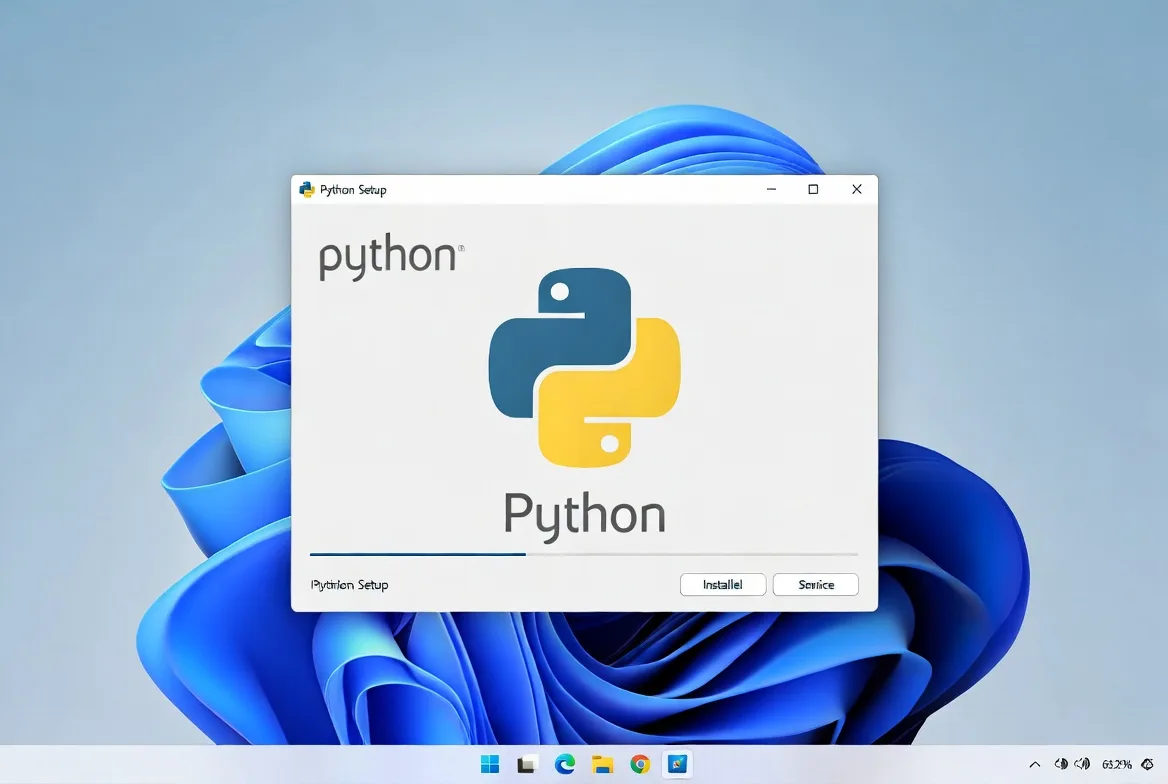
The best way to install Python on Windows depends less on which installer you click and more on a handful of small decisions that trip up almost everyone the first time, particularly around PATH settings and version numbers.
Python itself installs in a couple of minutes regardless of which method you choose, but getting it set up so that it actually runs from the command line, works with your code editor, and does not conflict with a second version later takes a bit more care.
1. Pick the Right Python Version First
Python 3 is the only version worth installing today, since Python 2 stopped receiving security updates years ago and most modern libraries no longer support it at all.
Within Python 3, stick to a recent stable release rather than the absolute newest one, since brand new versions sometimes lag behind on compatibility with popular packages for the first few months after release.
Checking python.org directly shows which version is currently recommended for general use.
2. Download the Official Installer From python.org
Go to python.org, hover over Downloads, and click the button for the latest Windows installer, which detects your system automatically and offers the correct 64 bit version for nearly all modern machines.
Avoid downloading Python through unofficial mirror sites or random download aggregators, since the official installer is the only version guaranteed to match what the documentation and community support assume you are running.
3. Check the Add Python to PATH Box
This single checkbox causes more confusion than almost anything else in the entire process.
On the very first installer screen, before clicking Install Now, there is a small checkbox at the bottom labeled Add python.exe to PATH.
Check it.

ClickUp
ClickUp provides an all in one workspace with tasks docs automation and AI tools. This ClickUp review evaluates capabilities pricing fit and practical tradeoff…
- Extensive customization depth
- Strong free tier value
- Steep initial learning curve
- Interface can feel busy
Skipping this step is the number one reason people type python into Command Prompt afterward and get an error saying the command is not recognized at all, even though Python installed successfully moments earlier.
4. Choose Between Install Now and Customize Installation
Install Now handles a standard setup that works fine for most people, installing Python into a default folder under your user account and skipping some of the optional components.
Customize Installation, available from the same first screen, lets you change the install location, choose whether to install pip, and decide whether Python installs for just your account or for every user on the machine.
Unless you have a specific reason to change the install path, such as a shared work computer with restricted permissions, Install Now with the PATH box checked is the simpler route.
5. Confirm the Installation Actually Worked
Once the installer finishes, open Command Prompt and type python followed by the version flag to confirm it responds correctly.
A successful install prints the version number immediately.
If instead it says the command is not recognized, PATH was likely not set correctly during installation, which the next section walks through fixing.
6. Fix a Missing PATH Entry After the Fact
If Python installed but Command Prompt still cannot find it, the PATH variable needs a manual entry rather than a full reinstall.
Search for Environment Variables in the Start menu and open Edit the system environment variables.
Click Environment Variables, find Path under System variables, select it, and click Edit.
Add the folder where Python was installed, typically something like C:\Users\YourName\AppData\Local\Programs\Python\Python312, along with the Scripts subfolder inside it, since that is where pip and other command line tools live.
Restart Command Prompt afterward for the change to take effect.
7. Verify pip Installed Alongside Python
pip is Python's package installer and comes bundled automatically with modern versions, but it is worth confirming it actually installed correctly rather than assuming so.
Open Command Prompt and type pip followed by the version flag.
If it responds with a version number, everything installed as expected.
If not, running python followed by a space, then dash m, then ensurepip, then a space and dash dash upgrade reinstalls pip cleanly without touching the rest of the Python installation.
ClickUp
ClickUp provides an all in one workspace with tasks docs automation and AI tools. This ClickUp review evaluates capabilities pricing fit and practical tradeoff…
- Extensive customization depth
- Strong free tier value
- Steep initial learning curve
- Interface can feel busy
8. Decide Whether to Use a Virtual Environment
A virtual environment keeps the packages for one project separate from every other project on the machine, which avoids a common headache where one project needs an older version of a library while another needs the newest one.
Python includes this built in through the venv module, so there is no separate download required.
Inside a project folder, running python followed by dash m, then venv, then the word env creates a self contained environment that can be activated whenever you are working on that specific project.
9. Choose Whether to Install Through the Microsoft Store Instead
Windows also offers Python directly through the Microsoft Store, which some people prefer because it handles updates automatically and sidesteps the PATH checkbox entirely.
It works well for casual scripting and quick experimentation, but it comes with some restrictions around file system permissions that occasionally cause issues with certain development tools, particularly ones that expect Python installed in a traditional folder structure.
For serious development work, the python.org installer remains the more reliable and widely supported option.
10. Set Up a Code Editor to Work With Python
Visual Studio Code is the most common choice for Python development on Windows and integrates cleanly once the Python extension from Microsoft is installed through the Extensions panel inside the editor.
Once installed, VS Code automatically detects the Python installation and offers to select it as the interpreter for your project, which enables features like autocomplete, error checking, and the ability to run scripts directly from inside the editor without switching to Command Prompt each time.
11. Handle Multiple Python Versions Without Conflicts
Some projects require an older Python version even after a newer one is installed, and running both side by side is entirely possible without uninstalling either one.
The Python installer supports this natively, and a tool called py, installed automatically alongside Python on Windows, lets you specify which version to run for a given command.
Typing py followed by a specific version number and then a script name runs that script using exactly the version requested, regardless of which one shows up by default when just typing python alone.
12. Uninstall or Repair a Broken Installation
If something during setup went wrong and Python behaves inconsistently, the cleanest fix is usually removing it entirely and starting fresh rather than trying to patch a partial install.
Open Settings, go to Apps, find Python in the list, and uninstall it completely.
Restart the computer, then reinstall using the steps above, making sure to check the PATH checkbox this time if it was missed previously.
Frequently Asked Questions
Do I need to pay for anything to install Python on Windows?
No. Python is completely free and open source, and the official installer from python.org includes everything most people need to start writing and running code immediately.
What is the difference between installing Python from python.org and from the Microsoft Store?
The python.org installer gives you full control over the install location and PATH settings and is generally preferred for serious development work, while the Microsoft Store version updates automatically and works fine for lighter use, though it has some file permission restrictions that occasionally cause friction with certain tools.
Why does typing python in Command Prompt open the Microsoft Store instead of running Python?
This happens when Windows has an app execution alias enabled that redirects the python command to the Store listing when no other Python installation is found on PATH.
ClickUp
ClickUp provides an all in one workspace with tasks docs automation and AI tools. This ClickUp review evaluates capabilities pricing fit and practical tradeoff…
- Extensive customization depth
- Strong free tier value
- Steep initial learning curve
- Interface can feel busy
Turning this off under Settings, then Apps, then Advanced app settings, then App execution aliases, resolves it once a proper installation from python.org is in place.
Can I install more than one version of Python at the same time?
Yes, and it is a common setup for developers who work across multiple projects with different requirements.
Using the py launcher that installs alongside Python lets you specify exactly which version runs for a given script without the versions interfering with each other.
How do I know if my Python installation includes pip?
Open Command Prompt and type pip followed by the version flag.
Modern Python installers from python.org include pip automatically, so a version number appearing confirms it installed correctly alongside the rest of Python.
