
How to Best Use Asana in 2026 For Maximum Productivity
By Afonso Macosso · July 8, 2026
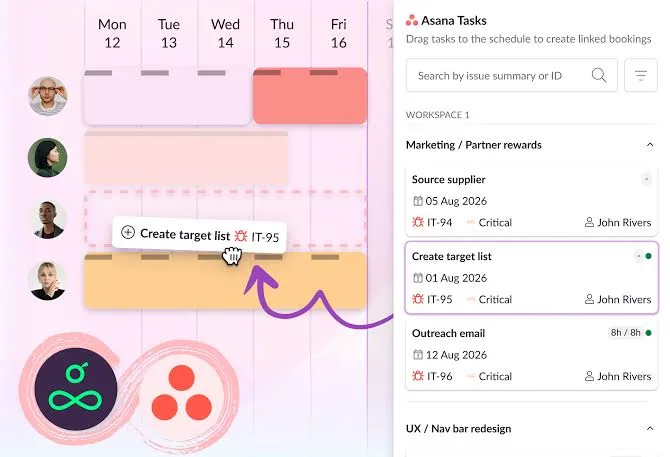
Table of contents
- 1. How to Best Use Asana for Project Success
- 2. Why Trust Our Product Management Methods
- 3. Establish Clear Workspace Structures First
- 4. Standardize Your Task Naming Conventions
- 5. Select Your Layout Strategically
- 6. Maximize Productivity Using Custom Fields
- 7. Streamline Workflows With Native Automation Rules
- 8. Consolidate Context Inside Task Comments
- 9. Manage Operational Deadlines via My Tasks
- 10. Avoid Common Structural Over-Engineering Mistakes
- 11. Connect External Apps to Centralize Information
- 12. Review Project Health Using Portfolios and Dashboards
- 13. Frequently Asked Questions
1. How to Best Use Asana for Project Success
How to best use asana requires a clear understanding of your team structural workflows and daily operational goals before creating your very first project board.
Many squads fall into the trap of dumping thousands of random tasks into a single unorganized digital pile, which quickly leads to platform abandonment and general team confusion.
By designing highly intentional layouts, establishing strict organizational naming conventions, and setting clear accountability lines from day one, you can turn this software into a highly efficient hub for your company operations.
True platform mastery means tailoring the interface to support your specific human workflows rather than forcing your people to adapt to a rigid technological tool.
2. Why Trust Our Product Management Methods
Our software research process relies completely on deep hands-on testing inside real working environments with complex data and active users.
We do not just skim through official technical documentation or summarize existing online marketing materials, we actually build full operational setups to test real-world bottlenecks.
We configure sprint cycles, manage extensive content calendars, and track complex corporate events across multiple interconnected workspaces to verify how features perform under pressure.
Every recommendation we share comes directly from practical experience managing active production teams and analyzing official software updates directly on the Asana developer platform.
3. Establish Clear Workspace Structures First
Building a functional workspace requires a logical hierarchy that keeps your separate business departments organized and cleanly isolated.
Start by creating dedicated teams for distinct functional areas such as Marketing, Sales, Engineering, or Human Resources to keep conversations relevant.
Within each team, build specific projects that focus on actionable outcomes rather than vague ongoing concepts.
Asana
Asana organizes team work through tasks projects and automation. This Asana review examines its strengths limitations pricing and suitability for different tea…
- Clean intuitive interface
- Strong task organization
- Learning curve for setup
- Higher tiers cost more
A project should always have a defined end state or a clear repeating cycle, such as an active product launch or a monthly newsletter run.
Grouping similar projects into cohesive portfolios allows executives to track high-level progress across the entire organization without getting lost in daily micro-tasks.
4. Standardize Your Task Naming Conventions
Chaos spreads through a digital workspace when team members write vague task titles that lack context or clear action verbs.
For effective collaboration, enforce a strict rule where every task name begins with a concrete action verb, such as write, design, review, or publish.
Avoid single-word titles like Update or Report, which force colleagues to click into the task and read long comment histories just to understand what needs to happen.
Adding specific object details, like Review Homepage Mockup V2, allows team members to understand the exact scope of work instantly from their primary dashboard views.
5. Select Your Layout Strategically
Choosing the right visual layout for each project prevents communication breakdowns and keeps work moving smoothly.
Use the traditional list view for analytical processes that require sorting extensive columns of custom fields and complex task metadata.
Switch to the board layout for sequential pipelines like content creation or software bug tracking, where cards move horizontally from left to right through progressive stages of completion.
Reserve the visual timeline timeline for large multi-layered initiatives with tight dependent deadlines, allowing managers to see how delays in early phases will impact later milestones.
6. Maximize Productivity Using Custom Fields
Custom fields allow you to move beyond basic titles and descriptions by adding structured contextual metadata directly to your individual items.
Create drop-down menus for priority levels, task status, estimated hours, and department ownership to make your data highly filterable.
By structuring your tasks with explicit custom fields, you can sort, group, and filter complex project boards instantly based on real-time needs.
For instance, an editorial manager can filter a massive dashboard to show only high-priority writing tasks assigned to a specific contractor, removing all distracting clutter from the screen.
7. Streamline Workflows With Native Automation Rules
Building automated rules reduces repetitive administrative friction and frees up your creative energy for higher-value technical tasks.
Set up basic automated triggers within your project settings, such as automatically shifting a task to a different worker when a dropdown status changes.
You can also configure the system to automatically adjust a subtask due date when the parent task deadline moves, preventing broken schedules down the line.
Automating these small structural adjustments keeps your project boards factually accurate without requiring project managers to spend hours manually editing individual text fields every afternoon.
8. Consolidate Context Inside Task Comments
Scattering project communication across disconnected platforms like email, instant messaging apps, and text threads is a major cause of missed project requirements.
Force your team to keep all topic-specific discussions inside the dedicated comment section of the relevant task.
Asana
Asana organizes team work through tasks projects and automation. This Asana review examines its strengths limitations pricing and suitability for different tea…
- Clean intuitive interface
- Strong task organization
- Learning curve for setup
- Higher tiers cost more
When feedback, files, and edit requests remain attached directly to the active item, any team member can step in and understand the history of the work instantly.
Use mentions to pull specific colleagues into active comment threads, ensuring they receive a direct notification without clogging up their main email inboxes.
9. Manage Operational Deadlines via My Tasks
The My Tasks section is your personal command center, and organizing it properly prevents you from feeling overwhelmed by large corporate projects.
Use the built-in system sections like Recently Assigned, Today, Upcoming, and Later to triaging your incoming obligations every morning.
When a manager assigns you a new item, review it immediately to estimate the effort required, then drag it into the correct chronological section.
Keeping the Recently Assigned bucket completely empty by the end of each day ensures you never miss a surprise deadline or an unexpected project shift.
10. Avoid Common Structural Over-Engineering Mistakes
Building workflows that are too complex is a fast way to kill employee adoption and ruin your collaboration systems.
Avoid creating deep nests of subtasks inside other subtasks, as this hides work from your main project views and confuses team members.
If a subtask requires its own set of detailed steps, custom fields, or extensive discussions, it should immediately be converted into a standalone project task.
Keep your workflows as flat and simple as possible, ensuring that anyone can log in and immediately understand what needs to happen next without clicking through multiple hidden menus.
11. Connect External Apps to Centralize Information
You can expand your system capabilities by integrating your workspace with the external technical tools your company already uses daily.
Link your communication channels by installing the Slack integration, which allows employees to turn chat messages into actionable tasks without leaving the chat app.
Connect file storage providers like Google Drive or Dropbox to attach live cloud documents directly to your tasks, ensuring everyone works off the same active file version.
For development teams, syncing your boards with GitHub allows pull requests to automatically update corresponding task statuses, according to the official integration guides available on the
12. Review Project Health Using Portfolios and Dashboards
Keeping tabs on multiple simultaneous initiatives requires a centralized way to monitor overall health without micromanaging individual tasks.
Group your related projects into a single portfolio to view high-level status updates, completion percentages, and real-time budget burn rates on one clean screen.
Use the universal dashboard tab to generate visual charts that highlight team workload distribution, unassigned tasks, and overdue items across your entire department.
These visual reporting tools allow executives to reallocate resources quickly and fix structural bottlenecks before they cause major project delays.
13. Frequently Asked Questions
What is the best way to structure Asana?
The most effective structure relies on creating distinct teams for separate departments, clear projects for specific initiatives, and descriptive tasks for individual actions.
Avoid deep subtask nesting to keep your daily work visible and easy to track on your primary dashboards.
Asana
Asana organizes team work through tasks projects and automation. This Asana review examines its strengths limitations pricing and suitability for different tea…
- Clean intuitive interface
- Strong task organization
- Learning curve for setup
- Higher tiers cost more
How do I organize my daily tasks in Asana?
Manage your daily workload by actively using the My Tasks dashboard and sorting your assignments into Today, Upcoming, and Later sections.
Review your inbox every morning to triaging new assignments and keep your personal dashboard focused only on immediate priorities.
Can Asana handle complex software sprints?
Yes, you can manage software development cycles effectively by utilizing the Board view as a Kanban pipeline and tracking bugs with custom fields.
Combining these boards with native automation allows tasks to move through development stages smoothly as code updates occur.
How do teams collaborate best within tasks?
Teams collaborate most efficiently by keeping all contextual feedback, questions, and file attachments directly inside the relevant task comment section.
This approach eliminates scattered email chains and ensures that anyone opening the task sees the entire history of the work.
