
How to Create a Website With Hostinger: Step-by-Step Guide
By Eva Elekcha · October 27, 2026
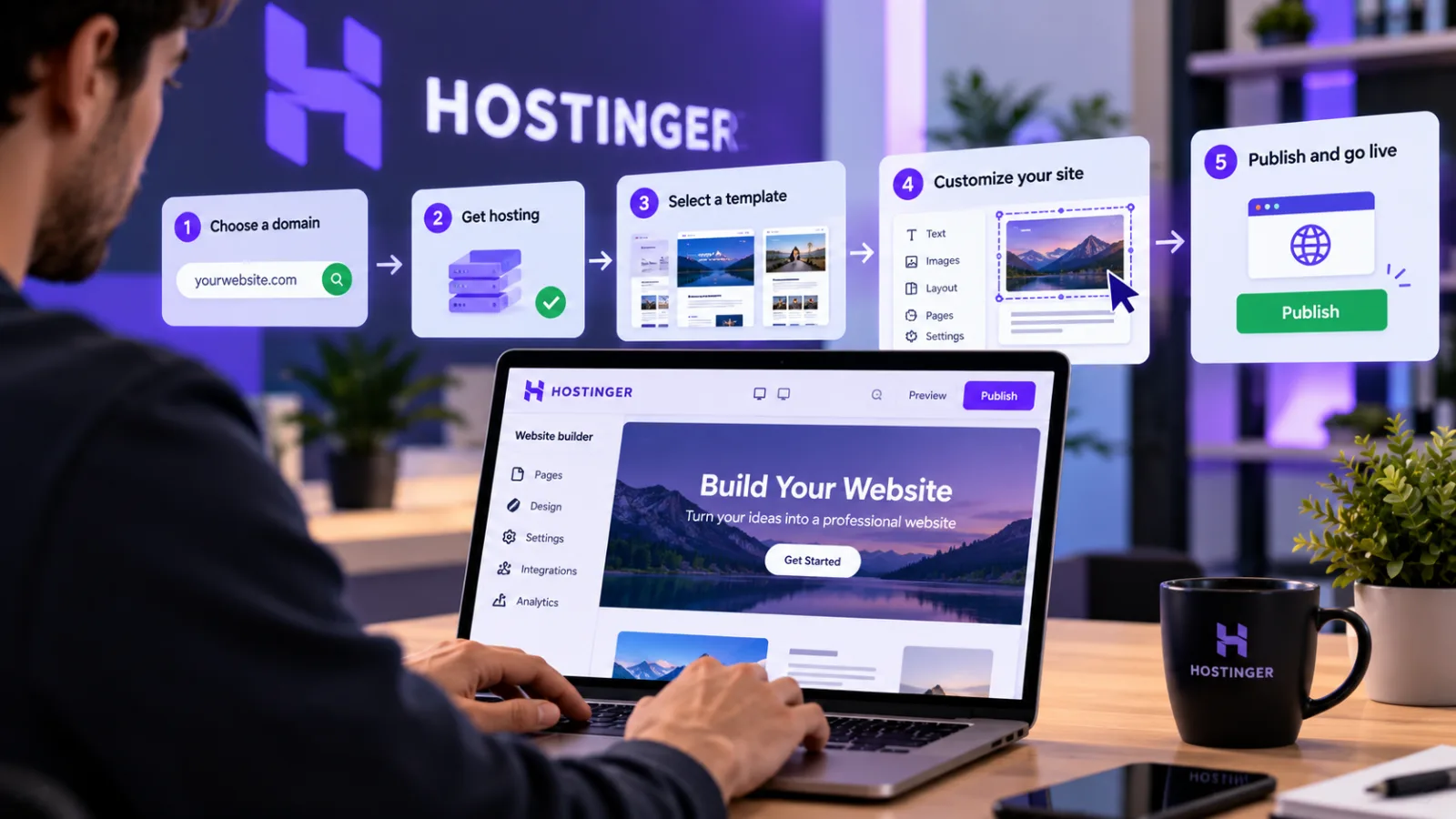
Table of contents
- What You Need Before Creating a Website
- Step 1: Choose a Hostinger Hosting Plan
- Step 2: Set Up Your Website in Hostinger
- Step 3: Create a Website With Hostinger Website Builder
- Step 4: Create Your Website With WordPress on Hostinger
- Step 5: Connect Your Domain Name to Hostinger
- Step 6: Design the Pages Visitors Actually Need
- Step 7: Secure Your Website With SSL
- Step 8: Prepare Your Website for Google Search
- Step 9: Test Everything Before Publishing
- Step 10: Publish Your Website
- Step 11: Maintain the Website After Launch
- How Much Does It Cost to Create a Website With Hostinger?
- Hostinger Website Builder vs. WordPress: Which Should You Choose?
- Final Recommendation
- Frequently Asked Questions
Creating a website with Hostinger involves choosing a hosting plan, selecting a website-building platform, connecting a domain name, designing your pages, and publishing the finished site.
For beginners who want to avoid coding, Hostinger Website Builder offers an AI-assisted setup and customizable templates.
For users who want more control over publishing, plugins, and long-term customization, WordPress is another option supported by Hostinger.
The right approach depends on what you want to build.
A small business website, personal portfolio, online store, and technology blog have different requirements, so choosing the platform before designing the site can save time and money.
Hostinger’s current setup process supports options including its Website Builder, WordPress, and custom website files, depending on the hosting plan.
What You Need Before Creating a Website
You do not need programming experience to launch a basic website, but a little planning makes the process easier.
Before purchasing a plan, decide what the website must accomplish, who it is for, and which features it needs.
1. Define the website’s purpose
Start by choosing the primary purpose of the site.
Common examples include:
Business website: Explains services, builds credibility, and helps potential customers get in touch.
Blog or news website: Publishes articles, guides, reviews, and updates.
Portfolio: Displays projects, skills, and professional experience.
Online store: Lists products, accepts orders, and manages payments.
Personal website: Shares information about an individual, interests, or professional work.
Membership website: Gives registered users access to restricted content or services.
This decision influences the pages, design, integrations, and platform you need.
2. Choose a domain name
A domain name is the address people enter in their browser to reach your website, such as example.com.
Choose a name that is easy to spell, remember, and associate with your brand.
Before committing, check whether the name is available and whether it could be confused with an existing company or trademark.
If you already own a domain, you may be able to connect it to your Hostinger website rather than registering another one.
Some hosting plans may include a domain registration benefit, but eligibility, supported domain extensions, renewal terms, and other conditions vary.
Confirm the terms displayed during checkout rather than assuming the domain will remain free indefinitely.
3. Decide between Hostinger Website Builder and WordPress
Hostinger offers more than one way to build a website.
The two main options for many beginners are its visual Website Builder and WordPress.
Hostinger Website Builder is suited to people who want to create and edit pages through a visual interface.
It offers AI-assisted website creation and templates, allowing users to customize layouts and content without managing a separate WordPress installation.
WordPress is a content management system (CMS) that supports websites ranging from simple blogs to complex publishing platforms.
It provides themes and plugins for extending a site's design and functionality, but users must make decisions about updates, compatibility, security, and maintenance.
Neither option is universally better.
A small service-business website may work well with the visual builder, while a content-heavy publication may benefit from WordPress's publishing workflow and broader ecosystem.
Step 1: Choose a Hostinger Hosting Plan
Begin by visiting Hostinger’s official website and reviewing the hosting plans available in your region.
Compare the features included in each plan against the needs of your project.
Pay attention to the following details:
Website limits: Check how many websites the plan supports.
Storage: Estimate the space required for pages, images, videos, and other files.
Performance resources: Review the resources and performance features offered by the plan.
Backups: Confirm backup frequency, retention, and restoration options.
Security: Review SSL availability and other included security features.
Email: Check whether professional email accounts are included and what limitations apply.
Domain benefits: Confirm whether a domain registration benefit is available and the conditions attached to it.
Renewal price: Compare the introductory price with the renewal rate.
E-commerce support: If you plan to sell online, verify that the plan and platform support your intended store.
The lowest introductory price is not necessarily the best long-term choice.
A site with regular publishing, substantial traffic, or e-commerce functionality may need more resources than a simple portfolio.
Hostinger changes its offers and plan details over time, so verify current pricing, renewal terms, and included features before purchasing.
Step 2: Set Up Your Website in Hostinger
After purchasing a suitable plan, sign in to your Hostinger account and open the hosting dashboard.
The exact labels can vary depending on the interface and the plan you purchased, but Hostinger's documented setup process generally begins in the Websites section.
From there, select the option to create a website under the relevant hosting plan.
Hostinger may offer choices such as WordPress, its Website Builder, or an empty website for a custom setup.
Choose the platform that matches your project.
If you are building your first website and want the simplest visual workflow, select Hostinger Website Builder.
If you want a content management system with themes and plugins, select WordPress.
If you are developing a custom website, make sure the plan supports the technologies you intend to use before choosing an empty or custom website setup.
Step 3: Create a Website With Hostinger Website Builder
Hostinger Website Builder is designed for users who want to create a website without manually building every page from scratch.

Hostinger VPS
Hostinger VPS delivers KVM virtualization, NVMe storage and full root access at prices that undercut most competing cloud providers.
- Strong price to specification ratio overall
- NVMe storage included on every tier
- Renewal rates climb steeply after promo
- Self managed means security is your job
You can start with AI-assisted generation or select a pre-designed template and customize it.
Hostinger's setup documentation describes both approaches.
Option A: Generate a website with AI
If the AI-assisted setup is available for your chosen product, begin by describing the website you want to create.
Provide clear information about:
The website's name and purpose.
The audience you want to reach.
The products or services you offer.
The main pages you need.
Your preferred visual style.
The action you want visitors to take.
For example, a local consulting business might request a professional website with a homepage, services page, company information, testimonials, and contact form.
A useful description should be specific enough to guide the initial design.
Instead of asking for a generic business website, explain the industry, intended customers, tone, and essential functionality.
Review the generated result carefully.
AI-generated layouts and copy are starting points, not proof that the site is accurate, legally compliant, accessible, or ready for publication.
Replace generic text with verified business information, check every image and link, and remove any features you do not need.
Option B: Start with a template
If you prefer to control the design from the beginning, choose a suitable template.
Look for a layout that matches the site's purpose.
A portfolio should emphasize projects, while an online store needs clear product categories and shopping functionality.
A blog should make articles easy to discover and read.
After selecting a template, customize its structure, typography, colors, images, and text.
Avoid spending too much time on decorative details before organizing the content.
Visitors should be able to understand what the website offers and find the information they need without unnecessary navigation.
Customize the website editor
Hostinger's visual editor provides tools for managing page elements and navigation.
Depending on the product version, the interface can include controls for adding elements, editing pages, and adjusting site settings.
Work through the design in a logical order:
Establish the site's overall visual identity.
Create the main navigation.
Organize each page into clear sections.
Add the final text and images.
Configure buttons and forms.
Check how the layout behaves on desktop and mobile screens.
Preview every page before publishing.
Use consistent spacing, readable text, and a limited color palette.
The goal is to make the site easy to understand, not simply to fill the screen with design elements.
Step 4: Create Your Website With WordPress on Hostinger
WordPress is a strong alternative for users who want more control over content publishing, site structure, themes, and plugins.
Hostinger's current WordPress setup flow allows users to create an administrator account, choose an AI-assisted or blank installation, and assign a domain or temporary domain.
Once installation is complete, the WordPress dashboard becomes available through the hosting account.
Install WordPress
In your Hostinger dashboard:
Open the Websites section.
Choose the option to create a website under your hosting plan.
Select WordPress.
Enter the requested administrator details.
Choose an AI-assisted setup or a blank WordPress installation, depending on the options available.
Select or assign a domain, or use a temporary domain if the setup allows it.
Complete the installation and open the WordPress dashboard.
Use a strong, unique administrator password.
Protect the administrator email account as well, because access to it may be needed for account recovery.
Choose a WordPress theme
A theme controls the overall presentation of your WordPress site, including layouts, typography, and other visual elements.
To browse themes, open the WordPress dashboard and navigate to Appearance → Themes.
The exact options available depend on the WordPress installation and installed software.
Choose a theme that supports your intended site structure and is maintained by a reputable developer.
Check its compatibility with your WordPress version and the features you need.
Avoid installing multiple themes or design tools without a clear reason.
More components can mean more settings to manage and more potential compatibility issues.
Install only the plugins you need
Plugins extend WordPress with additional functionality.
Depending on the site, they may provide search optimization, contact forms, security controls, backups, performance features, or e-commerce tools.
Before installing a plugin, review its purpose, update history, compatibility, support information, and permissions.
Install it from a trustworthy source and remove plugins that are no longer needed.
For a basic business website, begin with the minimum functionality required.
A publishing site may need additional editorial and SEO tools, while an online store needs an appropriate e-commerce solution.
Build the main pages
Most business and professional websites need a small set of core pages:
Home: Explains what the website offers and directs visitors to the most important sections.
About: Provides background about the business, organization, or publisher.
Services or Products: Describes the available offerings.
Contact: Provides a reliable way to reach the organization.
Privacy Policy: Explains relevant personal-data collection and processing.
Terms: Sets out applicable conditions for using the website or purchasing services.
A blog or news publication may also need category pages, author profiles, editorial policies, and a corrections policy where appropriate.
Do not publish boilerplate legal text without checking whether it fits the website's actual practices and applicable law.
Step 5: Connect Your Domain Name to Hostinger
Once your website structure is ready, connect the domain visitors will use to access it.
If you registered a domain through Hostinger during setup, it may already be assigned to the website.
If your domain is registered with another provider, you may need to connect it through the Hostinger dashboard and update the relevant DNS settings.
DNS, or Domain Name System, translates a domain name into the information browsers use to locate a website.
Incorrect DNS settings can prevent visitors from reaching your site even when the website itself has been created successfully.
If your domain is registered with Hostinger
Open the Hostinger dashboard and check the domain assigned to your website.
Confirm that it is connected to the correct site and that any required domain verification or setup steps are complete.
If your domain is registered elsewhere
Start by adding or assigning the existing domain to your Hostinger website.
Follow Hostinger's instructions for your particular website platform.
Depending on the domain's current configuration, you may need to change its nameservers or update specific DNS records at the provider managing the domain.
Do not change nameservers without understanding which services depend on the existing DNS configuration, particularly if you already use professional email or other services on the domain.
After making the required changes, allow time for DNS updates to propagate.
Hostinger says propagation can take up to 24 hours, although the actual time can vary.
Should you use a temporary domain?
A temporary domain can be useful when you want to begin building before choosing a permanent address.
Hostinger supports temporary-domain options for certain website setup flows.
However, a temporary address is generally not the best long-term choice for a public business, blog, or professional publication.
A custom domain gives visitors a consistent address and supports a recognizable brand.
If you plan to use a custom domain eventually, connect it before completing your final SEO and publishing checks.
Step 6: Design the Pages Visitors Actually Need
A website should help visitors accomplish something.
That might mean understanding a service, reading an article, requesting a quote, booking an appointment, or purchasing a product.
Start by deciding what a visitor should be able to do on each page.
Then organize the content around that purpose.
Build a clear homepage
Your homepage should communicate three things quickly:
What the website is about.
Who it serves.
What visitors should do next.
4.3Web HostingHostinger VPS
4.3Hostinger VPS delivers KVM virtualization, NVMe storage and full root access at prices that undercut most competing cloud providers.
- Strong price to specification ratio overall
- NVMe storage included on every tier
- Renewal rates climb steeply after promo
- Self managed means security is your job
For a business, this might mean a concise explanation of its services and a button leading to a contact form.
For a blog, it could mean a clear publication identity, featured stories, and accessible article categories.
Avoid vague headlines that could describe almost any website.
Specific language helps visitors understand the value being offered.
Make navigation easy to understand
Use familiar labels such as About, Services, Products, Blog, and Contact where they fit the site.
Group related pages together, keep the main navigation manageable, and make sure important information is not buried several clicks deep.
On mobile devices, check that navigation menus open properly, buttons are easy to tap, and text remains readable without horizontal scrolling.
Use images responsibly
Choose images that support the page's purpose.
Product photography, team images, illustrations, and screenshots can all be useful when they provide genuine information.
Use images you own, have permission to use, or have licensed appropriately.
Optimize large image files so they do not unnecessarily slow down page loading.
Write meaningful alternative text for informative images.
Decorative images that add no information should generally use empty alternative text where the platform permits it.
Add functional contact forms and buttons
If your site uses contact forms, test that submissions reach the intended email address or management system.
Explain which information is required and avoid collecting unnecessary personal data.
Test every button, menu item, and important link.
A visually complete website can still frustrate visitors if its forms do not work or its navigation leads to missing pages.
Step 7: Secure Your Website With SSL
SSL/TLS protects information exchanged between a visitor's browser and a website.
When HTTPS is correctly configured, browsers can establish an encrypted connection to the site.
Hostinger Website Builder includes a Let's Encrypt SSL certificate for builder-based websites.
Hostinger says the certificate is activated after the domain is connected, pointed to its servers, and the website is published.
For WordPress websites, check the SSL status in your hosting dashboard and confirm that HTTPS works correctly for your domain.
Before launch:
Open the website using its HTTPS address.
Check that the browser does not display a certificate warning.
Confirm that images, scripts, and other resources load securely.
Make sure the preferred HTTPS version is used consistently.
Check that visitors are not left on an insecure HTTP version of the site.
An SSL certificate protects data in transit, but it does not make a website completely secure.
You still need appropriate account protection, software updates, access controls, backups, and monitoring.
Step 8: Prepare Your Website for Google Search
Creating a website and getting it discovered through search engines are separate tasks.
Search visibility depends on factors that include content quality, crawlability, technical configuration, competition, and relevance to users' queries.
You can build a sound SEO foundation before publishing.
Write descriptive page titles
Each important page should have a distinct title that accurately describes its content.
For example, a page offering residential plumbing services should use a title that identifies the service and, where relevant, the location.
Avoid repeating the same generic title across every page.
Write useful meta descriptions
A meta description summarizes a page for potential search visitors.
It should describe the page accurately and give readers a clear reason to visit.
Search engines may generate a different snippet from the page content, so a meta description is not a guarantee that your wording will appear in search results.
Organize headings logically
Use headings to structure information rather than simply to change text size.
A page should have a clear main heading, followed by section headings that describe the content below them.
This improves readability and helps search engines interpret the page's organization.
Use readable URLs
Keep URLs descriptive and avoid unnecessary strings of numbers or unrelated words.
For example, a page explaining website security could use a short address such as /website-security/ if that accurately reflects its content.
Choose URL structures carefully before publishing.
If you later change an established URL, use an appropriate redirect so visitors and search engines can find the new address.
Make the website mobile-friendly
Check how every important page appears on a phone, tablet, and desktop screen.
Look for text that is too small, overlapping elements, cropped images, difficult menus, and buttons that are hard to tap.
A page that looks good on a large monitor may need adjustments on smaller screens.
Set up Google Search Console
Google Search Console helps website owners monitor how their pages perform in Google Search and identify certain indexing and technical issues.
Once your domain is ready, verify ownership and review the available reports.
If your website generates an XML sitemap, submit it when appropriate.
Submitting a sitemap does not guarantee that every page will be indexed.
It simply helps Google discover URLs and understand the structure of the site.
Publish genuinely useful content
Do not create pages solely to repeat keywords.
Each page should answer a real question, explain a service, provide original information, or help visitors complete a task.
For blogs and news sites, establish a clear editorial focus, use accurate headlines, identify authors appropriately, and distinguish original reporting from commentary or sponsored material.
Good technical SEO helps search engines access a website.
It cannot compensate for inaccurate, unhelpful, or copied content.
Step 9: Test Everything Before Publishing
Before making the website public, perform a structured review.
Content: Check spelling, grammar, contact information, product details, prices, and other factual claims.
Navigation: Open every main menu item and confirm that the correct page loads.
Forms: Submit test entries and confirm that the information reaches the intended destination.
Mobile layout: Review important pages on a phone-sized screen and check for overlapping elements or difficult controls.
Performance: Test the pages for slow-loading images, unnecessary scripts, and other obvious bottlenecks.
Tools such as Google PageSpeed Insights can help identify opportunities for improvement.
Security: Confirm that HTTPS works, administrative accounts use strong passwords, and unnecessary plugins or features are disabled.
SEO: Check page titles, descriptions, headings, URLs, internal links, and image alternative text.
Legal and privacy information: Confirm that your privacy notice accurately reflects the data your website collects and how it is used.
Add other disclosures or policies where applicable.
Backups: Check what backup options your hosting plan provides and how you would restore the site if an update or configuration change caused a problem.
This review is particularly important for online stores, membership websites, and sites that collect personal information.
Step 10: Publish Your Website
When the site is ready, use the publishing or launch controls provided by your chosen platform.
For Hostinger Website Builder, publishing makes the site available through its configured address once the necessary domain and SSL requirements are satisfied.
For WordPress, the website is generally accessible once the installation, domain configuration, and relevant visibility settings are correct.
After publishing, open the public website in a fresh browser session.
Check the homepage, internal pages, contact forms, images, and HTTPS connection.
If the site does not load, check whether the domain is correctly connected, DNS changes have taken effect, the website has actually been published, and the hosting plan remains active.
Hostinger identifies these among the possible causes of website-access problems.
Do not assume that publishing automatically completes every search-engine setup task.
Continue by checking Google Search Console, reviewing the sitemap where applicable, and monitoring whether important pages are being discovered.
Step 11: Maintain the Website After Launch
A website needs ongoing maintenance.
Publishing it is the beginning of its operating life, not the end of the project.
Keep software updated
For WordPress sites, review updates to WordPress itself, themes, and plugins.
Check compatibility and take an appropriate backup before significant changes, especially on a business-critical site.
Maintain recoverable backups
A backup is useful only if it contains the necessary information and can be restored when needed.
Check how often backups are created, how long they are retained, and whether you can download a copy.
For important websites, consider maintaining a separate backup under your control.
Hostinger's backup options vary by product and plan.
Its Website Builder documentation describes automatic backups, while other hosting plans provide different backup tools and features.
Verify the options available to your own website rather than assuming all plans work identically.
Monitor website performance
Review page-loading speed, uptime, broken links, form submissions, and search performance.
Investigate recurring problems rather than relying on a one-time test.
Improve content over time
Update outdated information, remove pages that no longer serve a purpose, improve weak content, and publish new material when you have something useful to offer.
For a business website, review whether visitors can easily find services and contact the company.
For a blog, assess which topics readers find useful and make the site's navigation clearer as its content grows.
Protect administrative access
Use strong, unique passwords and enable multifactor authentication where supported.
Hostinger VPS
Hostinger VPS delivers KVM virtualization, NVMe storage and full root access at prices that undercut most competing cloud providers.
- Strong price to specification ratio overall
- NVMe storage included on every tier
- Renewal rates climb steeply after promo
- Self managed means security is your job
Limit administrative privileges to people who need them, and remove access when it is no longer required.
These practices reduce the risk of account compromise and help keep the website manageable as the project grows.
How Much Does It Cost to Create a Website With Hostinger?
The total cost depends on the hosting plan, domain registration, website platform, and any additional tools or services you need.
Your budget may include:
Hosting: The service that stores your website and makes it accessible online.
Domain registration: The cost of registering and renewing your website address.
Premium themes or templates: Optional design purchases.
Plugins and integrations: Optional tools for additional features.
Professional email: A business email service, depending on what your hosting plan includes.
E-commerce services: Payment processing, store extensions, or other tools needed to sell online.
Maintenance: Time or professional assistance for updates, security, content, and troubleshooting.
Hostinger advertises different introductory offers and hosting packages, and prices can change by region, billing period, and promotion.
Review the checkout terms and renewal price before committing.
A basic website can often be created without purchasing premium design tools or a large collection of plugins.
Start with the features you genuinely need and expand the setup as the website develops.
Hostinger Website Builder vs. WordPress: Which Should You Choose?
Choose Hostinger Website Builder if you want a straightforward visual editing experience and prefer not to manage a separate content management system.
Choose WordPress if you want a flexible publishing platform with a large ecosystem of themes and plugins.
For a personal portfolio or small business website, the visual builder may provide everything you need.
For a growing blog, editorial publication, or website that requires specialized functionality, WordPress may offer greater flexibility.
Before deciding, consider how much control you want over the website, how frequently you will publish content, whether you need integrations, and how much maintenance you are prepared to handle.
The best choice is the platform that supports your actual requirements without creating unnecessary complexity.
Final Recommendation
For a first website, start by choosing between Hostinger Website Builder and WordPress.
Set up the hosting, connect your domain, create the essential pages, configure HTTPS, and test the site before publishing.
Once the website is live, focus on useful content, clear navigation, security, backups, and search visibility.
You do not need an elaborate design or dozens of plugins to get started.
You need a reliable website that serves its intended audience and can be improved as your needs evolve.
