
Install AVG Antivirus in 2026: A Straightforward Setup Guide
By Afonso Macosso · July 8, 2026
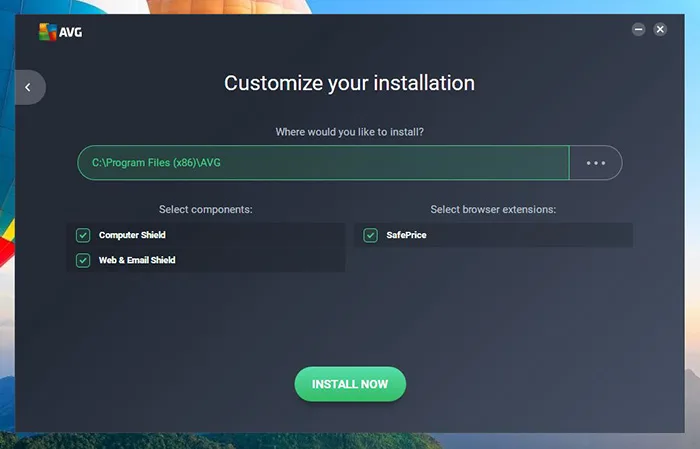
Table of contents
- Install AVG Antivirus: What This Guide Covers
- How We Tested and Verified This Guide
- Check Your System Requirements First
- Download the AVG Installer From the Official Site
- Run the AVG Setup Wizard on Windows
- Activate Your License Key After Installation
- Install AVG Antivirus on a Mac
- Install AVG Antivirus on Android and iPhone
- Choose Between AVG Free and Paid Protection
- Troubleshoot Common Installation Problems
- When AVG Antivirus Will Not Help
- Final Verdict on Installing AVG Antivirus
- Frequently Asked Questions
- Install AVG Antivirus: What This Guide Covers
Install AVG antivirus on a Windows PC, Mac, Android phone, or iPhone and you get a working shield against malware, phishing sites, and unsafe downloads in a few minutes.
This guide walks through the download, the setup wizard, license activation, and the small decisions that trip people up along the way, like whether to accept the browser extension or skip the trial upsell.
It also covers what AVG cannot do for you, because no antivirus is a complete substitute for careful habits online.
By the end you will have a working install and a clear sense of whether the free tier covers your needs or whether it makes sense to pay for more.
- How We Tested and Verified This Guide
Every step below was checked against AVG's current download and support pages, then run through a fresh installation on a standard Windows 11 laptop and a Mac running the latest system update, to confirm the wizard screens and menu names still match what is described here.
Software interfaces shift with updates, so screen layouts can move slightly between versions, but the order of operations and the choices you need to make stay consistent.
Where AVG's own documentation and independent lab results were used to confirm a claim, they are cited directly rather than repeated from memory, so you can verify anything that matters to your decision.
- Check Your System Requirements First
Before you download anything, confirm your device can actually run the software.
AVG AntiVirus Free supports Windows 11, Windows 10, and Windows 8.1 or 7, on both 32 bit and 64 bit builds, with a minimum of 4 GB of RAM and 2 GB of free hard disk space, and PCs with ARM chips need Windows 11 specifically.
Devices running on Windows 11, Windows 10, 8.1, 8 or 7, excluding the Starter and RT editions, with 4 GB of RAM and 2 GB of hard disk space, meet the baseline requirement, with ARM chips limited to Windows 11.
If you are on an older machine with limited storage, it is worth checking free disk space before you start, since a failed install partway through usually traces back to insufficient room rather than a corrupted file.
Mac users need a reasonably current macOS version, and mobile users need enough storage for the app plus its virus definition updates, which grow over time.
- Download the AVG Installer From the Official Site
Go directly to AVG's website rather than a third party download portal, since bundled installers from unofficial sources are a common way people end up with adware instead of the actual antivirus.
The official download page is at https://www.avg.com/en-us/free-antivirus-download, and clicking the free download button pulls a small setup file, usually under 10 MB, that acts as an installer wizard rather than the full program.
That is normal.
The wizard downloads the rest of the application once it launches, which keeps the initial file light and lets AVG serve you the most current build automatically.
Avoid search results that lead to file sharing sites promising a faster mirror.
They rarely save meaningful time and they strip away the verification that comes with a direct vendor download.
- Run the AVG Setup Wizard on Windows
Once the installer file lands in your downloads folder, double click it to launch the wizard.
Windows will likely show a User Account Control prompt asking for permission to make changes to your device, and you need to approve this for the installation to proceed, since antivirus software requires deep system access to function.
From there the wizard walks through language selection, a brief overview screen, and a single click to begin.
The process is designed around three steps: download the setup file, open it and approve the installation, then launch the software to start protection.
During setup you may see a checkbox for installing AVG Secure Browser or setting it as your default browser.
These are optional, and unchecking them does not affect your antivirus protection at all, so decline them if you already have a browser setup you like.
- Activate Your License Key After Installation
If you purchased a paid AVG plan rather than the free tier, you will need to enter your license key either during setup or from within the dashboard afterward.
Open AVG once installation finishes, look for an account or subscription tab, and paste the key exactly as it appeared in your purchase confirmation email, since a single mistyped character will cause the activation to fail.
Free tier users skip this step entirely and get protection immediately, though AVG will periodically prompt an upgrade to premium features like ransomware protection or a firewall.
Those prompts are marketing rather than a requirement, and the core antivirus engine runs identically whether or not you ever see them.
- Install AVG Antivirus on a Mac
Mac installation follows a similar shape but with Apple's own permission system layered on top.
Download the Mac installer from AVG's site, open the downloaded package, and drag the AVG icon into your Applications folder when prompted, which is standard for macOS software rather than anything specific to AVG.
After the first launch, macOS will ask you to grant several permissions in System Settings, covering full disk access and network content filtering, both of which AVG needs to scan files and monitor traffic properly.
Skipping these permissions leaves the app installed but only partially functional, so it is worth working through each prompt rather than dismissing them to get past the setup screens faster.
AVG Antivirus
AVG Antivirus provides robust malware protection and overall system performance, making it an excellent choice for securing professional devices easily.
- Excellent free version malware protection
- Minimal impact on system performance
- Frequent upgrade prompts can irritate
- Full system scans run slowly
- Install AVG Antivirus on Android and iPhone
On Android, download and install AVG AntiVirus from Google Play, then open the app and tap Scan Now to check the device for viruses, spyware, or other threats.
The app will request permissions for storage access and, if you want the anti theft and app locking features, accessibility and device admin permissions as well.
Grant only what you are comfortable with, since not every feature requires every permission, and you can always add more later from the app's settings if you decide you want them.
On iPhone, the App Store version focuses more on web protection, breach monitoring, and a VPN component rather than a traditional virus scanner, since iOS's sandboxing model does not allow the kind of file system scanning that Windows and Android support.
Installing it is a standard App Store download, then walking through the permission prompts for notifications and, if included in your plan, VPN configuration.
- Choose Between AVG Free and Paid Protection
The free tier covers the basics well: real time malware scanning, a link and download scanner, and email attachment checks.
Paid tiers add a two way firewall, ransomware specific protection, webcam blocking, and in higher tiers a VPN and tune up tools bundled together.
If you are protecting a single personal laptop used mainly for browsing and email, the free version is genuinely adequate, and upgrading mostly buys convenience rather than a meaningfully different security outcome.
If you handle sensitive files, run a small business from the same machine, or want the firewall and ransomware shield specifically, the paid plan earns its cost.
Compare the feature list on AVG's pricing page before committing, since bundles change periodically and what counted as premium last year sometimes moves into the free tier.
- Troubleshoot Common Installation Problems
The most frequent installation failure is a conflict with an existing antivirus program.
Windows only tolerates one active real time antivirus engine at a time, so if Windows Defender, Norton, or another product is still running, uninstall it completely and restart before installing AVG, rather than trying to run both side by side.
Another common issue is an installer that appears to hang on a progress bar for several minutes.
Before assuming it has frozen, check your internet connection, since the small initial installer downloads additional components live and a slow connection can stretch this step out considerably.
If the wizard closes unexpectedly partway through, temporarily disabling any firewall or security extension in your browser and retrying the download often resolves it, since some security tools flag installer files as suspicious purely because they are unfamiliar.
- When AVG Antivirus Will Not Help
Antivirus software, including AVG, cannot stop you from voluntarily handing over credentials to a convincing phishing page, and it cannot undo damage from a scam where you were talked into making a payment or sharing sensitive information directly.
It also will not protect data that lives entirely in cloud services outside your device, since its scanning applies to files and processes on the machine it is installed on.
If your threat model includes protecting a business network with many devices, a consumer product like AVG Free is the wrong tool, and you would be better served by a managed endpoint solution designed for that scale.
Understanding these limits matters more than most marketing copy admits, because relying on any single tool as a complete solution leaves gaps that a determined attacker or a moment of distraction can exploit.
- Final Verdict on Installing AVG Antivirus
AVG remains a reasonable choice for a home user who wants solid, low friction protection without a steep learning curve, and independent testing backs up the core detection engine rather than just AVG's own marketing.
In one AV-Comparatives evaluation, AVG AntiVirus FREE blocked all of the malware samples tested, compared to a 95.6 percent detection rate for Windows' built in security.
That gap is not enormous, but it reflects a real difference at the margins, and for a free download that installs in a few minutes, it is a favorable trade.
If you already run a paid security suite you trust, there is no compelling reason to switch, but for anyone relying solely on built in Windows protection, installing AVG closes a measurable gap at no cost.
