

How offices can implement digital visitor registration and check-in
By Editorial · November 13, 2026
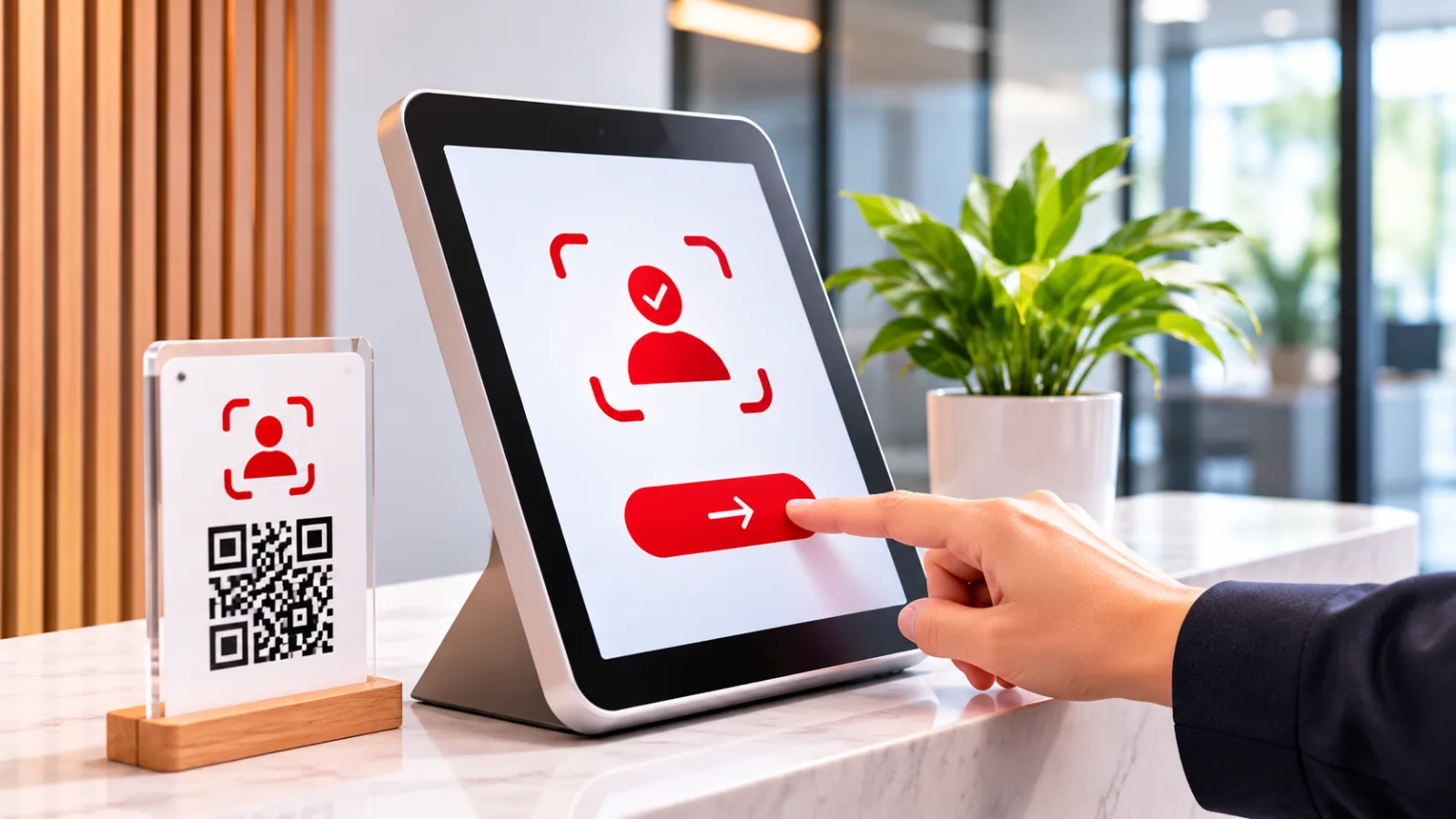
Table of contents
How to Set Up Digital Visitor Check-In in an Office
A digital visitor check-in system can replace handwritten reception registers with a controlled process for registering guests, notifying employees, issuing visitor badges and recording departures.
Setting one up requires decisions about software, hardware, visitor categories, security permissions and personal information before the first guest uses the system.
A typical office installation uses visitor management software, an iPad or Android tablet, an internet connection and, optionally, a badge printer.
Employees register appointments in advance, visitors complete a digital form when they arrive, and the system records the visit while notifying the designated host.
More advanced installations connect visitor credentials to electronic door access systems.
The implementation should follow the office's actual reception and security procedures.
A small office receiving occasional clients has different requirements from a corporate headquarters with several entrances, contractors and restricted departments.
The objective is to establish a reliable process that employees can follow consistently, including when the network, reception device or visitor platform becomes unavailable.
Define the entry process
Start by documenting how people currently enter the office.
Identify the reception desk, security checkpoints, entrances, departments, meeting areas and locations that require special authorization.
Record who receives visitors, who approves appointments and who is responsible for confirming departures.
This assessment establishes the operational requirements that the software must support.
Different visitor categories need different registration rules.
Clients, job applicants, suppliers, contractors, auditors and delivery personnel may require different information, approvals and access permissions.
For example, a client attending a meeting may only need host confirmation, while a contractor working inside a technical area may require an approved work permit and safety acknowledgement.
The system should reflect these distinctions through separate visitor types or registration workflows.
Define the information required for each category before configuring the application.
Typical fields include full name, company, email address, telephone number, host, visit purpose and expected arrival time.
Additional information, such as vehicle registration or identity document details, should only be requested when there is a clear operational or legal reason.
The organization should also establish its visitor policy.
This document should explain registration requirements, identification procedures, approval responsibilities, badge use, restricted areas, escort arrangements and check-out rules.
Employees and reception personnel need to understand the policy because software cannot enforce procedures that have not been defined.
Select the software
The visitor management platform determines how registration, approvals, notifications and visitor records operate.
Choose software according to the number of office locations, visitor volume, required security controls and existing IT infrastructure.
A platform that supports multiple visitor categories, searchable records and centralized administration is generally more suitable for an organization with several departments.
Several established platforms provide digital visitor registration and reception workflows.
These include Envoy, Kisi, deskbird and Zoom Visitor Management.
Their capabilities and licensing conditions differ, so compare the actual features available under the intended subscription rather than relying on general product descriptions.
The essential software requirements should cover the complete visitor lifecycle.
The following capabilities provide a practical starting point:
Pre-registration: Employees should be able to create appointments and send visitors the relevant arrival instructions.
Digital check-in: Visitors should be able to register through a kiosk, tablet or supported mobile browser.
Host notifications: The platform should notify the responsible employee when a guest arrives.
Visitor records: Authorized personnel should be able to review arrivals, departures and historical visits.
Administrative controls: Administrators should be able to manage users, visitor categories, permissions and retention settings.
Integration support: The platform should support required connections to email, collaboration tools, printers or access control equipment.
Also examine the vendor's security documentation, hosting arrangements, backup procedures and support conditions.
If the office handles confidential business information or receives visitors from regulated industries, these considerations should form part of the software evaluation.

Envoy
Envoy connects visitor management, desk booking, workplace security, and delivery tracking to help businesses coordinate office operations and create a smoothe…
- Digital visitor registration simplifies reception
- Host notifications reduce manual interruptions
- Platform fees complicate total cost calculations
- Multiple modules require careful price comparison
A low subscription price does not compensate for missing security controls or an unsuitable data processing arrangement.
Prepare the hardware
The reception device is the point where most visitors interact with the system.
An existing iPad or Android tablet may be sufficient for a basic installation, provided the selected platform supports that device and operating system.
Dedicated kiosks are another option for offices that receive a high volume of visitors or require a fixed self-service registration station.
Position the tablet where visitors can identify it immediately after entering the reception area.
The screen should remain accessible without obstructing the receptionist's workspace or creating congestion around the entrance.
A secure stand or wall mount helps prevent accidental movement, theft and damage.
The device should also have a reliable power supply and a stable network connection.
Badge printing is optional, but it can improve visitor identification in larger offices.
A compatible thermal or label printer can produce badges containing the visitor's name, company, host and date of arrival.
The organization should test the printer, label dimensions and badge layout before deployment.
A printer that produces unreadable badges or repeatedly disconnects can slow down reception.
The basic hardware arrangement may include:
Tablet or kiosk: Runs the visitor registration application and displays the check-in form.
Secure stand: Holds the device at an appropriate height and protects its connections.
Network connection: Provides access to the visitor platform and its notification services.
Badge printer: Produces temporary visitor identification where required.
Power supply: Keeps the reception equipment operational throughout office hours.
Optional QR reader: Supports invitation or credential scanning when the platform requires a separate reader.
Network design deserves attention because visitor registration may depend on cloud services.
Place the reception device on an appropriate network segment and apply the organization's normal security controls.
Avoid giving a public-facing kiosk unrestricted access to internal corporate systems.
IT administrators should also restrict access to device settings and prevent visitors from leaving the registration application.
Configure visitor registration
Once the software and hardware are ready, configure the registration workflow.
Start by creating the office location, adding authorized employees and assigning administrative roles.
The system should have a defined list of hosts so visitors can identify the person they intend to meet.
An employee directory integration can simplify account maintenance when supported by the platform.
Next, create visitor types that reflect the categories identified during the initial assessment.
A useful configuration might include clients, suppliers, contractors, job candidates and general guests.
Each category should have its own instructions and information requirements where necessary.
For example, contractors may need to acknowledge workplace safety rules, while interview candidates may only need the host's name and meeting location.
The registration form should collect enough information to identify and process a visit without creating unnecessary friction.
Keep mandatory fields limited to information the organization genuinely needs.
If visitors must provide identification details, explain the purpose and establish who can review those records.
The Information Commissioner's Office recommends that organizations define their monitoring purposes, collect appropriate information and apply suitable retention periods under applicable data protection requirements.
Configure the following elements before opening the system to visitors:
Office identity: Add the organization name, location and any reception instructions visitors need.
Host directory: Identify employees who can receive visitors and confirm that their contact information is current.
Visit reasons: Provide clear categories such as business meeting, interview, delivery or maintenance.
Registration fields: Select mandatory and optional information for each visitor category.
Instructions: Explain where visitors should wait, which entrance to use and whether an escort is required.
Confirmation message: Display a clear message after successful registration, including the next action.
A well-designed form should be easy to complete on a tablet.
Avoid unnecessary questions, lengthy descriptions and confusing terminology.
The visitor should understand what information is required and what happens after submission.
Test the form with people who are unfamiliar with the software, since administrators can easily overlook confusing steps that become obvious to first-time users.
Enable advance invitations
Pre-registration allows employees to create visitor records before guests arrive.
This reduces the amount of information visitors need to enter at reception and gives security personnel advance visibility into expected appointments.
The invitation should contain the visitor's name, meeting date, host and any instructions relevant to the visit.
Where supported, employees can create invitations directly from the visitor management dashboard or through an integrated calendar.
Platforms such as Envoy and deskbird document workflows for advance registration, while other systems support QR code invitations and mobile check-in.
These capabilities vary by vendor and subscription.
Configure the invitation message with practical information rather than unnecessary corporate text.
Visitors should know the office address, entrance, reception location, appointment time and the person they will meet.
If identification is required, explain which document is acceptable and whether the visitor must present it physically.
Clear instructions reduce uncertainty and help reception teams process arrivals consistently.
The system should also handle changes to appointments.
Employees need a way to cancel invitations, correct visitor information and update meeting times.
Establish a procedure for visitors who arrive on the wrong date or cannot find their invitation.
Reception staff should be able to verify the appointment with the host rather than treating an expired or missing QR code as automatic authorization.
Set up notifications
Host notifications connect reception with the employee receiving the visitor.
After registration, the platform sends an alert to the designated host through supported channels.
Envoy
Envoy connects visitor management, desk booking, workplace security, and delivery tracking to help businesses coordinate office operations and create a smoothe…
- Digital visitor registration simplifies reception
- Host notifications reduce manual interruptions
- Platform fees complicate total cost calculations
- Multiple modules require careful price comparison
Depending on the software, these may include email, SMS, mobile application notifications or workplace collaboration tools such as Microsoft Teams and Slack.
Configure the notification process around the communication tools employees actually use.
If the company relies on Microsoft 365, email or Teams notifications may be practical.
If employees frequently work away from their desks, mobile alerts can help them respond to arrivals.
Zoom's visitor management documentation, for example, provides separate administrator settings for notifications when visitors register and when pre-registered guests check in.
Test notifications using different employee accounts and visitor categories.
Confirm that the correct host receives the message, that the notification identifies the visitor and that the arrival time is accurate.
Also test what happens when the host is unavailable or does not respond.
The office should have an alternative contact, such as reception or a department representative, who can assist the visitor.
Avoid relying exclusively on notifications as proof of authorization.
An alert confirms that a registration event occurred, but it does not necessarily establish that the visitor has permission to enter restricted areas.
Security personnel should follow the organization's approval rules before granting physical access.
Design visitor badges
A visitor badge provides visible identification inside the office.
It helps employees and security personnel distinguish external guests from permanent staff and identify the person responsible for the visit.
For organizations with several departments or restricted areas, badge information can also help staff understand the visitor's authorized destination.
Choose a badge layout that presents the necessary information clearly.
A typical badge may include the visitor's full name, company, host, visit date and a visitor designation.
A photograph can provide an additional identification reference where the platform and privacy policy permit its use.
Avoid displaying sensitive personal information, identification numbers or unnecessary contact details.
The badge printer should be tested with the selected software before the system goes live.
Check whether the printer supports the required label format, whether the text remains readable and whether the badge can be produced consistently.
If visitors must wear the badge throughout the visit, provide suitable holders or lanyards and establish where they must return them.
Badge issuance should also have a clear relationship with authorization.
A printed badge does not automatically mean that a visitor has permission to access every area of the premises.
Reception and security staff should understand which badge types correspond to which permissions, and visitors should be instructed to remain within the areas approved for their appointments.
Connect access control
An office that already uses electronic door access can consider integrating the visitor platform with its physical security system.
This connection can allow an approved visitor to receive a temporary credential for a designated entrance or access area.
The exact functionality depends on the visitor software, access control vendor and installed hardware.
Kisi's visitor registration documentation, for example, allows administrators to associate a registration point with an access group and define the duration of visitor access.
It also supports access links and QR credentials under its documented configuration.
The documentation specifies that visitors without an assigned access group are recorded in the visitor log but do not receive door access.
Before enabling an integration, document which doors and areas each visitor category can access.
A client attending a meeting should not receive the same permissions as a maintenance contractor working in a technical room.
Access should be limited to the approved purpose and duration of the visit, with an appropriate process for revoking credentials when appointments are cancelled or completed.
IT and security teams should test the integration under normal and exceptional conditions.
Confirm that the correct visitor receives the credential, that unauthorized visitors cannot use it and that expired permissions stop working.
Also establish what happens if the visitor platform or access control system loses connectivity.
The physical security system must retain its own safe operating procedures rather than depending entirely on a cloud notification.
Protect visitor information
Digital registration creates records containing personal information.
Depending on the form, these may include names, company details, email addresses, telephone numbers, photographs, identity information and visit histories.
Organizations should identify which details are necessary, who can access them and how long they need to be retained.
Create a visitor privacy notice that explains the purpose of collecting information, how the organization uses it, whether it is shared with service providers and how visitors can exercise applicable rights.
The notice should be accessible during registration or through a clearly identified reception notice.
Requirements vary by jurisdiction, so businesses should review the relevant local data protection legislation before deployment.
Access permissions should follow job responsibilities.
Reception staff may need to view current appointments and visitor records, while system administrators require additional configuration permissions.
Ordinary employees should generally have access only to the visitor information needed to manage their own appointments.
Individual accounts and strong authentication help prevent unauthorized access and make administrative activity easier to investigate.
Retention must also be configured deliberately.
Keeping visitor records indefinitely creates unnecessary exposure if the information is no longer needed.
The ICO advises organizations to establish retention periods based on business purposes and review them regularly.
Its guidance is relevant to organizations subject to UK data protection law, while other businesses must follow their applicable national requirements.
The vendor's security arrangements should be assessed before the organization uploads personal information.
Review encryption, backup arrangements, administrator access, hosting locations, incident reporting and data deletion procedures.
If the provider uses subcontractors to host or process visitor information, establish which parties are involved and what contractual protections apply.
Test emergency procedures
A visitor register can support emergency accountability when employees need to establish who was inside the office during an evacuation.
The system should provide an accessible record of current visitors, including their hosts and registration status.
However, this information is useful only if departures are recorded correctly and reception personnel understand how to retrieve it.
The US Occupational Safety and Health Administration (OSHA) recommends procedures for assisting visitors during evacuations and accounting for nonemployees after an incident.
Its guidance also highlights the need to accommodate people with disabilities and visitors who do not speak the local language.
These considerations should influence the registration process and the office's emergency response arrangements.
Configure a procedure that allows security or reception personnel to retrieve the current visitor list without relying on a single employee's account.
Identify who will take responsibility for visitor accountability at the assembly point and how missing visitors will be reported to the person coordinating the emergency response.
The visitor management platform should support the emergency plan, not replace it.
Test the process during an evacuation exercise.
Confirm that the visitor list can be accessed, that employees can identify guests who have not checked out and that visitors receive appropriate assistance.
Also establish a manual alternative in case the tablet, network or cloud service is unavailable.
An emergency procedure that works only when every technical component is functioning is incomplete.
Run a pilot deployment
A controlled pilot allows the organization to identify operational problems before the system becomes the standard reception process.
Select one office entrance and a limited group of employees to participate.
Configure the visitor categories, registration form, host notifications and badge settings, then conduct test visits using different appointment types.
The pilot should cover more than a successful standard registration.
Test visitors who arrive without invitations, employees who are unavailable, cancelled appointments, incorrect details, forgotten check-outs and temporary network interruptions.
Envoy
Envoy connects visitor management, desk booking, workplace security, and delivery tracking to help businesses coordinate office operations and create a smoothe…
- Digital visitor registration simplifies reception
- Host notifications reduce manual interruptions
- Platform fees complicate total cost calculations
- Multiple modules require careful price comparison
If the system integrates with access control, test credential expiration and denied access as well.
These cases reveal weaknesses that a simple demonstration will not expose.
Deskbird's official implementation documentation recommends starting with one office, creating a limited number of visit types and conducting a test visit before expanding the setup.
Its documented rollout also includes office licensing, receptionist assignments, default hosts, kiosk configuration and badge printing.
This provides a useful example of why deployment should follow a defined sequence.
Record the results and assign responsibility for correcting problems.
Reception staff should confirm that the process is understandable, employees should verify notification delivery and IT should assess device reliability and access permissions.
Only extend the installation after the pilot demonstrates that the complete visitor lifecycle works as intended.
Train employees
The software will produce reliable records only when employees follow the agreed procedures.
Hosts need to know how to create invitations, select the correct visitor category, update appointments and respond to arrival notifications.
Reception personnel need to understand how to register walk-in guests, verify information, issue badges and close visits.
Training should also explain the security responsibilities associated with visitor access.
Employees should not approve unfamiliar visitors without the required checks, lend their access credentials or allow guests to enter restricted areas without authorization.
They should know whom to contact when a visitor arrives without an appointment or when the registration system is unavailable.
Prepare short internal instructions that explain the normal visitor journey and the exceptions employees are likely to encounter.
These instructions should identify the responsible teams, the escalation contact and the manual registration procedure.
New employees should receive the same guidance during onboarding so that visitor management does not depend on informal knowledge held by a few long-serving staff members.
Finally, assign ownership of the system after launch.
IT should manage technical configuration, device security and integrations, while reception and security should manage daily visitor operations.
Human resources or administration may maintain employee and host information, and management should approve the relevant policies.
Clear responsibilities prevent the platform from becoming an unattended database.
Frequently Asked Questions
Can an office use a tablet without buying a dedicated kiosk?
How much does digital visitor check-in cost?
Can visitors check in without creating an account?
What should happen if the visitor forgets to check out?
Is digital visitor registration suitable for small offices?
Sources7
- Envoy on visitor system setup
- Kisi on visitor registration configuration
- deskbird on visitor management setup
- Zoom on visitor check-in notifications
- VMS Blog on implementation planning
- OSHA on workplace evacuation procedures
- OSHA on emergency action planning
External pages are independent third-party sources. Desking App does not control or endorse their content and accepts no responsibility for it. Visiting them is at your own responsibility and risk.