
Table of contents
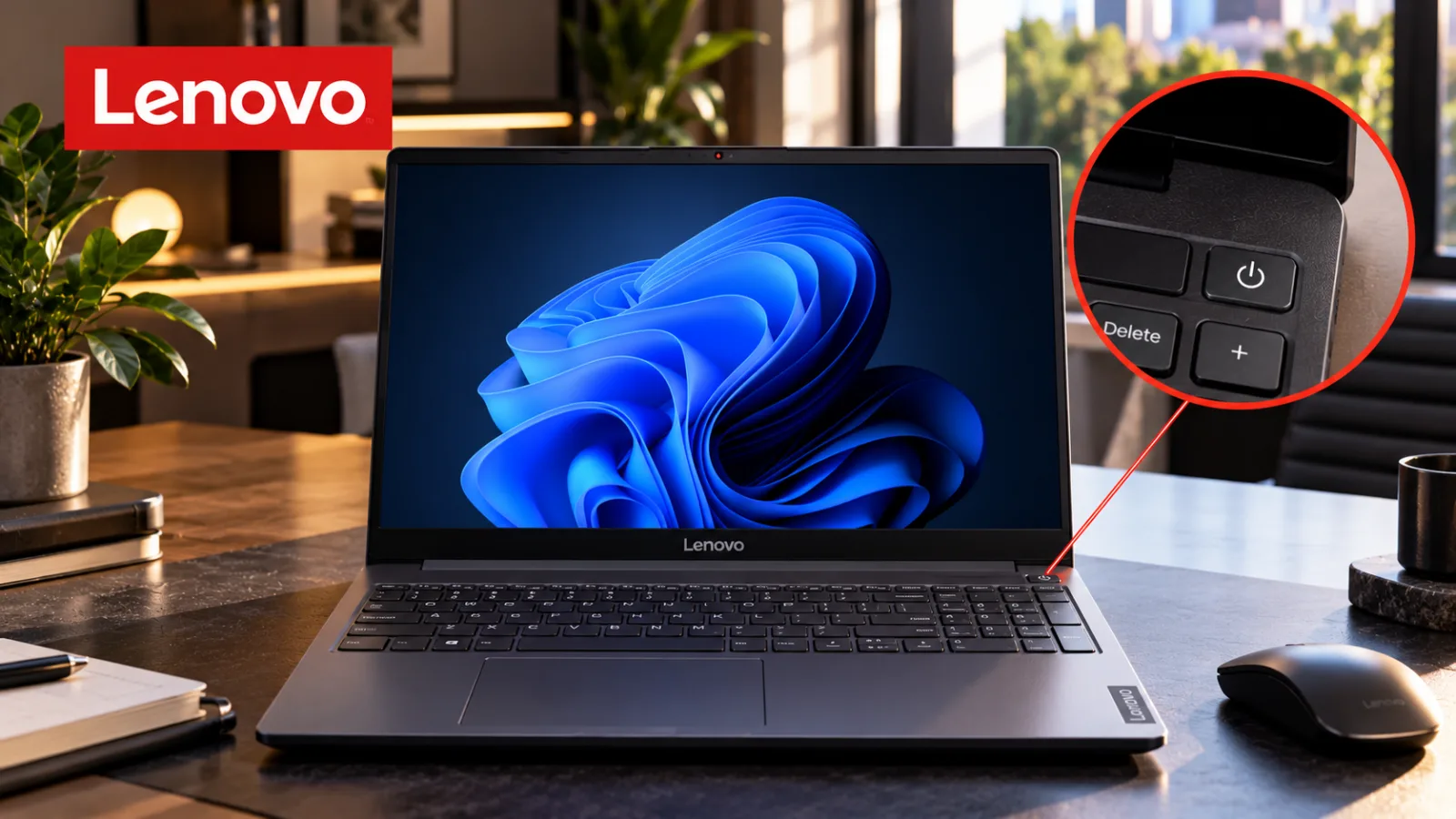
To turn on a Lenovo laptop, open the lid, make sure the device has sufficient battery power, and press the Power button once.
On most Lenovo laptops, the button is located above the keyboard, near the upper-right corner, or along one of the sides.
Wait a few seconds for the Lenovo logo to appear and Windows to start.
If nothing happens, connect the laptop to its charger and try again.
If your Lenovo laptop still will not turn on, the problem may involve a depleted battery, a faulty power connection, a frozen power state, or a hardware issue.
The safest approach is to check the power supply first, then try model-appropriate reset steps before considering professional repair.
Where Is the Power Button on a Lenovo Laptop?
The power button's location varies by Lenovo model, including ThinkPad, IdeaPad, Yoga, and Legion laptops.
You do not need to press a keyboard shortcut to switch on a typical Lenovo laptop: the physical power button is the normal starting point.
Look in these places:
Above the keyboard: Check the upper-right area of the keyboard deck, where the power button may sit separately from the other keys.
Near the keyboard's top row: Some models integrate the power button into or beside the top row of keys.
Along the side of the laptop: Certain designs place the power button on the left or right edge.
Near the hinge or side controls: Depending on the model, the button may be positioned away from the main keyboard area.
The button may display the standard power symbol, which looks like a circle with a short vertical line at the top.
Some models also incorporate a fingerprint reader into the power button.
If you cannot find it, check the illustrations in your laptop's user guide.
Lenovo publishes model-specific documentation through its official support website, and the exact location can be confirmed using your laptop's model name or serial number.
How to Turn On a Lenovo Laptop: Step by Step
Step 1: Open the Laptop Lid
Place your Lenovo laptop on a stable surface and open the lid.
Keep the vents unobstructed, and make sure the laptop is not exposed to liquid or excessive heat.
If your model supports opening the lid to wake the computer, it may respond automatically.
However, opening the lid does not turn on every Lenovo laptop, so use the power button if the screen remains off.
Step 2: Check the Battery and Charger
If the laptop has been unused for a long time, its battery may be completely discharged.
Connect the original Lenovo AC adapter, or a compatible charger that meets your model's requirements, to a working wall outlet and then to the laptop.
Check that the connections are secure.
For initial troubleshooting, connect the adapter directly to the wall outlet rather than through a docking station or power strip.
This helps eliminate possible problems with intermediate equipment.
If the laptop shows a charging indicator, leave it connected for at least 5–10 minutes before trying again.
A deeply discharged battery may need time to accumulate enough power to start.
Do not use a charger simply because its connector fits.
The adapter must meet the laptop's electrical and charging requirements.
Step 3: Press the Power Button Once
Locate the physical power button and press it once.
Avoid repeatedly pressing it while the laptop is starting.
Give the computer time to respond.
You may see the Lenovo logo, a keyboard light, a power indicator, or a Windows startup screen.
The time required to start varies by model and system condition.
If the laptop begins booting, allow the process to finish before pressing additional keys.
Step 4: Wait for Windows to Load
Once the Lenovo logo appears, the computer is receiving power and beginning its startup process.
Depending on your configuration, Windows may display a lock screen, a sign-in screen, or the desktop.
Enter your PIN, password, or other configured sign-in method to access your account.
If the laptop powers on but remains stuck at the Lenovo logo, shows a black screen, or repeatedly restarts, the issue is no longer simply locating the power button.
Follow the troubleshooting steps below to identify the likely cause.
What to Do If Your Lenovo Laptop Won't Turn On
A Lenovo laptop that does not respond to the power button may have a power-supply problem, a depleted battery, a temporary system lockup, or a hardware fault.
The following checks move from simple and low-risk actions to model-specific troubleshooting.
1. Check the Wall Outlet and Power Adapter
First, confirm that the electrical outlet works.
If possible, test it with another device.
Next, inspect the power adapter and cable for visible damage.
Make sure the cable is firmly connected to the adapter, the wall outlet, and the laptop where applicable.
If the charging light does not come on, that does not automatically mean the laptop is defective.
The adapter, charging port, battery, or indicator itself could be responsible.
If the cable is frayed, the adapter is unusually hot, or you notice a burning smell, stop using it.
Do not attempt to repair a damaged power adapter yourself.
2. Charge the Laptop Before Retrying
Connect the laptop directly to a working outlet and leave it charging for 5–10 minutes before trying to start it again.
If the battery is deeply discharged, it may need longer.
If the laptop still shows no response, confirm that the adapter is appropriate for the exact model.
A USB-C charger, for example, must support the power requirements of the particular laptop; not every USB-C power source is sufficient.
If you have access to a known-good compatible Lenovo adapter, testing it can help distinguish a charger problem from a problem inside the computer.
3. Disconnect Accessories
Remove external devices that are not needed to start the laptop, including USB drives, external storage, printers, docking stations, and other peripherals.
Leave only the power adapter connected and try pressing the power button again.
A peripheral or docking setup can complicate troubleshooting.
Removing accessories helps determine whether the laptop can start in a simpler configuration.
4. Perform a Power Reset
If the laptop remains unresponsive, a power reset may help clear a temporary power-state problem.
For a model without a removable battery or a documented emergency-reset procedure:
Disconnect the AC power adapter.
Disconnect external devices and accessories.
Press and hold the power button for approximately 30 seconds, unless the model's user guide specifies a different procedure.
Release the button.
Reconnect the compatible power adapter.
Press the power button once and check for a response.
Lenovo's instructions vary by model.
Some official guides specify a shorter power-button hold, while certain laptops have an emergency-reset hole intended for this purpose.
Follow the instructions for your exact model rather than assuming that one reset procedure applies to every Lenovo laptop.
Important: Do not insert a paper clip into an arbitrary hole on the laptop's underside.
Only use an emergency-reset hole if the model's official documentation identifies it as such.
5. Check for an Emergency-Reset Hole
Some Lenovo laptops have a dedicated emergency-reset hole on the underside.
It allows the internal battery connection to be temporarily interrupted as part of the reset procedure.
If your model includes this feature, consult its official user guide to confirm the hole's location and the correct procedure.
Disconnect the power adapter first and follow the manufacturer's instructions.
Not all Lenovo laptops have an emergency-reset hole.
If yours does not, do not try to create one or use an unrelated opening.
Some IdeaPad models also include a Novo button, which provides access to startup or recovery options on supported devices.
The Novo button is not a universal power button, and its functions vary by model.
Use the instructions in the relevant Lenovo manual.
6. Determine Whether the Laptop Is On but the Screen Is Black
Sometimes a laptop appears to be off even though the computer is receiving power.
Look for signs such as:
A power indicator that remains illuminated.
Keyboard backlighting.
A fan that starts spinning.
Startup sounds or other signs of activity.
If you see these signs but the display remains black, the issue may involve the screen, display brightness, graphics system, or startup process rather than a complete loss of power.
Try adjusting the screen brightness using the laptop's designated brightness controls.
If you have a compatible external monitor and the appropriate connection, testing it may help determine whether the internal display is the problem.
Avoid repeatedly forcing the laptop to shut down if it appears to be installing an update or performing a firmware operation.
Interrupting certain update processes can create additional problems.
If the computer shows no display after the basic checks, consult the model-specific troubleshooting guidance before attempting recovery procedures.
7. Seek Technical Support if the Laptop Still Does Not Respond
If the laptop remains completely unresponsive after checking the outlet, charger, battery charge, and model-appropriate reset procedure, it may need professional diagnosis.
Potential causes include a failed power adapter, a damaged charging port, a defective battery, a faulty power button, or a motherboard problem.
These are possibilities, not diagnoses that can be confirmed from the symptoms alone.
If the laptop is under warranty, contact Lenovo before opening the device or replacing internal components.
If you notice a swollen battery, unusual heat, smoke, or a burning smell, disconnect power if it is safe to do so and stop using the computer.
For official support, use Lenovo's support service to locate the documentation and assistance for your exact model.
How to Turn On a Lenovo Laptop Without the Power Button
If the physical power button is broken, there is no single alternative method that works on every Lenovo laptop.
Some models support specialized startup or power-on functions, but their availability depends on the hardware, firmware configuration, and model-specific instructions.
A Novo button, when present, serves a different purpose on supported IdeaPad systems and should not be assumed to replace the normal power button.
If the power button does not respond but the laptop otherwise appears functional, first check the power adapter and follow the official troubleshooting instructions.
If the reset procedure restores operation, but the power button remains unreliable, Lenovo recommends seeking support rather than treating repeated resets as a permanent solution.
Do not attempt to short electrical contacts on the motherboard or dismantle the laptop merely to bypass the button.
Incorrect handling can damage the device or expose you to electrical and battery-related hazards.
What the Lights on a Lenovo Laptop Can Tell You
Power and charging indicators can provide useful clues, although their meaning varies across Lenovo product families.
A charging light is on, but the laptop will not start: The adapter may be supplying power, but the computer could still have a battery, internal power, display, or startup problem.
No indicator lights appear: Check the outlet, adapter, cable connections, and compatibility.
If the laptop remains unresponsive with a known-good compatible adapter, further diagnosis may be necessary.
The keyboard lights up, but the screen is black: The computer may be starting without displaying an image.
Check the display and external-monitor possibilities before concluding that the laptop has no power.
The fan starts, but Windows does not load: The laptop is responding to power, but startup may be failing.
The next steps depend on whether the Lenovo logo appears, an error message is displayed, or the screen remains blank.
Do not assume that a particular light color means the same thing on every model.
Consult the user guide for the exact laptop to interpret its indicators correctly.
Normal startup: Press the physical power button once.
Typical button locations: Above the keyboard, near the upper-right corner, or along the laptop's side.
First troubleshooting step: Verify the power outlet, adapter, and charging connections.
Power reset: The correct procedure depends on the laptop model; some devices support an emergency-reset hole.
When to seek help: Persistent unresponsiveness, suspected hardware failure, battery swelling, or signs of electrical damage warrant appropriate technical support.
Sources
Lenovo — How to Use a Laptop for Beginners
https://www.lenovo.com/us/en/knowledgebase/how-to-use-a-laptop-for-beginners/
Supports the basic procedure of locating and pressing the power button and checking the power supply if the laptop does not start.Lenovo Support — Troubleshooting No Power Issues
https://support.lenovo.com/lk/en/solutions/ht510410
Supports troubleshooting steps for ThinkPad and IdeaPad laptops, including charging, power resets, and emergency-reset procedures on supported models.Lenovo — Laptop Won't Turn On?
Common Fixes and Tips
https://www.lenovo.com/us/en/glossary/laptop-wont-turn-on/
Provides background on common power problems, including charging connections, battery issues, and cases that may require professional repair.Lenovo — ThinkPad X9-15p Gen 1 User Guide: Frequently Asked Questions
https://download.lenovo.com/manual/thinkpad_x9_15p/user_guide/en/Frequently_asked_questions.html
Provides a model-specific example of Lenovo's startup and no-power troubleshooting procedures.Instructions for this model should not automatically be applied to other Lenovo laptops.
This is a practical troubleshooting guide, not a report of a new product announcement.
The instructions reflect Lenovo's published guidance, but button locations, indicator meanings, and reset procedures vary across models.
Readers should consult the official documentation for their specific device before using an emergency-reset feature or attempting hardware-related troubleshooting.
