What Happens When a VPN Disconnects? IP Leaks, Kill Switches and Security Risks
By Dr. Isabella Gunn · November 4, 2026
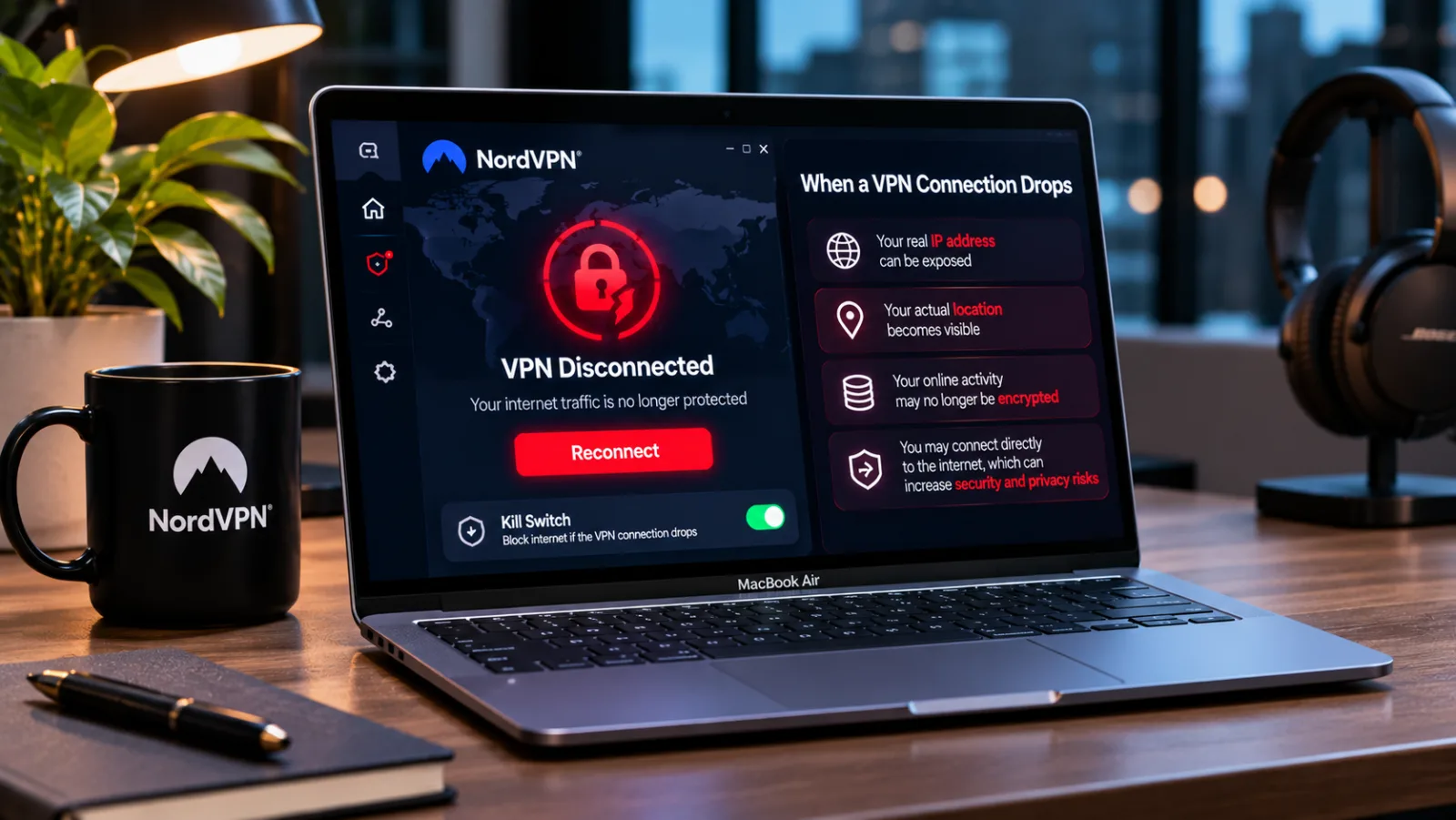
Table of contents
- What actually happens when a VPN connection drops?
- What information can become exposed?
- Does a VPN disconnection expose your passwords and private messages?
- Why VPN kill switches are so important
- Why VPN connections suddenly disconnect
- What happens to downloads, streaming, video calls, and banking?
- How to protect your VPN connection on Windows
- How to prevent VPN leaks on Android
- How to protect an iPhone and iPad
- How to configure VPN protection on macOS
- How to test whether your VPN is exposing your real IP address
- How to fix a VPN that keeps disconnecting
- What to do immediately when your VPN disconnects
- What businesses need to consider when employee VPN connections fail
- Common misconceptions about VPN connection failures
- Which VPN configuration should you use?
- Final verdict: losing the VPN tunnel should never mean losing control of your network traffic
- Frequently Asked Questions
When a VPN connection drops, your device may lose its encrypted connection to the VPN server and automatically return to its regular internet connection.
If that happens without an active kill switch, websites may see your real public IP address, DNS requests may bypass the VPN, and applications may continue transmitting data outside the protected tunnel.
This is one of the most important things to understand about VPN security: installing a VPN does not guarantee that every internet connection remains protected at all times.
A VPN works by establishing an encrypted tunnel between your device and a remote server.
While that tunnel is active, your internet traffic is routed through the VPN according to its configuration.
When the tunnel fails, the device needs to decide what happens next.
It can block traffic until the connection returns, or it can continue using the ordinary network connection.
That decision determines whether a temporary technical interruption becomes a privacy exposure.
For someone browsing at home, the immediate consequence might be that websites see the household's public IP address.
For a remote employee, it could mean losing access to internal company systems.
For a journalist, administrator, or person handling confidential information, an unexpected connection failure could expose network details that were supposed to remain hidden.
Understanding the difference between a disconnected VPN, an internet outage, and an actual data leak is essential.
This guide explains the technical process, the information that may become exposed, how kill switches protect users, and how to configure and troubleshoot VPN connections across Windows, Android, iPhone, iPad, and macOS.
What actually happens when a VPN connection drops?
A VPN, or virtual private network, changes how your device communicates with the internet.
Without a VPN, your device normally sends traffic through your router or mobile network to your internet service provider (ISP).
The provider connects you to websites, applications, and other online services.
When you activate a VPN, the VPN client establishes an encrypted tunnel to a VPN server.
Your device sends its traffic through that tunnel, and the VPN server forwards the requests to their destinations.
Websites generally see the VPN server's public IP address instead of the public IP address assigned to your ordinary internet connection.
The VPN therefore changes two important aspects of your connection: the route through which traffic travels and the network address presented to external services.
When the VPN tunnel drops, that arrangement can no longer be maintained.
The VPN application may detect the failure and attempt to reconnect.
Meanwhile, the operating system must decide how to handle traffic that was previously routed through the tunnel.
If no effective traffic-blocking mechanism is active, the device may restore its normal internet route.
Applications can then continue communicating directly through your ISP or mobile operator.
This can happen without the user noticing immediately.
A browser might continue loading pages, an email application might synchronize messages, and a cloud-storage service might continue uploading files.
The applications do not necessarily understand that the VPN's privacy protection has disappeared.
The key issue is therefore not simply whether the VPN disconnects.
It is whether your device allows traffic to leave through another network route while the VPN is unavailable.
What information can become exposed?
A VPN disconnection can expose several types of network information.
However, it is important to distinguish between information protected by the VPN tunnel and information independently protected by other technologies.
Losing VPN protection does not automatically mean that passwords, private messages, and financial information become readable.
The exposure depends on the application, encryption protocols, DNS configuration, operating system, and network environment.
Your real public IP address
Your public IP address is one of the most immediately affected elements.
When the VPN is connected, websites generally receive requests from the VPN server's public IP address.
When the device returns to its ordinary internet connection, websites may receive requests from your ISP-assigned public IP address.
This can reveal information about your internet provider and approximate network location.
For example, someone using a VPN server in New York while physically connected through a home network in another state may normally appear to websites as a visitor connecting from New York.
If the VPN disconnects and the browser continues working, the website may suddenly receive a request from the user's actual public IP address.
That change can also affect services that use IP addresses for fraud detection, account security, geographic restrictions, and unusual-login monitoring.
An IP address does not automatically identify a person's exact home address.
However, it can provide information that was previously concealed by the VPN connection.
Your internet provider may observe more network activity
While the VPN tunnel is active, your ISP can generally see that your device is communicating with a VPN server.
It can also observe connection timing, traffic volume, and other metadata.
With a properly functioning VPN tunnel, the provider ordinarily cannot inspect the contents of traffic inside that tunnel.
When the VPN disconnects, traffic that resumes through the ordinary network may become visible to the provider at the network level.
Depending on the protocols involved, the ISP may observe destination IP addresses, connection metadata, and DNS requests.
HTTPS remains an important protection.
Most modern websites use HTTPS to encrypt communication between the browser and the website.
That encryption does not disappear simply because a VPN disconnects.
However, HTTPS does not conceal every piece of connection metadata.
The destination IP address and other network information may still be observable.
The distinction is fundamental: a VPN provides an additional layer of network privacy, but it is not the only technology responsible for protecting online communication.
DNS requests may bypass the VPN
DNS stands for Domain Name System.
It translates website names into IP addresses that computers use to establish connections.
When you enter a website address in your browser, your device needs to determine which server should receive the request.
A VPN can route these DNS requests through its own DNS infrastructure or another configured resolver.
If the VPN disconnects and the device resumes using its ordinary network configuration, DNS requests may instead reach the resolver provided by your ISP or another configured DNS service.
This is commonly described as a DNS leak.
For someone who wants to prevent their ISP from easily observing the domains they access, an unexpected DNS route can undermine an important part of their privacy configuration.
There is an additional complication: DNS leaks are not exclusively caused by VPN disconnections.
Incorrect VPN configuration, split tunneling, IPv6 handling, and operating-system network settings can also cause DNS requests to travel outside the intended tunnel while the VPN appears connected.
Applications may continue transmitting data
Modern operating systems run many network-connected applications simultaneously.
A browser may be open while an email client checks for new messages.
A cloud-storage application may synchronize documents.
Software update services may contact their servers in the background.
When the VPN disconnects, these applications may continue transmitting data if ordinary internet access remains available.
The consequences depend on what each application sends and how it protects its communication.
A cloud-storage application using HTTPS may continue encrypting file transfers between the device and the service.
However, the connection is no longer traveling through the VPN tunnel.
This means the VPN provider's network privacy layer has disappeared, even though application-level encryption may remain intact.
For business users, the distinction is particularly important.
Applications accessing internal company resources may lose their secure route, while other applications continue communicating through the public internet.
IPv6 traffic can expose a separate connection path
IPv6 is the newer version of the Internet Protocol and can operate alongside IPv4.
Some VPN configurations handle IPv4 traffic correctly but fail to route IPv6 traffic through the tunnel.
In that situation, an IPv6 connection may bypass the VPN even before the main tunnel disconnects.
This is why checking only an IPv4 address is insufficient when evaluating VPN protection.
A properly configured service should handle both protocols consistently, either by routing them through the VPN or applying an appropriate blocking policy when they cannot be protected.
Does a VPN disconnection expose your passwords and private messages?
Not necessarily.
One of the most persistent misconceptions about VPN failures is that an interrupted tunnel automatically makes all online activity readable to anyone monitoring the network.
That is incorrect.
Consider a person accessing online banking through a browser while connected to a VPN.
The VPN suddenly disconnects, but the browser continues communicating with the bank through the normal internet connection.
The bank may now see the user's ordinary public IP address.
The ISP may also observe more network metadata than it could while the VPN tunnel was active.
However, if the banking website uses HTTPS correctly, the communication between the browser and the bank remains encrypted.
Someone monitoring the local Wi-Fi network does not automatically gain the ability to read the banking password or transaction details.
The same principle applies to many modern messaging, email, and cloud applications that use their own encryption.

NordVPN
This NordVPN Review for 2026 covers its server network, no logs policy, security features, pricing tiers, and what you get for your money.
- Massive server network globally
- RAM only servers for privacy
- Prices jump after first year
- Fewer features in basic plan
The risk is greater when an application transmits unencrypted information, uses insecure protocols, or relies on network protections that are no longer available.
There are also privacy consequences even when content remains encrypted.
A third party may learn which services your device contacts, when it communicates, and which network address is associated with the activity.
A VPN interruption should therefore be treated as a loss of the VPN's protection, not proof that every communication has been compromised.
Why VPN kill switches are so important
A kill switch is a security feature designed to block network traffic when a VPN connection becomes unavailable.
Instead of allowing the device to return to its normal internet route, the kill switch prevents traffic from leaving outside the protected connection.
This means that when the VPN tunnel fails, internet access may stop until the VPN reconnects.
The principle is straightforward: if the secure route disappears, the device should not silently use an unprotected alternative.
For users who prioritize privacy, this is generally safer than maintaining uninterrupted internet access at any cost.
How a kill switch works
A VPN application can use operating-system networking controls, firewall rules, routing policies, or platform-specific VPN capabilities to prevent traffic from bypassing the tunnel.
The implementation differs between providers and operating systems.
Some kill switches activate only when an established VPN connection unexpectedly fails.
Others offer a permanent blocking mode that prevents ordinary internet access even when the user deliberately disconnects the VPN.
The distinction matters.
A standard kill switch may restore normal internet access after the user intentionally disconnects.
An advanced or permanent mode may continue blocking traffic until the VPN is re-established or the user changes the configuration.
For example, Proton VPN documents standard and advanced kill-switch behavior.
Its advanced option is designed to prevent internet access unless the device is connected to Proton VPN.
These are provider-specific implementations.
Other VPN applications may use different names and behaviors.
What happens when the kill switch activates?
Imagine downloading a large file while connected to a VPN.
The tunnel suddenly fails.
Without a kill switch, the download manager may continue using your ordinary connection.
The transfer might complete, but the destination server could receive requests from your normal public IP address.
With an effective kill switch, the download stops because the device is prevented from communicating outside the VPN tunnel.
When the VPN reconnects, internet access can return and the download may resume if the server and application support it.
The user loses temporary connectivity, but the device does not silently fall back to the unprotected route.
Can a kill switch fail?
Yes.
No single feature should be treated as an absolute guarantee against every network exposure.
Its effectiveness depends on how the provider implements it, the operating system, the traffic being controlled, and the device configuration.
Potential limitations include:
Split tunneling that intentionally excludes certain applications.
IPv6 traffic that is not correctly handled.
Application-specific routing rules.
Platform restrictions affecting network controls.
Incorrect firewall configuration.
Software bugs or outdated VPN clients.
A kill switch should therefore be tested rather than trusted solely because the application displays an enabled setting.
Why VPN connections suddenly disconnect
VPN failures can originate from several different parts of the network.
The device, router, internet connection, VPN application, server, and tunneling protocol must all work together.
A problem with any one of these components can interrupt the encrypted connection.
Unstable Wi-Fi or changing networks
A common cause is a change in the underlying internet connection.
A smartphone may switch from Wi-Fi to cellular data.
A laptop may move between wireless access points.
A router may briefly lose its internet connection.
These changes can interrupt the communication between the VPN client and its server.
Some VPN protocols and applications recover more gracefully than others, but no protocol can guarantee uninterrupted connectivity under every network condition.
VPN server problems
VPN servers have limited resources and can experience congestion, maintenance, or technical failures.
When a server becomes unavailable, users may experience slow connections, timeouts, or unexpected disconnections.
Switching to another server can help when the original server is the problem.
However, changing servers does not necessarily solve issues caused by the local network, firewall, router, or device.
Firewalls and restricted networks
Hotels, airports, universities, offices, and public Wi-Fi providers sometimes restrict network protocols or ports.
A network may allow ordinary website browsing but interfere with the traffic used by a particular VPN protocol.
Captive portals create another complication.
These are login pages that require users to accept terms or authenticate before receiving full internet access.
A VPN may fail to establish a tunnel until the user completes the network's authentication process.
Router and NAT timeouts
Routers and firewalls maintain temporary records of network connections.
These records allow devices to communicate through shared public IP addresses and network security systems.
When a connection remains inactive, certain network devices may remove its temporary mapping.
The VPN may then need to re-establish communication.
WireGuard's documentation describes persistent keepalive packets, which can help maintain certain NAT and firewall mappings when a connection needs to remain reachable after periods of inactivity.
This is a configuration consideration, not a universal solution.
The appropriate setting depends on the network and VPN implementation.
VPN protocol incompatibility
VPN applications support different protocols, including WireGuard, OpenVPN, and IKEv2/IPsec.
They differ in transport methods, connection management, and compatibility with network equipment.
WireGuard uses UDP and is designed around a relatively small protocol implementation.
OpenVPN supports UDP and TCP transport and offers extensive configuration options.
IKEv2/IPsec is commonly used in mobile and enterprise environments.
A protocol that performs reliably on a home network may experience problems on a restrictive public network.
Changing protocols through the official VPN application can sometimes resolve the issue.
Battery optimization and background restrictions
Smartphones manage background applications to conserve power and system resources.
Depending on the manufacturer, operating-system version, and VPN application, battery optimization may interfere with maintaining or restoring a VPN connection.
This can be particularly noticeable when a device enters power-saving mode, the screen turns off, or the application is restricted from operating in the background.
Outdated software
An outdated VPN application, incompatible network driver, incorrect VPN profile, or damaged configuration can also cause repeated disconnections.
Keeping the application and operating system updated helps reduce compatibility problems and ensures that available security fixes are installed.
Download updates through the VPN provider's official application distribution channels.
What happens to downloads, streaming, video calls, and banking?
A VPN interruption does not affect every application in the same way.
The result depends on how the application handles network failures and whether the VPN blocks ordinary traffic.
File downloads
A download may continue, pause, or fail.
If no kill switch is active, the download manager may resume communication through the ordinary internet connection.
If a kill switch blocks traffic, the transfer will normally stop until connectivity returns.
Whether the download can resume from where it stopped depends on the server and application.
Compatible systems can use HTTP range requests to continue downloading from a particular position rather than starting from the beginning.
For large transfers, check the download status after the VPN reconnects.
Streaming services
Streaming applications may stop playback, display a connection error, or continue briefly using video already stored in their playback buffer.
If the application reconnects outside the VPN, the streaming service may receive the user's ordinary public IP address.
The service may also reassess geographic availability or trigger additional account verification.
Video conferences
Applications such as Zoom and Microsoft Teams depend on continuous network communication.
A VPN interruption can cause frozen video, lost audio, temporary disconnections, or a complete meeting interruption.
A kill switch can prevent traffic from escaping the VPN but may also stop the meeting until the tunnel returns.
For remote workers, the correct configuration depends on company security policies and the importance of maintaining uninterrupted communication.
Online banking and shopping
A VPN disconnection can change the IP address presented to a bank or payment service.
This may trigger an additional authentication request, a security alert, or a session interruption.
It does not automatically expose banking credentials.
If a payment is being processed when connectivity fails, check the transaction status through the bank's official application or website before attempting it again.
Repeating a payment without checking may result in duplicate transactions.
Remote desktop and corporate applications
Business VPNs frequently provide access to private company networks.
When the tunnel drops, connections to internal servers, remote desktops, databases, file shares, and business applications may stop working.
Some applications reconnect automatically.
Others require the user to restart the session or authenticate again.
A corporate VPN should therefore be configured and tested according to the organization's security and continuity requirements.
How to protect your VPN connection on Windows
Windows users should check two separate things: the protection offered by the VPN application and the network controls available through Windows itself.
Most commercial VPN providers include a kill switch in their Windows applications, although the feature's name and behavior vary.
Some call it Kill Switch, while others use names such as Network Lock or Internet Kill Switch.
Enable the kill switch in your VPN application
The general procedure is:
Open your VPN application.
Navigate to Settings or Preferences.
Find the Connection, Security, or Network Protection section.
Locate the kill switch option.
Enable protection against unexpected VPN disconnections.
If the application offers an advanced or permanent mode, review its behavior before activating it.
Reconnect to the VPN and confirm that the application reports an active connection.
Some applications offer additional controls for split tunneling, DNS protection, and IPv6 handling.
Review these settings if you need the entire device to use the VPN.
Understand Windows LockDown VPN
Microsoft also documents a feature called LockDown VPN for supported Windows VPN configurations.
It is designed to prevent outbound network traffic when the required VPN connection is unavailable.
NordVPN
This NordVPN Review for 2026 covers its server network, no logs policy, security features, pricing tiers, and what you get for your money.
- Massive server network globally
- RAM only servers for privacy
- Prices jump after first year
- Fewer features in basic plan
This is particularly relevant to organizations that need to enforce secure remote access.
It is not a universal switch that every Windows user can simply enable in the Settings application.
Its availability and configuration depend on the VPN solution and the organization's deployment.
For company-managed computers, administrators should configure and test the appropriate policy rather than asking employees to modify network controls independently.
How to prevent VPN leaks on Android
Android provides useful system-level VPN controls, including Always-on VPN and an option to block connections without a VPN.
These features can offer additional protection beyond the settings provided by an individual VPN application.
Enable Always-on VPN
On supported Android devices:
Open Settings.
Select Network & internet.
Open VPN.
Find your installed VPN application or VPN profile.
Tap its settings icon.
Enable Always-on VPN.
If available, enable Block connections without VPN.
The exact menu names vary between manufacturers and Android versions.
Always-on VPN instructs Android to maintain the VPN service while the device is operating.
The traffic-blocking option prevents ordinary applications from accessing the network outside the configured VPN.
This means internet access may stop if the VPN becomes unavailable.
That behavior is intentional.
The system prioritizes maintaining the VPN requirement over keeping the device continuously connected.
What if your Android device loses internet access?
If the VPN server becomes unavailable while blocking connections without VPN is enabled, the device may appear to have no internet connection.
Do not immediately assume that Wi-Fi or mobile data is broken.
First, check whether the VPN application is connected.
If it is not, attempt to reconnect or select another supported server.
If you need to troubleshoot the VPN configuration, remember that temporarily disabling the blocking option can allow ordinary network traffic to leave the device.
How to protect an iPhone and iPad
Apple supports VPN configurations through its Network Extension framework and managed device settings.
Features include VPN On Demand and managed always-on VPN configurations, although availability depends on the device, VPN solution, and management environment.
Personal iPhone users should not assume that every VPN application provides a universal system-level kill switch.
Check your VPN application's protection settings
Start by installing the official application from the provider.
Open its settings and review:
Kill switch availability.
Automatic reconnection.
Protection when switching between Wi-Fi and cellular data.
IPv4 and IPv6 handling.
DNS routing.
Background operation.
Test the connection after changing networks, such as moving from home Wi-Fi to mobile data.
For organizations managing Apple devices, administrators can deploy supported VPN configurations through device-management systems.
Managed always-on VPN policies can provide stricter traffic controls than ordinary consumer configurations.
How to configure VPN protection on macOS
Mac users should also rely on the specific capabilities of their VPN application and operating-system configuration.
Check whether the application supports a kill switch, automatic reconnection, and protection against traffic bypassing the VPN.
Pay particular attention to what happens when the Mac wakes from sleep.
A computer may lose its network connection while sleeping, then reconnect to Wi-Fi when it wakes.
The VPN application should restore its tunnel before sensitive applications resume network activity if that is required by your security policy.
Also review split tunneling and IPv6 handling.
An active VPN does not necessarily mean that every application and network protocol uses the same route.
For company-managed Macs, administrators can use supported configuration profiles and management policies to enforce VPN requirements.
How to test whether your VPN is exposing your real IP address
A VPN application reporting that it is connected does not prove that every network request is using the encrypted tunnel.
Testing should cover the public IP address, DNS behavior, IPv6 routing, and the kill switch itself.
The most useful approach is to establish a baseline while the VPN is connected, then check how the device behaves during a controlled interruption.
Check your public IP address
Connect to your VPN and open a reputable IP-checking service.
Record the public IP address and approximate location displayed.
The result should correspond to the VPN connection rather than your ordinary internet connection.
If you disconnect the VPN and traffic blocking is not enabled, repeat the check.
The website may now display your normal public IP address.
If a kill switch is enabled, the test page should become inaccessible when the tunnel is unavailable.
This is a simple way to understand whether the device is falling back to its ordinary network route.
Perform a DNS leak test
DNS leak tests identify which DNS resolvers appear to be handling domain-name requests.
Run the test while connected to the VPN and examine the reported resolvers.
An unexpected resolver associated with your ordinary network provider may indicate that DNS requests are bypassing the intended VPN configuration.
However, resolver ownership and geographic location need careful interpretation.
Some VPN providers use third-party DNS infrastructure, so a resolver that does not share the provider's brand name does not automatically indicate a leak.
Check IPv6 separately
If your internet connection supports IPv6, use an IPv6 test rather than relying exclusively on an IPv4 address check.
Confirm whether the VPN routes IPv6 traffic through its tunnel or blocks it according to its documented configuration.
If your ordinary IPv6 address becomes visible while the VPN claims to protect all traffic, investigate the application's IPv6 settings.
Test the kill switch safely
A kill switch should be tested under controlled conditions.
First, connect to the VPN and confirm that ordinary internet access works.
Then enable the kill switch and use the VPN application's supported testing procedure to simulate an unexpected connection failure.
Observe whether websites stop loading and whether the device prevents ordinary internet access until the VPN reconnects.
Repeat the test after major application or operating-system updates if VPN protection is important to your work.
Do not use confidential documents, active financial transactions, or sensitive business sessions during these tests.
How to fix a VPN that keeps disconnecting
Repeated disconnections should be investigated systematically.
Changing several settings at once can make it difficult to identify the underlying problem.
Start with the internet connection and work toward the VPN application.
1. Check your ordinary internet connection
Determine whether the underlying Wi-Fi or cellular connection is stable.
If websites also fail when the VPN is not connected, the problem may originate with the router, ISP, mobile operator, or device network configuration.
Restarting a router can sometimes resolve temporary network problems, but it will not fix every VPN-related issue.
2. Try a different VPN server
Select another server in the same country or region.
If the new connection is stable, the original server may have been experiencing congestion or a technical problem.
If several servers fail, investigate the local network and application configuration.
3. Change the VPN protocol
Some VPN applications allow users to switch between WireGuard, OpenVPN, and IKEv2/IPsec.
These protocols have different transport methods and connection-management characteristics.
WireGuard uses UDP and has a relatively lightweight design.
OpenVPN supports both UDP and TCP configurations.
IKEv2/IPsec is commonly used in mobile and enterprise environments.
On restrictive networks, another supported protocol may work more reliably.
For example, if a network interferes with UDP traffic, testing an OpenVPN TCP configuration may help.
This does not guarantee better performance, because TCP transport can introduce other limitations.
Use only protocols supported by your VPN provider.
4. Update the VPN application
Check for an official application update.
Updates can correct compatibility problems, improve reconnection behavior, and address security vulnerabilities.
Also check whether the operating system has pending updates that affect network drivers or VPN functionality.
5. Review background and battery restrictions
On Android, examine the battery optimization and background activity settings for the VPN application.
On other platforms, review any power-management or application-management policies that may interrupt background connections.
The exact configuration depends on the device.
6. Examine firewall and security software
A firewall, endpoint security product, or corporate network policy may interfere with VPN traffic.
Check security logs and application permissions rather than permanently disabling protection.
For managed business devices, contact the IT administrator before changing firewall rules or VPN profiles.
7. Reinstall the VPN application if necessary
If the problem persists after the previous checks, reinstalling the official application may resolve corrupted settings or installation problems.
Before removing it, ensure that you have access to your account credentials, multi-factor authentication, and any required configuration details.
Business VPN profiles should not be removed without approval from the responsible IT team.
What to do immediately when your VPN disconnects
If the VPN unexpectedly stops working, the first priority is to establish whether traffic is still leaving your device.
If you do not have a kill switch, stop sensitive activity and reconnect to the VPN.
Avoid continuing confidential work or private transfers while the device is using its ordinary internet connection.
If reconnection fails and VPN protection is essential, temporarily disconnect the device from the internet while investigating the problem.
If a kill switch is active, internet access may already be blocked.
This is expected behavior.
Attempt to reconnect through the VPN application rather than immediately disabling the protection.
For business users, follow the organization's incident and remote-access procedures.
Report the interruption, the time it occurred, the network in use, and any error messages displayed.
One important precaution concerns financial transactions.
If a payment or banking operation was interrupted, verify its status through the official banking application before repeating it.
What businesses need to consider when employee VPN connections fail
For organizations, a dropped VPN connection can affect more than employee productivity.
It can interrupt access to internal systems, create inconsistent network routing, and expose information that was intended to remain within a protected remote-access environment.
A business should establish a clear policy describing what happens when the secure tunnel becomes unavailable.
Enforce the appropriate traffic policy
Where company requirements demand that all network traffic use the corporate VPN, administrators should implement traffic restrictions that prevent unauthorized fallback connections.
NordVPN
This NordVPN Review for 2026 covers its server network, no logs policy, security features, pricing tiers, and what you get for your money.
- Massive server network globally
- RAM only servers for privacy
- Prices jump after first year
- Fewer features in basic plan
Windows supports LockDown VPN for compatible configurations.
Android offers Always-on VPN with the ability to block connections without the VPN.
Apple supports managed always-on VPN configurations for eligible devices.
These features should be deployed according to the organization's operating systems, network architecture, and security requirements.
Combine VPN protection with endpoint security
A functioning VPN does not guarantee that a connected device is secure.
A compromised laptop can expose company information even while its VPN tunnel remains active.
Organizations should combine remote-access controls with multi-factor authentication, endpoint detection and response, operating-system updates, network segmentation, least-privilege access, and appropriate identity management.
The objective is to limit what a device can access and reduce the consequences of a security failure.
Establish a clear employee response procedure
Employees should know whether they are allowed to continue working when the corporate VPN disconnects.
The procedure should explain when they must stop accessing internal systems, attempt reconnection, contact IT, or move to an approved network.
This is especially important for organizations with remote employees, contractors, administrators, and staff handling confidential information.
A clear policy prevents employees from bypassing security controls simply because they need to finish a task.
Common misconceptions about VPN connection failures
A VPN disconnect means hackers can read everything.
No. Losing VPN protection does not automatically defeat HTTPS or application-level encryption.
The actual exposure depends on the traffic and network configuration.
Automatic reconnection prevents data leaks.
Not necessarily.
Automatic reconnection restores the tunnel, but it does not guarantee that traffic is blocked during the interruption.
A VPN icon proves every application is protected.
No. Split tunneling, per-application routing, DNS configuration, and IPv6 behavior can create exceptions.
Every kill switch blocks all network traffic.
No. Implementations differ.
Some protect selected applications or connections, while others enforce broader network restrictions.
Public Wi-Fi becomes completely safe when a VPN is installed.
No. A VPN protects network traffic through its encrypted tunnel, but it does not prevent phishing, malware, compromised websites, or stolen account credentials.
Changing VPN servers always solves connection failures.
No. A different server may help when the original server is experiencing problems, but it cannot resolve every issue involving routers, firewalls, operating systems, or network restrictions.
Which VPN configuration should you use?
The appropriate configuration depends on how much protection you need and how much interruption you can tolerate.
For ordinary personal browsing, a reputable VPN application with a reliable kill switch, automatic reconnection, and properly configured DNS protection is a sensible starting point.
For public Wi-Fi, stronger traffic blocking is particularly useful because it prevents the device from silently returning to an ordinary network connection when the tunnel fails.
For remote employees and administrators, the correct configuration should follow the organization's security policy.
Always-on VPN, enforced traffic restrictions, endpoint monitoring, and multi-factor authentication may be necessary.
For journalists and people handling highly sensitive information, the VPN should be treated as one component of a broader security strategy.
Device security, account protection, encrypted communications, and operational practices remain important.
The provider also matters.
A VPN transfers an important part of the network trust relationship to the company operating the service.
Users should evaluate its privacy policy, security practices, ownership, infrastructure, and transparency rather than choosing solely on advertising claims.
Final verdict: losing the VPN tunnel should never mean losing control of your network traffic
When a VPN connection drops, your device may return to its normal internet connection unless a kill switch or operating-system lockdown policy prevents it.
The most immediate risks include exposure of your ordinary public IP address, DNS requests bypassing the VPN, greater visibility of network metadata, and interruption of access to private business systems.
However, the disappearance of VPN encryption does not automatically remove HTTPS protection or expose every password and message.
The best protection starts before the interruption happens.
Enable a properly implemented kill switch, configure automatic reconnection, verify IPv4 and IPv6 behavior, review DNS routing, and test the connection after important software updates.
A secure VPN configuration should not silently sacrifice privacy just to keep the internet working.
When the protected tunnel disappears, blocking traffic until the connection is restored is often the safer choice.