

How to find your IP address and understand its estimated location
By Noura Mint Ely · November 16, 2026
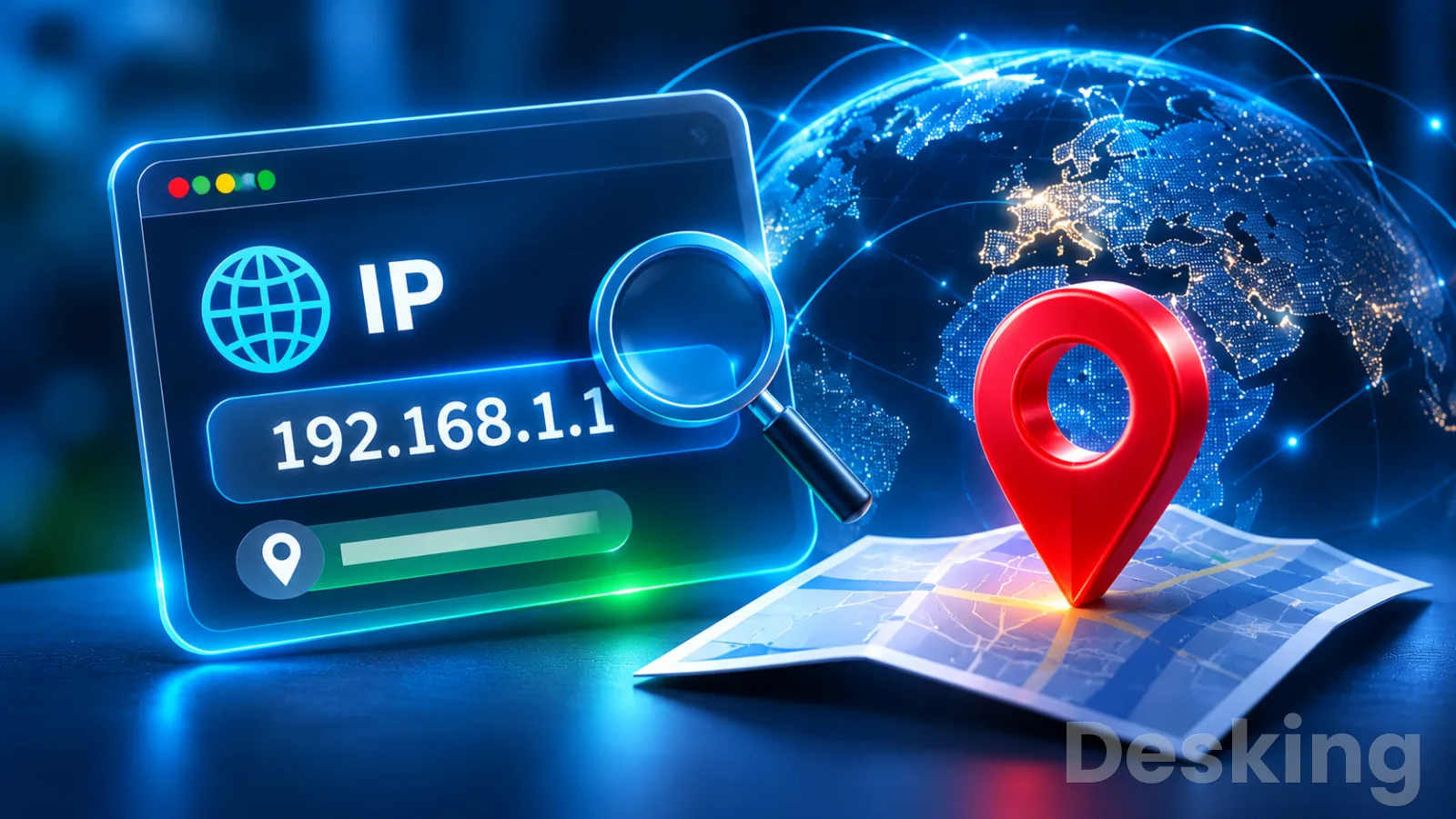
Table of contents
- What Is My IP Address and Where Is It Located?
- Find your public IP
- Find your private IP
- Windows 11 and 10
- macOS
- iPhone and iPad
- Android phones
- Linux computers
- Public vs private IP
- Understand IPv4 and IPv6
- Locate an IP address
- Why location differs
- Check location accuracy
- Understand dynamic IPs
- Understand carrier NAT
- What your IP reveals
- Protect your public IP
- When an IP changes
- Frequently Asked Questions
What Is My IP Address and Where Is It Located?
Your public IP address identifies the internet connection that websites and online services see, while your private IP address identifies a device inside its local network.
You can find the public address with an IP lookup service and the private address in your device's network settings.
An IP geolocation lookup can estimate the country, region, city, and network operator associated with the public address, but it cannot reliably identify your home or exact physical position.
The distinction matters because the number displayed by an IP lookup website is usually not the address assigned directly to your laptop or phone.
A home router, office gateway, mobile carrier, or VPN can place another address between your device and the public internet.
The location shown by a lookup service belongs to the public IP address it detects, which may represent a network gateway hundreds of miles from the person using it.
This guide explains how to find both addresses on Windows, macOS, iPhone, Android, and Linux, how to interpret the location result, and why different lookup services can show different cities.
It also covers IPv4, IPv6, VPNs, mobile networks, carrier grade NAT, and the privacy implications of sharing an IP address.
Find your public IP
The public IP address is the address that an external website normally sees when your device connects to it.
Your internet service provider assigns it to your connection, or your traffic may leave through a shared address managed by a carrier, company gateway, VPN, or proxy.
To find it, open a browser and search for "what is my IP address" or use a reputable IP lookup service.
The result usually displays an IPv4 address, an IPv6 address if available, the network operator, and an estimated location.
Some services show only the address, while others provide country, region, city, coordinates, time zone, and Autonomous System Number.
These extra fields come from geolocation and network databases, not from a GPS reading on your device.
Follow these steps to check the address websites see:
- Open a browser: Use Chrome, Edge, Firefox, Safari, or another current browser on the device connected to the internet.
- Search for your public IP: Enter "what is my IP" in a search engine, or open a reputable IP lookup service such as iplocation.net or ipconfig.io.
- Read the detected address: Record the IPv4 address and, if shown, the IPv6 address. The result represents the public connection observed by that service.
- Check the network details: Review the reported ISP or organization, country, region, and city. Treat the city and map coordinates as estimates rather than proof of your physical location.
- Repeat the lookup: Open a second independent lookup service and compare the detected address and location. Different location databases may use different records or update schedules.
- Check your VPN status: If a VPN, proxy, or privacy relay is active, the displayed address may belong to that service rather than your normal internet provider.
A public IP lookup does not need access to your GPS location.
The website reads the source IP address of the connection reaching its server and checks that address against its own databases.
This is why the result can show a location even if you deny browser location permission or use a computer without a GPS receiver.
If the lookup shows a VPN provider or cloud hosting company instead of your normal ISP, check whether a VPN or corporate security gateway is active.
If you use mobile data, the result may identify the carrier's internet gateway rather than the city where the phone is located.
The address can also change after a router reconnects or a provider assigns a new dynamic address.
Find your private IP
A private IP address identifies a device within a local network, such as the Wi Fi network at home or the wired network in an office.
Your router or network DHCP server usually assigns this address automatically.
Other devices on the same network use it to communicate with your computer, phone, printer, television, or server.
The Internet Engineering Task Force defines the private IPv4 ranges in RFC 1918.
The three ranges are 10.0.0.0 through 10.255.255.255, 172.16.0.0 through 172.31.255.255, and 192.168.0.0 through 192.168.255.255.
An address such as 192.168.1.25 or 10.0.0.14 is therefore commonly a private address, although the exact range depends on the network administrator or router configuration.
A private address is not normally reachable directly from the public internet.
Network Address Translation, or NAT, allows multiple devices with private addresses to share a public IPv4 address when accessing external services.
This is why a phone and laptop connected to the same home router can have different private addresses while an IP lookup website reports the same public IPv4 address for both.
Windows 11 and 10
Windows provides two straightforward ways to find the private IP address: the Settings application and the ipconfig command.
Both show the address assigned to the active network adapter.
If the computer has Ethernet, Wi Fi, VPN, and virtual adapters, make sure you read the details for the connection currently carrying your internet traffic.
Use Settings when you prefer a graphical route:
- Open Start and select Settings.
- Select Network & internet.
- Choose Wi Fi if the computer uses a wireless connection, or Ethernet if it uses a cable.
- Open the connected network or adapter properties.
- Find the IPv4 address field under the network or hardware properties.
- If IPv6 is enabled, look for the IPv6 address in the same connection details.
The Settings layout can differ slightly between Windows 10 and Windows 11 releases.
If the menu labels do not match, use the Settings search box and search for Ethernet settings or Wi Fi properties.
The address displayed under IPv4 is the private IPv4 address assigned to that adapter, not the public address shown by an external lookup website.
For a command line result, use Command Prompt:
- Open Start and type cmd.
- Select Command Prompt.
- Enter ipconfig and press Enter.
- Find the section named Ethernet adapter or Wireless LAN adapter Wi Fi.
- Read the IPv4 Address field under the adapter that is connected.
- Check Default Gateway if you also need the router's local address.
The ipconfig output may list several adapters.
Ignore entries marked Media disconnected and do not mistake a VPN or virtual machine adapter for the physical network connection.
If you need more detail, run ipconfig /all to see the subnet mask, DHCP status, DNS servers, physical address, and other adapter information.
A private address beginning with 169.254 usually indicates that Windows assigned itself a link local address because it did not receive a normal DHCP configuration.
This is not the public IP address.
It can indicate a problem with the router's DHCP service, the cable or Wi Fi connection, or a managed network's DHCP relay or VLAN configuration.
macOS
On a Mac, the private IP address appears in the network settings for the active Wi Fi or Ethernet service.
The location of the field depends on the macOS version and the connection type.
A Mac connected through Wi Fi will show the address for its wireless service, while a wired Mac or a Mac using a USB Ethernet adapter may show a separate address for that interface.
To find the address through System Settings:
- Select the Apple menu in the upper left corner.
- Open System Settings.
- Select Network in the sidebar.
- Choose the active Wi Fi or Ethernet connection.
- Select Details if that option appears.
- Open the TCP/IP section and read the IP address field.
If the Mac is connected to both Wi Fi and Ethernet, check which service is active and which one carries the traffic you want to inspect.

ExpressVPN
ExpressVPN delivers fast Lightway speeds, audited no logs privacy, and reliable streaming access across new Basic, Advanced, and Pro plans.
- Very fast Lightway protocol speeds
- RAM only TrustedServer infrastructure design
- Pricier than most mainstream competitors
- No permanent free plan available
The address shown for one interface may not be the address used by applications if macOS routes traffic through another connection.
VPN software can also create a separate virtual interface with its own assigned address.
You can also use Terminal.
Open Applications, select Utilities, then Terminal.
The command ifconfig lists network interfaces and their addresses, but the output can be lengthy because macOS uses multiple interfaces for wired, wireless, loopback, and virtual networking.
For a basic check, identify the active interface and look for its inet entry for IPv4 or inet6 entry for IPv6.
A private Wi Fi address on Apple devices is a separate concept from an IP address.
Apple's Private Wi Fi Address feature changes the MAC address used by the device on a wireless network.
It does not replace the IP address or determine the public IP that websites see.
Do not confuse the two when diagnosing network access or configuring a router reservation.
iPhone and iPad
An iPhone or iPad displays its private IP address in the details for the connected Wi Fi network.
The address belongs to that local wireless connection and may change when the device joins another network or receives a new DHCP lease.
It is not necessarily the same address that an external website sees.
Follow these steps:
- Open Settings.
- Tap Wi Fi.
- Find the network marked with a check mark, which indicates the current connection.
- Tap the information button beside the network name.
- Scroll to the IPv4 Address section.
- Read the IP Address field.
The same screen can show the subnet mask and router address.
The router field is the local gateway, not the iPhone's private IP address.
If the device uses IPv6, additional IPv6 address information may appear in the network details.
To check the public address, open Safari and search for "what is my IP address" or visit an IP lookup service.
If the iPhone is connected through a VPN, Private Relay, or a corporate security application, the detected public address may belong to the intermediary service.
Compare the result with the VPN disconnected only if doing so is safe and permitted by your organization's policy.
When the iPhone uses mobile data rather than Wi Fi, the private Wi Fi address is no longer the relevant interface address.
The mobile carrier assigns network addressing through its cellular infrastructure, and the public address seen by websites may be shared with other subscribers.
A browser lookup shows the address used for that internet session, not necessarily a unique address assigned to the handset.
Android phones
Android settings vary by manufacturer, Android release, and network interface.
Google Pixel, Samsung Galaxy, and other Android phones can place the IP address in different menus.
The most reliable method is to open the details of the currently connected Wi Fi network and find the IP address field.
On many Android phones, use this route:
- Open Settings.
- Select Network & internet or Connections.
- Tap Internet or Wi Fi.
- Select the connected wireless network or its gear icon.
- Open the network details if the address is not immediately visible.
- Read the IP address field.
On Samsung Galaxy devices, the path is commonly Settings, Connections, Wi Fi, then the gear icon beside the connected network.
Depending on the One UI version, you may need to tap View more to see the IP address and other network details.
If the menu has changed, use the Settings search feature and search for IP address.
Android may show an IPv4 address and one or more IPv6 addresses.
It can also show a gateway, DNS servers, and MAC address.
These fields serve different purposes: the IP address identifies the interface on the network, the gateway routes traffic beyond the local subnet, DNS servers resolve domain names, and the MAC address identifies the network interface at the local link layer.
To find the public address, open Chrome or another browser and use an IP lookup service.
Repeat the check with Wi Fi disabled and mobile data enabled if you want to compare the two connections.
The public address can differ because the home router and mobile carrier use separate internet gateways.
Linux computers
Linux provides several commands for checking local network addresses.
The exact interface name depends on the distribution, network manager, and hardware.
A wired interface may use a name such as enp3s0, while a wireless interface may use a name such as wlp2s0.
Do not assume that every Linux computer uses eth0 or wlan0.
Open a terminal and run ip address.
Find the active interface and inspect its inet entry for IPv4 or inet6 entry for IPv6.
The state and address information help distinguish an active interface from a disconnected one.
You can also run hostname -I for a shorter list of addresses assigned to the machine, although that output may include addresses from virtual or container interfaces.
For the public IP, open a browser and use an IP lookup service, or query a service from the terminal with curl if it is installed.
For example, curl ipconfig.io returns the public address observed by that service.
The result may be IPv4 or IPv6 depending on the route and address family used for the connection.
A server with Docker, virtual machines, VPNs, or multiple network interfaces may have several private and public facing addresses.
Check the routing table with ip route to identify the default route and the interface used for outbound traffic.
This is particularly important on servers with multiple network connections, because an address listed by ip address is not automatically the address external clients use to reach the service.
Public vs private IP
The public and private addresses describe different parts of the same network connection.
A private address is used inside a local network, while a public address identifies the connection as it reaches the wider internet.
A router normally performs NAT between those two addressing environments, allowing several devices to share one public IPv4 address.
| Characteristic | Public IP address | Private IP address |
|---|---|---|
| Main purpose | Identifies a connection on the public internet | Identifies a device on a local network |
| Assigned by | ISP, carrier, hosting provider, or gateway operator | Router, DHCP server, or network administrator |
| Visible to websites | Yes, as the source address of the connection | Normally no |
| Typical IPv4 examples | Globally routable address | 192.168.1.25, 10.0.0.14 |
| Used for | Internet communication and external access | Local device communication |
| Can be shared | Yes, through NAT or carrier grade NAT | Usually unique within the local subnet |
The distinction is important when configuring printers, file sharing, remote access, port forwarding, or network services.
A printer on a home network usually needs its private address for local connections.
A remote user connecting to a service hosted behind a router may need the public address, plus an appropriate firewall and NAT configuration.
A public IP address does not always belong directly to the router in your home.
Some internet providers place another NAT device between the customer router and the public internet.
In that arrangement, the router may have a private or shared address on its WAN interface, while the provider's gateway holds the public address.
This changes how remote access and port forwarding work.
Understand IPv4 and IPv6
IPv4 and IPv6 are two versions of the Internet Protocol.
IPv4 addresses are written as four decimal numbers separated by periods, such as 198.51.100.24.
IPv6 addresses use hexadecimal groups separated by colons, such as 2001:db8:1234:5678::10.
The examples shown here are reserved for documentation and should not be treated as real public addresses.
IPv4 has a limited address space, which contributed to the widespread use of NAT and address sharing.
IPv6 was designed with a much larger address space and supports direct addressing across a vastly larger number of devices.
A network can use IPv4, IPv6, or both at the same time, a setup commonly called dual stack.
A lookup website may show both versions, but the address displayed depends on how the device reaches that service.
If the connection supports IPv6 and the destination is reachable over IPv6, the service may detect the IPv6 address.
Another website may use IPv4 and display a different address.
This does not automatically mean that one of the services is wrong.
| Address type | Format | Example | Typical use |
|---|---|---|---|
| IPv4 | Four decimal octets | 198.51.100.24 | Public and private network communication |
| IPv6 | Hexadecimal groups | 2001:db8:1234::10 | Modern public and private network communication |
| IPv4 loopback | 127.0.0.1 | Localhost | Testing the local computer |
| IPv4 link local | 169.254.10.20 | Automatic local addressing | Communication on a local link when normal IPv4 configuration is unavailable |
| IPv6 loopback | ::1 | Localhost | Testing the local IPv6 stack |
| IPv6 link local | fe80:: | Local link communication | Communication within a local network segment |
The IANA special purpose address registry identifies reserved address ranges and their reachability characteristics.
For example, 127.0.0.0/8 is reserved for loopback, 169.254.0.0/16 is link local, and 100.64.0.0/10 is shared address space used in carrier networks.
These ranges should not be confused with ordinary globally reachable public addresses.
An IPv6 address can also be temporary or privacy oriented.
Operating systems may generate temporary addresses for outgoing connections to reduce the use of a stable interface identifier across destinations.
As a result, the IPv6 address shown by one command may differ from another address used later.
This is normal in networks that use IPv6 privacy extensions.
Locate an IP address
IP geolocation is the process of estimating where an IP address is used.
A lookup provider compares the address or its network prefix with databases containing geographic and network information.
The result may include a country, region, city, approximate coordinates, time zone, ISP, organization, or ASN.
The address itself does not contain a street address or GPS coordinates.
Geolocation providers build estimates from sources such as regional internet registry information, network operator data, routing observations, geofeeds, and other measurements.
The European Telecommunications Standards Institute explains that IP geolocation databases are maintained by third parties and that their accuracy depends on the quality of the underlying information.
ExpressVPN
ExpressVPN delivers fast Lightway speeds, audited no logs privacy, and reliable streaming access across new Basic, Advanced, and Pro plans.
- Very fast Lightway protocol speeds
- RAM only TrustedServer infrastructure design
- Pricier than most mainstream competitors
- No permanent free plan available
The country is generally more dependable than the city.
MaxMind, a major provider of IP geolocation data, explains that country level accuracy can exceed 99 percent when VPN use is excluded, while city accuracy varies considerably by network and location.
Its accuracy comparison tool also publishes country specific results and distance ranges, which makes clear that a city label is not equivalent to a verified physical position.
For Angola, MaxMind's current comparison data reports that 63 percent of the tested IP addresses are located within 50 kilometers of the correct location, while 37 percent are assigned to a city outside that radius.
The figure applies to the database and methodology used by MaxMind, not every geolocation provider or every Angolan connection.
It illustrates why a lookup result that shows Luanda, another provincial capital, or an ISP gateway should be treated as a geographic estimate.
A map pin can create a false impression of precision.
Some services display coordinates with several decimal places, but those digits do not mean that the database knows the exact location of the router or person.
The coordinates may represent the center of an estimated area or a network location associated with the IP prefix.
A pin on a street map is therefore not evidence that the subscriber lives or works at that point.
Why location differs
Different IP lookup services can return different locations for the same address because they use different datasets, update schedules, and geolocation methods.
One provider may identify the city associated with the ISP's registration records, while another may use routing observations or network operator supplied information.
Neither result should be treated as a GPS fix.
Several network conditions can produce a location that appears incorrect:
- ISP routing: An internet provider may send traffic through a regional gateway in a different city from the subscriber's home.
- Mobile networks: Cellular traffic may leave the carrier network through a central gateway serving a large geographic area.
- Carrier grade NAT: Many subscribers can share one public IPv4 address, so the location may represent the carrier's exit point.
- VPN services: Websites see the VPN server's public IP address, which may be in another country or city.
- Corporate gateways: Employees in different locations may share a company's central internet connection.
- Proxy services: A proxy server can become the visible source of the request, so the lookup identifies the proxy network.
- Outdated records: IP ranges can be reassigned or moved, while geolocation databases may take time to reflect the change.
- Satellite networks: Traffic may be routed through a gateway far from the user's physical location.
Mobile connections deserve particular attention.
A phone may be physically in one city while its carrier sends internet traffic through a gateway elsewhere.
The IP lookup service reports the apparent network exit point, not the handset's GPS position.
The same issue can affect fixed wireless and satellite internet, depending on the provider's routing architecture.
Corporate networks can create a similar result.
A company may route internet traffic from branch offices through a central firewall or secure web gateway.
Websites then see the central public address, even when the employee is working in another city or country.
This is expected network behavior, not necessarily an error in the lookup database.
VPNs and proxies deliberately change the visible source address.
If a VPN server is located in London, a website may estimate that the connection comes from London even when the user is elsewhere.
The location belongs to the VPN endpoint.
Disconnecting the VPN and repeating the lookup can reveal the normal ISP address, but only do so when the network policy and privacy requirements permit it.
Database updates also matter.
An ISP may transfer an IP block, change its routing, or begin using an address range in another region.
Geolocation providers must identify and incorporate that change.
Akamai's 2025 presentation to an Internet Architecture Board workshop notes that geolocation feeds can contain errors, become unavailable, or take time to propagate, particularly when IPv4 address space changes hands.
Check location accuracy
If an IP lookup shows the wrong city, compare several sources before changing network settings or contacting the ISP.
Use the same public IP address for each lookup.
If the address changes between tests because a VPN reconnects or the router receives a new lease, you are no longer comparing the same network endpoint.
Use this procedure to investigate a location result:
- Record the public address: Open an IP lookup service and copy the detected IPv4 or IPv6 address. Do not confuse it with the private address shown in Windows or phone settings.
- Check a second database: Enter the same address in another reputable lookup service. Compare the country, region, city, ISP, and ASN fields.
- Check the network operator: Look at the reported ISP or organization. If the result identifies a mobile carrier, VPN provider, cloud host, or corporate gateway, the location may describe that network's exit point.
- Compare connection types: If practical, check once over home Wi Fi and once over mobile data. Different providers can use different gateways and public addresses.
- Review VPN and proxy settings: Confirm whether a VPN, proxy, secure gateway, or privacy relay is active. Repeat the lookup only after understanding what traffic will be exposed.
- Check the database's accuracy information: Look for an accuracy radius, confidence statement, or explanation of how the provider estimates city and coordinates.
- Request a correction if necessary: If the IP block is consistently mapped to the wrong region, contact the geolocation provider or ISP with evidence that the network range has been assigned elsewhere.
MaxMind provides a public data correction process for its GeoIP databases.
A correction to one provider does not automatically update every other service, because each database is maintained separately.
If several lookup services show the same incorrect city, the ISP may need to correct the registration or geofeed information associated with its IP range.
Do not use a single lookup result as proof of a person's location.
A city level match can be useful for content localization, fraud screening, or network diagnostics, but it is not reliable enough to identify a home or workplace.
The ETSI technical report on IP address traceability explicitly warns that geolocation databases estimate a location and cannot guarantee accuracy.
Understand dynamic IPs
A dynamic IP address can change over time because the internet provider assigns addresses from a pool.
The provider may issue a new address after a router reconnects, a lease expires, or network resources are reassigned.
Many residential connections use dynamic addressing because it allows providers to manage available addresses without reserving a permanent public address for every customer.
A static IP address is intended to remain assigned to the same connection or service.
Businesses often request static addressing for services that need a consistent public endpoint, such as remote access gateways, VPN servers, email infrastructure, or externally accessible applications.
Static addresses may be available only under certain provider plans or business services, so confirm the terms with the ISP.
You can check whether your public IP changes by recording it at different times.
A change does not necessarily indicate a security incident or unauthorized access.
It may simply reflect the provider's address allocation process.
If you host a service that depends on a fixed public address, ask the provider whether the connection has a static address or whether a dynamic DNS service is appropriate.
Private IP addresses can also change.
A router's DHCP server leases addresses to devices and may assign a different address after a lease expires or the device reconnects.
If a printer, NAS, camera, or server needs a predictable local address, configure a DHCP reservation in the router or use an approved static address outside the DHCP pool.
Do not choose an address at random because it may conflict with another device.
Understand carrier NAT
Carrier grade NAT, often shortened to CGNAT, allows an internet provider to share public IPv4 addresses among multiple customers.
The customer's router may receive an address from a shared range rather than a globally reachable public IPv4 address.
The provider then translates traffic from many subscribers through a smaller pool of public addresses.
The IANA registry identifies 100.64.0.0/10 as Shared Address Space.
This range is commonly used between a provider's customer network and its carrier NAT infrastructure.
It is different from the private ranges in RFC 1918, although neither is globally reachable in the normal public internet.
You can check for possible CGNAT by comparing the WAN IPv4 address shown in your router with the public IPv4 address reported by an external lookup service.
If they differ, an upstream NAT device may be involved.
If the router's WAN address falls within 100.64.0.0 through 100.127.255.255, that is a strong indication that the provider uses shared address space.
Other private WAN addresses can also indicate an upstream router or NAT arrangement.
Use these steps to perform the comparison:
- Sign in to your router's administration interface using the address and credentials supplied by the manufacturer or ISP.
- Find the Internet, WAN, or Connection Status section.
- Record the WAN IPv4 address displayed by the router.
- Open a public IP lookup service from a device connected to that router.
- Record the public IPv4 address detected by the lookup service.
- Compare the two values and check whether the router address belongs to a private or shared range.
A difference between the two addresses does not prove CGNAT on its own.
A separate modem, another router, a firewall, or a company gateway may be performing NAT before traffic reaches the ISP.
Check the network topology before concluding that the provider is responsible.
CGNAT can affect services that expect inbound connections, including some remote desktop arrangements, self hosted applications, game servers, and traditional port forwarding.
Configuring a port forward on the home router may not be enough if the provider performs another translation upstream.
Ask the ISP whether it can provide a public IPv4 address, a static address, or an alternative remote access option.
What your IP reveals
A public IP address can reveal useful network information, but it does not normally disclose a person's name or exact home address by itself.
A lookup may identify the ISP, organization, approximate country, region, and sometimes a city.
Websites can also log the address alongside account activity, cookies, timestamps, and other technical information.
The Information and Privacy Commission of New South Wales explains that websites can collect IP addresses and that an address may become personal information when it can be connected with other identifying information.
The practical point is that an IP address should be treated as potentially sensitive network data, even though it does not automatically identify a subscriber to an ordinary website visitor.
An IP address can be useful for several legitimate purposes:
- Network diagnostics: Administrators can use it to identify the source of a connection, investigate routing problems, or review firewall logs.
- Regional content: Websites may use the estimated country or region to select language, currency, or locally relevant content.
- Security monitoring: Services can compare an address with reputation databases and identify unusual access patterns.
- Access controls: Organizations may allow or deny connections based on approved IP ranges.
- Abuse investigation: A service may record the source address and timestamp when investigating spam, account attacks, or other misuse.
An IP address can also be used as one signal in tracking and profiling.
A website may associate repeated visits from the same address with other browser or account information.
Shared addresses make this signal less precise because multiple people can use the same public IP, while dynamic addressing means one subscriber may use different addresses over time.
An address alone is usually insufficient to identify a device or break into it.
However, a publicly reachable service with weak authentication, outdated software, or exposed management ports may be targeted through its network address.
Bitdefender's security guidance describes risks such as network scanning and denial of service attacks, while emphasizing that an IP address alone does not automatically provide access to a device.
If someone claims they can identify your exact home from your IP address, treat the claim with skepticism.
A lookup may return a city or an ISP gateway location, but the subscriber's account details are held by the internet provider.
Connecting an IP address to a particular subscriber generally requires provider records and appropriate legal authority, not simply a public geolocation website.
ExpressVPN
ExpressVPN delivers fast Lightway speeds, audited no logs privacy, and reliable streaming access across new Basic, Advanced, and Pro plans.
- Very fast Lightway protocol speeds
- RAM only TrustedServer infrastructure design
- Pricier than most mainstream competitors
- No permanent free plan available
Protect your public IP
Most ordinary internet use exposes a public source IP to the services you connect to.
That is part of how internet communication works.
If you need to reduce the amount of network information visible to websites, use privacy controls appropriate to the situation rather than relying on a location lookup to provide protection.
A VPN routes traffic through a provider's server, so websites normally see the VPN server's public address instead of the address assigned by your ISP.
The VPN provider can still observe certain connection information, depending on its architecture and policies.
Choose a provider based on its security practices, independent audits, jurisdiction, and transparency rather than assuming that every VPN offers the same privacy protection.
Other measures can reduce exposure or improve network security:
- Keep the router updated: Install firmware updates supplied by the manufacturer or ISP to address known security issues.
- Change default administration credentials: Use a unique password for the router's management interface and disable remote administration if it is not required.
- Disable unused services: Turn off services such as remote management or unnecessary port forwarding when you do not need them.
- Use HTTPS: Encrypted website connections protect the contents of traffic in transit, although the destination service still receives the source IP address.
- Review VPN settings: Check that the VPN is active before accessing services for which you want the VPN address to be visible.
- Avoid unknown proxies: An untrusted proxy can observe traffic and may collect connection data.
- Limit public sharing: Avoid posting your public IP address in open forums, screenshots, or social media unless there is a clear technical reason.
A VPN does not make a user invisible.
Websites may still identify accounts through sign ins, cookies, browser characteristics, payment information, and other signals.
A VPN changes the network address visible to the destination, but it does not erase the rest of the information associated with an online session.
If you suspect someone is targeting your connection, contact the ISP and secure the router.
The provider may be able to change a dynamic public address, investigate unusual traffic, or offer a different service configuration.
Changing an IP address is not a substitute for patching exposed devices, disabling unnecessary services, and using strong authentication.
When an IP changes
A changed public address is often normal.
Residential ISPs may use dynamic allocation, mobile carriers may change network gateways, and VPN providers may assign a different server address after reconnection.
A change in the location shown by an IP lookup can therefore reflect a new address or a different routing path rather than a physical move.
Use the following checks if your public address or reported location changes unexpectedly:
- Repeat the lookup: Check the address on two independent services to confirm that the public IP itself changed.
- Check the connection type: Confirm whether the device is using Ethernet, Wi Fi, mobile data, or a VPN.
- Inspect the router WAN address: Compare the WAN IPv4 address with the public address detected by the lookup service.
- Review VPN and proxy status: Check whether a privacy service has reconnected to another endpoint.
- Check the ISP: If the address changes frequently or causes access problems, ask the provider whether dynamic allocation or CGNAT is in use.
- Review security events: If the change coincides with unfamiliar router logins or unknown configuration changes, secure the router and contact the ISP.
A public IP change can affect services that rely on allowlists.
For example, a company firewall may permit remote access only from a known office IP address.
If the ISP changes that address, the connection may stop working until the administrator updates the allowlist.
A static IP or a managed VPN can provide a more predictable solution for those environments.
If a website suddenly displays a different country, check the detected IP before assuming that your device has been compromised.
A VPN, proxy, mobile carrier gateway, or stale geolocation record can explain the difference.
If the public address itself is unfamiliar, compare it with the router WAN information and the ISP's service details.
Frequently Asked Questions
Can someone find my exact address from my IP?
Why does my IP show a different city?
Is my IP address the same on Wi Fi and mobile data?
Does incognito mode hide my IP address?
Why do two IP lookup websites show different locations?
Can I change my public IP address?
What is the difference between an IP address and a MAC address?
Sources3
- MaxMind on IP geolocation accuracy
- FTC on website tracking and privacy
- IANA on reserved IPv4 address ranges
External pages are independent third-party sources. Desking App does not control or endorse their content and accepts no responsibility for it. Visiting them is at your own responsibility and risk.