

Why your internet is slow and how to identify the real cause
By Afonso Macosso · November 16, 2026
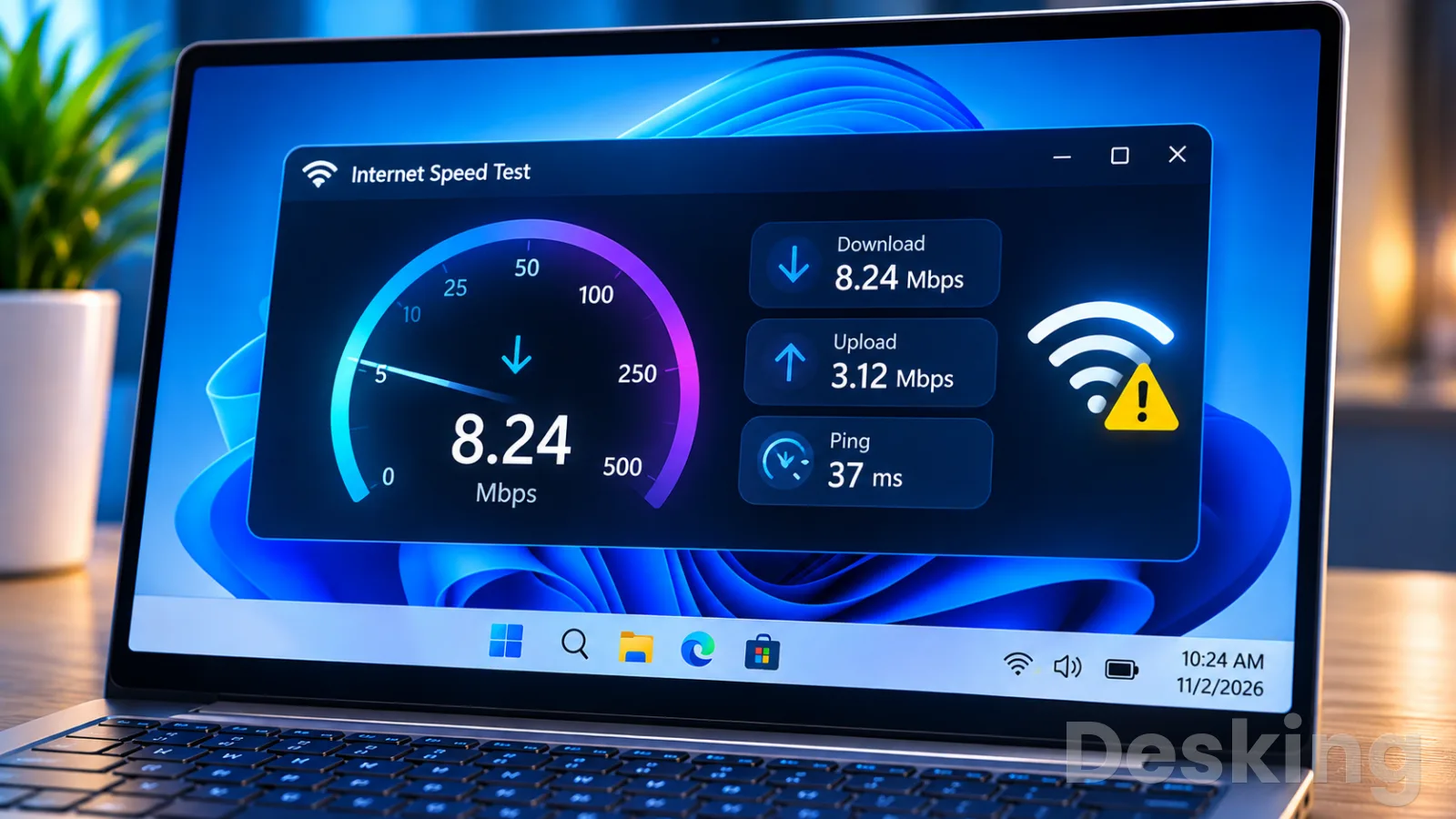
Table of contents
Slow internet can originate in the device, wireless network, router, modem, service provider or the route to a particular website.
The most reliable diagnosis starts by comparing multiple devices and testing one computer over Ethernet.
If wired performance is normal but Wi-Fi is slow, the broadband connection may be healthy while the wireless network limits speed.
If both are slow, investigate the router, modem, service plan and provider before buying new equipment.
A speed test gives useful evidence, but download speed alone does not describe connection quality.
Upload speed affects cloud backups and video calls, while latency, jitter and packet loss influence responsiveness and stability.
A connection can deliver a high download rate and still feel unusable when a large upload causes delays across the network.
The objective is to identify which measurement changes when the problem appears.

Find the bottleneck
Start by establishing whether the slowdown affects one device, all devices, Wi-Fi only or both wired and wireless connections.
This simple separation prevents a common diagnostic mistake: changing router settings when the actual problem sits inside one laptop, or blaming the provider when the wireless signal is weak in a distant room.
Test at least two devices in the same location and under similar conditions.
If only one device performs poorly, investigate its adapter, software and background activity first.
Use the same speed test service and, where possible, the same test server for each comparison.
Close applications that transfer large amounts of data, pause cloud synchronization and avoid streaming while measuring.
The Computer Next recommends testing devices in the same place and repeating tests under comparable conditions because device radios, wireless bands, test servers and background traffic can produce different results.
A single measurement is not enough to establish a persistent fault.
The pattern of results narrows the investigation:
One device is slow: Check its Wi-Fi adapter, Ethernet port, driver, VPN, browser extensions, security software and background applications.
Every device is slow over Wi-Fi: Investigate router wireless settings, interference, signal coverage, access point performance and household traffic.
Wi-Fi is slow but Ethernet is fast: The wireless network is the likely bottleneck, so focus on placement, frequency bands, channel use and mesh connections.
Wired and wireless devices are both slow: Check the router, modem or optical network terminal, WAN cable, service plan and ISP connection.
Only one website or application is slow: Test unrelated services before changing the network.
The destination server, application, DNS resolver or route may be responsible.
This classification is more useful than immediately restarting equipment because it gives each subsequent test a purpose.
A router reboot can temporarily clear a fault, but it does not explain whether the original cause was congestion, overheating, a failing connection or a software problem.

Hostinger VPS
Hostinger VPS delivers KVM virtualization, NVMe storage and full root access at prices that undercut most competing cloud providers.
- Strong price to specification ratio overall
- NVMe storage included on every tier
- Renewal rates climb steeply after promo
- Self managed means security is your job
Record the results before changing settings.
That record will also help when you contact the provider.
Read speed tests
Download and upload measurements describe different directions of data transfer.
Download speed determines how quickly data reaches your device, affecting large downloads, video streaming and many web activities.
Upload speed measures how quickly your device sends data outward, which matters for video meetings, cloud backups, file sharing and live broadcasts.
Comparitech recommends recording both figures alongside latency because a strong download result can conceal a weak upload connection.
Latency, commonly called ping, measures the time a packet takes to travel to a destination and return.
It is usually expressed in milliseconds, and lower values generally produce more responsive interactions.
Jitter describes variation in packet delay, while packet loss measures data that fails to reach its destination.
These indicators matter for online gaming, voice calls and remote desktop sessions, where inconsistent delivery can cause interruptions even when average download speed appears adequate.
A useful test sequence separates the internet service from local wireless performance:
Test over Ethernet: Connect a computer directly to a LAN port on the router using a known working cable.
Disable Wi-Fi on the computer so the test uses only the wired connection.
Record the result: Note download speed, upload speed, latency and the test server.
Run the test more than once and keep the results rather than relying on the best number.
Test beside the router: Disconnect Ethernet, enable Wi-Fi and repeat the test close to the main router.
Keep the device and test service the same.
Test at the usual location: Repeat the wireless test in the room where the slowdown normally occurs.
A large performance drop between the two locations points towards coverage or interference.
Repeat at different times: Test during a quiet period and during the hours when the connection usually feels slow.
A recurring evening decline can indicate provider congestion or increased shared usage.
Compare the wired result with the speed included in your subscription, not with the Wi-Fi speed printed on the router's packaging.
Advertised broadband rates are commonly presented as maximum or headline speeds, and actual results depend on the provider, network conditions and test method.
HighSpeedInternet.com illustrates this distinction with a 400 Mbps plan that may produce a result around 390 Mbps.
The important question is whether the measured performance is consistently and materially below the service you purchased.
Separate Wi-Fi problems
A wireless network can be the slowest part of an otherwise healthy broadband connection.
Radio signals lose strength as they pass through walls, floors, metal surfaces and other obstacles.
Distance also matters, while neighboring networks compete for airtime on shared channels.
Comparitech identifies router placement, physical barriers and nearby electronic equipment as common factors that reduce wireless performance.
Move the router to a central, elevated and open position rather than leaving it inside a cabinet, behind a television or close to large metal objects.
Keep it away from equipment that can create radio interference, including some cordless phones and microwave ovens.
Retest from the same locations after moving it, because a change in signal strength should produce a measurable difference if placement was the main cause.
If the router cannot reach distant rooms reliably, a wired access point is generally a more predictable solution than relying on a weak wireless relay.
Choose the right band
Most modern routers offer 2.4 GHz and 5 GHz Wi-Fi, while newer equipment may also support 6 GHz.
These bands have different coverage and capacity characteristics, so the fastest option depends on the distance, obstacles, client device and local radio conditions.
The FCC explains that 2.4 GHz generally covers a wider area, while 5 GHz can deliver higher speeds over a shorter range and may face less congestion.
Ofcom's spectrum work also documents how a high number of devices sharing limited channels can reduce wireless performance.
Use 2.4 GHz for devices that need coverage across greater distances or through more obstacles, provided the band is not heavily congested.
Use 5 GHz for devices closer to the router that need higher throughput, such as computers, televisions and gaming systems.
A 6 GHz network can offer additional capacity where both the router and client support it, but its availability and permitted operation depend on local regulations and equipment.
A device cannot use a band that its wireless adapter does not support.
Reduce channel congestion
Wireless networks share radio channels with neighboring access points and other devices.
When several networks compete for the same airtime, clients may wait before transmitting, reducing throughput and increasing latency.
Ofcom's analysis of Wi-Fi spectrum explains that channel congestion can affect both performance and delay, particularly where many devices use the same limited frequencies.
This is one reason a network can perform well in the morning and deteriorate when nearby households become active.
Use the router's wireless diagnostics or a Wi-Fi analyzer to identify crowded channels before changing settings.
On 2.4 GHz, channels 1, 6 and 11 are commonly used as non-overlapping choices in regions where those channels are permitted.
On 5 GHz, select a channel supported by the router and client devices, taking local regulatory restrictions into account.
Avoid choosing a channel solely because its number looks higher; channel width, neighboring activity and device compatibility all influence the result.
Control shared traffic
Every device on a network shares the capacity available through the internet connection.
Hostinger VPS
Hostinger VPS delivers KVM virtualization, NVMe storage and full root access at prices that undercut most competing cloud providers.
- Strong price to specification ratio overall
- NVMe storage included on every tier
- Renewal rates climb steeply after promo
- Self managed means security is your job
A television streaming high resolution video, a computer downloading a game, a phone backing up photos and a security camera uploading footage can compete for the same connection.
The effect is particularly noticeable when the upload capacity is limited.
A cloud backup can occupy much of the upstream connection and make video calls, remote access and ordinary browsing feel slow.
Open the router's connected device list and look for clients transferring unusually large amounts of data.
Pause game downloads, operating system updates, cloud backups and file synchronization, then repeat the speed test.
If performance improves immediately, the network may be saturated rather than suffering from a line fault.
Schedule large transfers outside working hours and configure per device bandwidth limits if the router supports them.
Do not assume that the number of connected devices alone explains the slowdown.
A phone sitting idle on Wi-Fi uses very little bandwidth, while one computer uploading a large video archive can consume most of a modest upstream connection.
The type and volume of traffic matter more than the client count.
For shared homes and small offices, monitor actual usage before disconnecting devices or purchasing a faster subscription.
Check router capacity
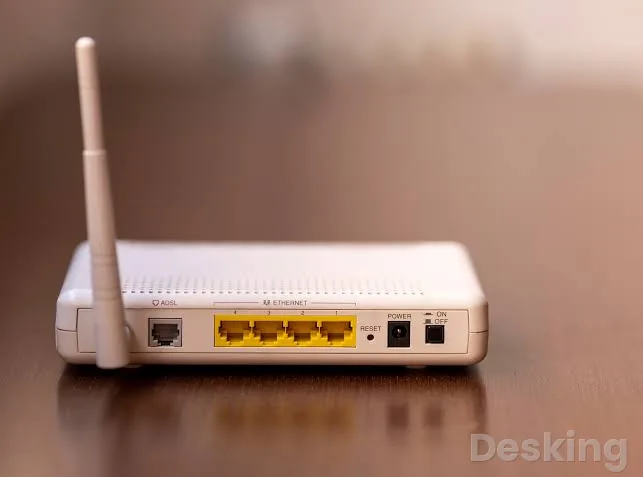
A router has limits beyond the speed printed on its box.
Its WAN port, LAN ports, wireless radios, processor, memory and firmware all affect the traffic it can handle.
An older router may have a 100 Mbps Ethernet port even when the broadband plan exceeds that rate, creating a hard ceiling for wired devices connected through that port.
A damaged or poorly terminated cable can also negotiate at a lower link speed than expected.
Check the router's administration page for WAN and LAN link rates, CPU load, memory use and connection errors.
If a computer connected by Ethernet consistently stops near 100 Mbps, inspect the cable and both port specifications before blaming the ISP.
A Gigabit Ethernet link should negotiate at 1 Gbps when both ends, the cable and the configuration support it.
Replacing a cable with a known working Cat 5e or Cat 6 cable can help identify a physical link limitation, but the router and computer ports must also support the required rate.
Heat and firmware problems can affect performance too.
Place the router in a ventilated location and check whether it restarts, becomes unusually hot or loses its WAN connection under sustained traffic.
Install firmware intended for the exact model and hardware revision, following the manufacturer's instructions.
Avoid unofficial firmware files or a factory reset unless you have a backup and know the ISP settings required to restore the connection.
Diagnose bufferbloat
A connection can have adequate download capacity and still become unresponsive when someone transfers a large file.
One cause is bufferbloat, a condition in which network equipment holds too many packets in queues, increasing the time other traffic waits before transmission.
The Bufferbloat project explains that queues can build at the router's connection to the ISP and at Wi-Fi interfaces.
The result can be lag in games, delayed web requests, choppy calls and slow remote sessions while a download or upload is active.
Test latency when the network is idle, then repeat while a large upload or download runs.
If latency rises sharply during the transfer and returns to normal when it stops, queueing or congestion deserves investigation.
Run this comparison over Ethernet first, because wireless interference can also increase delay and make the result harder to interpret.
A browser based bufferbloat test can provide an additional indication, but one result does not identify the exact device or link holding the queue.
Routers with Smart Queue Management can reduce excessive queuing when correctly configured.
Common approaches include CAKE and FQ CoDel, which manage traffic flows and packet queues to keep small interactive transfers responsive while larger transfers continue.
The Bufferbloat project and OPNsense documentation describe how these algorithms address delay caused by large queues.
Support varies by router, and enabling SQM may reduce maximum throughput because the router deliberately manages traffic below the full available line rate.
Do not enable several traffic prioritization systems at once or copy settings from a different router model.
Check the firmware documentation, confirm which WAN interface is managed and record the original configuration before making changes.
Some routers lack enough processing capacity to run queue management at high broadband rates.
If the router does not support SQM, reducing simultaneous uploads or using a router with suitable queue management may be more effective than repeatedly changing ordinary Quality of Service priorities.
Isolate device faults
When only one computer or phone is slow, the broadband line is unlikely to be the first place to investigate.
A device may have an older wireless adapter, a limited Ethernet port, outdated drivers, background synchronization, a VPN or security software that inspects network traffic.
Switch My Broadband identifies adapter capability, drivers, VPN software and background activity as common reasons one device can perform worse than others on the same connection.
On Windows, open Task Manager and select Processes, then sort by the Network column to identify applications using bandwidth.
Open Device Manager, expand Network adapters and check the wireless or Ethernet adapter model and driver status.
Install driver updates from the computer manufacturer's support page or the adapter manufacturer's official source.
If the slowdown began after a driver update, use the device's driver rollback option where available and compare performance again.
Temporarily disconnect a VPN and repeat the same test, then restore it after the comparison.
A VPN routes traffic through another server, which can add distance, processing delay or congestion.
Browser extensions, proxy settings, endpoint security tools and DNS filtering can also affect particular applications.
Change one variable at a time so the test identifies a cause rather than producing a result that cannot be explained.
Investigate the provider
If multiple devices remain slow over Ethernet, with large transfers paused, investigate the modem, optical network terminal, router WAN connection and ISP.
A failing fiber or cable signal, damaged WAN cable, provider outage, account provisioning issue or congested upstream network can reduce performance.
A wired test at the router is useful evidence, but it does not by itself prove the provider is responsible because the router or modem may still be the bottleneck.
Hostinger VPS
Hostinger VPS delivers KVM virtualization, NVMe storage and full root access at prices that undercut most competing cloud providers.
- Strong price to specification ratio overall
- NVMe storage included on every tier
- Renewal rates climb steeply after promo
- Self managed means security is your job
Repeat tests at different times and keep the results with the date, time, test server, download speed, upload speed and latency.
If performance consistently drops during busy evening hours while the local network is quiet, share that pattern with the provider.
Ask support to check the service status, signal levels, line errors and connection history.
The FCC's consumer guidance similarly recommends checking the subscribed plan, measuring actual speeds and contacting the provider when results remain below expectations or an outage may be affecting service.
For fiber connections, check the optical terminal's status indicators and report any loss of signal or repeated service registration failures.
For cable or DSL services, the provider may need to inspect line levels, noise or synchronization.
Do not disconnect or clean fiber connectors yourself unless the provider instructs you to do so.
Keep the router and modem powered as directed during a provider test, because repeated restarts can remove useful evidence from equipment logs.
Know when DNS matters
DNS translates a domain name into the IP address used to contact a website.
A slow or unavailable resolver can delay the start of a connection, but changing DNS does not increase the capacity of the broadband line or improve a weak Wi-Fi signal.
It is worth investigating when pages pause before loading while downloads and other connections remain reasonably fast.
If every application is slow, DNS is less likely to be the main cause.
Compare name resolution using the configured resolver and a known public resolver, while keeping the same device and network.
On Windows, nslookup example.com displays the DNS server used and the address returned for the domain.
A timeout may indicate a resolver or network path problem, while a successful response does not guarantee that the website itself is fast.
Business networks may rely on internal DNS for company applications, so do not replace their resolver without checking with the administrator.
Frequently Asked Questions
Can a new router make my internet faster?
Why is my internet slow at night?
Does a faster internet plan fix high ping?
Why does my speed test show different results each time?
Is Ethernet always faster than Wi-Fi?
Sources5
- Comparitech on internet speed troubleshooting
- Speedtest Doctor on slow internet causes
- HighSpeedInternet on router and ISP speed
- The Computer Next on diagnosing slow internet
- FCC on home internet performance
External pages are independent third-party sources. Desking App does not control or endorse their content and accepts no responsibility for it. Visiting them is at your own responsibility and risk.