

Wi-Fi connected but no internet: 12 checks for routers, phones and computers
By Afonso Macosso · November 16, 2026
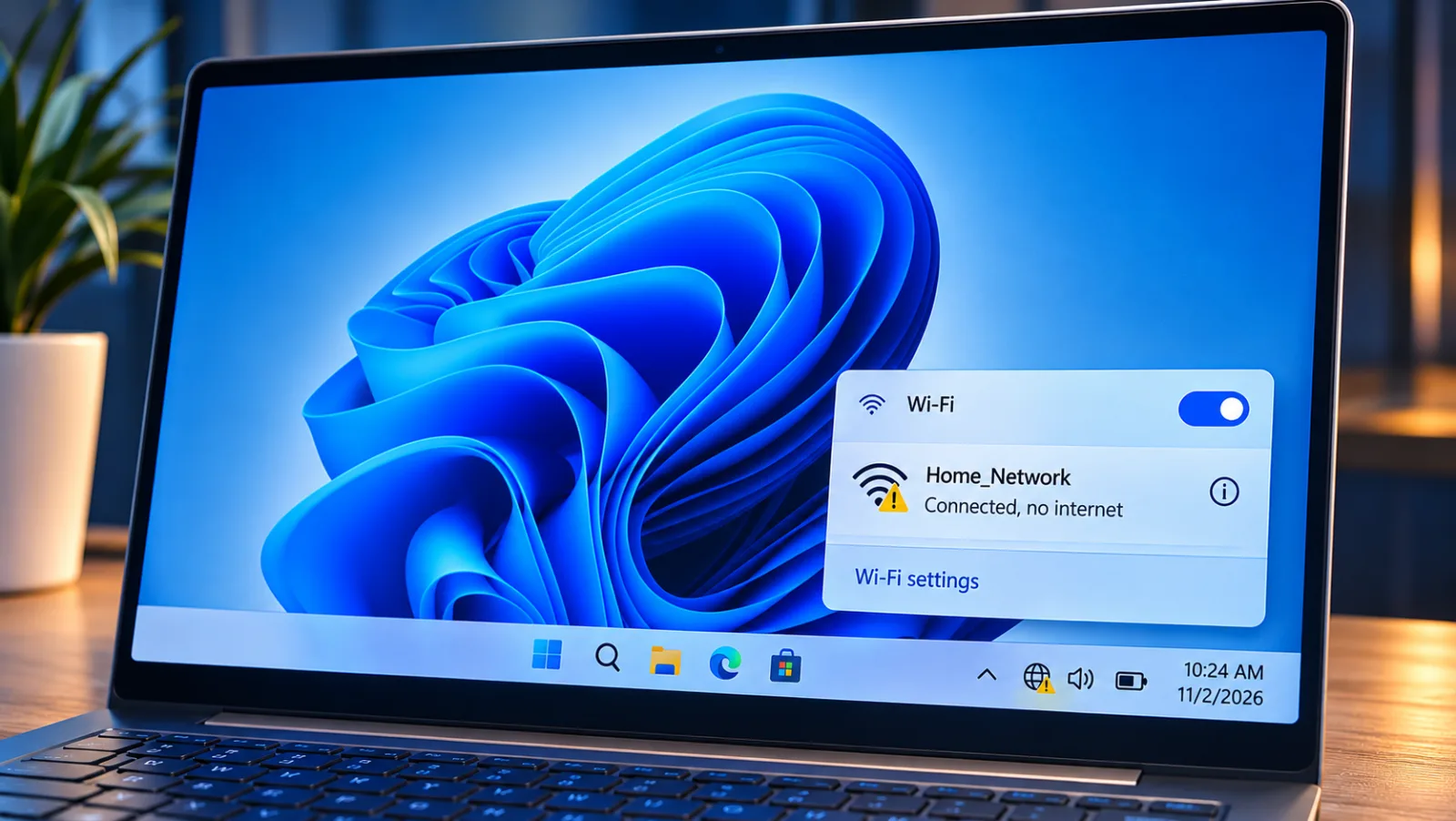
Table of contents
- 1. Check other devices
- 2. Inspect modem lights
- 3. Restart network equipment
- 4. Test wired access
- 5. Check the IP address
- 6. Renew the connection
- 7. Diagnose DNS failure
- 8. Disable VPN and proxy
- 9. Check captive portals
- 10. Inspect router settings
- 11. Reset network software
- 12. Update or replace faulty equipment
- Frequently Asked Questions
Your device can connect successfully to a wireless router while the router itself has no working internet connection.
The fault may sit with the internet provider, modem, router, IP address assignment, DNS service or the device's network settings.
The quickest way to identify it is to test another device on the same network before changing anything.
That simple comparison separates a local device fault from a wider network problem and prevents unnecessary resets.
1. Check other devices
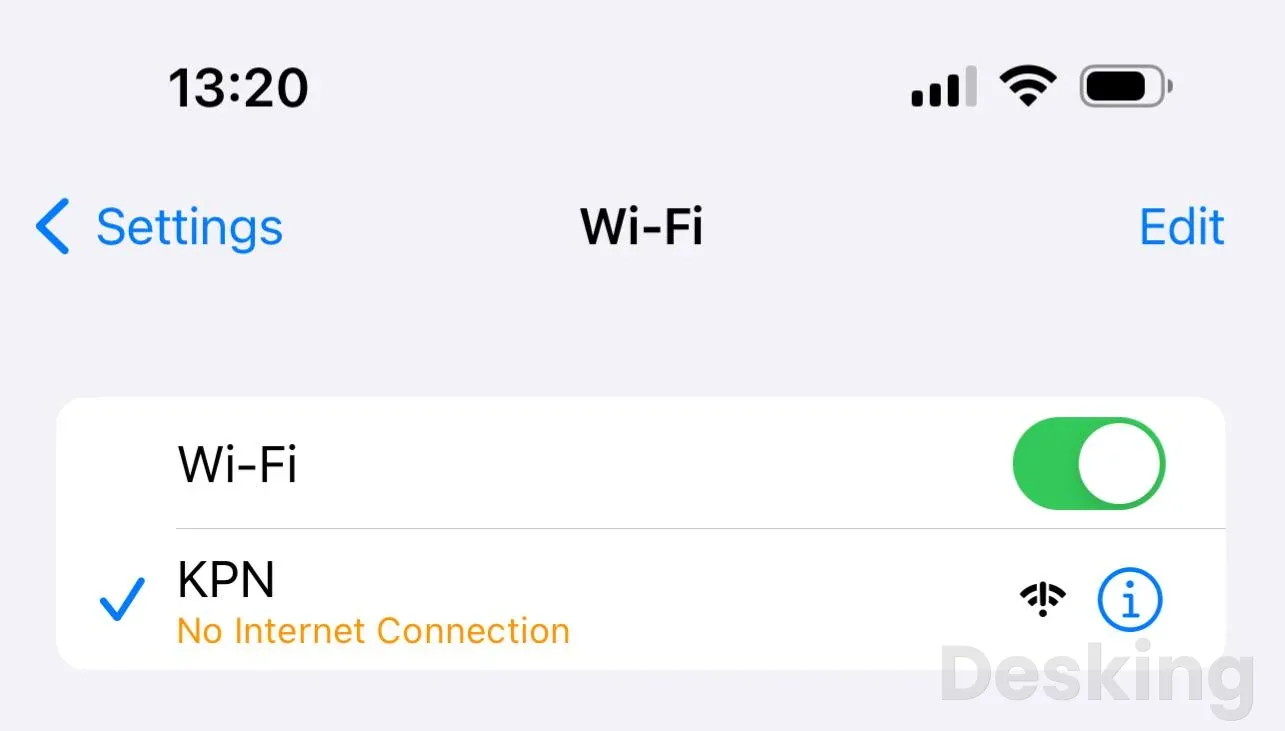
Connect a second phone, laptop or tablet to the same Wi-Fi network and try to open several unrelated websites.
If every device fails, the problem probably sits with the router, modem, internet provider or an upstream network service.
If the second device works normally, focus on the original device instead of resetting the entire network.
This comparison is the most useful first test because it tells you which part of the connection deserves attention.
Also check whether the failure affects every website or only one service.
A website may be offline, blocked by a content filter or experiencing a DNS problem while the rest of the internet remains available.
Try a different browser and an unrelated website before assuming the connection has failed.
If only one service is unavailable, check its status page or try again later rather than changing your router configuration.
2. Inspect modem lights
The modem or fiber terminal provides useful evidence about the connection between your premises and the internet provider.
A Wi-Fi router can continue broadcasting its network name even when the modem has lost its upstream connection.
Check the equipment for indicators labelled Internet, WAN, Online, PON, LOS or DSL, depending on the service and manufacturer.
A red LOS light on a fiber terminal, for example, can indicate loss of optical signal and usually requires attention from the provider.
Check the Ethernet cable between the modem or optical network terminal and the router.
Both ends should sit firmly in their ports, and the WAN or Internet port should show its normal link indicator.
Inspect the fiber cable without bending, pulling or disconnecting it, because fiber connectors and cables require careful handling.
If the modem reports a line fault, contact the ISP with the exact light status rather than repeatedly changing wireless settings.
3. Restart network equipment
A controlled restart can clear temporary router or modem faults, including a stalled connection to the provider.
Restart the modem first and allow it to establish its service connection before powering the router again.
If the equipment is a single combined modem and router, restart that unit once and wait for its indicators to settle.
Avoid pressing the recessed Reset button, which may restore factory settings and erase the ISP configuration.
Use this sequence when the network is unavailable on several devices:
Save active work: Disconnecting the network interrupts video calls, downloads, remote sessions and other active connections.
Tell other users before restarting equipment in a home or office.
 4.8VPN
NordVPN
4.8This NordVPN Review for 2026 covers its server network, no logs policy, security features, pricing tiers, and what you get for your money.
- Massive server network globally
- RAM only servers for privacy
- Prices jump after first year
- Fewer features in basic plan
Power off the router: Use its power switch or disconnect its power supply.
If the modem is separate, switch it off as well.
Restart the modem first: Restore power to the modem or fiber gateway and wait until its online or service indicators show a stable connection.
Some provider equipment takes several minutes to register.
Restart the router: Restore power to the router after the modem has settled.
Allow its WAN and wireless services to start fully before testing a device.
Test more than one device: Reconnect a phone and a computer, then open different websites.
If the connection returns briefly and fails again, record the time and indicator changes for the ISP.
A restart is different from a factory reset.
The first interrupts power and preserves the saved configuration; the second erases settings such as Wi-Fi names, passwords, VLAN parameters, PPPoE credentials and custom DNS entries.
In networks supplied by an ISP, those details may be necessary to restore service, so do not reset equipment simply because its internet light is off.
4. Test wired access
An Ethernet test separates a wireless problem from a wider internet failure.
Connect a laptop or desktop directly to a LAN port on the router with a working Ethernet cable, then disable Wi-Fi on that computer so the result comes from the wired connection.
If the wired device reaches the internet while wireless devices do not, investigate the router's wireless service, access point, security settings or radio interference.
If wired and wireless connections both fail, look upstream at the router WAN connection, modem or ISP.
Where the network design permits it, a technician can also test a computer directly against the modem or optical gateway.
This test may require a new DHCP lease, PPPoE credentials, VLAN tagging or a reboot of the modem, depending on the provider.
Do not connect a computer directly to a fiber terminal or bypass a managed router unless you understand the ISP's configuration and security requirements.
A successful wired test through the router is usually enough to establish that the wireless side deserves further investigation.
5. Check the IP address
A device needs a valid local IP address, subnet mask, default gateway and DNS server to communicate beyond the Wi-Fi access point.
The router normally assigns these values through DHCP, the Dynamic Host Configuration Protocol.
If DHCP fails, a device may associate with the wireless network but receive no usable route to the internet.
PCWorld's networking guidance identifies an address in the 169.254 range as a self assigned address, which commonly indicates that the device did not receive an address from the network's DHCP server.
On Windows, open Command Prompt and run ipconfig /all.
Find the Wireless LAN adapter section and inspect its IPv4 Address, Subnet Mask, Default Gateway and DNS Servers entries.
An address beginning with 169.254 deserves attention, while a blank default gateway means the computer has no normal route to networks beyond its local connection.
On Android and iPhone, open the connected Wi-Fi network's details to inspect the IP address and router or gateway fields.
If the address is missing or self assigned, renew the DHCP lease before setting a manual address.
A static IP chosen without checking the router's subnet and DHCP pool can create an address conflict with another device.
On Windows, open Command Prompt as administrator and run ipconfig /release, followed by ipconfig /renew.
A successful renewal should produce a valid local address and gateway; if it does not, check whether DHCP is enabled and whether the router has available addresses.
6. Renew the connection
A saved Wi-Fi profile can contain outdated credentials or network parameters after a router replacement, password change or configuration update.
Disconnecting and reconnecting forces the device to establish a fresh wireless association.
If that fails, forget the network and join it again with the correct password.
This is a useful device level fix when other phones and computers can access the internet through the same router.
On Windows 11, open Settings, select Network & internet, then Wi-Fi and Manage known networks.
Select the affected network and choose Forget, then reconnect from the Wi-Fi list.
On an iPhone, open Settings, select Wi-Fi, tap the information button beside the network and choose Forget This Network.
On Android, open Settings, select Network or Connections, choose Wi-Fi or Internet, open the saved network details and tap Forget; menu labels vary by manufacturer and software version.
Forgetting a network removes its saved password and certain connection preferences, so make sure you know the credentials before proceeding.
NordVPN
This NordVPN Review for 2026 covers its server network, no logs policy, security features, pricing tiers, and what you get for your money.
- Massive server network globally
- RAM only servers for privacy
- Prices jump after first year
- Fewer features in basic plan
It does not repair a failed modem, an ISP outage or a DHCP server that cannot issue addresses.
If the device reconnects but loses internet access again, note whether the failure occurs immediately or after a period of use.
That timing can help distinguish a saved profile issue from a recurring address, router or software problem.
7. Diagnose DNS failure
DNS translates a website name into the IP address that a device needs to contact its server.
A device may have a valid IP address and reach the router while websites fail because its configured DNS resolver is unavailable or returning incorrect answers.
Cloudflare's technical documentation distinguishes name resolution failures from routing problems: if DNS requests time out and the resolver itself cannot be reached, the fault may lie in the network path rather than in the domain name.
This distinction matters because changing DNS cannot repair a disconnected WAN link.
On Windows, open Command Prompt and run ping 1.1.1.1, then run nslookup example.com.
A successful response from the IP address combined with a failed name lookup points towards DNS, although some networks block ping traffic and some servers do not answer it.
If both tests fail, investigate the gateway, router WAN connection or ISP before changing the resolver.
You can also compare the result with another device on the same network to see whether the fault is shared.
If the connection works by IP address but not by domain name, test a different DNS resolver.
Cloudflare operates the public resolver at 1.1.1.1, while Google operates one at 8.8.8.8.
You can configure a resolver on an individual device or, where appropriate, on the router so that DHCP clients receive the same DNS settings.
Record the original configuration and return to automatic DNS if the change makes no difference or conflicts with a business network's internal name resolution.
8. Disable VPN and proxy
A VPN changes the route your device uses to reach the internet, and a faulty VPN connection can leave Wi-Fi connected while traffic cannot reach its destination.
A proxy can produce a similar symptom if it points to an unavailable server or requires authentication.
Security applications, parental controls and endpoint protection tools may also filter traffic.
If the problem began after installing or updating one of these tools, check its connection status and configuration before changing router settings.
On Windows 11, open Settings, select Network & internet, then VPN.
Disconnect the active VPN temporarily and test a website.
To inspect proxy settings, open Network & internet and select Proxy; check whether a manual proxy has been configured without your knowledge or for a service you no longer use.
On a phone, disconnect the VPN through its application or the operating system's VPN settings.
Restore the protection after the test, especially on company devices where the VPN may be required for access to internal systems.
Do not leave a firewall, antivirus product or business security client disabled as a permanent workaround.
If internet access returns only when a security tool is disconnected, inspect its logs and policies or contact the administrator.
A corporate VPN may intentionally block direct internet access when its tunnel is unavailable, so the correct fix may involve the VPN gateway or authentication service rather than the wireless network.
9. Check captive portals
Public Wi-Fi networks in hotels, airports, cafés, schools and offices may require a login, acceptance of terms or payment before internet access is allowed.
Your device can associate with the access point and receive an IP address while the network blocks ordinary internet traffic.
This is expected behavior until the captive portal grants access.
PCWorld's Wi-Fi troubleshooting coverage explains how a hotspot can redirect DNS requests to a login page, and why security software or browser behavior can sometimes prevent that page from appearing correctly.
Open a browser and visit a simple non encrypted website to prompt the network's sign in page.
If a login screen appears, complete the required steps and wait for confirmation before testing other services.
Check whether the network requires a room number, access code, voucher or individual account.
If the page does not appear, disconnect and reconnect to Wi-Fi, open a different browser or ask the network operator for the correct sign in procedure.
Some public networks restrict the number of devices permitted under one account or require each device to register separately.
A laptop may therefore work while a phone connected with the same credentials remains blocked.
Do not attempt to bypass the portal or use credentials that belong to another guest.
If the network is managed by an employer, school or hotel, its administrator may need to clear an expired session or authorize the device.
10. Inspect router settings
If several devices lose access while remaining connected to Wi-Fi, inspect the router's WAN and LAN configuration.
The WAN status should show an active connection and a valid address from the ISP or upstream gateway.
The LAN side should provide clients with addresses, a default gateway and DNS servers through DHCP.
A wireless access point that broadcasts an SSID without a working uplink can still accept connections, as illustrated by network troubleshooting discussions in the r/Network community.
Check the following settings before making changes:
- WAN connection: Confirm that the router reports an active internet connection and has received the expected WAN address. A disconnected WAN interface, failed PPPoE authentication or missing VLAN configuration can prevent all clients from reaching the provider.
- DHCP service: Confirm that the LAN DHCP server is enabled on the main router and that its address pool has free leases. In a multi router network, ensure that a second router or access point is not issuing conflicting leases.
- Access point mode: A secondary device connected to an existing LAN should normally operate in access point or bridge mode when the main router provides DHCP and routing. Incorrect WAN or router mode can create a separate network with broken upstream access.
- Access controls: Review parental controls, MAC filtering, device schedules, blocked client lists and bandwidth policies. A device may connect to Wi-Fi while a router rule prevents its traffic from reaching the internet.
- Firmware and logs: Check the router's event log for WAN disconnections, DHCP errors, repeated restarts or authentication failures. Install firmware only from the manufacturer's official support channel and follow its instructions.
Do not change several settings at once.
Record the original values, make one controlled adjustment and test the network before proceeding.
This is particularly important on business networks, where VLANs, static routes, DNS forwarding, firewall rules and managed access points may form part of a deliberate design.
A factory reset can remove these settings and create a larger outage than the original fault.
11. Reset network software
When other devices work and the fault remains isolated to one Windows computer, the network stack or adapter configuration may be damaged.
Windows includes commands to reset Winsock, restore TCP/IP settings, renew the DHCP lease and clear the local DNS cache.
Microsoft recommends these tools as part of its Wi-Fi troubleshooting process.
Run them in order, from an administrator Command Prompt, and restart the computer after the reset commands complete.
- Reset Winsock: Run
netsh winsock reset. Winsock provides the interface that applications use to communicate through the Windows network stack, and resetting it can correct certain software or configuration problems. - Reset TCP/IP: Run
netsh int ip reset. This restores important TCP/IP configuration parameters and can help when the computer has a damaged or inconsistent network configuration. - Renew DHCP: Run
ipconfig /releaseand thenipconfig /renew. The first command releases the current IPv4 lease, while the second asks the DHCP server for a new configuration. - Clear DNS cache: Run
ipconfig /flushdns. This removes locally cached DNS resolver entries so Windows can request fresh answers from its configured DNS server. - Restart Windows: Save your work and restart the computer. Reconnect to Wi-Fi and test several websites before deciding whether a further repair is necessary.
If the commands report errors, record the exact message instead of repeating them without a diagnosis.
NordVPN
This NordVPN Review for 2026 covers its server network, no logs policy, security features, pricing tiers, and what you get for your money.
- Massive server network globally
- RAM only servers for privacy
- Prices jump after first year
- Fewer features in basic plan
A manually assigned IP address, corporate VPN, endpoint security agent or virtual network adapter may require additional attention.
Windows 11 also offers Settings, Network & internet, Advanced network settings, Network reset.
Treat this as a later option because it removes and reinstalls network adapters and can require VPN clients, virtual switches and other network software to be configured again.
12. Update or replace faulty equipment
Persistent failures can result from an outdated wireless driver, router firmware bug, damaged Ethernet cable, failing modem or defective wireless hardware.
If only one computer is affected, open Device Manager in Windows, expand Network adapters and identify the wireless adapter model.
Check the computer manufacturer's support page for a compatible driver, particularly if the issue began after a Windows update.
Avoid downloading drivers from unfamiliar websites or using automatic driver tools that cannot identify the correct hardware.
If every device loses internet access at the same time, check the modem, router and ISP before replacing anything.
A wired test can help establish whether the wireless radio is responsible, while the router's event log may show repeated WAN disconnections or restarts.
PCWorld's recent home networking coverage also highlights the importance of router placement, walls, access point design and wireless congestion when diagnosing poor coverage.
Those conditions can explain weak or unstable Wi-Fi, but they do not by themselves prove that the ISP connection has failed.
Contact the provider if the modem reports a service fault, the WAN connection cannot obtain an address, or a direct wired test also fails.
Give support the time of the outage, equipment light status, whether Ethernet works and whether every device is affected.
Ask the provider to check line status, account provisioning, signal levels and any reported service interruption.
Replace equipment only after these tests identify a hardware fault or the provider confirms that the existing device is no longer supported.
Frequently Asked Questions
Why does Wi-Fi work but mobile data does not?
Can too many connected devices stop internet access?
Why does Wi-Fi work for some apps but not others?
Should I change the router DNS settings?
Does a factory reset fix the problem permanently?
Sources5
- Android Authority on phone Wi-Fi problems
- Lifewire on restoring iPhone Wi-Fi
- PCWorld on Wi-Fi network troubleshooting
- Reddit on office Wi-Fi and DHCP failures
- TP-Link on Wi-Fi without internet access
External pages are independent third-party sources. Desking App does not control or endorse their content and accepts no responsibility for it. Visiting them is at your own responsibility and risk.