

How to fix a No Bootable Device error on Windows 11 PCs
By Nathan Cole · November 16, 2026
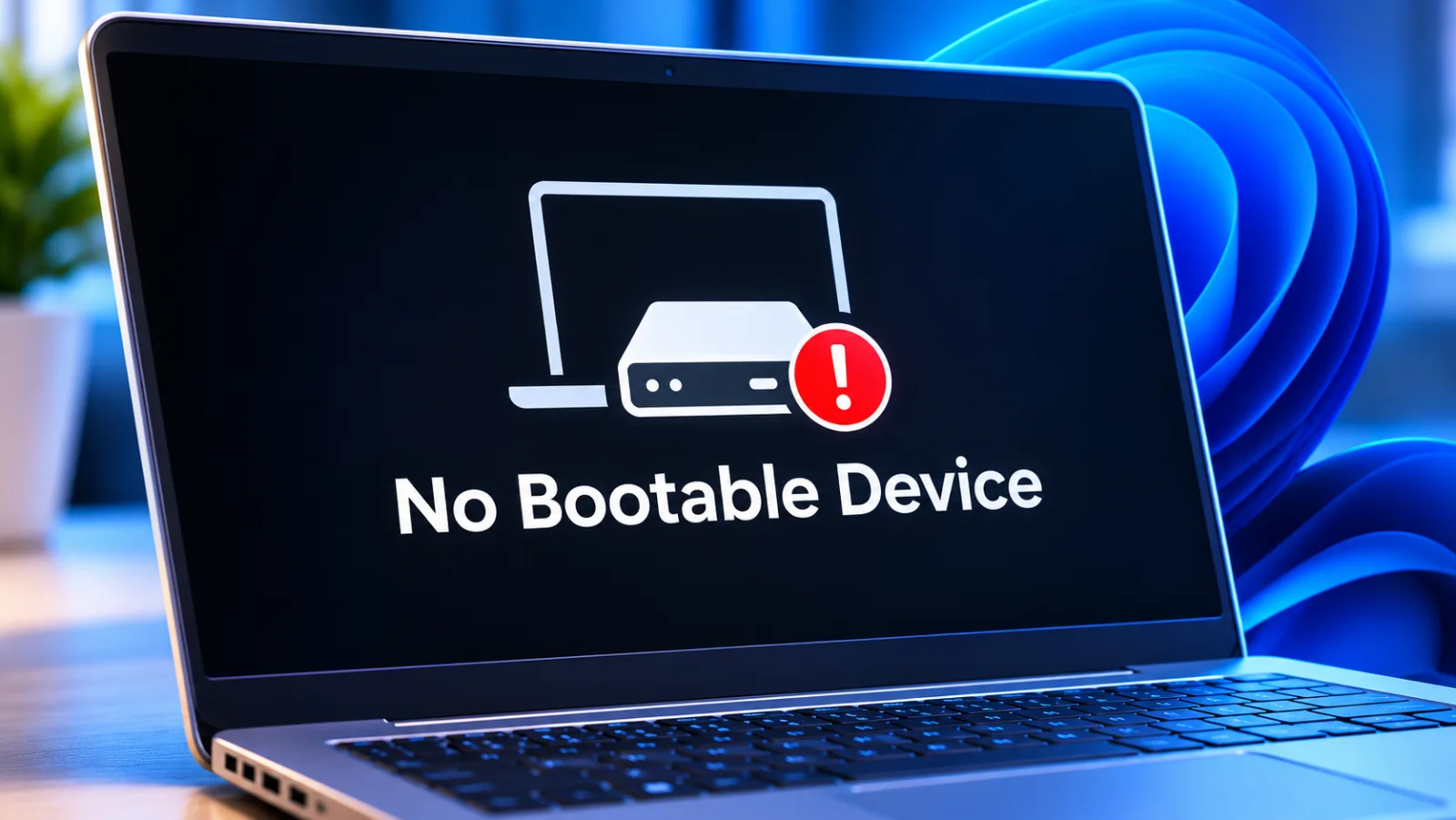
Table of contents
Fix the “No Bootable Device” Error Without Reinstalling Windows
The “No Bootable Device” message appears when a computer's BIOS or UEFI firmware cannot find a storage device with a usable operating system startup path.
The internal SSD may have failed, the firmware may be looking at the wrong device, or Windows boot files may be missing or damaged.
The distinction matters because a computer that cannot detect its SSD needs hardware diagnosis, while one that detects the drive but cannot find Windows Boot Manager may only need a configuration correction.
Start with the firmware, not Windows repair commands.
Disconnect external drives, confirm that the internal storage device appears in the BIOS or UEFI information screen, and inspect the boot priority list.
If the SSD is detected, check the boot mode and storage controller settings against their original configuration.
Only after those checks should you use Windows Recovery Environment to repair the EFI boot files or Boot Configuration Data.
Understand the error
The firmware displays this message before Windows has started.
During a normal startup, the computer performs its initial hardware checks, identifies a bootable storage device, and transfers control to Windows Boot Manager.
On a modern UEFI system, the firmware normally launches an EFI application stored on the drive's EFI System Partition.
If the drive is missing, the boot entry points to the wrong location, or the required startup files cannot be found, the firmware cannot continue.
Microsoft separates Windows startup into PreBoot, Windows Boot Manager, OS Loader and Kernel phases.
A “No Bootable Device” message generally points to a problem in the first two phases, before the Windows kernel loads.
That is why Startup Repair is not always the right first action.
The firmware must first detect the drive and identify a valid startup entry.
Identify the symptoms
Manufacturers use slightly different wording for the same class of failure.
A Dell computer may display “No boot device found,” an Acer laptop may show “No bootable device,” and other systems may report “Operating system not found” or “Default Boot Device Missing or Boot Failed.” A PXE message can appear when the firmware falls through to network boot after failing to find a local startup device.
These messages help identify the stage at which startup stopped, but they do not prove that the SSD has failed.
The most useful distinction is whether the internal SSD appears in firmware.
If it is absent from the storage information screen, investigate the drive, its connection, the storage controller or the motherboard.
If it appears by model name and capacity but Windows Boot Manager is missing, the problem may involve the boot entry or EFI partition.
If Windows Boot Manager is present but startup still fails, the boot configuration or Windows installation may need repair.
Identify recent changes
A sudden error after a BIOS update often points to changed firmware settings.
Updates can restore default boot priorities, alter UEFI or Legacy settings, or change SATA, RAID and Intel VMD controller configuration.
Acer documents cases in which a BIOS update changes storage or boot settings and leaves the operating system unable to start.
If the error began immediately after firmware maintenance, record the previous settings if known and compare them before changing anything.
Other useful clues include a recent SSD replacement, a Windows installation, a cloned drive, a power interruption or a change to the computer's internal hardware.
A cloned installation may have Windows on one disk and its EFI boot files on another, particularly if multiple drives were connected during setup.
Removing or replacing the second drive can then leave the Windows partition intact while removing the startup files the firmware was using.
This is one reason to inspect the partition layout before reinstalling Windows.
Check the storage device
The first practical test is to establish whether the firmware can see the internal drive.
Shut down the computer, disconnect USB storage devices, memory cards, external hard drives and docking stations, then power it on and enter BIOS or UEFI setup.

Avast Antivirus
Our Avast Antivirus review tests malware protection, real world performance, and pricing. See if this security suite with its excellent free plan is right for …
- Excellent independent lab test scores
- Strong free version available
- Frequent upgrade prompts in free
- VPN is not the fastest
The entry key depends on the manufacturer and model; common keys include F2, Delete, Esc and F10.
Consult the computer's manual if the setup screen does not appear.
Look under Storage, Information, System Configuration, NVMe Configuration or a similarly named section.
A SATA drive may appear by model name, while an NVMe SSD may be listed under an NVMe or PCIe storage menu.
Record the model and capacity if displayed.
Do not assume the drive is detected simply because the firmware lists a generic storage controller.
If the SSD is missing
An SSD that does not appear in firmware cannot be repaired with Windows commands.
The cause may be a loose connection, a failed drive, a disabled storage controller, a motherboard fault or a compatibility issue.
On a desktop, a technician can check the SATA data and power cables or reseat an M.2 drive after disconnecting mains power.
On a laptop, follow the manufacturer's service manual and warranty conditions before opening the case.
Run the computer manufacturer's preboot hardware diagnostics if available.
Dell systems, for example, provide SupportAssist diagnostics through the boot menu on supported models.
Other manufacturers provide storage tests through their own firmware utilities.
Record any diagnostic error code and use it to determine whether the SSD needs replacement or further inspection.
If the drive contains important files and is intermittently detected, avoid repeated power cycles and consider data recovery before attempting repairs.
If the SSD appears
A detected drive is a useful sign, but it does not prove that its Windows installation or boot files are healthy.
Check whether the boot list contains Windows Boot Manager, rather than only the SSD's hardware model.
On a typical UEFI Windows installation, Windows Boot Manager is the firmware entry that points to the EFI startup application.
Select it as the first boot option if it exists and is not already first.
If the boot list contains only a USB device, network boot or another storage device, the firmware may be trying the wrong target.
Move Windows Boot Manager to the top of the boot priority list, save the change and restart.
If Windows Boot Manager is completely absent while the SSD is detected, continue with the firmware configuration checks before rebuilding boot files.
Do not create a new boot entry until you have confirmed that the existing Windows installation and EFI partition are present.
Correct firmware settings
A bootable Windows installation depends on firmware settings that match the way Windows was installed.
UEFI and Legacy BIOS use different startup mechanisms, and switching between them can make a healthy installation appear unavailable.
A BIOS reset or update can change these settings without altering the files on the SSD.
Restore the configuration that was in use when Windows last booted successfully.
Set the boot mode
Enter BIOS or UEFI setup and locate Boot Mode, Boot List Option, CSM or Compatibility Support Module.
If Windows was installed in UEFI mode, keep UEFI enabled and avoid switching to Legacy.
Most Windows 11 installations use UEFI with a GPT partitioned system disk, but older upgraded systems and custom installations may have different configurations.
The correct mode depends on the existing installation, not simply on which option is newer.
If the error appeared after changing UEFI to Legacy, restore UEFI, save the setting and restart.
If it appeared after a BIOS reset, inspect the original configuration before experimenting.
Do not toggle between modes repeatedly to see which one works, because that can obscure the original problem.
A Legacy installation may require a different migration or reinstall process before it can boot under UEFI.
Check storage mode
Some computers expose a SATA Operation, SATA Mode, Intel RST or VMD setting in firmware.
These controls determine how Windows accesses the storage controller.
If Windows was installed with Intel Rapid Storage Technology or RAID enabled, changing the setting to AHCI can prevent the existing installation from loading.
Acer and Intel document boot problems associated with changes to storage controller configuration.
Restore the previous value if the error began after a firmware update or reset.
Do not assume AHCI is always the correct selection, even if a general troubleshooting page recommends it.
RAID and VMD configurations can be required by the computer's original Windows installation, and changing them without preparing Windows can lead to a different startup error such as INACCESSIBLE_BOOT_DEVICE.
If the original setting is unknown, check the manufacturer's support information for the exact model before changing it.
Check Secure Boot
Secure Boot verifies that startup software meets the firmware's security requirements.
It can affect whether a bootloader is accepted, particularly after changes to firmware keys, boot mode or a custom operating system installation.
For a standard Windows 11 installation, Secure Boot is normally supported and should not be disabled as a routine fix.
If a boot entry is present but firmware reports a security violation, investigate the Secure Boot configuration and the bootloader's status.
Do not clear Secure Boot keys or switch off security features without a specific reason.
On managed computers, those settings may be controlled by organizational policy.
If a manufacturer recommends a temporary Secure Boot change for a documented recovery procedure, record the original state and restore the required protection after the test.
A missing SSD or missing Windows Boot Manager entry is not, by itself, proof that Secure Boot is responsible.
Repair Windows startup
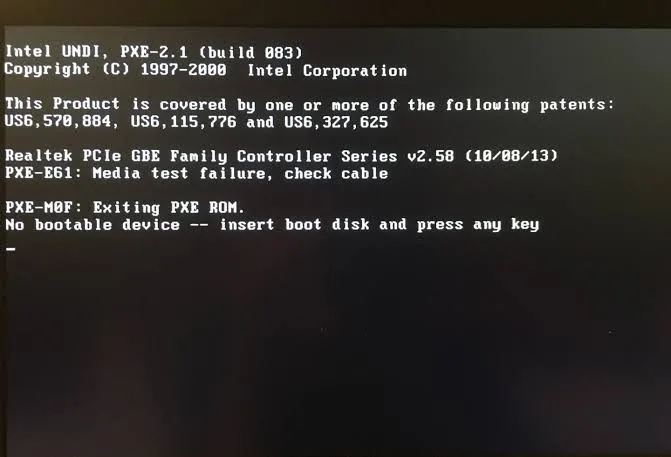
If firmware detects the SSD, the boot mode and storage controller settings are correct, but Windows Boot Manager is missing or startup files are damaged, use Windows Recovery Environment.
You can reach it through an existing recovery partition or a Windows 11 installation USB created on another computer.
The USB method is useful when the internal recovery environment is unavailable, but it does not require you to install Windows again.
Avast Antivirus
Our Avast Antivirus review tests malware protection, real world performance, and pricing. See if this security suite with its excellent free plan is right for …
- Excellent independent lab test scores
- Strong free version available
- Frequent upgrade prompts in free
- VPN is not the fastest
Open recovery tools
Create a Windows 11 installation USB on a working computer using Microsoft's official installation media.
The USB creation process erases the selected drive, so copy any existing files from it first.
Connect the USB to the affected computer, open its one time boot menu and select the entry marked UEFI for that USB device.
When Windows Setup appears, choose the language and keyboard layout, then select Repair your computer rather than Install Windows.
From the recovery menu, select Troubleshoot, then Advanced options.
Start with Startup Repair, which checks common startup problems and attempts to correct issues that prevent Windows from loading.
Select the Windows installation if prompted and provide the BitLocker recovery key if the drive is encrypted.
If Startup Repair reports that it could not repair the computer, record the message and continue with a more targeted diagnosis.
Verify the partitions
Before rebuilding boot files, confirm that the Windows partition and EFI System Partition exist.
In Windows Recovery Environment, drive letters may differ from those used during normal Windows operation, so the Windows installation is not necessarily on C.
Open Command Prompt from Advanced options and use DiskPart to list the available disks and volumes.
Identify the large Windows volume by checking for its Windows directory, and identify the EFI partition by its FAT32 file system and system partition role.
Do not format, delete or recreate a partition during this inspection.
The EFI System Partition contains the startup files used by UEFI, and a small partition can be essential even though it does not contain personal documents.
If the Windows volume is protected by BitLocker, unlock it before inspecting its contents.
If the disk layout is unclear, stop rather than assigning letters or changing partition attributes by guesswork.
Rebuild EFI files
Microsoft's BCDBoot utility can copy fresh Windows startup files to the system partition and create or repair the boot configuration.
It is appropriate when the Windows installation is intact but its EFI boot files are missing or damaged.
The command requires the correct Windows directory and, when specifying a system partition, the correct EFI volume letter.
Using the wrong letter can write startup files to the wrong partition or leave the actual boot partition unchanged.
After identifying the Windows and EFI volumes, assign a temporary drive letter to the EFI partition if it does not already have one.
Then run BCDBoot with the actual Windows path and EFI target, using the UEFI firmware option.
For example, if the Windows folder is on D and the EFI partition has been assigned S, the command is bcdboot D:\Windows /s S: /f UEFI.
This example is not universal; confirm both letters in the current recovery session before executing it.
A successful BCDBoot operation reports that the boot files were created.
Close Command Prompt, shut down, remove the installation USB and restart the computer.
Enter firmware setup if necessary and check whether Windows Boot Manager now appears in the boot list.
Move it to the first position if the firmware has not already done so.
If BCDBoot reports an error, do not format the EFI partition as an automatic next step; verify the volume letters, file system and Windows directory first.
Use Bootrec selectively
BOOTREC commands address certain boot code and Boot Configuration Data problems, but they are not interchangeable with BCDBoot.
Microsoft documents BOOTREC options for scanning Windows installations and rebuilding startup configuration, as well as commands for particular MBR and boot sector faults.
On a modern UEFI and GPT installation, repairing the EFI System Partition with BCDBoot is often the more relevant operation when the EFI files are missing.
Do not run every command in a generic sequence without first identifying the installation type and the fault.
From Command Prompt in WinRE, BOOTREC /ScanOS searches for Windows installations that are not currently represented in the boot configuration.
If it finds the expected installation, BOOTREC /RebuildBCD can attempt to add it to the startup configuration.
Read the results carefully and confirm that the installation belongs to the affected computer.
BOOTREC /FixMBR is intended for master boot record code, which is relevant to Legacy BIOS installations, not a general repair for UEFI EFI files.
If BOOTREC /FixBoot returns Access is denied, do not repeatedly run it or format the EFI partition.
Confirm the partition layout and use the documented BCDBoot repair path where appropriate.
The recovery environment may also assign different letters after a restart, so check them again before issuing another command.
If the Windows partition or EFI partition cannot be identified confidently, use a technician rather than risking the existing installation.
Investigate recurring failures
A computer that boots once after a repair but returns to the same error may have an underlying hardware or configuration fault.
Rebuilding the boot files repeatedly does not solve a drive that disconnects intermittently, a failing storage controller or firmware that loses its boot entry.
Record whether the SSD disappears from the BIOS between successful and failed starts.
That observation helps separate a storage detection problem from a persistent boot configuration problem.
Test drive health
If the SSD appears in firmware, run the manufacturer's storage diagnostic and check its health information where available.
SMART data can expose warnings about media errors, spare capacity or other reliability indicators, although a normal report does not guarantee that a drive is healthy.
If the drive is unstable, copy important files before attempting intensive scans or repeated repairs.
A drive that disappears intermittently should be treated as a potential hardware failure even if it becomes visible again after a restart.
For a desktop SATA drive, a technician can test another data cable, power connector or motherboard port.
For an M.2 NVMe drive, reseating it may help if the connection is loose, but the procedure must follow the motherboard or laptop service instructions.
If the SSD is detected in another computer or through a compatible USB enclosure, that can help narrow the fault to the original computer's slot, controller or firmware.
It does not, by itself, prove that the drive's boot files are intact.
Review recent changes
If the failure followed a BIOS update, compare the current settings with the configuration used before the update.
Check boot mode, Windows Boot Manager priority, SATA or VMD mode and Secure Boot state.
If the error started after adding a second drive, temporarily disconnect the new drive and test the original system drive alone.
Avast Antivirus
Our Avast Antivirus review tests malware protection, real world performance, and pricing. See if this security suite with its excellent free plan is right for …
- Excellent independent lab test scores
- Strong free version available
- Frequent upgrade prompts in free
- VPN is not the fastest
This can reveal whether the firmware is selecting the wrong disk or whether the Windows boot files were placed on a different drive during installation.
A CMOS reset or depleted motherboard battery can also return firmware settings to defaults.
A computer that repeatedly loses its date, time and boot configuration may need its CMOS battery or firmware settings checked.
Replacing the battery is not a first response to every startup error, but recurring loss of settings is a useful diagnostic clue.
On laptops with internal batteries, use the manufacturer's service procedure rather than opening the chassis without the necessary experience.
Protect the installation
Do not reinstall Windows simply because the firmware displays a boot error.
A clean installation can erase applications, personal files and existing partitions, and it may not solve a failing SSD or incorrect firmware setting.
If the data is important, prioritize a backup or recovery copy before any operation that modifies partitions.
If BitLocker is enabled, locate the recovery key before attempting to access the Windows volume from external recovery media.
For business computers, check whether the device uses domain management, endpoint security, specialized storage drivers or an organization controlled BitLocker configuration.
A repair that changes boot mode or storage controller settings can affect the way the system starts and may require administrator involvement.
Keep a record of the original firmware values, diagnostic results, partition layout and commands used.
That record makes it easier to restore the computer or escalate the repair without repeating risky experiments.
Reinstall Windows only after confirming that the SSD is healthy, the firmware configuration is correct, and the existing installation cannot be recovered through Startup Repair or boot file reconstruction.
If a replacement drive is necessary, install Windows on the new device using the correct UEFI configuration and restore data from a verified backup.
Keep the old drive unchanged until the files have been recovered or the replacement system has been fully tested.
Frequently Asked Questions
Does “No Bootable Device” mean my SSD is dead?
Why does my laptop show this error after a BIOS update?
Can I fix the error without losing my files?
Why does Windows Boot Manager disappear from BIOS?
Should I switch from UEFI to Legacy mode?
Sources6
- No Bootable Device
- no bootable device" error on a Windows instance
- No bootable device found
- Acer on BIOS boot device errors
- MiniTool on proper boot device errors
- Techeia on boot device errors
External pages are independent third-party sources. Desking App does not control or endorse their content and accepts no responsibility for it. Visiting them is at your own responsibility and risk.