

Windows 11 boot failures: how to diagnose and repair startup problems
By Noura Mint Ely · November 14, 2026
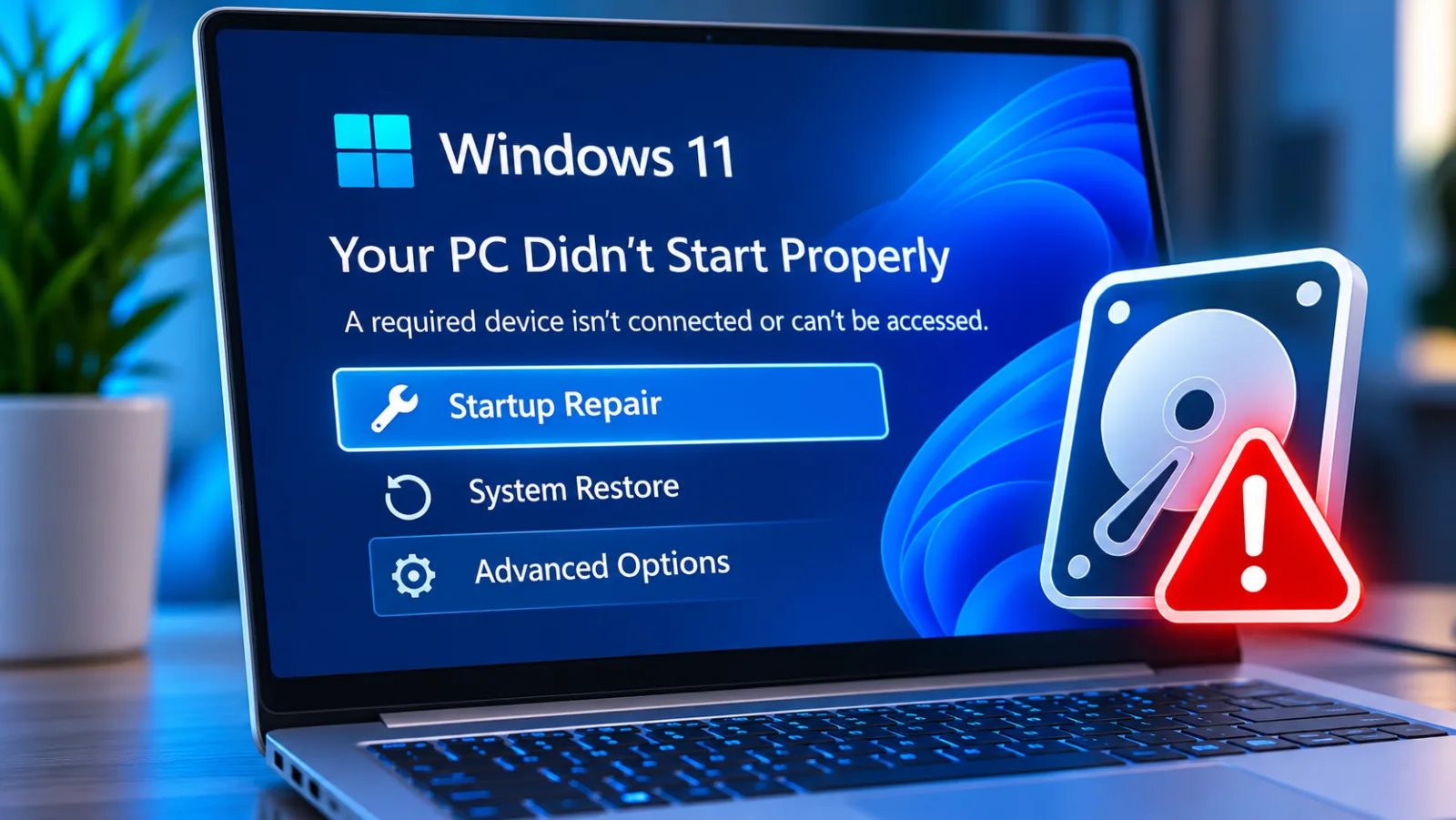
Table of contents
Windows 11 Boot Failure: Diagnosis and Recovery
Windows 11 startup failures can occur before the operating system loads, during the boot process, or after the Windows logo appears.
The point at which the computer stops is the first useful diagnostic clue: a missing drive in firmware points towards hardware or connection problems, while an automatic repair loop suggests a Windows startup or configuration fault.
The safest response is to identify that stage, protect important data, and choose a recovery method that matches the evidence.
A failed boot does not automatically mean Windows needs a fresh installation.
Startup Repair, Safe Mode, System Restore and update removal can resolve many software problems without deleting personal files.
More advanced repairs are available through Windows Recovery Environment, although commands that alter partitions or boot records deserve care because the wrong operation can make recovery harder.
Identify the failure stage
The Windows startup process follows a sequence.
The computer first runs firmware checks, then finds a boot device and starts Windows Boot Manager.
The Windows loader prepares the operating system kernel, after which Windows initializes system services and the sign in interface.
A failure at each stage produces different symptoms, so recording exactly what appears on screen is more useful than repeatedly restarting without a plan.
Microsoft's technical documentation divides startup troubleshooting into PreBoot, Boot Manager, OS Loader and Kernel phases.
This distinction matters because a repair for damaged boot configuration data cannot fix a solid state drive that the firmware no longer detects.
Likewise, reinstalling Windows is unlikely to solve a failing storage device or an incorrect firmware boot order.
Start by observing the last screen, message or activity before the machine stops.
Before the Windows logo
If the computer powers on but never displays the Windows logo, the problem may occur before Windows receives control.
A blank screen, a manufacturer logo that remains indefinitely, or a message such as "No bootable device" can indicate a firmware, storage, memory or motherboard issue.
The firmware setup utility should show whether the internal SSD or hard drive is detected.
If the drive is absent, Windows recovery commands cannot repair it because the system cannot access the device.
Disconnect external storage, USB hubs, printers, docking stations and other accessories before testing again.
A removable device can affect boot selection, and a faulty peripheral can interfere with startup.
Enter the firmware setup screen using the manufacturer's documented key, commonly F2, Delete, F10 or Esc, and inspect the storage information and boot order.
Avoid changing several firmware settings at once, since that makes it harder to identify which change affected startup.
After the Windows logo
A computer that displays the Windows logo and then freezes, restarts or shows a blue screen has usually progressed further into startup.
The cause may involve a driver, system file, update, registry component or storage access problem.
An error such as INACCESSIBLE_BOOT_DEVICE points towards Windows losing access to the device that contains the operating system, although the underlying cause can vary.
Record the exact stop code before attempting a repair.
A spinning circle that never completes can also indicate a stalled update or a service that fails during initialization.
If the machine restarts repeatedly, Windows may eventually display Automatic Repair or the Recovery screen.
These screens provide access to tools that work outside the normal Windows session.
If a blue screen appears only after a recent driver or firmware change, keep that detail in the repair record because it helps narrow the next step.
Protect the data first
Recovery work can affect files, applications and encryption access.
Before using Reset this PC, reinstalling Windows or changing partitions, establish whether the files on the internal drive are backed up and whether the drive remains readable.
If the computer contains business records, customer information or the only copy of important documents, prioritize data preservation over attempts to make Windows boot immediately.
A failing drive can deteriorate with repeated power cycles and repair scans.
BitLocker adds another practical consideration.
A recovery operation may request the BitLocker recovery key before allowing access to the Windows volume.
The key is not the normal Windows sign in password, and repeated guesses will not unlock the encrypted drive.
Locate the recovery key through the account or organization that manages the device before proceeding.
On a work computer, the organization's IT administrator may hold the recovery information.
Stop unsafe retries
Repeated forced shutdowns are not a repair strategy.
If the machine is completing a firmware update, applying a Windows update or repairing a file system, interrupting it can make the situation worse.
Allow a legitimate update or repair process time to finish, particularly when the screen shows progress.

Bit Defender
Bitdefender stands out as one of the most powerful and reliable antivirus solutions available today. With near-perfect malware detection rates, lightning-fast …
- Top scores in independent lab tests
- Very low impact on system resources
- VPN speed drops significantly
- Limited device count on plans
If the computer is completely unresponsive for an extended period, note the displayed message and the duration before deciding whether to power it off.
Do not initialize, format or repartition a disk simply because Windows Setup or a recovery utility offers that option.
Those actions can destroy the information needed to recover personal files.
If the drive makes unusual mechanical noises, disappears intermittently, reports serious health warnings or contains irreplaceable data, stop repeated repair attempts and seek professional data recovery advice.
Software repair should not take priority over a readable copy of the data.
Enter recovery mode
Windows Recovery Environment, usually called WinRE, is the control center for repairs when the normal desktop is unavailable.
It can start automatically after repeated failed boots, or you can open it from Windows installation media.
Its Advanced options menu includes Startup Repair, System Restore, Startup Settings, Uninstall Updates and Command Prompt.
The tools operate outside the normal Windows session, which allows them to work on files and settings that may prevent the operating system from loading.
If Automatic Repair does not appear, Windows support documentation describes a way to trigger recovery by interrupting startup twice.
Use this method only when Windows is not completing an update or another repair operation.
Turn on the computer and wait until the Windows or manufacturer logo appears.
Hold the power button until the computer switches off.
Repeat the forced shutdown once more after starting the computer again.
Turn the computer on a third time and wait for the Automatic Repair screen.
Select Advanced options, then Troubleshoot, to open the recovery tools.
The recovery menu may ask for a keyboard layout, user account password or BitLocker recovery key.
If the internal keyboard and mouse do not respond, try a wired USB keyboard and mouse connected directly to the computer rather than through a hub.
Some recovery environments have limited support for particular USB controllers, and a wireless keyboard may not work before Windows loads its drivers.
Use installation media
A Windows 11 installation USB is useful when the built in recovery environment is missing, damaged or inaccessible.
Create the media on another working computer with Microsoft's Media Creation Tool, using a USB drive with sufficient capacity.
The creation process erases the USB drive, so copy any existing files elsewhere first.
Choose installation media for the same Windows architecture and a compatible release.
Start the affected computer from the USB drive.
The firmware boot menu may list the USB device under its manufacturer name or as a UEFI device.
When Windows Setup appears, select the language and keyboard options, then choose Repair your computer rather than Install Windows.
This opens WinRE without starting a fresh installation.
If the USB does not appear in the boot menu, check the computer manufacturer's instructions for selecting a boot device.
Run automatic repair
Startup Repair is the first recovery tool to try when the computer reaches Windows Boot Manager but cannot load the operating system.
It checks common startup components, including damaged system files, boot configuration data, incompatible drivers and certain registry problems.
It does not diagnose every hardware fault, and a successful scan does not guarantee that the underlying cause has been permanently resolved.
Its value is that it can repair common boot faults without requiring manual changes to system partitions.
From WinRE, open Troubleshoot, select Advanced options, then Startup Repair.
Choose the Windows installation if the tool asks, provide the requested account credentials and allow the computer to complete its checks.
The machine may restart during the process.
If Startup Repair reports that it could not repair the PC, record the message and inspect the diagnostic log before trying more invasive commands.
The log is commonly stored at Windows\System32\LogFiles\Srt\SrtTrail.txt on the Windows installation.
The drive letter may differ inside recovery mode, so do not assume the Windows partition is C.
The log can identify a failed file, driver or boot component, but it does not always provide a complete diagnosis.
A repeated failure involving the same file is more useful than a generic message that the repair was unsuccessful.
Reverse recent changes
A boot failure that starts immediately after an update, driver installation or firmware change has a stronger diagnostic lead than a failure with no known trigger.
Use the recovery option that reverses the most recent relevant change before rebuilding the boot configuration or resetting Windows.
This approach limits unnecessary changes and makes it easier to determine whether the original fault has been resolved.
Remove a Windows update
A quality update can occasionally introduce a compatibility problem or expose an existing driver issue.
If the computer stopped booting after Windows Update installed a patch, open WinRE and select Troubleshoot, Advanced options, then Uninstall Updates.
Choose Uninstall latest quality update first when the timing points to a regular monthly update.
If the failure followed a major feature upgrade, the option to remove the latest feature update may be more appropriate.
The removal process may request the BitLocker recovery key and can take several minutes.
It does not normally remove personal files, but the computer may remain vulnerable to the security issue that the update was intended to fix.
Once Windows starts, check Windows Update for a replacement or corrected release rather than permanently disabling updates.
Keep the update's KB number in the repair notes so the cause can be identified if the problem returns.
Restore an earlier state
System Restore can reverse system changes when a restore point exists from before the failure.
It restores Windows system files, registry settings, drivers and installed applications to an earlier state, while leaving personal documents untouched.
This makes it useful after a driver installation, software change or configuration adjustment that caused startup problems.
It cannot restore files that were already lost or repair a physically failing SSD.
In WinRE, select Troubleshoot, Advanced options, then System Restore.
Choose a restore point dated before the first failed startup and review the affected programs if Windows offers that information.
Follow the prompts and allow the restore to complete without interrupting power.
Bit Defender
Bitdefender stands out as one of the most powerful and reliable antivirus solutions available today. With near-perfect malware detection rates, lightning-fast …
- Top scores in independent lab tests
- Very low impact on system resources
- VPN speed drops significantly
- Limited device count on plans
If no restore points are available, the option cannot help; move to another recovery method instead of trying to create one from the recovery environment.
Test Safe Mode
Safe Mode starts Windows with a limited set of drivers and services.
If the computer starts in this mode but fails during a normal boot, a third party driver, startup service or recently installed application becomes a more plausible cause.
Safe Mode is a diagnostic environment, not a permanent repair.
Its purpose is to let you remove or reverse the component that prevents a normal startup.
Open WinRE and select Troubleshoot, Advanced options, Startup Settings, then Restart.
After the next reboot, choose option 4 or press F4 for Safe Mode.
Choose option 5 or F5 for Safe Mode with Networking only if network access is necessary for the diagnostic task.
If Windows starts, remove the most recently installed driver or application through Settings or Device Manager, then restart normally.
If the display remains black during normal startup but Safe Mode works, investigate the graphics driver and display configuration.
A low resolution startup option in the same Startup Settings menu can help when the problem relates to an unsupported resolution or refresh rate.
Avoid disabling driver signature enforcement as a general fix.
That setting weakens a Windows security check and should be used only for a specific, understood driver compatibility test.
Repair boot records
The Boot Configuration Data store contains information Windows Boot Manager uses to locate and start the installed operating system.
If the store is damaged or missing, the firmware may detect the SSD while Windows still reports that no operating system can be found.
This distinction explains why a drive can appear in UEFI settings yet fail to boot.
Boot record repairs are appropriate only after confirming that the storage device is detected and that the problem is limited to startup configuration.
Confirm the Windows volume
Open Command Prompt from WinRE under Troubleshoot and Advanced options.
Recovery mode can assign different drive letters from those used during normal Windows operation, so identify the correct Windows volume before running repair commands.
Use DiskPart to list volumes, then exit DiskPart and inspect likely volumes for the Windows folder.
If the drive is encrypted, unlock it with the BitLocker recovery key before attempting file level repairs.
The Windows installation is often on C, but it may appear as D or another letter in WinRE.
Check the contents of the volume rather than relying on its letter or size alone.
If no volume contains the expected Windows directory, stop and investigate the partition layout or storage health.
Do not format a partition to make it appear usable.
Rebuild startup data
Microsoft's advanced troubleshooting guidance documents Bootrec commands for boot code and BCD problems.
These commands are not interchangeable: one targets the master boot record, another the boot sector, and another scans for Windows installations.
Modern Windows 11 computers normally use UEFI and GPT, so older MBR repair instructions may not apply to their EFI system partition.
Identify the firmware mode and partition layout before selecting a command.
For a confirmed boot configuration problem, open Command Prompt in WinRE and start with a scan for Windows installations using BOOTREC /ScanOS.
If the installation is found but the boot configuration remains damaged, BOOTREC /RebuildBCD can rebuild the boot configuration data store.
The command may ask whether to add a detected installation to the boot list.
Read the output carefully and do not proceed if the expected Windows installation is not listed.
BOOTREC /FixMBR and BOOTREC /FixBoot are documented repair commands for particular boot code problems, but they should not be treated as universal Windows 11 fixes.
A UEFI system stores its boot files on an EFI system partition, and repairing an MBR does not recreate missing EFI files.
If the firmware sees the SSD but Windows Boot Manager is absent, an administrator may need to inspect the EFI partition and use BCDBoot with the correct Windows and system partition letters.
That operation requires accurate volume identification; using the wrong target can damage the existing boot setup.
Do not copy command sequences from an unrelated PC and run them blindly.
Dual boot systems, encrypted volumes, multiple internal drives and manufacturer recovery partitions can change the correct target.
If the disk layout is unfamiliar or the data is important, use a qualified technician to inspect the partitions before writing new boot files.
Check the hardware
Software recovery cannot repair a storage device that is failing electrically or mechanically.
If the SSD disappears from UEFI, reports an error in the manufacturer's diagnostics or becomes intermittently visible, treat the problem as a hardware investigation.
A drive that is detected in firmware but cannot start Windows needs a different diagnosis from a drive that firmware cannot detect at all.
This distinction prevents unnecessary operating system repairs when the computer cannot reliably read its storage.
Inspect UEFI settings
Enter the firmware setup utility and check whether the internal drive appears under Storage, NVMe Configuration or SATA Information.
Menu names vary by manufacturer.
If the drive appears, inspect the boot priority list and check for Windows Boot Manager.
On a typical modern Windows 11 installation, the Windows Boot Manager entry should be selected as the primary boot option.
Do not switch randomly between UEFI and Legacy or CSM modes.
Windows installations created for UEFI and GPT may stop booting if the firmware is changed to a legacy configuration.
Likewise, changing a SATA controller from RAID or Intel RST to AHCI can cause an INACCESSIBLE_BOOT_DEVICE error if Windows was installed with the original controller mode.
Record the current settings before making any change, and restore them if the test makes startup worse.
Run hardware diagnostics
Many computer manufacturers provide built in diagnostics that can test memory, storage and other components before Windows starts.
Open the manufacturer's diagnostic menu during power on and run the storage test first if the drive is missing or startup errors refer to disk access.
Record any error code exactly as displayed.
A failed diagnostic is stronger evidence of a hardware problem than a generic Windows repair message.
For a desktop with a SATA drive, a technician can inspect the data and power connections after disconnecting the computer from mains power.
An M.2 SSD should be checked for correct seating and slot compatibility, following the motherboard or laptop service instructions.
Do not open a laptop under warranty unless the manufacturer's service terms allow it.
If the drive is not detected in another compatible computer either, replacement or specialist recovery may be necessary.
Repair system files
If the SSD is healthy and Windows reaches the loading stage, corrupted system files may be responsible for the failure.
System File Checker and Deployment Image Servicing and Management can repair Windows components, but they are most useful when the operating system can boot or when an administrator knows how to target the offline Windows installation correctly.
Running them against the wrong drive letter in WinRE can produce confusing results.
When Safe Mode works, open Terminal or Command Prompt as administrator and run the System File Checker scan with SFC /Scannow.
Allow it to finish and read the final message to determine whether files were repaired, whether corruption remains, or whether the tool could not perform the operation.
Restart Windows normally after a successful repair.
If the scan reports that it cannot fix all files, DISM may be needed to repair the component store before another SFC scan.
Offline repair from WinRE requires additional care because DISM and SFC need the correct Windows directory and, in some cases, a matching repair source.
Do not assume that a command copied from a guide will work unchanged on an encrypted device, a custom partition layout or a Windows installation with a different drive letter.
If the system volume is damaged or the SSD reports errors, prioritize copying important files before running intensive disk operations.
Choose the last resort
Reset this PC is appropriate when the storage device is healthy, the less disruptive recovery options have failed and Windows remains unusable.
From WinRE, select Troubleshoot, then Reset this PC.
The option to Keep my files attempts to preserve personal files while removing installed applications and resetting Windows settings.
Bit Defender
Bitdefender stands out as one of the most powerful and reliable antivirus solutions available today. With near-perfect malware detection rates, lightning-fast …
- Top scores in independent lab tests
- Very low impact on system resources
- VPN speed drops significantly
- Limited device count on plans
Remove everything deletes personal files as part of the reset, so it should be selected only when the data is backed up or no longer needed.
Keeping personal files does not preserve every item on the computer.
Desktop applications, drivers and many settings may need to be installed again, and a reset can still fail if the storage device or recovery image is damaged.
Read the confirmation screens carefully and make sure the selected option matches the intended result.
If BitLocker is enabled, keep the recovery key available throughout the process.
Consider cloud recovery
Windows 11 recovery capabilities have expanded beyond the traditional reset process.
Quick Machine Recovery, on supported Windows 11 versions and configurations, can connect to Windows Update from the recovery environment and look for a Microsoft supplied fix for a known widespread startup problem.
It is intended for cases where a failure has a known remediation, not for diagnosing a failed SSD or repairing every local corruption issue.
Network access is therefore relevant, and a wired connection may be more reliable when Wi-Fi is unavailable in WinRE.
Cloud rebuild is another recovery option appearing in Windows 11.
It reinstalls Windows using a fresh image and drivers obtained through Windows Update, but it removes personal files, applications and settings.
Availability can depend on the installed Windows version and rollout status, so the option may not appear on every device.
Treat it as a clean rebuild rather than a data preserving repair, and use it only after backing up anything that matters.
Know when to stop
A machine that cannot detect its SSD, fails manufacturer diagnostics or repeatedly loses access to the drive needs hardware attention before further Windows repairs.
A computer that detects the drive consistently but stops at Windows Boot Manager is a stronger candidate for startup repair or BCD recovery.
A system that reaches the Windows logo and fails after a recent update or driver installation is more likely to benefit from update removal, System Restore or Safe Mode.
Matching the repair to the failure stage reduces the risk of making the original problem worse.
For business computers, record the stop code, date of the failure, recent updates, firmware changes, diagnostic results and recovery actions.
If the device is managed by an organization, involve its IT administrator before resetting or reinstalling Windows.
Centralized BitLocker recovery, endpoint security, domain membership and business application configuration may all affect the recovery plan.
A successful boot is only the first checkpoint; confirm that files, encryption, network access and required business applications work before returning the computer to service.
Frequently Asked Questions
Can Windows 11 boot without Windows Boot Manager?
Why does my PC keep returning to BIOS?
Will repairing Windows delete my personal files?
Can a BIOS update fix a Windows boot problem?
How do I recover files if Windows will not start?
Sources3
- Disk Detector on missing BIOS drives
- Tom's Hardware on Windows boot update failures
- Windows Central on Windows boot recovery
External pages are independent third-party sources. Desking App does not control or endorse their content and accepts no responsibility for it. Visiting them is at your own responsibility and risk.