

How to fix the Windows “Undoing changes” update error safely
By Evander Thorne · November 13, 2026
Table of contents
The message “Undoing changes made to your computer” appears when Windows cannot complete an update and attempts to reverse the changes made during installation.
It commonly appears after a failed cumulative update, feature update, or Windows upgrade.
If the rollback succeeds, Windows should return to its previous working state; if it fails repeatedly, the computer may enter a restart loop.
The problem affects Windows 10 and Windows 11, and it can prevent access to the desktop entirely.
Common causes include corrupted update files, insufficient storage, incompatible drivers, damaged system components, and interruptions during installation.
The safest approach is to let a legitimate rollback finish, then use recovery tools in order of risk, starting with options that preserve personal files.
What the message means
Windows is rolling back
Windows uses a servicing process to install updates and maintain system components.
If an installation cannot complete, Windows may reverse the changes so the operating system can return to its previous state.
The rollback can involve system files, drivers, configuration data, and update packages, which explains why the process may take longer than a normal restart.
Microsoft classifies “We couldn't complete the updates.
Undoing changes” and “Failure configuring Windows Updates.
Reverting changes” as generic update failure messages.
They do not identify the underlying fault by themselves.
Microsoft advises checking the update history and recording the specific error code associated with the failed installation before choosing a targeted repair.
Identify the likely cause
The failure may originate from several parts of the update process.
A damaged download can prevent Windows from installing a package correctly, while insufficient free space can stop an upgrade from completing.
An incompatible storage, graphics, or network driver can also interrupt installation, particularly during a feature update that changes more system components.
An unexpected shutdown or power interruption during installation can leave Windows unable to finish either the update or its rollback.
Security software, connected peripherals, and damaged system files can contribute to installation failures too.
The important distinction is whether Windows still has a working recovery environment and whether the failed operation was a monthly quality update or a larger feature upgrade.
That determines which recovery option is safest.
Before forcing shutdown
Give rollback time
If the message has appeared only recently, keep the computer connected to its charger and allow Windows to finish.
Do not repeatedly press the power button while the screen shows active progress, because interrupting a rollback can create additional startup problems.
There is no universal time limit that applies to every computer, since update size, storage speed, and system condition affect how long the operation takes.
If the computer has restarted several times and returns to the same message, or the display remains unchanged for several hours, the rollback may be stuck.
HP's support community describes similar update recovery loops and recommends moving to recovery tools when the process does not complete.
That is community guidance rather than a guaranteed time threshold, so use the repeated loop and lack of progress as the main signs that intervention may be necessary.
Protect the power supply
Keep a laptop connected to its original or manufacturer approved charger throughout recovery.
For a desktop, use a reliable power connection and avoid switching off the power strip while Windows repairs the installation.
If the computer is connected to an uninterruptible power supply, check that the battery has sufficient charge to support the recovery process.
Disconnect nonessential USB devices, external storage, printers, docking stations, and memory cards after the computer has been safely shut down.
A peripheral or its driver can interfere with startup, and external storage can complicate recovery if Windows tries to access it during boot.
Leave the keyboard, mouse, display, and required network connection attached.
Do not disconnect an internal drive or change BIOS storage settings as an initial troubleshooting step.

ExpressVPN
ExpressVPN delivers fast Lightway speeds, audited no logs privacy, and reliable streaming access across new Basic, Advanced, and Pro plans.
- Very fast Lightway protocol speeds
- RAM only TrustedServer infrastructure design
- Pricier than most mainstream competitors
- No permanent free plan available
Enter Windows recovery
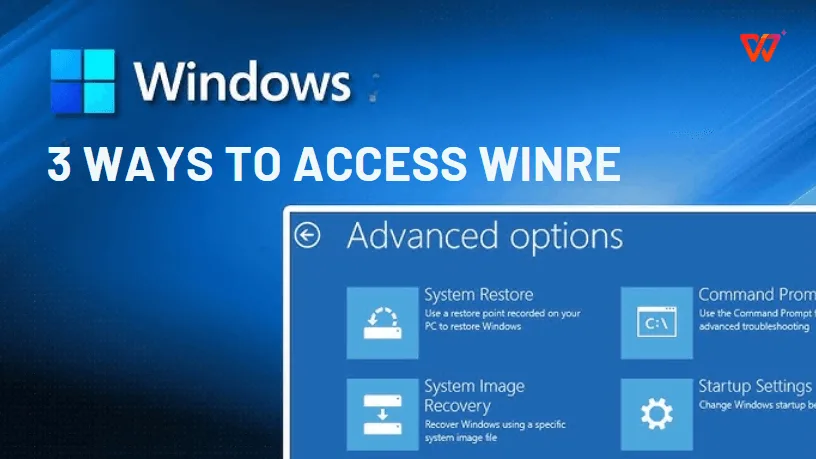
Open WinRE
Windows Recovery Environment, commonly called WinRE, contains tools for repairing startup problems and removing failed updates.
If Windows still reaches the sign in screen, hold Shift while selecting Power and Restart.
You can also open Settings, select System, then Recovery, and choose Restart now beside Advanced startup in Windows 11.
If Windows cannot reach the sign in screen, Microsoft documents a method to trigger Automatic Repair by interrupting startup twice.
Turn on the computer and wait for the Windows or manufacturer logo, then hold the power button until the computer shuts down.
Repeat that interruption once, then start the computer a third time and allow it to continue.
Windows should enter Automatic Repair, where you can select Advanced options to reach WinRE.
Do not use repeated forced shutdowns as a routine repair method.
The interruption is intended to trigger recovery when normal startup fails, not to cancel an update that is still progressing.
If the recovery screen does not appear, use Windows installation media from another computer or consult the device manufacturer's instructions for its recovery key or boot menu.
On some systems, the function key used to open the boot menu varies by model.
Check BitLocker access
Some recovery tools require the BitLocker recovery key if the Windows drive is encrypted.
This key is different from the normal Windows account password or PIN.
If WinRE requests it, retrieve the key from the Microsoft account or organizational account associated with the device, or contact the IT administrator if the computer is managed by a company.
Do not clear the TPM, change Secure Boot settings, or reset BIOS security options to bypass a BitLocker prompt.
Those actions can complicate access to encrypted data.
Microsoft warns that recovery options may require the recovery key on encrypted devices, so locate it before attempting advanced repairs.
Remove the failed update
Uninstall quality updates
A cumulative quality update is a monthly or periodic Windows package that typically contains security fixes and reliability improvements.
If the problem began immediately after one of these updates, removing the latest quality update is often the most direct recovery action.
In WinRE, select Troubleshoot, Advanced options, and Uninstall Updates, then choose Uninstall latest quality update.
Follow the prompts and let the removal process finish.
Restart the computer normally after Windows confirms the operation.
This option is available for Windows 10 and Windows 11, although Microsoft notes that some updates cannot be uninstalled.
Removing a security update also temporarily removes its protection, so investigate the original failure and install an appropriate replacement once the computer is stable.
Roll back feature upgrades
A feature update changes the Windows version and may introduce broader compatibility changes than a routine monthly patch.
If the computer entered the rollback loop during a Windows version upgrade, return to WinRE and select Uninstall Updates.
Choose Uninstall latest feature update if that option is available and the failure followed a feature upgrade.
Do not confuse this option with uninstalling a quality update.
Removing a feature update returns Windows to the previous version, while removing a quality update targets a more recent maintenance package.
Microsoft provides both recovery choices, but availability depends on the update and the state of the installation.
If the feature rollback option is unavailable, use System Restore or another recovery method rather than attempting to delete update files manually.
Try Startup Repair
Startup Repair checks common problems that prevent Windows from loading, including damaged system files, boot configuration data, incompatible drivers, and registry errors.
In WinRE, select Troubleshoot, Advanced options, then Startup Repair.
Choose the Windows installation if prompted, provide the BitLocker recovery key if required, and allow the tool to complete its diagnosis.
Startup Repair is designed for boot failures, so it may not remove the update package that caused the rollback.
It is useful when Windows cannot start even after the failed update has been removed.
If the tool reports that it could not repair the computer, note the result and move to System Restore or the more targeted repair methods below.
Microsoft lists Startup Repair as a built in recovery option for Windows 10 and Windows 11.
Restore system integrity
Use System Restore
System Restore can return system files, drivers, installed applications, and Windows settings to an earlier restore point.
It is useful when the update failure followed a driver installation or software change and a restore point exists from before the problem began.
In WinRE, select Troubleshoot, Advanced options, then System Restore.
Choose an available restore point dated before the failed update and review the affected programs before confirming.
System Restore is designed to preserve personal files such as documents and photos, but it can remove applications, drivers, and updates installed after the selected restore point.
It does not replace a backup, and it cannot repair a physically damaged SSD or hard drive.
If the computer contains important work files that have not been backed up, prioritize data protection before using recovery options that modify the Windows installation.
Run offline repairs
If update removal and Startup Repair fail, Command Prompt in WinRE provides access to more advanced recovery tools.
One important detail is that Windows may not use drive letter C when it runs from the recovery environment.
Before running repair commands, identify the correct Windows volume so that you do not target the wrong partition.
From Advanced options, open Command Prompt.
Enter BCDEdit and press Enter, then inspect the Windows Boot Loader section for the osdevice entry.
It may show a drive letter such as D rather than C.
You can verify the location by checking which volume contains the Windows folder before continuing.
Microsoft documents DISM's RevertPendingActions option for recovery situations where a Windows installation cannot boot after servicing operations.
It attempts to reverse pending actions from previous update operations.
The command must target the offline Windows image, not the recovery environment itself.
ExpressVPN
ExpressVPN delivers fast Lightway speeds, audited no logs privacy, and reliable streaming access across new Basic, Advanced, and Pro plans.
- Very fast Lightway protocol speeds
- RAM only TrustedServer infrastructure design
- Pricier than most mainstream competitors
- No permanent free plan available
If the Windows installation is on D, the command is: DISM /Image:D:\ /Cleanup-Image /RevertPendingActions.
Replace D with the actual Windows volume letter identified in WinRE.
This operation is intended for a failed boot recovery scenario, not routine maintenance on a computer that starts normally.
Do not run it against an assumed drive letter, and do not use it as a substitute for uninstalling a specific update through the supported recovery menu.
If you are unsure which partition contains Windows, stop and seek assistance from a technician rather than risk modifying another volume.
Repair Windows files
If Windows starts in Safe Mode or returns to the desktop, use DISM and System File Checker to repair the component store and protected system files.
Open Command Prompt as an administrator and run DISM.exe /Online /Cleanup-image /Restorehealth.
Allow the operation to finish before running SFC.
Then enter sfc /scannow and wait until verification reaches 100 percent.
DISM repairs the Windows image that supplies system components, while SFC checks protected operating system files and replaces damaged copies where possible.
Microsoft recommends running DISM before SFC because DISM can repair the component store that SFC uses as its source.
These commands may take several minutes, and the computer should remain powered on while they run.
If Windows cannot boot, use the offline recovery procedures rather than copying the online commands into WinRE unchanged.
Fix the update cause
Check available storage
Windows needs free space to download, unpack, stage, and install updates.
A computer with a nearly full system partition may download an update successfully but fail when Windows attempts to apply it.
Microsoft lists insufficient disk space among the causes of update installation errors, including some feature upgrade failures.
Once Windows starts, open Settings, System, Storage and check the available space on the system drive.
Remove temporary files through Windows Storage settings and uninstall applications that are no longer required.
Move large personal files to another drive or a verified backup location rather than deleting folders inside Windows or Program Files.
Do not manually remove the WinSxS folder or other system directories to create space.
Those locations contain components that Windows uses for servicing and recovery, and manual deletion can damage the installation.
Check driver compatibility
Driver compatibility problems can cause Windows updates to fail, particularly when an upgrade changes how Windows communicates with storage, graphics, network, or chipset hardware.
Microsoft associates some installation failures, including error 0xC1900101, with incompatible drivers.
If the update failed during a feature upgrade, check the device manufacturer's support page for current drivers that match the exact computer model and Windows version.
Prioritize drivers for storage controllers, graphics adapters, network interfaces, and chipset components if the failure history points to them.
Avoid third party driver updater utilities and avoid installing several driver packages at once.
If Windows starts in Safe Mode, Device Manager can help identify devices with warning symbols.
A driver update should address a specific compatibility issue, not be an attempt to change every component without evidence.
Reset update components
If Windows boots but repeatedly fails to install the same update, the Windows Update cache or related services may be damaged.
First run the Windows Update troubleshooter from Settings, System, Troubleshoot, Other troubleshooters, then select Run beside Windows Update.
In Windows 10, the location is Settings, Update & Security, Troubleshoot, and Additional troubleshooters.
If the troubleshooter does not resolve the problem, Microsoft's update troubleshooting guidance includes repairing system files and resetting update components.
A technician can stop the relevant services, rename the SoftwareDistribution download cache, restart the services, and allow Windows to download fresh update files.
Renaming the cache is safer than deleting system folders without checking their contents, but it should be done only after the update process has stopped and Windows is stable.
Check the error code
The message itself is generic, so the update error code can be more useful than the wording on the screen.
If Windows starts, open Settings, Windows Update, and Update history.
Look for the failed update and record its error code, update name, and installation date.
Microsoft recommends using that code to investigate the specific failure rather than applying unrelated fixes.
Some codes point toward missing files, damaged update downloads, incompatible drivers, or insufficient space.
For example, Microsoft associates 0xC1900101 with driver compatibility problems and identifies 0x800F0922 as a possible storage or connectivity issue, depending on the circumstances.
Do not assume a code has only one cause; check the accompanying update details and Microsoft's current explanation before changing system settings.
If Windows stays offline
Use installation media
If WinRE does not appear, or its recovery tools cannot repair the installation, use a Windows installation USB created on another working computer.
Download the official Windows installation media from Microsoft and create the USB with the Media Creation Tool.
The USB must match the Windows version and architecture installed on the affected computer as closely as possible.
Connect the USB, start the affected computer, and open its one time boot menu.
The key differs by manufacturer: Dell systems commonly use F12, while HP systems often use Esc followed by F9.
Select the USB device, allow Windows Setup to load, and choose Repair your computer rather than Install now.
This should open recovery options without immediately starting a clean installation.
Protect personal files
Before attempting a reset or reinstall, consider whether the computer contains files that exist nowhere else.
If WinRE Command Prompt is available, an experienced technician may be able to copy files to an external drive, provided the Windows volume can be accessed and any encryption is unlocked.
A bootable recovery environment can also help copy data, but the correct method depends on the storage format, encryption, and condition of the drive.
If the SSD or hard drive shows signs of failure, avoid repeated repair attempts that write large amounts of data to it.
A failing device may become less accessible with continued use.
In that situation, professional data recovery or a controlled disk image may be safer than repeated startup repair, reset, or reinstall operations.
The priority is to preserve the files before making changes to the operating system.
Reset Windows carefully
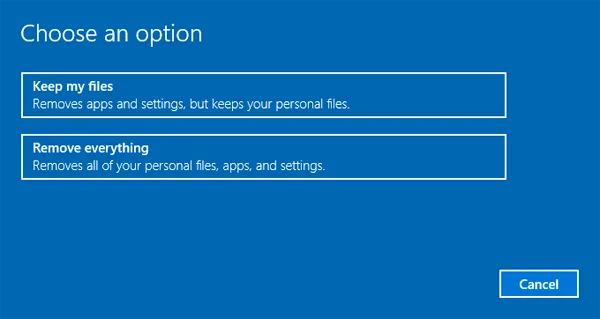
Reset this PC reinstalls Windows and offers a Keep my files option on supported installations.
ExpressVPN
ExpressVPN delivers fast Lightway speeds, audited no logs privacy, and reliable streaming access across new Basic, Advanced, and Pro plans.
- Very fast Lightway protocol speeds
- RAM only TrustedServer infrastructure design
- Pricier than most mainstream competitors
- No permanent free plan available
It is a later recovery step for cases where update removal, Startup Repair, System Restore, and system file repair have failed.
From WinRE, select Troubleshoot, then Reset this PC, and review the available options carefully before proceeding.
Keep my files is intended to preserve personal files, but it removes installed applications and resets many settings.
It is not a substitute for a verified backup, and it may not be available if the recovery environment or Windows image is damaged.
The Remove everything option deletes personal files as part of the reset and should not be selected unless a complete wipe is intended and the data is backed up.
Microsoft also documents reinstalling Windows from recovery media when built in recovery options are unavailable.
Prevent another failure
Once Windows starts successfully, do not immediately repeat the same update without checking why it failed.
Open Update history and record the failed package and error code.
Check free disk space, install manufacturer approved drivers where necessary, and run the Windows Update troubleshooter before retrying the installation.
Windows 10 users should also consider the operating system's support status.
Microsoft ended regular support for Windows 10 on October 14, 2025, which means ordinary Windows Update no longer provides its previous free security and software updates for unsupported installations.
If the computer still runs Windows 10, check its eligibility for Windows 11 or Microsoft's available extended security options before relying on it for sensitive work.
Avoid unofficial Windows update repair scripts and utilities that promise to remove every pending update automatically.
Some guides recommend deleting or renaming internal servicing files, but those operations can leave Windows in a worse state if the wrong file or partition is selected.
Microsoft's documented recovery options should come first.
If the computer contains business data, encrypted files, or critical work, use a qualified technician before attempting advanced offline repairs.
Frequently Asked Questions
How long should undoing changes take?
Will uninstalling the update delete my files?
What if Windows Recovery Environment does not open?
Can I fix the error without losing my data?
Why does Windows keep undoing the same update?
Is the error caused by a virus?
Sources6
- Microsoft on Windows update installation errors
- Microsoft on Windows recovery environment
- Microsoft on uninstalling Windows updates
- Microsoft on repairing Windows system files
- Microsoft on repairing Windows system files
- HP on Windows update rollback recovery
External pages are independent third-party sources. Desking App does not control or endorse their content and accepts no responsibility for it. Visiting them is at your own responsibility and risk.