

Why your computer suddenly slowed down and what to check first
By Nathan Cole · November 13, 2026
Table of contents
Why Your Computer Suddenly Became Slow and How to Fix It
A computer that becomes noticeably slower within hours or days usually has a recent trigger: a software update, a new application, a background process, malware, overheating, or a storage problem.
The timing matters because it helps narrow the investigation.
A machine that was working normally yesterday does not necessarily need more RAM or a new processor today.
Start by establishing whether the entire computer is slow or only one application.
Then check what changed around the time the problem began.
This distinction prevents unnecessary repairs and helps you choose the least disruptive fix first.
The timing reveals clues
Separate system problems
A slowdown that affects every application points toward a system wide issue, such as high CPU usage, memory pressure, storage activity, or a driver problem.
If only one browser, game, or business application is slow, investigate that application first.
Check whether other programs respond normally, whether the internet connection is stable, and whether the same task works in another application.
This distinction also helps separate computer performance from network performance.
A website that loads slowly may reflect a weak connection, a congested network, a DNS problem, or a remote server issue.
Test an offline application, open a locally stored document, and compare several websites before assuming Windows itself has become slow.
If local applications work normally while online services stall, focus on the network rather than changing system settings.
Review recent changes
The first useful question is what changed shortly before the slowdown appeared.
Check recently installed applications, Windows updates, graphics drivers, antivirus software, browser extensions, connected peripherals, and large file transfers.
A new application may add background services, while a driver update can introduce compatibility problems with a specific device.
Windows Settings provides an update history under Windows Update, and Installed apps can be sorted by installation date on supported versions.
Compare those dates with the day the computer became slow.
Dell also recommends checking recent software, driver, and system changes as part of its performance troubleshooting process.
A matching date is a lead, not proof, so test the suspected change before removing anything important.
Measure the slowdown
Inspect Task Manager
Task Manager shows whether the computer is struggling with its processor, memory, storage, or graphics workload.
Press Ctrl + Shift + Esc, open Processes, and sort by CPU, Memory, and Disk while the slowdown is happening.
Then select Performance to inspect the broader resource graphs.
Look for sustained pressure rather than a brief spike caused by opening an application or loading a webpage.
A process that consumes high CPU may be performing a legitimate task, such as installing an update, rendering video, or scanning files.
High memory usage can indicate that too many applications are open or that one application has a memory leak.
Disk activity that remains very high can come from updates, synchronization, indexing, or a storage device that struggles to read and write data.
Microsoft recommends this resource based approach because it helps identify the component under pressure before applying a fix.
Check the timeline
Windows Reliability Monitor can help connect a slowdown with application failures, driver installations, and system errors.
Search for View reliability history from the Start menu and inspect the days around the first slowdown.
Red failure markers and critical events may reveal repeated application crashes or a system problem that coincides with the change.

Hostinger VPS
Hostinger VPS delivers KVM virtualization, NVMe storage and full root access at prices that undercut most competing cloud providers.
- Strong price to specification ratio overall
- NVMe storage included on every tier
- Renewal rates climb steeply after promo
- Self managed means security is your job
Open an event to see its description and the affected program.
For more detailed information, Event Viewer records system and application events, although its logs can be difficult to interpret without experience.
Microsoft Learn recommends performance monitoring and event data when troubleshooting complex Windows performance problems.
Avoid treating every warning as the cause: Windows can record unrelated events during normal operation.
Look for repeated errors that match the time and symptoms of the slowdown.
Recent software changes
Investigate Windows updates
A Windows update can coincide with a performance problem because it may install drivers, change system components, or trigger background maintenance.
After an update, Windows may need time to finish indexing, optimizing applications, or processing files.
Restart the computer and allow pending update activity to finish before deciding that the update caused a permanent problem.
If the slowdown began immediately after a specific update and continues after a restart, check Windows Update history.
Microsoft provides an uninstall option for certain updates under Settings, Windows Update, Update history, and Uninstall updates.
Use this only when there is a clear connection between the update and the problem, because removing a security update can expose the computer to vulnerabilities.
Some updates cannot be removed, and Microsoft advises considering a repair reinstall of Windows 11 before uninstalling an update in applicable cases.
Roll back recent drivers
A driver controls how Windows communicates with hardware such as graphics cards, network adapters, storage controllers, and audio devices.
An incompatible driver can cause freezes, high resource usage, display problems, or slow responses after a device update.
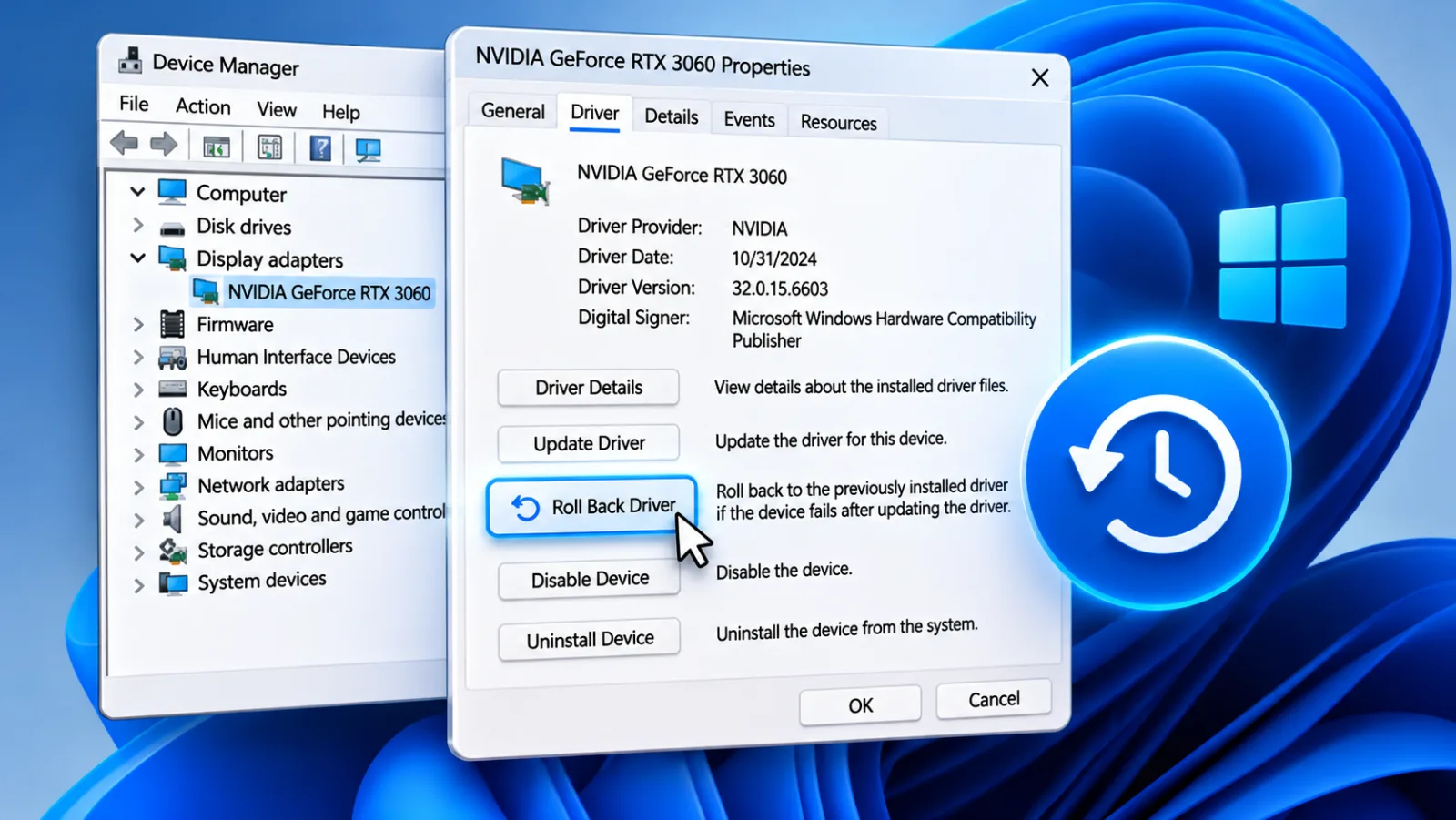
If the slowdown started after a driver installation, open Device Manager, locate the affected device, open Properties, and check the Driver tab for the Roll Back Driver option.
Use the computer manufacturer's support site when a driver needs to be reinstalled.
Laptop manufacturers often customize graphics, power, and chipset packages for their hardware, so a generic package may not be the best choice.
Avoid updating every driver simply because a utility recommends it.
Change only the component that has a plausible connection to the symptoms, then restart and test the same workload again.
Test new applications
Recently installed software can introduce services, scheduled tasks, browser extensions, and startup entries that remain active after the main application closes.
This is particularly relevant to security suites, backup clients, system utilities, game launchers, VPN software, and hardware management tools.
If the slowdown began after installing one of these programs, close it and check Task Manager to see whether its background processes continue to consume resources.
Uninstalling the suspected application is a useful test when it is not essential to the system.
Use Settings, Apps, and Installed apps rather than deleting its program folder.
If the application is required for work, check for an update or ask the vendor whether a known issue affects your version.
On a managed business computer, consult the IT administrator before removing security, backup, or device management software.
Hidden resource pressure
Check memory pressure
A computer can become slow when available RAM is insufficient for the applications currently open.
Windows then has to move some data between physical memory and the storage drive, which can make switching between applications and reopening tabs feel delayed.
In Task Manager, select Performance and Memory to review installed RAM, memory in use, and available memory.
Compare the readings during normal work rather than immediately after startup.
Microsoft explains that RAM stores active application data for quick access, while storage drives retain files after the computer shuts down.
This difference explains why adding memory can help a computer that struggles with several demanding applications at once.
It will not fix a processor bottleneck, malware, a failing drive, or an application that is using excessive CPU.
Confirm that memory is consistently constrained before considering an upgrade.
Look for disk activity
A disk that remains busy can make the entire computer feel unresponsive, especially when Windows is installed on an older mechanical hard drive.
Updates, antivirus scans, cloud synchronization, search indexing, and file transfers can all generate sustained activity.
Task Manager identifies processes using the disk, while the Performance tab shows whether the drive remains active during the slowdown.
Check whether the activity stops after the background task finishes.
A nearly full system drive can also interfere with temporary files and update operations.
Open Settings, System, and Storage to review the available space and identify large categories.
Remove temporary files and unused applications only after checking what they contain.
If free space is low because personal files occupy the drive, move files to a separate storage device or a trusted backup location before deleting them.
Check drive health
Sudden freezing, unusually long startup times, repeated file errors, and unexplained disk activity can indicate a storage device problem.
A mechanical drive may also produce clicking or grinding sounds when it is failing.
If you notice these symptoms, back up important files before running extensive tests or attempting repairs.
Continued use of a failing drive can turn a performance problem into permanent data loss.
Windows 11 provides critical health warnings for supported NVMe SSDs under Settings, System, Storage, Advanced storage settings, and Disks & volumes.
Microsoft identifies warnings such as degraded reliability, low spare capacity, and read only status.
Its built in monitoring does not cover every type of drive, so the absence of a warning does not guarantee that an older hard drive or SATA SSD is healthy.
Manufacturer diagnostics and SMART monitoring can provide additional information, but the meaning of some SMART values varies by drive manufacturer.
Security and temperature
Scan for malware
Malware can cause an abrupt slowdown by consuming processor time, memory, disk activity, and network bandwidth.
Other warning signs include unexpected browser redirects, unfamiliar applications, pop ups, disabled security settings, and unusual data usage.
Open Windows Security, select Virus & threat protection, and run a Quick scan.
Hostinger VPS
Hostinger VPS delivers KVM virtualization, NVMe storage and full root access at prices that undercut most competing cloud providers.
- Strong price to specification ratio overall
- NVMe storage included on every tier
- Renewal rates climb steeply after promo
- Self managed means security is your job
If the symptoms remain or there are signs of a serious infection, choose Scan options and run a Full scan.
Microsoft Defender also offers an Offline scan that restarts the computer and checks for threats outside the normal Windows environment.
This can help when persistent malware attempts to hide while Windows is running.
Save open files before starting the scan because the computer will restart.
If the computer belongs to an organization, follow its security incident process and contact the IT team rather than attempting to remove suspected threats without authorization.
Check for overheating
Heat can make a computer suddenly slower when the processor or graphics hardware reduces its operating speed to protect itself.
This behavior is called thermal throttling.
A laptop that becomes hot, runs its fans loudly, and slows down during demanding tasks may have blocked vents, dust accumulation, a failing fan, or a cooling system that no longer works properly.
A desktop can develop similar symptoms when its case ventilation is obstructed or internal fans stop working.
Place laptops on a hard, flat surface and keep air vents clear.
Check that fans spin and that dust does not block the intake or exhaust openings.
Do not use liquids or household vacuum cleaners inside a computer, and avoid opening a laptop unless you know how to handle its battery and internal components safely.
If the machine overheats during light work or shuts down unexpectedly, arrange a professional inspection of the cooling system.
Rule out power limits
A laptop can operate at reduced performance when its power profile prioritizes battery life.
Check Settings, System, and Power & battery, then review the Power mode selection.
On supported Windows 11 devices, Best performance can favor responsiveness when the laptop is connected to power, although it can increase energy use, fan activity, and heat.
Also check whether the laptop uses its correct power adapter.
Some systems reduce performance when connected to an underpowered or unrecognized charger.
Dell identifies power settings and adapter limitations among the laptop specific causes that can affect performance.
If the slowdown occurs only on battery power or only with a particular charger, compare the behavior under the recommended power configuration before changing drivers or reinstalling Windows.
Isolate the cause
Start in Safe Mode
Safe Mode starts Windows with a limited set of drivers and services.
If the computer performs normally in this environment, a third party application, driver, or service may be responsible for the slowdown.
Microsoft explains that Safe Mode helps narrow down whether the issue comes from components that load during normal startup.
It is a diagnostic test, not a permanent way to use the computer.
To access it, open Settings, System, Recovery, and select Restart now under Advanced startup.
Choose Troubleshoot, Advanced options, Startup Settings, and Restart.
After the computer restarts, select the Safe Mode option.
If the slowdown disappears, investigate recently installed applications, drivers, and services.
If the same problem remains, hardware, core Windows components, or a deeper system fault may need attention.
Perform a clean boot
A clean boot gives you more control over which third party services and startup applications load with Windows.
Search for System Configuration, open the Services tab, select Hide all Microsoft services, and then choose Disable all.
Open the Startup tab, launch Task Manager, and disable the relevant startup applications before restarting.
Keep a record of the original settings so that you can restore them.
If performance improves, re enable services and startup items in groups until the slowdown returns.
Microsoft recommends a controlled process for identifying the application or service responsible for a conflict.
Do not disable Microsoft services indiscriminately, and restore Normal startup after testing.
This method is particularly useful when Task Manager does not make the responsible application obvious.
Disconnect peripherals
External devices can introduce driver conflicts, power problems, or repeated connection errors.
Disconnect USB hubs, external drives, printers, docking stations, webcams, and other accessories that are not necessary for basic operation.
Restart the computer and test it with only the keyboard, mouse, display, and essential connections.
If performance returns, reconnect devices one at a time to identify the one associated with the slowdown.
An external storage device that is failing can also delay file operations or cause applications to freeze when they try to access it.
Check whether the slowdown occurs only when a particular drive is connected.
Use the manufacturer's diagnostic tools for that device and protect its data before attempting repairs.
If a peripheral is essential for work, check for a compatible driver or firmware update from its manufacturer.
When repair is necessary
Restore system changes
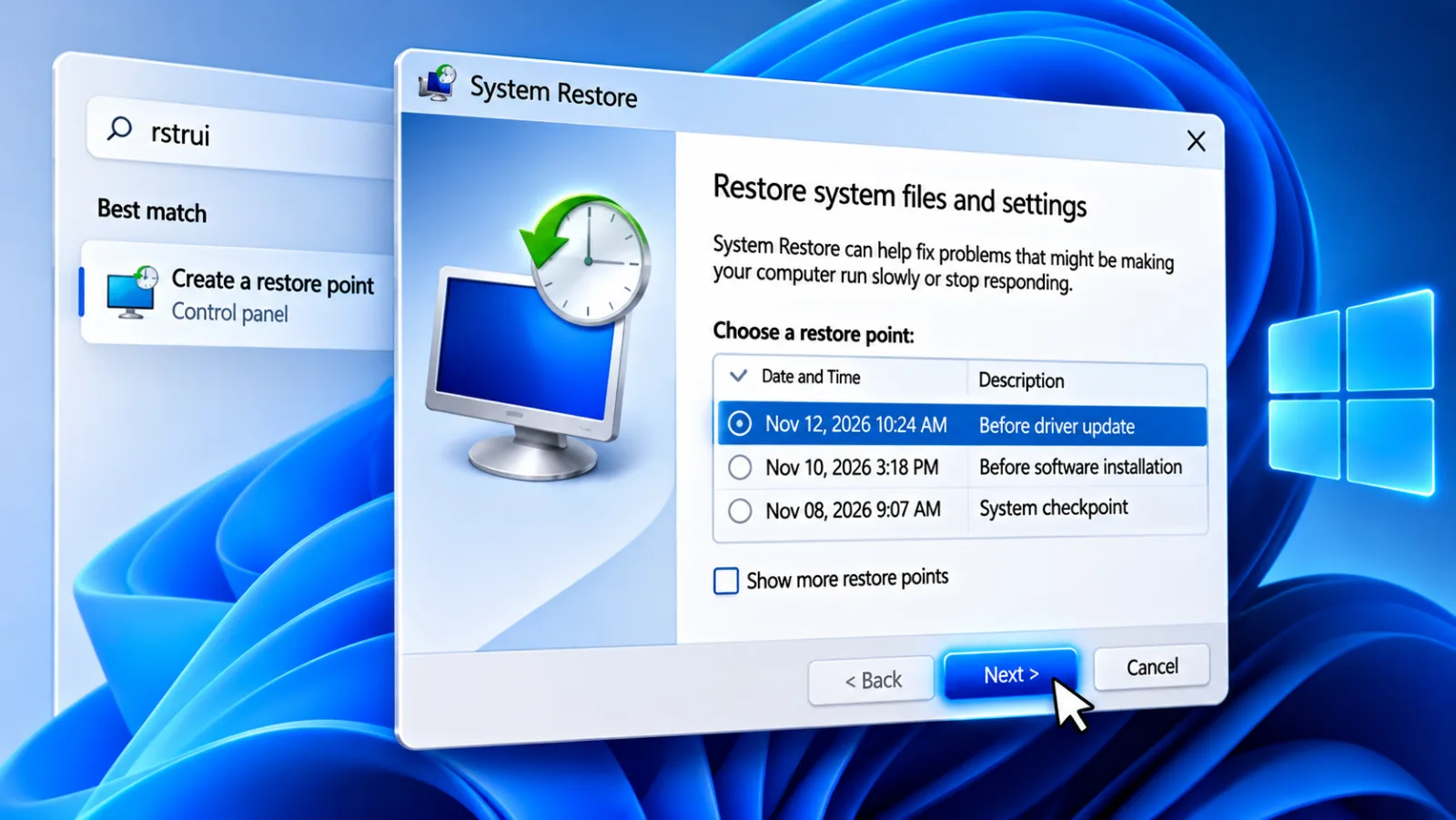
System Restore can return certain Windows system files, drivers, registry settings, and installed programs to an earlier state.
It is useful when the slowdown began after a driver installation or software change and a suitable restore point exists.
Search for Create a restore point, open System Protection, and select System Restore to review available restore points.
Read the list of affected programs before confirming the operation.
System Restore is not a substitute for backing up documents, photos, or business files.
It does not guarantee that every application problem will be resolved, and it cannot repair physical storage damage.
If the computer has signs of drive failure, prioritize copying important data before using recovery tools.
A restore point from before the slowdown may help reverse a software change, but it cannot undo every system modification.
Consider hardware faults
A sudden slowdown can be an early sign of a failing SSD, hard drive, memory module, cooling fan, or power component.
Hostinger VPS
Hostinger VPS delivers KVM virtualization, NVMe storage and full root access at prices that undercut most competing cloud providers.
- Strong price to specification ratio overall
- NVMe storage included on every tier
- Renewal rates climb steeply after promo
- Self managed means security is your job
Hardware diagnostics from the computer manufacturer can test supported components and provide error codes for service.
Dell, for example, offers preboot diagnostics for its supported computers, allowing hardware checks before Windows loads.
Use the diagnostic utility designed for the exact model rather than relying on a generic cleaner application.
If the computer reports a memory or storage error, record the code and consult the manufacturer.
Do not continue running repeated stress tests on a drive that shows signs of failure.
For a desktop, a technician can inspect internal connections, cooling, and power delivery.
For a laptop, professional service may be safer because batteries, compact cooling assemblies, and soldered components require appropriate tools.
Reset only last
Resetting Windows can resolve persistent software corruption, unwanted configuration changes, or application conflicts that remain after normal troubleshooting.
It also removes applications and may affect personal data depending on the selected reset option.
Before proceeding, verify that important files are backed up and that you have access to application installers, license information, account credentials, and recovery keys.
A reset should follow diagnosis, not replace it.
Microsoft provides recovery options for reinstalling Windows, including choices that retain or remove personal files.
The correct option depends on the problem and the state of the installation.
If the computer is infected, restore files from a backup that predates the infection and scan them before use.
If the hardware is failing, reinstalling Windows will not repair it and may make data recovery more difficult.
Frequently Asked Questions
Why did my computer become slow overnight?
Can a Windows update suddenly slow down my PC?
Why is my computer slow but Task Manager looks normal?
Should I reset my PC if it suddenly becomes slow?
Can a failing hard drive make a computer suddenly slow?
Does a slow internet connection make the whole computer slow?
Sources7
- Microsoft on Windows performance troubleshooting
- Microsoft on uninstalling Windows updates
- Microsoft on Windows malware protection
- iFixit on hard drive SMART warning signs
- Microsoft Learn on Windows performance monitoring
- iFixit on desktop computer
- HP on diagnosing slow computer performance
External pages are independent third-party sources. Desking App does not control or endorse their content and accepts no responsibility for it. Visiting them is at your own responsibility and risk.