

How to Fix High CPU Usage in Windows 11 and Find the Cause
By Noura Mint Ely · November 14, 2026
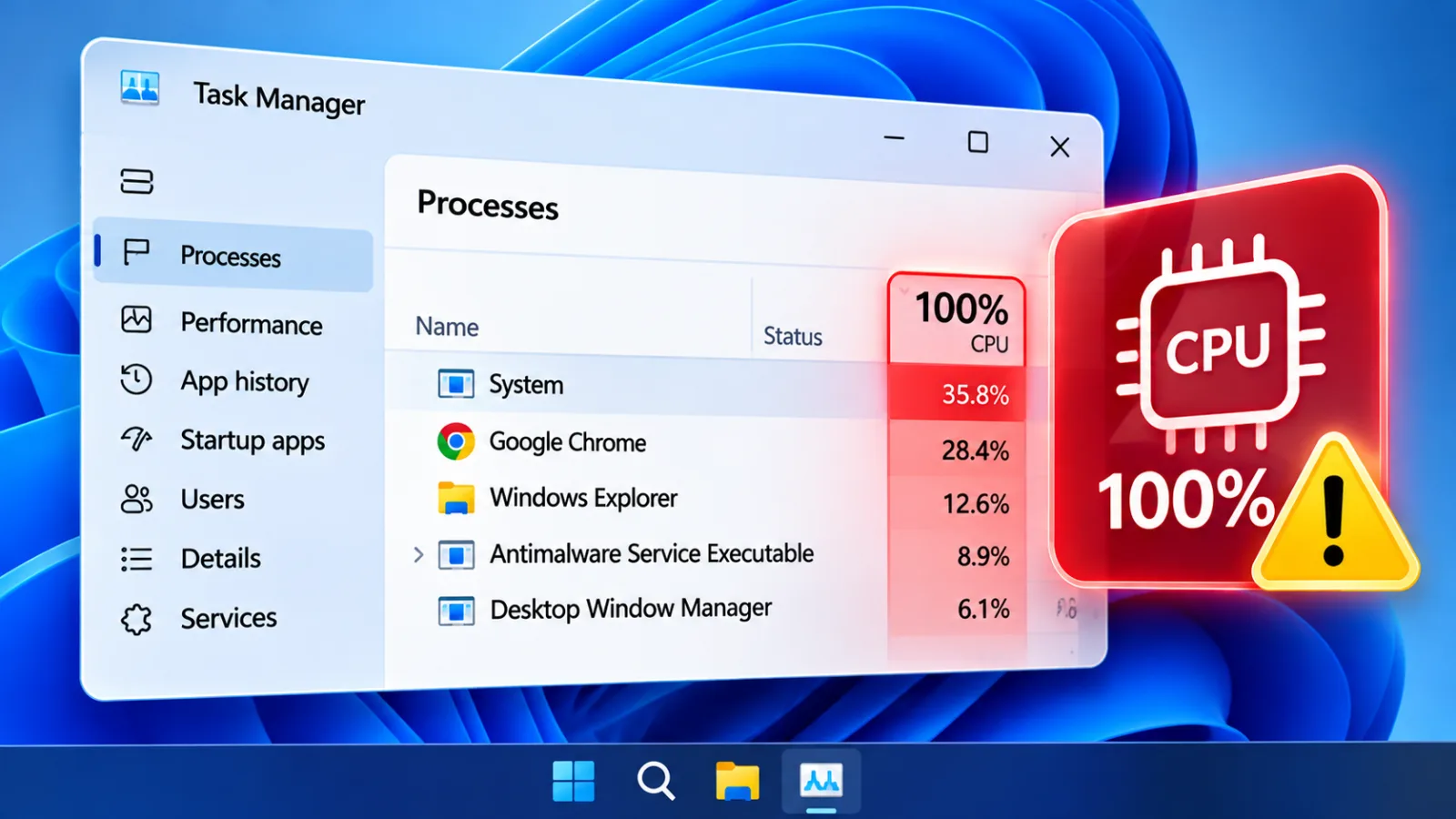
Table of contents
A processor that remains busy when the computer is idle can make Windows 11 slow, noisy and difficult to use.
The fan may run constantly, applications can take longer to open, and even basic actions such as typing or switching windows may become delayed.
A brief increase in CPU activity is normal during startup, software installation, antivirus scans, gaming, video exports and other demanding tasks.
Persistent high usage deserves investigation, particularly when it continues after a restart and no demanding application is open.
The most reliable fix starts with identifying the process responsible for the activity.
Task Manager provides the first indication, while Resource Monitor, Process Explorer and Performance Monitor can reveal more detail when the process name is unclear.
Once you identify the cause, you can choose a specific repair instead of disabling Windows services or installing utilities that promise to optimize the processor.
Understand CPU activity
The central processing unit executes instructions for Windows, applications and connected hardware.
CPU usage represents how much of the processor's available processing capacity is occupied at a particular moment.
A high reading can be expected during a demanding task, but sustained activity at idle may indicate an application that is stuck, excessive background work, a driver problem or malicious software.
There is no single CPU percentage that proves a computer has a fault.
A game or rendering application can use most of a modern processor without indicating a problem, while a modest application that repeatedly consumes a large share of CPU time at idle may deserve attention.
Check the percentage alongside responsiveness, temperature, fan noise and the process responsible.
Microsoft recommends using Task Manager to identify resource intensive applications and reviewing performance after closing unnecessary work.
Recognize the symptoms
High CPU activity often produces several symptoms at the same time.
The computer may feel slow even when the desktop is visible, and the fan may remain loud because the processor is working continuously.
On laptops, sustained processing can also increase heat and reduce battery life.
Look for these signs:
- Applications take unusually long to launch or respond.
- The fan runs at high speed while the computer is idle.
- Task Manager shows CPU activity remaining high without an obvious workload.
- Video playback stutters or audio becomes interrupted.
- The computer becomes hot during ordinary office work.
- Battery life drops noticeably during light use.
- The desktop freezes when several applications are open.
These symptoms can also result from high memory, disk or GPU usage.
Confirm that the CPU column is the resource under pressure before changing settings.
A disk running at full activity, for example, can make Windows feel unresponsive even when processor usage is low.
Identify the cause first
Task Manager should be the first diagnostic tool because it shows which applications and processes are consuming CPU time.
A process name is a starting point, not a diagnosis: Windows components, security software and maintenance services can all use significant resources during legitimate operations.
Observe the activity for a few minutes after startup before deciding that a process is malfunctioning.
Check Task Manager
Follow this procedure to find the process responsible:
- Press Ctrl + Shift + Esc to open Task Manager.
- If the compact view appears, select More details.
- Open the Processes tab.
- Select the CPU column heading to sort processes from highest to lowest usage.
- Observe the leading processes for several minutes.
- Expand grouped entries such as Service Host to inspect their individual processes.
- Record the process name and check whether its activity falls after the current task finishes.
The Performance tab provides a wider view of processor activity, including utilization and speed.
Compare the overall CPU graph with the Processes list.
If one application consistently appears at the top, investigate that application first.
If the process is called System, Service Host or WMI Provider Host, further diagnosis may be necessary before taking action.
Use Resource Monitor
Resource Monitor offers a more detailed view of active processes and their resource use.
It is particularly useful when Task Manager shows high CPU activity but does not make the responsible service or application obvious.
- Open Start and search for Resource Monitor.
- Launch the application.
- Select the CPU tab.
- Review the Processes and Services sections.
- Sort the list by Average CPU.
- Observe which entries remain active while the computer is otherwise idle.
Resource Monitor can help distinguish a short burst from repeated activity.
If a Service Host process appears responsible, inspect the associated services before changing anything.
Microsoft documents Task Manager, Resource Monitor and Process Explorer as complementary tools for identifying high CPU processes, including cases involving Windows services.
Understand common processes
Some Windows processes appear frequently in CPU investigations.
Their presence does not automatically indicate a fault, and terminating them without understanding their role can interrupt important Windows functions.
| Process | What it does | What to investigate |
|---|---|---|
| Antimalware Service Executable | Runs Microsoft Defender Antivirus protection and scanning | Repeated scans or activity that never settles |
| Windows Modules Installer Worker | Handles Windows component servicing and updates | Update installation that remains active unusually long |
| SearchIndexer.exe | Builds and maintains the Windows search index | Repeated indexing after initial work has finished |
| WMI Provider Host | Provides management information to applications and services | A program repeatedly requesting WMI data |
| System | Represents kernel activity and other low level work | Drivers, interrupts and hardware activity |
| Service Host | Hosts one or more Windows services | The specific service inside the process group |
A process such as Antimalware Service Executable may use substantial CPU while Microsoft Defender scans files.

Hostinger VPS
Hostinger VPS delivers KVM virtualization, NVMe storage and full root access at prices that undercut most competing cloud providers.
- Strong price to specification ratio overall
- NVMe storage included on every tier
- Renewal rates climb steeply after promo
- Self managed means security is your job
Windows Modules Installer Worker may become active during servicing, while SearchIndexer.exe can work after large file changes.
Allow legitimate maintenance to finish before treating it as a fault.
Fix common causes
The appropriate repair depends on what Task Manager identifies.
Begin with reversible changes, such as closing an application or allowing a scan to finish.
Avoid disabling security protection, Windows Update or unfamiliar services simply because they appear near the top of the CPU list.
Close demanding applications
Games, video editors, development environments, browsers and large office applications can consume substantial processing capacity.
Browser tabs with video, complex web applications or poorly behaved extensions may also keep the processor busy after the main window appears inactive.
- Save your work in open applications.
- Open Task Manager.
- Sort the Processes list by CPU.
- Identify applications you recognize and are not using.
- Close them normally before using End task.
- Check whether total CPU usage falls.
Use End task only when an application has stopped responding or cannot close normally.
Do not terminate Windows processes merely because their names are unfamiliar.
Intel also advises identifying the process before ending it, since critical Windows components support the desktop and other system functions.
Allow Windows updates
Windows Update can temporarily increase CPU activity while it checks, downloads, installs or prepares system components.
Interrupting servicing processes can leave an update incomplete and create further problems.
If the activity began after an update check, allow Windows time to finish and restart the computer when prompted.
To check update status:
- Open Settings.
- Select Windows Update.
- Review whether updates are downloading or installing.
- Install available updates when appropriate.
- Restart the computer if Windows requests it.
- Check Task Manager again after sign-in and allow background activity to settle.
If CPU usage remains high long after the update process has completed, investigate the process still consuming resources.
Check Microsoft's Windows release health information for known issues affecting the installed version.
As of October 28, 2026, Microsoft lists Windows 11 version 26H2 as available for eligible devices.
Review Microsoft Defender
Antimalware Service Executable, usually associated with Microsoft Defender Antivirus, can use CPU resources during a scan.
This is expected security activity, especially when a large number of files are being checked.
Repeated high usage, failed scans or activity that continues without settling should be investigated.
Open Windows Security, select Virus & threat protection and review the scan status.
If a scan is active, allow it to complete where possible.
Check Protection history for detections and confirm that security intelligence updates are current.
You can schedule scans for a time when the computer is less heavily used, but do not permanently disable real time protection to reduce processor activity.
If you suspect malware, run a full scan and investigate unfamiliar applications or browser extensions.
A process name alone cannot confirm whether a file is legitimate.
Check its location and publisher, and use Windows Security to scan suspicious files rather than deleting system files manually.
Reduce search indexing
Windows Search indexes file names and selected file contents so that searches can return results faster.
Indexing may increase CPU activity after a large file transfer, a Windows installation or a substantial change to folders included in the index.
Activity that remains high long after these changes may indicate an indexing problem.
Open Settings and search for Indexing Options.
Review the locations included in the index and remove folders that do not need to appear in Windows search.
If the index appears damaged, use the Advanced options in Indexing Options to rebuild it.
Rebuilding can take time, and search results may be incomplete until the process finishes.
Do not disable Windows Search as a first response.
That can reduce search functionality without addressing the underlying cause.
Confirm that SearchIndexer.exe is responsible and that indexing activity is not simply completing legitimate work.
Control startup applications
Applications that launch automatically can consume processor time as soon as you sign in.
Several background utilities may compete for resources even when you are not actively using them.
Reducing unnecessary startup activity can improve startup responsiveness and lower background load.
- Press Ctrl + Shift + Esc.
- Select Startup apps in Task Manager.
- Review the applications and their startup impact.
- Select applications you do not need at sign-in.
- Choose Disable.
- Restart Windows and compare CPU activity.
Keep security software, device management tools and essential business applications enabled.
Disabling a startup entry does not uninstall the application; it prevents automatic launch.
Microsoft recommends reviewing startup apps and disabling those that are not needed.
Check background applications
Some applications continue to perform tasks after their windows are closed.
Cloud synchronization, messaging clients, launchers and collaboration tools may remain active to receive notifications or synchronize data.
If a particular application is responsible for sustained CPU use, review its settings and background permissions.
Open Settings, select Apps, then Installed apps.
Find the relevant application, open its advanced options when available and review its background permissions.
Select Never only when the application does not need background activity for its intended purpose.
Some desktop applications manage background activity internally, so their own settings may provide better control.
Do not disable background activity indiscriminately.
Cloud backup, endpoint protection and business communication tools may need to remain active.
The goal is to remove unnecessary work while preserving functions that protect data or support daily operations.
Isolate software conflicts
When no single application explains the activity, a background service or startup utility may be responsible.
A clean boot starts Windows with essential drivers and services while preventing third party startup software from loading normally.
If CPU usage returns to normal in this state, you have evidence of a software conflict.
Perform a clean boot
Use this procedure to isolate background services and startup applications:
- Sign in with an administrator account.
- Press Windows + R, enter msconfig and press Enter.
- Open the Services tab.
- Select Hide all Microsoft services.
- Select Disable all, then choose Apply.
- Open the Startup tab and select Open Task Manager.
- Disable the enabled third party startup applications, keeping a record of the changes.
- Restart the computer and monitor CPU usage.
If the problem disappears, re-enable services and startup applications in groups.
Restart after each test until the activity returns.
You can narrow the search by testing half of the disabled entries at a time, then repeating the process with the group that reproduces the problem.
When the test is complete, restore normal startup settings in System Configuration and re-enable the startup applications you still need.
Do not leave essential security or management services disabled.
Microsoft describes clean boot as a way to isolate software conflicts and provides instructions for restoring normal startup afterwards.
Investigate WMI activity
WMI Provider Host, displayed as WmiPrvSE.exe, provides management information to Windows applications and administrative tools.
Monitoring software, hardware utilities, scripts and other applications can repeatedly request WMI data.
If one client makes excessive requests, WMI Provider Host may consume more CPU than expected.
Start by identifying the specific WMI Provider Host instance in Task Manager.
Hostinger VPS
Hostinger VPS delivers KVM virtualization, NVMe storage and full root access at prices that undercut most competing cloud providers.
- Strong price to specification ratio overall
- NVMe storage included on every tier
- Renewal rates climb steeply after promo
- Self managed means security is your job
Switch to the Details tab and note its process ID, or PID.
Then inspect Event Viewer for WMI activity around the time of the CPU spike and identify which application or provider is making repeated requests.
Avoid disabling the Windows Management Instrumentation service because other applications and management functions depend on it.
This type of investigation is particularly relevant on business computers with inventory agents, monitoring software, endpoint management tools or custom administration scripts.
If the issue began after installing one of these products, update it or consult its vendor before changing Windows services.
Investigate System activity
A high CPU reading under System can indicate work in the Windows kernel, including activity associated with drivers and hardware.
It is not an ordinary application that you should attempt to uninstall or permanently terminate.
A driver problem, hardware interrupt or deferred procedure call can cause processor activity to remain high.
If System is consistently at the top of Task Manager, review recently installed drivers and connected devices.
Disconnect nonessential USB devices one at a time, then observe whether CPU activity changes.
Pay particular attention to network adapters, storage controllers, audio devices and peripherals that were added shortly before the problem began.
For a deeper investigation, Microsoft's performance guidance identifies counters such as processor time, interrupt time and deferred procedure call activity.
High interrupt activity can point towards a hardware or driver issue, so repeated spikes under System deserve a driver level investigation rather than indiscriminate service changes.
Repair drivers and Windows
Driver problems can create sustained CPU activity even when no visible application is running.
A defective network, graphics, audio or storage driver may repeatedly perform work or trigger kernel activity.
Check recent changes first, especially if the problem appeared immediately after a driver or Windows update.
Update or roll back drivers
Use Windows Update and the computer manufacturer's support page to find compatible drivers for the exact computer model.
Avoid third party driver download sites, which may offer incorrect packages or unwanted utilities.
- Right click Start and open Device Manager.
- Expand the category associated with the suspected device.
- Right click the device and select Properties.
- Open the Driver tab.
- Review the driver provider, date and version.
- Select Update driver when a suitable update is available.
- If the issue began after a recent driver update, check whether Roll Back Driver is available.
Graphics drivers deserve attention on systems used for gaming, video editing or multiple displays.
Network and storage drivers also warrant inspection when System activity is high.
If Windows Update offers an optional driver, check the manufacturer’s documentation before installing it on a business critical computer.
Repair Windows files
Damaged Windows components can contribute to instability and abnormal background activity.
The Deployment Image Servicing and Management tool, known as DISM, can repair the Windows component store.
System File Checker, or SFC, then checks protected system files and replaces corrupted copies when repair sources are available.
Run the repairs in this order:
- Open Start and search for Command Prompt.
- Select Run as administrator.
- Run DISM /Online /Cleanup-Image /RestoreHealth.
- Wait for the operation to finish.
- Run sfc /scannow.
- Allow the scan to complete and read its final message.
- Restart Windows and check CPU usage again.
DISM may require access to Windows Update or an appropriate repair source.
Do not interrupt the operation because the progress percentage may remain unchanged for a period.
If SFC reports that it could not repair some files, retain the result and investigate the repair source or Windows installation before repeating the commands.
Check for malware
Malicious software can use the processor for unauthorized tasks, including unwanted background activity, cryptocurrency mining or communication with remote systems.
High CPU usage alone does not prove an infection, but unexplained activity from an unfamiliar executable deserves a security check.
Open Windows Security and select Virus & threat protection.
Update security intelligence, then run a full scan.
If Windows Security identifies a threat, follow its recommended removal or quarantine action and restart if requested.
For a persistent suspected infection, use Microsoft Defender Offline, which scans outside the normal Windows environment.
Be cautious with unfamiliar process names.
Check the file location, publisher and digital signature before deciding whether a process is legitimate.
Do not download random removal utilities or add antivirus exclusions simply to reduce CPU usage.
Exclusions can leave files outside normal scanning and should only be used for a verified compatibility requirement.
Check heat and hardware
A processor can become slower when its temperature rises beyond its operating limits.
Modern computers manage heat by reducing processor speed, a process known as thermal throttling.
This can make the computer feel slow even when CPU usage appears high, particularly during demanding tasks or when cooling is restricted.
Check cooling conditions
Inspect the computer's physical condition before changing advanced power settings.
Dust, blocked vents, failed fans and poor airflow can affect cooling, especially on older laptops and compact desktop systems.
Check these areas:
- Airflow: Keep laptop vents and desktop intake areas clear of furniture, fabric and other obstructions.
- Fans: Listen for unusual noise or a fan that never starts under load.
- Dust: Check vents and heatsinks for accumulated dust; use appropriate cleaning methods.
- Environment: Avoid using the computer on soft surfaces that block ventilation.
- Temperature: Use a reputable hardware monitoring utility to check processor temperatures against the manufacturer's specifications.
Do not open a laptop or remove a heatsink unless you have the required skills and understand the warranty implications.
If temperatures remain excessive, a technician may need to inspect the cooling assembly, fan operation and thermal interface material.
Intel notes that demanding workloads can produce high processor usage, while cooling and hardware conditions affect system performance.
Review power settings
Windows power modes affect how the processor balances performance and energy consumption.
Best performance can help a computer respond more quickly under demanding workloads, but it can also increase power consumption and heat.
It is not a general repair for a process that remains busy at idle.
To review the setting:
- Open Settings.
- Select System.
- Choose Power & battery.
- Find Power mode.
- Select Balanced for ordinary use, or Best performance when the workload justifies it.
- Compare temperature, fan noise and CPU activity after the change.
On laptops, Best performance can reduce battery life and make the computer warmer.
If the system is already overheating, raising the performance setting may make the symptoms worse.
Microsoft explicitly warns that higher performance settings increase power consumption and can cause laptops to run warmer.
Microsoft Support
Diagnose advanced workloads
Some computers run workloads that are easy to overlook because they operate in the background.
Developers may have Linux distributions running through Windows Subsystem for Linux, Docker containers, Hyper V virtual machines or other virtualization software.
These workloads can continue using CPU resources even when no conventional application window is open.
Check virtual machines
If you use Docker Desktop, WSL, Hyper V, VMware or VirtualBox, check whether a virtual machine or container is still running.
Open the relevant management application and review active workloads.
Shut down virtual machines that are no longer required, and update virtualization software if the problem began after an upgrade.
For WSL, review running distributions and stop those that are not in use.
Do not uninstall virtualization components as an initial response, particularly on development computers where they may support essential projects.
Identify the active workload first and confirm that CPU usage falls when it is stopped.
Record performance over time
Intermittent CPU spikes may disappear before you open Task Manager.
Performance Monitor can record processor activity over time, which helps identify patterns that a quick inspection misses.
Hostinger VPS
Hostinger VPS delivers KVM virtualization, NVMe storage and full root access at prices that undercut most competing cloud providers.
- Strong price to specification ratio overall
- NVMe storage included on every tier
- Renewal rates climb steeply after promo
- Self managed means security is your job
It is useful when the problem occurs at a particular time, after sign in or during scheduled maintenance.
- Press Windows + R.
- Enter perfmon and press Enter.
- Expand Data Collector Sets.
- Select User Defined.
- Create a data collector set that records processor performance counters.
- Choose a suitable sample interval and log location.
- Start collection before the time when the problem usually occurs.
- Stop collection after capturing the incident and inspect the report.
For an advanced investigation, Microsoft recommends collecting performance data while the high CPU condition is actually occurring.
Process Explorer from Microsoft Sysinternals can also show process ownership, parent processes and thread activity.
These tools are most useful when Task Manager identifies a system component but does not explain what is causing the work.
Choose the right recovery
A reset should come after process identification, driver checks and Windows repair.
Reinstalling Windows without understanding the cause can remove applications and settings while leaving a hardware fault unresolved.
Before using a recovery option, back up important documents and confirm that you can reinstall licensed applications.
Repair through Windows Update
If Windows remains unstable after system file repairs, check whether the installed version has known issues and whether a newer supported update is available.
Open Settings, select Windows Update and check for updates.
Review Microsoft's release health page for the version installed on the computer, particularly if the CPU problem began after a monthly update or feature upgrade.
For supported Windows 11 devices, use the update offered through Windows Update rather than forcing an installation from an unofficial source.
If the issue is known and Microsoft has published a fix, follow the documented update guidance.
Reset Windows 11
If the system continues to show unexplained high CPU usage after software and driver troubleshooting, Reset this PC may be appropriate.
Open Settings, select System, then Recovery, and choose Reset PC.
Windows offers options that retain personal files or remove everything, but applications and settings may still be removed.
Choose the option that matches the recovery requirement and follow the instructions on screen.
Back up files first, even when choosing to keep personal files.
If the processor remains busy after a clean Windows installation with only essential drivers and applications, arrange hardware diagnostics rather than repeating the reset.
Frequently Asked Questions
Does 100% CPU usage damage a computer?
Why is my CPU usage high when nothing is open?
Should I disable SysMain to reduce CPU usage?
Can insufficient RAM cause high CPU usage?
Why does System Interrupts use so much CPU?
Is high CPU usage caused by Windows 11 updates?
Sources5
- 220 Internet Services on Windows Search CPU usage
- Techdows on Windows 11 CPU usage
- iTechGuides on Windows 11 CPU usage
- Intel on fixing high CPU usage
- Microsoft Learn on high CPU troubleshooting
External pages are independent third-party sources. Desking App does not control or endorse their content and accepts no responsibility for it. Visiting them is at your own responsibility and risk.