

How to Fix Outdated Drivers Without Causing Windows Problems
By Noura Mint Ely · November 13, 2026
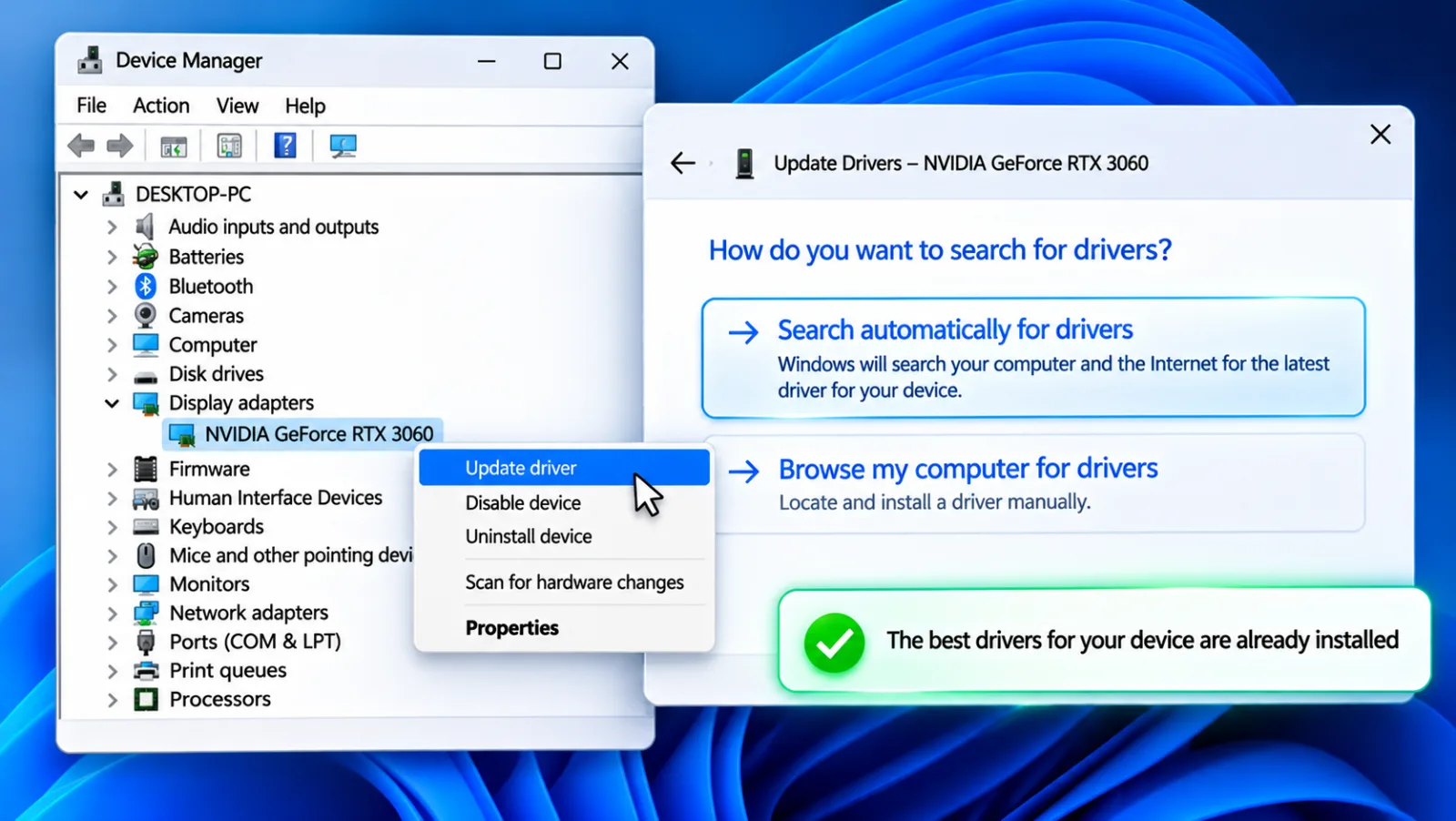
Table of contents
An old driver does not automatically need replacing.
Windows can continue to use a driver released years ago if it remains compatible with the hardware and operating system, while a newer package can introduce instability when it targets a different device revision.
The safest approach is to identify the hardware, establish whether an update is necessary, and obtain the replacement from a trusted source.
Microsoft recommends Windows Update for most driver updates and directs users to hardware manufacturers when Windows cannot find a suitable release.
A driver is the software interface that allows Windows to communicate with a physical component or peripheral.
Graphics processors, network adapters, sound devices, storage controllers, printers, webcams and touchpads all depend on drivers.
When one becomes incompatible, corrupted or affected by a known defect, symptoms can include missing devices, connection failures, display problems, reduced performance and system crashes.
The first decision is therefore whether the driver is actually responsible for a problem.
A warning from a driver scanning application, an old date in Device Manager or a newer version number on a download page is not sufficient evidence by itself.
Check the device, its current driver, the Windows version and the manufacturer's release information before making a change.
Establish the actual problem
Windows provides several ways to identify a device and inspect its installed driver.
Open Device Manager from the Start menu, expand the relevant hardware category, right click the device and select Properties.
The Driver tab displays the provider, date, version and other details, while the General tab reports whether Windows detects a problem with the device.
Record these details before changing anything, particularly when the computer is used for work.
Device Manager's date field often causes unnecessary concern.
Microsoft explains that driver dates are supplied by the package provider and can be chosen independently of the date on which a driver was published.
Windows ranks compatible packages through factors such as digital signature, supported features and the match between the package and the hardware identifier.
A driver with an older displayed date can therefore be the correct package for a particular device.
The symptoms provide a more useful starting point than the date.
A Wi Fi adapter that repeatedly disconnects deserves investigation, as does a graphics adapter that crashes during a specific application.
A printer that works normally, however, does not need a replacement driver simply because a scanning utility labels its installed version old.
Identify the device that causes the problem and keep the update limited to that component.
Use Windows Update first
Windows Update is the recommended starting point for most Windows 11 and Windows 10 driver updates.
Microsoft works with hardware providers that submit compatible driver packages for distribution through the service, allowing Windows to obtain suitable releases without requiring users to identify every component manually.
Recommended drivers can install automatically, while optional driver packages require the user to select them.
On Windows 11, open Settings, select Windows Update, then Advanced options and Optional updates.
Expand Driver updates if the section appears, review the available entries and select only the packages relevant to the device you need to update.
Choose Download and install, allow the process to finish, and restart the computer if Windows requests it.
Optional updates are not installed automatically, so an available driver may remain listed until you select it.

Hostinger VPS
Hostinger VPS delivers KVM virtualization, NVMe storage and full root access at prices that undercut most competing cloud providers.
- Strong price to specification ratio overall
- NVMe storage included on every tier
- Renewal rates climb steeply after promo
- Self managed means security is your job
Windows 10 uses a different route.
Open Settings, select Update & Security, then Windows Update and Check for updates.
If View optional updates appears, open it and inspect the Driver updates section before selecting a package.
Microsoft ended standard support for Windows 10 on October 14, 2025, so ordinary Windows Update support and security updates no longer follow the same schedule as supported Windows 11 systems.
A driver may not appear in Optional updates even when a manufacturer has published a newer package.
Windows Update selects packages according to compatibility and priority rules, rather than presenting every available release for every device.
Microsoft documents that Windows can prioritize critical or automatic driver packages over optional packages, even when an optional package has a later release date.
That selection is one reason a missing update should prompt a compatibility check, not an attempt to force the newest version onto the computer.
Identify the correct package
The computer manufacturer is usually the best source for drivers on laptops and branded desktops.
A laptop manufacturer may customize graphics, audio, touchpad, power management and chipset packages for a particular model.
A generic component driver can install successfully yet remove a feature or behave differently from the version validated for that machine.
Start with the support page for the exact computer model, not a general search for a component name.
Find the model name or service identifier before downloading anything.
Dell users can enter the Service Tag on the company's support site or use its automatic detection option, then review the available categories such as Audio, BIOS, Chipset, Network and Video.
Lenovo provides System Update for supported systems, with driver, BIOS and application updates selected for the device.
These manufacturer tools are useful because they associate packages with a supported computer model.
For a custom desktop assembled from individual components, the motherboard and component manufacturers may be the appropriate sources.
A motherboard support page can provide chipset, network, audio and storage drivers specific to its board revision.
A graphics card vendor can provide the dedicated graphics package.
Check the motherboard model, revision and Windows edition before downloading, because a package intended for a related model may not support the hardware installed in your machine.
The same rule applies to standalone devices.
A printer driver should come from the printer manufacturer's page for the exact model, while a USB Wi Fi adapter should use the support page for its hardware revision.
Some product families have several revisions under one commercial name, and the driver package may differ between them.
If the manufacturer's page lists several Windows versions, select the one that matches the installed operating system and system architecture.
Update graphics drivers
Graphics drivers deserve separate attention because their releases can address application compatibility, rendering defects, security issues and support for newer games.
AMD says graphics updates can be relevant when adding a new graphics product or operating system, gaining support for new games or applications, obtaining features and performance improvements, or resolving known bugs.
Its release notes describe supported products and the fixes included in a package, which makes them a better basis for an update decision than a generic age warning.
NVIDIA users can obtain graphics packages through the NVIDIA App or the company's official driver download service.
The correct package depends on the graphics product and operating system, and the distinction between Game Ready and Studio drivers may matter to the applications in use.
A gaming system may benefit from a release that adds support for a new game, while a workstation used for content creation may prioritize a driver validated for its professional software.
Read the release information before replacing a stable installation.
AMD provides an Auto Detect and Install tool for supported Radeon graphics products and Ryzen chipsets.
Its installer checks the detected hardware and Windows version, then offers compatible driver packages.
AMD also maintains a product selector for users who need to choose a specific graphics or chipset product manually, including older products that may require a last supported release.
Use the product selector when automatic detection does not identify the hardware correctly.
Intel graphics users can obtain packages from Intel's Download Center or use Intel Driver & Support Assistant where supported.
Intel also advises users to check the computer manufacturer's driver first, particularly for laptops.
A laptop may use a customized graphics configuration that depends on both integrated and discrete graphics components, power management settings or manufacturer specific features.
Installing a generic package without checking the computer maker's support information can create compatibility problems.
Install a driver manually
Manual installation is appropriate when Windows Update does not offer the required package or when the manufacturer provides a specific fix for a documented problem.
Download the installer from the official support page and verify the device model, operating system, architecture and package details.
Avoid driver download sites that repackage manufacturer releases, because the file name alone does not establish that a package is genuine or suitable for the hardware.
For packages supplied as an installer, close applications that may use the device and run the downloaded file according to the manufacturer's instructions.
Some installers ask for administrator approval, remove an existing version or restart Windows after installation.
Do not interrupt the process while the installer updates the device.
If the package includes release notes, read them first for prerequisites, known issues and any special installation requirements.
A driver supplied as extracted files can be installed through Device Manager.
Open the relevant hardware category, right click the device and select Update driver.
Choose Browse my computer for drivers, select the folder containing the downloaded package and follow the prompts.
Hostinger VPS
Hostinger VPS delivers KVM virtualization, NVMe storage and full root access at prices that undercut most competing cloud providers.
- Strong price to specification ratio overall
- NVMe storage included on every tier
- Renewal rates climb steeply after promo
- Self managed means security is your job
Microsoft advises users to obtain manual driver packages from the device manufacturer's website and to match the Windows version and architecture.
Device Manager's Search automatically option can also check for an available driver, but it should not be treated as a universal search of every manufacturer's latest download.
If Windows reports that the best driver is already installed, check Windows Update and the exact manufacturer's support page separately.
That message means Windows did not find a better matching package through that search process.
It does not prove that no newer release exists elsewhere, nor does a newer release guarantee that it is the correct choice for the device.
Protect the current installation
Create a recovery point before a significant driver change, particularly for graphics, storage, chipset or network components.
Search Windows for Create a restore point, open System Protection and check whether protection is enabled for the system drive.
If it is available, select Create and give the restore point a descriptive name.
A restore point can help reverse certain system changes, although it is not a substitute for a separate backup of important files.
Keep a copy of the previous working installer when the manufacturer makes it available.
Record the installed version and download date so you can identify the change if a device starts behaving differently.
This is particularly useful on business computers, where a network adapter or storage controller failure can interrupt access to shared resources.
For a company environment, test important driver updates on a representative machine before deploying them across multiple computers.
Avoid updating several unrelated drivers at the same time.
If graphics, audio, network and chipset packages are all replaced in one session, a later problem becomes harder to trace.
Update the component associated with the fault, restart when required, and test the original task that exposed the issue.
A controlled change gives you a clearer cause and a simpler recovery route.
Recover from failed updates
A driver update can introduce problems even when the package comes from a legitimate manufacturer.
Symptoms may include a black screen, missing sound, unstable Wi Fi, reduced graphics performance or a device that no longer appears in its normal category.
If the fault began immediately after an update, treat that change as the first suspect and use Device Manager to inspect the affected component.
Open Device Manager, right click the affected device and select Properties.
On the Driver tab, choose Roll Back Driver if the option is available, select a reason and confirm the operation.
Windows may request a restart.
Microsoft specifically documents this option for cases where a recent driver update caused a problem, including problems that appeared after a Windows Update.
If Roll Back Driver is unavailable, Windows may not retain an earlier package for that device.
Download the previous supported release from the manufacturer's website if it is still offered, then install it according to the manufacturer's instructions.
Do not use a package from an unrelated model simply because its version number appears familiar.
A version mismatch can create another problem and make the original fault harder to diagnose.
Graphics installations sometimes need a more targeted recovery process.
NVIDIA documents a clean installation option in its driver installer for cases where a normal installation fails.
Its instructions include closing applications that may use the graphics processor, selecting Custom installation and enabling Perform a clean installation before restarting the computer.
This is a vendor specific recovery method for NVIDIA graphics packages, not a routine requirement for every device or every driver update.
If Windows becomes unstable or repeatedly crashes after a driver change, use Windows Recovery Environment or Safe Mode to remove or roll back the affected package where possible.
Avoid deleting driver software indiscriminately from Device Manager.
Removing a network or storage driver without a replacement can leave the computer without network access or make recovery more difficult.
Identify the exact device and ensure a compatible replacement is available before removing its package.
Avoid updater utilities
Third party driver updater applications scan a computer, compare installed versions with their own databases and recommend packages.
Some offer bulk installation, backup or rollback functions, but these features do not make every recommendation suitable for a particular computer.
A scanner can flag a driver because its date or version differs from the database entry, even when the installed package is the correct manufacturer validated release.
The main risk is losing control over package selection.
A utility may recommend a generic driver where a computer manufacturer provides a customized version, or it may offer an update that does not address any problem on the system.
An incorrect graphics, network or storage driver can affect system stability and device functionality.
For most users, Windows Update and the official manufacturer support page provide a more verifiable route.
Be particularly cautious with applications that use alarming warnings, countdowns or repeated prompts to sell a paid repair.
A report containing dozens of old driver dates is not proof that the computer is unsafe or malfunctioning.
Do not grant administrator permissions to an unfamiliar utility merely to remove a warning.
Check the device and package independently, and install only a release that has a clear compatibility or maintenance reason.
A legitimate manufacturer utility is a different category.
Dell SupportAssist, Lenovo System Update, Intel Driver & Support Assistant and AMD's supported detection utility are designed to identify products within their respective ecosystems.
They can reduce manual searching, but you should still review the proposed package and its compatibility before installation.
Keep the source restricted to the hardware vendor or the computer manufacturer.
Hostinger VPS
Hostinger VPS delivers KVM virtualization, NVMe storage and full root access at prices that undercut most competing cloud providers.
- Strong price to specification ratio overall
- NVMe storage included on every tier
- Renewal rates climb steeply after promo
- Self managed means security is your job
Set a sensible update policy
Personal computers generally benefit from a problem driven approach to driver maintenance.
Check Windows Update regularly, install relevant recommended packages and review optional drivers when a device has a fault or a manufacturer documents a useful fix.
Graphics drivers may deserve more frequent attention for users who play recently released games or depend on graphics intensive applications, while a stable printer or keyboard rarely needs routine manual updates.
Business computers need a more controlled process.
An update that works on one laptop model may behave differently on another because of hardware revisions, firmware settings or manufacturer customizations.
IT administrators should maintain an inventory of device models and driver versions, review release notes, test changes on representative equipment and retain a rollback plan.
This reduces the risk of a single driver update interrupting a department's work.
Security advisories can justify an update even when the device appears to function normally.
A driver may contain a vulnerability that does not produce visible symptoms during ordinary use.
In that situation, review the vendor's advisory, confirm that the affected hardware and driver version match the installed system, and apply the supported fix.
Windows driver distribution and certification help with compatibility, but the hardware provider remains the source for details about a particular release.
There is no universal schedule that requires every driver to be replaced every month or every year.
Release frequency varies by device, manufacturer and product lifecycle.
A component that has reached the end of its support period may have no newer compatible driver, while another may receive updates for a specific security or application issue.
The practical policy is to maintain supported software, respond to documented problems and avoid unnecessary changes to stable hardware.
Frequently Asked Questions
Do old drivers slow down a PC?
Should I update every driver?
Why does Windows show an older driver date?
Can I update drivers without internet access?
How often should I check driver updates?
Is it safe to use free driver updaters?
Sources4
- Microsoft on updating drivers through Device Manager
- Microsoft on recommended hardware driver updates
- Microsoft on understanding Windows driver updates
- Intel on installing Windows graphics drivers
External pages are independent third-party sources. Desking App does not control or endorse their content and accepts no responsibility for it. Visiting them is at your own responsibility and risk.