
ChatGPT Locked Chats: How the New Privacy Feature Works
By Noura Mint Ely · October 26, 2026
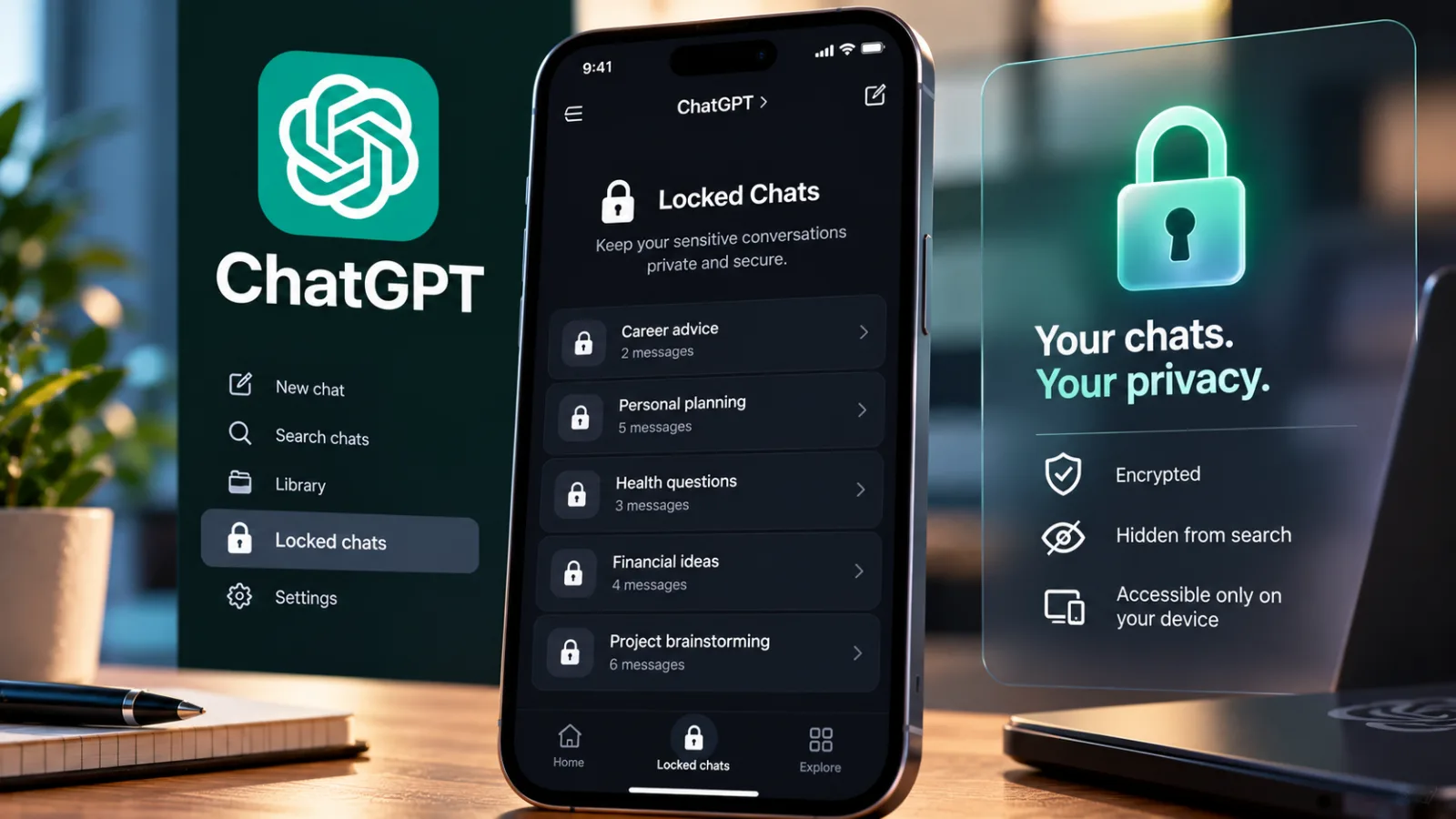
Table of contents
OpenAI has introduced Locked Chats, a privacy feature that lets ChatGPT users hide selected conversations from their regular chat history and require authentication before opening them.
Announced on October 20, 2026, the feature is designed for people who want to keep personal or sensitive conversations out of view when sharing a device, showing someone another conversation or working in an environment where others might see their screen.
Locked Chats preserve conversations rather than deleting them.
Users can reopen their saved conversations through a dedicated area in ChatGPT, using a four-digit account PIN or supported authentication methods such as Face ID and Touch ID on compatible mobile devices.
OpenAI says the feature is rolling out gradually across the web, mobile apps and its desktop applications for macOS and Windows.
The distinction matters: Locked Chats add a layer of access protection, but they are not an encrypted vault and do not replace ChatGPT's existing privacy settings.
How ChatGPT Locked Chats work
When a user locks a conversation, ChatGPT moves it out of regular chat history, pinned chats and standard conversation search.
The conversation remains saved in the account, but accessing it requires authentication.
To lock an eligible conversation, users can follow these steps:
- Open the conversation they want to protect.
- Select the three-dot menu beside the chat.
- Choose Lock chat.
- Confirm the action.
- Create or enter the four-digit account PIN when prompted.
After the conversation is locked, its title and content are removed from regular chat history and standard conversation search.
Users can access it again by opening Projects > Locked chats and authenticating with their PIN or a supported device authentication method.
The feature is useful when someone wants to keep a conversation available without leaving it visible in the main chat list.
Examples include personal discussions, private planning, sensitive work conversations or chats that a user does not want to display accidentally while sharing their screen.
However, users should allow time for conversation lists and search results to update.
OpenAI notes that other devices where ChatGPT is already open may temporarily continue displaying a chat title until their lists refresh.
On iOS, previously loaded conversation content may also remain visible until the application refreshes.
Which ChatGPT plans and devices support Locked Chats?
OpenAI's help documentation lists Locked Chats as available across Free, Go, Plus, Pro, Business, Enterprise and Edu plans.
The rollout is gradual, so eligible users may not immediately see the option in their accounts.
The feature supports the ChatGPT website, the iOS and Android apps, and the newer ChatGPT desktop applications for macOS and Windows.
Authentication options depend on the device.
A four-digit account PIN is the primary method, while supported mobile devices can also use Face ID, Touch ID or the device's unlock method.
Biometric authentication is optional and must be configured on the relevant device.
Not every conversation can be locked.
OpenAI identifies several exclusions, including temporary chats, archived conversations, group chats, conversations created from shared links, chats with scheduled tasks, chats containing meeting recordings and certain conversations associated with background tasks.
Codex conversations and local Work conversations are also excluded.
Availability for conversations inside Projects can vary by platform.
For users who cannot find the option, the first step is to check whether the feature has reached their account and whether the selected conversation is eligible.
Locked Chats are not the same as Temporary Chat
Locked Chats and Temporary Chat serve different purposes.
Locked Chats are designed for conversations users want to retain while restricting casual access to them.
Temporary Chat is intended for conversations that should not appear in regular chat history or be used to create or update memories while they remain temporary.
OpenAI says Temporary Chats are not used to improve its models, although they may be retained for up to 30 days for safety purposes.
The choice depends on the user's objective.
Someone who wants to preserve an important conversation and revisit it later may prefer Locked Chats.
Someone who wants to start a temporary conversation with different history and model-improvement behavior should review the Temporary Chat option and its applicable settings.
Locking an existing conversation does not convert it into a Temporary Chat.
The locked conversation remains subject to the account's existing data-retention and model-improvement settings.
That means users should not assume that locking a conversation changes how long OpenAI retains it or whether its content can be used to improve models.
Those questions depend on the applicable settings and workspace policies, not simply on whether a conversation is hidden from the regular history view.
What Locked Chats do not protect against
The most important limitation is that Locked Chats do not provide end-to-end encryption or create a separate encrypted storage vault.
The feature primarily changes where conversations appear and how users authenticate to access them.
It also does not change data-retention periods, override the user's model-improvement setting, erase information ChatGPT remembered before the conversation was locked or supersede applicable organizational policies.
For example, if a user previously discussed something in a regular conversation and ChatGPT retained relevant information in Memory, locking that conversation does not automatically remove that information from Memory.
Users who want to manage remembered information must review the applicable Memory controls separately.
Organizational accounts have additional considerations.
In Business, Enterprise and Edu workspaces, Locked Chats do not override workspace policies or compliance requirements.
OpenAI states that eligible conversations in Enterprise and Edu remain included in conversation message logs available through the OpenAI Compliance Platform.
Users should therefore treat Locked Chats as an additional privacy measure for controlling casual access to conversations, not as a guarantee that nobody else can access the information under all circumstances.
Shared links remain a separate risk
Locking a conversation does not automatically revoke an existing shared link.
Anyone who can access the previously shared content may still be able to view it, although new messages sent while the conversation is locked are not added to that existing shared content.
If a user wants to stop access through a previously created link, the link must be deleted separately.
This is an important distinction for people who use ChatGPT for work.
Hiding a conversation from the regular history does not necessarily remove copies or access paths that were created separately.
Before locking a sensitive conversation, users should consider whether they previously shared it and whether any associated files or information remain accessible elsewhere.
What happens if you forget your Locked Chats PIN?
The PIN is a critical part of the feature because it protects access to the locked conversation area.
OpenAI warns that resetting a forgotten account PIN permanently deletes all Locked Chats, remembered information stored only within those chats, and files or other content protected only by the previous PIN.
The action cannot be undone, and OpenAI Support cannot recover content deleted through a PIN reset.
This is different from changing a PIN when the current one is known.
Users who know their existing PIN can change it through Settings without deleting their locked conversations.
Anyone using Locked Chats for important personal or professional material should understand this recovery limitation before relying on the feature.
Keeping a PIN securely accessible may help prevent accidental loss of conversations.
OpenAI also provides a way to end access to Locked Chats after opening them.
Users can select Lock now to hide the titles again.
On the web and desktop, access also ends when the relevant tab or window is refreshed or closed, while mobile access automatically ends after a period of inactivity.
Why OpenAI is adding more privacy controls to ChatGPT
Locked Chats address a straightforward usability problem: people increasingly use the same AI assistant for work, everyday tasks and personal conversations, but those conversations do not always belong in the same visible history.
A user might want ChatGPT to remember a useful discussion without having its title appear when a colleague, family member or friend looks at the screen.
Hiding selected conversations behind authentication offers a practical way to separate visibility without deleting them.
The feature also illustrates an important distinction in digital privacy: controlling who can casually open a conversation is not the same as controlling how its data is stored, retained or processed.
The four-digit PIN and supported device authentication help limit access through the ChatGPT interface.
They do not replace broader account security, model-improvement controls, Memory settings or organizational compliance policies.
For users handling confidential business information, legal matters, financial records or sensitive personal details, those other controls remain important.
The appropriate level of protection depends on the sensitivity of the information and the policies governing the account.
Locked Chats are a useful addition for people who want more control over what appears in their ChatGPT history.
Their value, however, depends on understanding exactly what the feature hides—and what it leaves unchanged.
