

How to Find and Fix an IP Address Conflict on Windows and Mac
By Noura Mint Ely · November 17, 2026
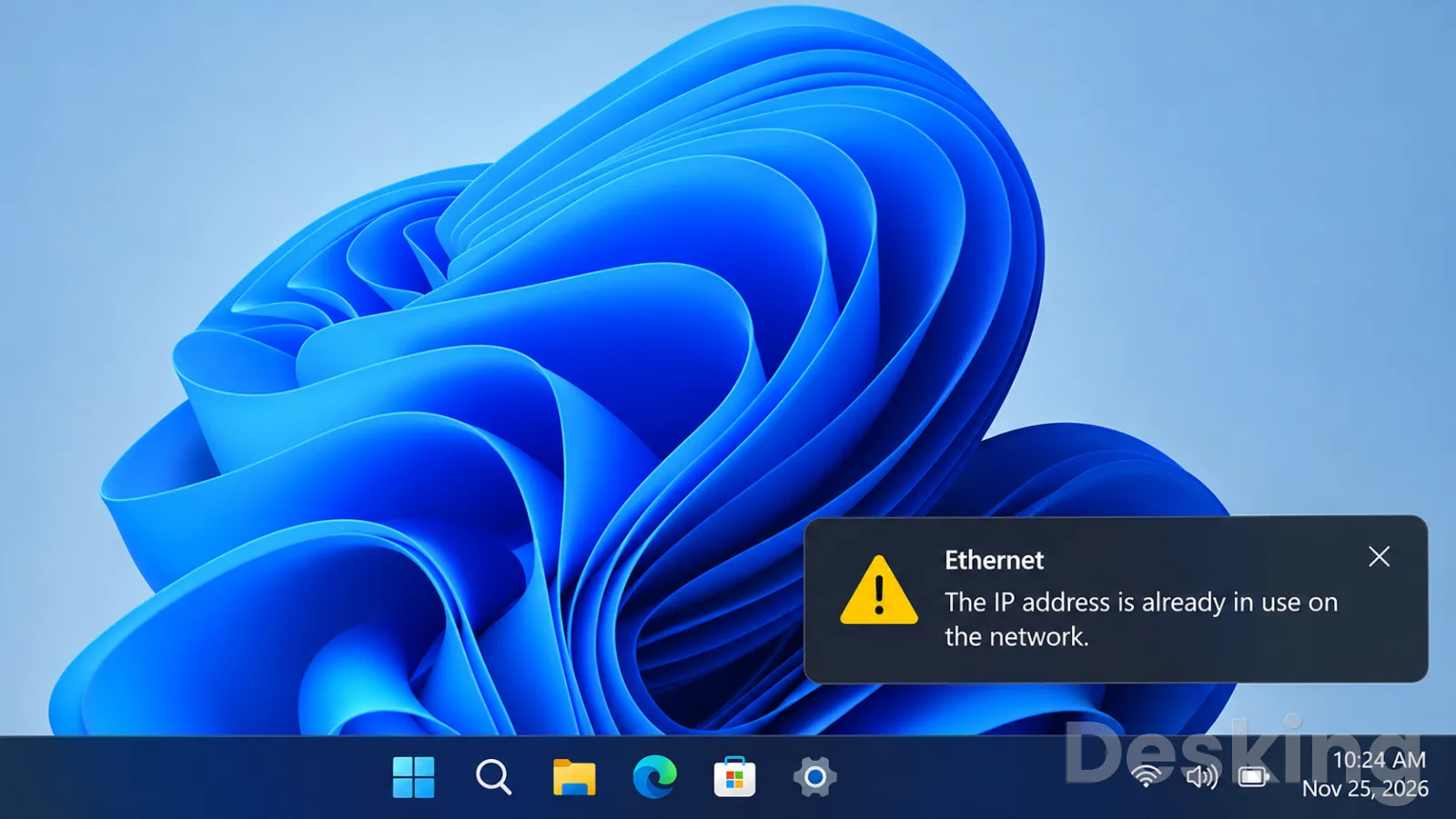
Table of contents
- How to find and fix an IP address conflict
- 1. Understand the IP address conflict
- 2. Prepare before changing network settings
- 3. Fix the conflict on Windows
- 4. Fix the conflict on macOS
- 5. Find the other device using the same IP address
- 6. Fix the router or DHCP server
- 7. Investigate advanced IP conflicts
- 8. Verify that the repair worked
- 9. Prevent another IP address conflict
- 10. Conclusion
- Frequently Asked Questions
How to find and fix an IP address conflict
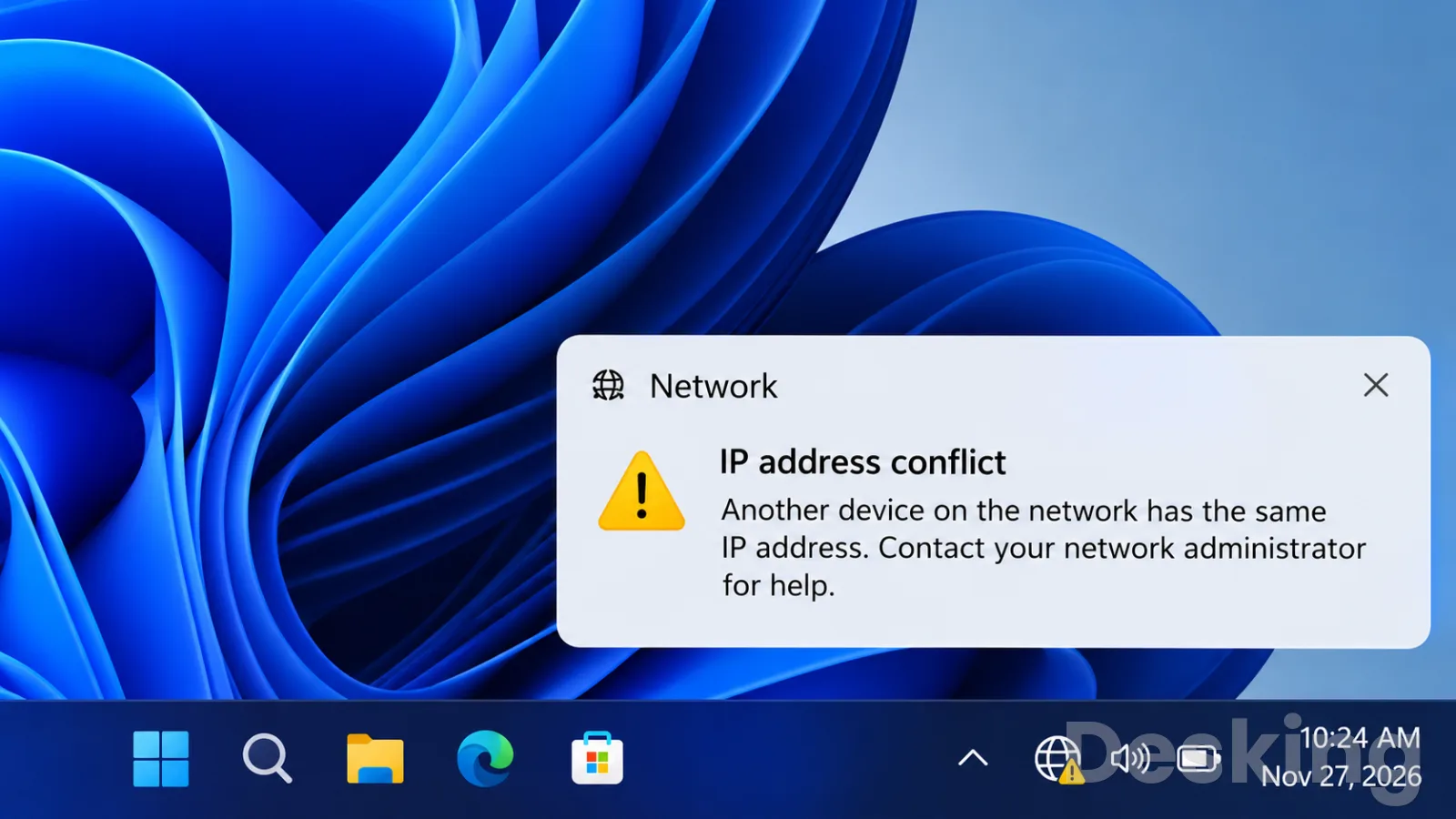
An IP address conflict occurs when two devices on the same local network use the same IPv4 address.
When this happens, network communication becomes unreliable because other devices cannot consistently determine which machine should receive traffic intended for that address.
Windows may display a warning that another computer has the same IP address, while macOS may report that the address is already in use.
The immediate symptoms can include intermittent internet access, failed connections to shared folders, printers that suddenly become unavailable, or applications that lose access to internal services.
In some cases, the affected computer disconnects from the network entirely.
The problem can appear after a device restarts, a router changes its DHCP configuration, or someone manually assigns an address that another device already uses.
The quickest solution for a typical home computer is often to request a new address from the DHCP server.
However, repeatedly restarting the computer or router does not necessarily resolve the underlying cause.
If a printer, server, access point, virtual machine, or another computer has a manually configured address inside the DHCP allocation range, the conflict can return.
This tutorial explains how to identify and fix an IP address conflict on Windows 11, Windows 10, and macOS.
It also covers router and DHCP configuration, command-line diagnostics, MAC address identification, and more advanced situations involving virtual machines, VPNs, and managed business networks.
1. Understand the IP address conflict
1.1 What causes the conflict?
An IP address identifies a device on an IP network.
On a typical home or office network, the router assigns private IPv4 addresses to connected devices through DHCP.
For example, a router might allocate addresses from 192.168.1.100 to 192.168.1.200.
A conflict occurs when two devices attempt to use the same address within the same network segment.
One common example is a printer configured manually with 192.168.1.120, while the router's DHCP server independently assigns that same address to a laptop.
Both devices now claim the same address.
Other machines may receive inconsistent responses when they try to communicate with either device.
This can make the problem appear random: a printer might work for a few minutes, then disappear when another device connects.
Several situations can cause this:
- Overlapping DHCP and static addresses: A manually configured address falls inside the range available to the DHCP server.
- Multiple DHCP servers: Two routers or servers distribute addresses on the same network without coordination.
- Incorrect DHCP reservations: A reservation assigns an address already in use by another device.
- Cloned devices or virtual machines: A copied system retains network settings that conflict with another machine.
- Manual configuration errors: Someone enters an address, subnet mask, or gateway that does not match the network plan.
- Network equipment changes: A router replacement or configuration reset changes the address pool and creates overlaps with existing static assignments.
Identifying the cause matters because changing the address on one computer may only provide temporary relief.
The permanent solution is to correct the assignment that created the conflict.
1.2 Recognize the symptoms
The exact symptoms depend on the operating system and the network environment.
Windows may display a notification indicating that another computer on the network has the same IP address. macOS may show a message that another device is using the computer's IP address.
Other signs are less obvious.
A computer may remain connected to Wi-Fi but fail to access a network printer.
A shared folder may become unavailable, or a remote desktop connection may fail intermittently.
A device may also lose access to the router's administration page.
Do not assume that every connection failure is an IP address conflict.
Weak Wi-Fi, DNS errors, incorrect gateway settings, DHCP server failures, and firewall rules can produce similar symptoms.
The diagnostic steps below help distinguish these situations.
1.3 Understand DHCP and static addresses
DHCP, or Dynamic Host Configuration Protocol, automatically assigns network settings to devices.
These settings normally include an IP address, subnet mask, default gateway, and DNS servers.
A static IP address is configured manually on the device or reserved for it in the DHCP server.
Static addresses are common for printers, servers, network storage systems, cameras, and other equipment that should remain reachable at a predictable address.
Both methods are valid.
The problem arises when the network administrator does not coordinate them.
A static address must not overlap with an address that the DHCP server can assign to another device unless the DHCP server explicitly excludes or reserves it.
2. Prepare before changing network settings
2.1 Identify the affected connection
Before changing anything, establish which network adapter has the problem.
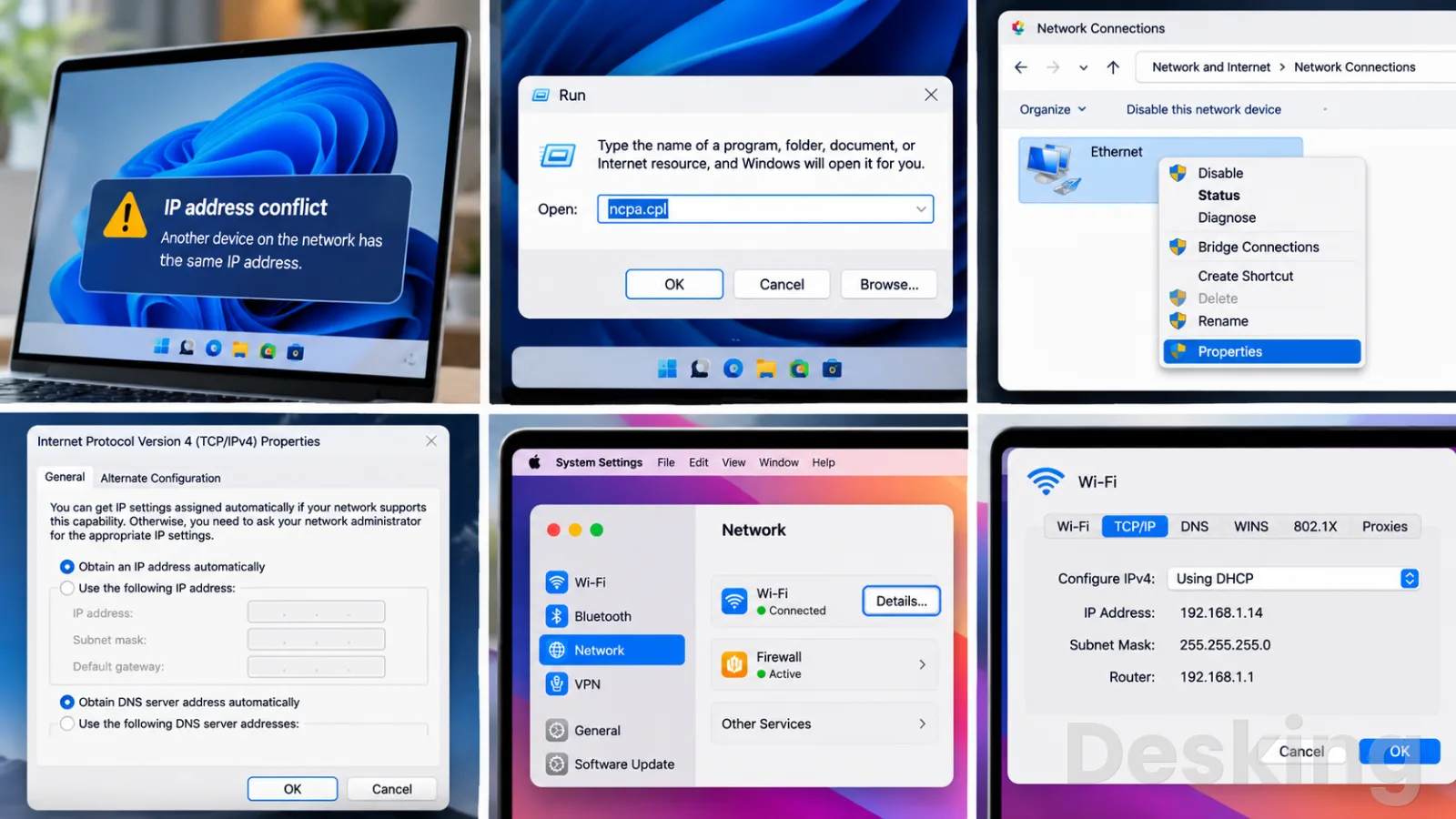
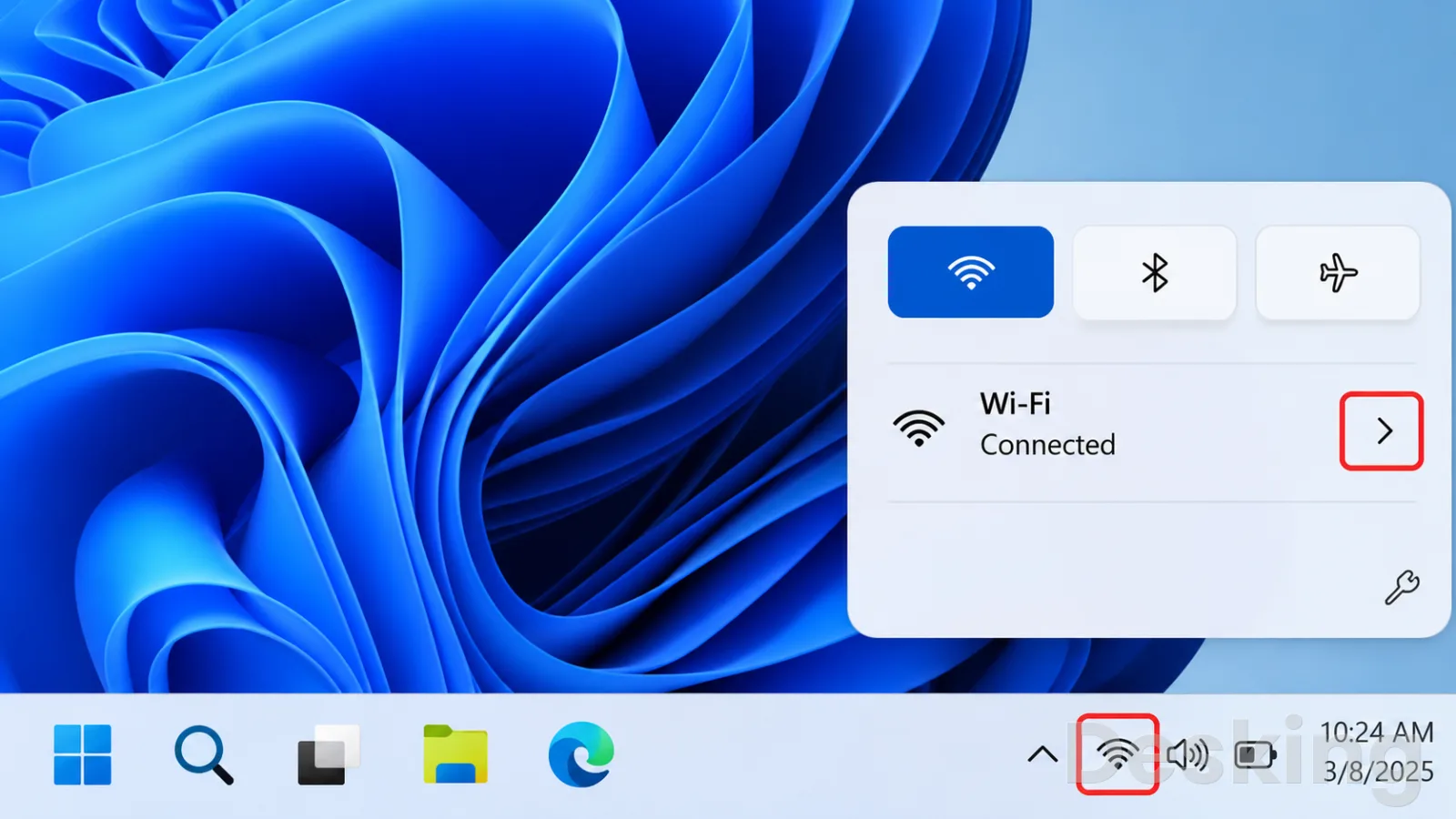
On Windows, open Settings > Network & internet.
Select Wi-Fi if the computer uses a wireless connection, or Ethernet if it uses a network cable.
Check the connection status and identify the active adapter.
On macOS, open System Settings > Network.
The left panel lists available network services, such as Wi-Fi and Ethernet.
Select the connection currently in use.
If the computer has both Wi-Fi and Ethernet connected, determine which one is responsible for the affected service.
A conflict on one adapter does not necessarily mean that the other adapter has the same problem.
2.2 Record the current IP configuration
Record the current network settings before making changes.
This is particularly important on business networks where devices may use manually assigned addresses.
On Windows:
- Open the Start menu.
- Search for
Command PromptorTerminal. - Right-click the application and select Run as administrator.
- Execute:
ipconfig /all
- Find the active adapter.
- Record its IPv4 address, subnet mask, default gateway, DHCP status, and DNS servers.
On macOS:
- Open System Settings > Network.
- Select the active connection.
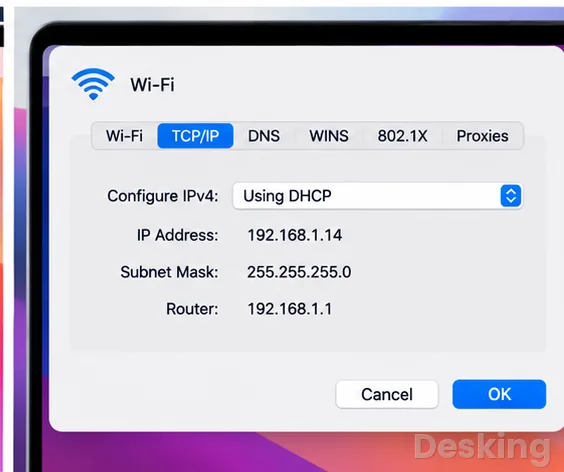
- Open Details > TCP/IP.
- Record the IPv4 address, subnet mask, router address, and configuration method.
You can also use Terminal to inspect the address:
ipconfig getifaddr en0
The interface name may differ.
On many Macs, en0 represents Wi-Fi, but this is not universal.
To identify the correct interface, execute:
networksetup -listallhardwareports
Keep the recorded information available.
If the device uses a static address, do not switch to automatic configuration until you understand whether the network requires that address.
2.3 Check whether the device uses DHCP
A normal home computer should usually obtain its IP address automatically.
On Windows, run:
ipconfig /all
Look for the active adapter and the line labelled DHCP Enabled.
If it displays Yes, the device obtains its address through DHCP.
If it displays No, the address is manually configured.
On macOS, open System Settings > Network > select the connection > Details > TCP/IP.
Check the Configure IPv4 setting.

Avast Antivirus
Our Avast Antivirus review tests malware protection, real world performance, and pricing. See if this security suite with its excellent free plan is right for …
- Excellent independent lab test scores
- Strong free version available
- Frequent upgrade prompts in free
- VPN is not the fastest
It normally displays Using DHCP when the address is assigned automatically.
If the device uses a static address, record it and check whether it belongs to the network's approved address plan.
Do not change server, printer, or business equipment settings without confirming the correct configuration with the network administrator.
3. Fix the conflict on Windows
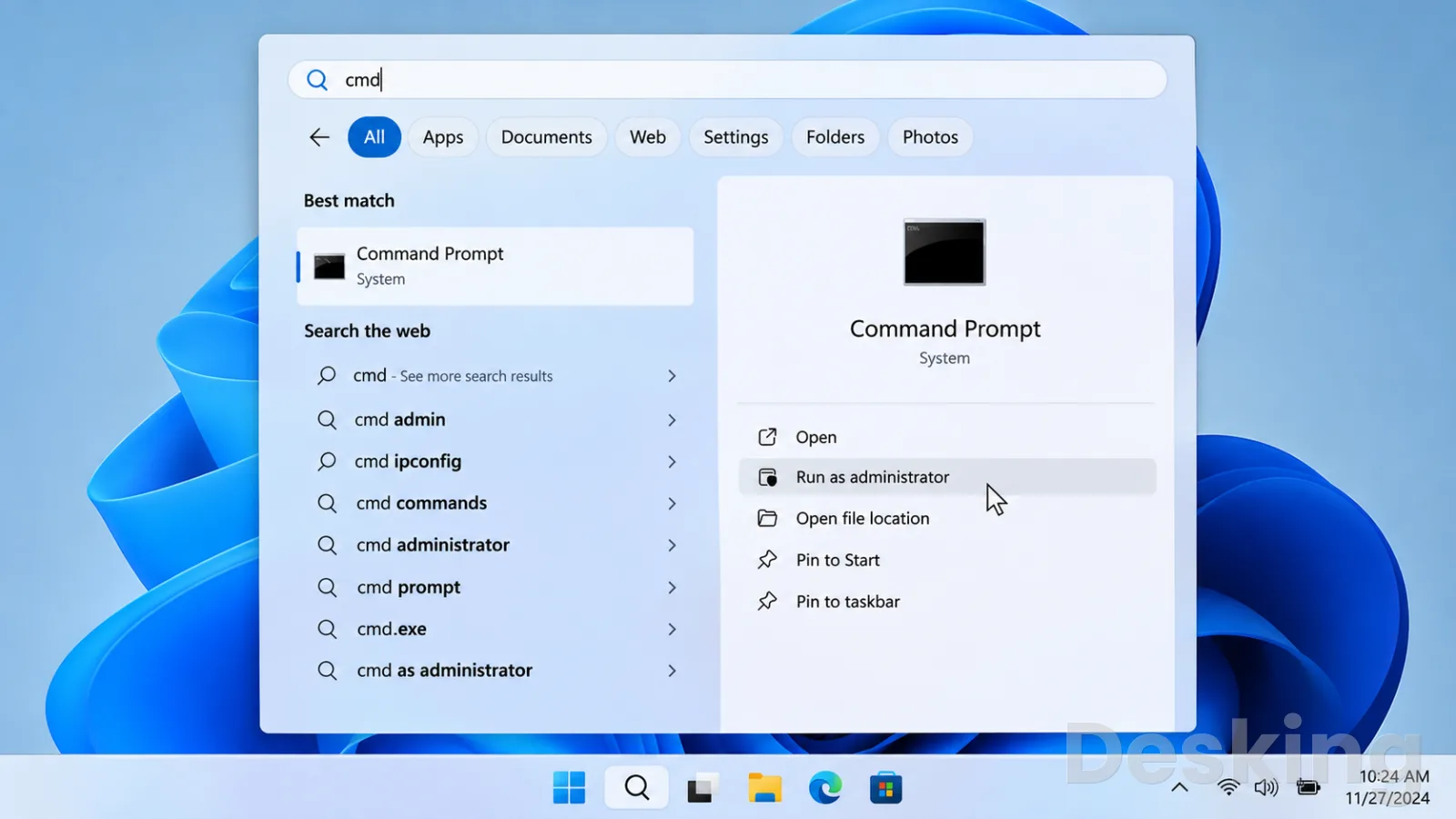
3.1 Open Command Prompt as administrator
The first Windows repair method is to release the current DHCP lease and request another one.
- Select Start.
- Type
cmdin the search box. - Right-click Command Prompt.
- Select Run as administrator.
- Approve the User Account Control prompt if it appears.
You can also use Windows Terminal with administrator privileges.
The commands in this section work in Command Prompt and can also be executed from an appropriate Windows Terminal session.
3.2 Release the current IP address
Run:
ipconfig /release
Windows will release the IPv4 configuration for adapters that use DHCP.
The affected connection may temporarily lose network access.
This is expected.
If the computer has multiple network adapters, the command may affect more than one DHCP connection.
For a typical workstation, this is usually acceptable, but take care on systems that provide network services or have several active connections.
If Windows reports that an adapter is not connected or has no address to release, check that you selected the correct interface and that it is active.
3.3 Request a new IP address
After releasing the current address, run:
ipconfig /renew
Windows will contact the DHCP server and request a new configuration.
The server may provide a different address, although it can also assign the same address if it considers that address valid.
Check the result:
ipconfig
Find the active adapter and inspect its IPv4 address.
Confirm that it has a valid address for the network.
If the computer receives an address beginning with 169.254, it has probably failed to obtain a normal DHCP lease.
This is an automatic private address used for local-link communication.
It does not, by itself, prove that a duplicate IP address exists.
If the conflict warning returns, continue with the router and DHCP investigation rather than repeating the same commands indefinitely.
3.4 Set Windows to obtain an IP address automatically
If the computer has an incorrect manual configuration, change it to DHCP when the network is designed to assign addresses automatically.
On Windows 11:
- Open Settings.
- Select Network & internet.
- Select Wi-Fi or Ethernet, depending on the active connection.
- Open the properties of the connected network.
- Find IP assignment.
- Select Edit.
- Change the setting to Automatic (DHCP).
- Save the changes.
On Windows 10:
- Open Settings.
- Select Network & Internet.
- Select Status.
- Open Change adapter options.
- Right-click the active network connection.
- Select Properties.
- Select Internet Protocol Version 4 (TCP/IPv4).
- Click Properties.
- Select Obtain an IP address automatically.
- Select Obtain DNS server address automatically, if the network also provides DNS through DHCP.
- Click OK and close the remaining windows.
The computer should now request its network configuration automatically.
Do not apply this change to a server or workstation that must retain a fixed address without first checking the network design.
Some business systems depend on static addressing or specific DNS configuration.
3.5 Assign a different static IP address
If the device must use a static address, choose one that is valid for the network and not assigned to another device.
For example, consider a network with these settings:
| Setting | Example |
|---|---|
| Network | 192.168.1.0/24 |
| Subnet mask | 255.255.255.0 |
| Router | 192.168.1.1 |
| DHCP pool | 192.168.1.100–192.168.1.200 |
An address outside the DHCP pool may be suitable, but only if it is not already used or reserved.
For example, 192.168.1.20 might be available, but you must verify this before assigning it.
On Windows:
- Open Settings > Network & internet.
- Select the active Wi-Fi or Ethernet connection.
- Open the network properties.
- Find IP assignment and select Edit.
- Choose Manual.
- Enable IPv4.
- Enter the approved IP address.
- Enter the correct subnet mask or prefix length.
- Enter the default gateway.
- Enter the appropriate DNS servers.
- Save the configuration.
On Windows 10, you can use the adapter properties method described in the previous section.
Select Use the following IP address and enter the approved settings.
A wrong subnet mask can prevent communication with devices on the local network.
A wrong gateway can interrupt access to other networks and the internet.
Do not choose an address simply because it appears unused; verify it against the DHCP pool and the network's address plan.
3.6 Inspect the Windows event log
If the warning persists, Windows Event Viewer can provide additional information.
- Press
Windows + R. - Type:
eventvwr.msc
- Press Enter.
- Open Windows Logs > System.
- Select Filter Current Log.
- Review warnings and errors associated with network configuration, TCP/IP, and DHCP.
Event ID 4199 is associated with Windows reporting an IP address conflict.
The event details may identify the address involved and provide clues about the detection process.
Do not assume that every Event ID 4199 proves that two physical computers are actively using the same address.
In some environments, network equipment such as Layer 3 switches can affect duplicate-address detection.
Administrators should compare the event with DHCP logs, ARP information, switch records, and the actual device configuration.
4. Fix the conflict on macOS
4.1 Open Mac network settings
On a Mac, the first step is to inspect the network service and its IPv4 configuration.
- Select the Apple menu.
- Open System Settings.
- Select Network.
- Choose the active connection, usually Wi-Fi or Ethernet.
- Select Details.
- Open TCP/IP.
Check the IPv4 configuration method.
If the network normally assigns addresses automatically, it should display Using DHCP.
Record the current IP address, subnet mask, and router address before making changes.
4.2 Renew the DHCP lease
macOS includes an option to request a new DHCP lease without restarting the computer.
- Open System Settings.
- Select Network.
- Choose the active Wi-Fi or Ethernet connection.
- Select Details.
- Open TCP/IP.
- Select Renew DHCP Lease.
- Confirm with OK or close the settings window.
The Mac will contact the DHCP server and request updated network settings.
Wait a short period and check whether the connection has recovered.
If the network assigns the same address again and the warning returns, the DHCP server may still consider that address available.
In that situation, investigate the router's lease table and the other device that may be using the address.
4.3 Renew DHCP through Terminal
Administrators who prefer Terminal can inspect and renew DHCP settings through command-line tools.
First, identify the network interfaces:
networksetup -listallhardwareports
The output lists hardware ports and their associated device names.
Identify the interface connected to the network.
To inspect the current IPv4 address, use the appropriate interface name.
For example:
ipconfig getifaddr en0
To inspect the DHCP information received by that interface:
ipconfig getpacket en0
Replace en0 with the correct interface if necessary.
To request DHCP configuration again, use:
sudo ipconfig set en0 DHCP
Enter the Mac administrator password when requested.
Terminal does not display the password characters as you type.
This command changes the selected interface to DHCP.
Do not use it if the network requires a manually configured address and you have not recorded the approved settings.
4.4 Change a manually configured IP address
If the Mac uses a static address that conflicts with another device, assign a different approved address.
- Open System Settings > Network.
- Select the active connection.
- Select Details > TCP/IP.
- Check the Configure IPv4 setting.
- If the network requires a static address, select the manual configuration option available in your macOS version.
- Enter the approved IPv4 address.
- Confirm the subnet mask.
- Enter the correct router address.
- Apply the changes.
Use the network administrator's address plan or the router's configuration to identify a suitable address.
Do not copy an address from another device or select one based only on a failed ping test.
If the Mac is a normal DHCP client, return the setting to Using DHCP instead of assigning an arbitrary static address.
4.5 Restart the network connection
If the Mac still reports a conflict after the DHCP lease has been renewed, restart the affected connection.
For Wi-Fi:
- Open System Settings > Wi-Fi.
- Turn Wi-Fi off.
- Wait approximately 10 seconds.
- Turn Wi-Fi on again.
- Reconnect to the network.
For Ethernet, disconnect and reconnect the network cable if it is safe to do so.
You can also restart the Mac after saving your work.
Apple recommends allowing the network to update and, where necessary, restarting the computer or network equipment.
However, a restart should be treated as a troubleshooting step, not a permanent repair for a misconfigured DHCP pool.
5. Find the other device using the same IP address
5.1 Inspect the ARP table on Windows
If the conflict continues, identify which MAC address is associated with the disputed IP address.
ARP, or Address Resolution Protocol, helps devices on an IPv4 local network discover the hardware address associated with an IP address.
On Windows, open Command Prompt and run:
arp -a
The output lists known IPv4 addresses and their corresponding physical addresses.
If you know the conflicting IP address, look for it in the table.
You may see an entry similar to:
Internet Address Physical Address Type 192.168.1.120 00-1A-2B-3C-4D-5E dynamic
The physical address is the MAC address associated with that IP address in the local ARP cache.
An ARP entry is not definitive proof that only one device uses the address.
It represents the mapping currently known to the computer.
If two devices respond to ARP requests, the mapping may change over time.
To refresh the information, you can remove the relevant entry:
arp -d 192.168.1.120
Then attempt to communicate with the address and inspect the table again:
ping 192.168.1.120 arp -a
Replace the example address with the address under investigation.
A failed ping does not prove that an address is unused because firewalls and device settings can block ICMP traffic.
5.2 Inspect the ARP table on macOS
macOS also provides an ARP command.
Open Terminal and execute:
arp -a
The output displays known network addresses and associated hardware addresses.
To inspect a specific address, use:
arp -n 192.168.1.120
To remove a particular entry before testing again:
sudo arp -d 192.168.1.120
After clearing the entry, attempt to reach the device and inspect the ARP table again.
If the MAC address associated with the same IP address changes repeatedly, that can indicate competing devices or another network condition that requires investigation.
Confirm the result from another computer on the same VLAN where possible.
5.3 Trace the MAC address to a physical device
The MAC address can help identify the device responsible for the conflict.
On a managed network, the administrator can search for the MAC address in the switch's MAC address table.
The switch can show which port learned that address.
From there, the administrator can identify the connected computer, printer, access point, server, or downstream switch.
Avast Antivirus
Our Avast Antivirus review tests malware protection, real world performance, and pricing. See if this security suite with its excellent free plan is right for …
- Excellent independent lab test scores
- Strong free version available
- Frequent upgrade prompts in free
- VPN is not the fastest
On a home network, open the router's administration interface and look for a page labelled Connected Devices, Client List, LAN Devices, or DHCP Clients.
Compare the listed IP and MAC addresses with the information collected from Windows or macOS.
Some routers show device names, manufacturer details, and connection types.
These details can help identify the source, although manufacturer identification is not always conclusive.
If the device is a printer, check its network configuration page or display.
If it is a computer, inspect its IPv4 settings.
If it is an access point or another router, check whether it has a DHCP server enabled.
Do not disconnect an unidentified device from a business network without checking its purpose.
It may be a server, switch, access point, or other equipment required by the organisation.
6. Fix the router or DHCP server
6.1 Open the router administration interface
A recurring conflict often requires a change to the router or DHCP server.
First, identify the default gateway.
On Windows, run:
ipconfig
On macOS, open System Settings > Network > Details > TCP/IP and inspect the router address.
Enter the gateway address in a web browser from a device connected to the network.
The administration interface may use an address such as 192.168.1.1 or 192.168.0.1, but the correct address depends on the network.
Sign in with the authorised administrator account.
Do not guess or repeatedly attempt passwords on equipment you do not manage.
6.2 Check the DHCP allocation range
Find the DHCP server settings.
Depending on the router, the section may be labelled LAN, Local Network, DHCP Server, or Address Allocation.
Inspect:
- The starting address of the DHCP pool.
- The ending address of the DHCP pool.
- Existing DHCP reservations.
- Active and expired leases.
- Any excluded addresses.
- The subnet mask and gateway settings.
For example, a router might distribute addresses from 192.168.1.100 to 192.168.1.200.
If a printer has a static address of 192.168.1.120, the router may assign that address to another device unless the address is excluded or reserved.
The administrator can resolve this by moving the static device to an approved address outside the dynamic pool or by adjusting the DHCP range.
A DHCP reservation is another option when the router supports it.
The final configuration must ensure that each address has one intended owner.
6.3 Remove incorrect DHCP reservations
A reservation tells the DHCP server to allocate a particular address to a specific device, usually based on its MAC address.
An incorrect reservation can create a conflict if the address is already in use or if the device's MAC address has changed.
Review the reservation list and compare each entry with the actual device.
Check for:
- Duplicate reservations.
- Old entries for replaced devices.
- Incorrect MAC addresses.
- Reservations that overlap with manually configured addresses.
- Devices that have been renamed or replaced.
Remove obsolete reservations and correct entries that point to the wrong hardware address.
Before deleting a reservation, confirm that the device does not depend on it for a service such as printing, remote access, or server connectivity.
6.4 Check for unauthorized DHCP servers
Two DHCP servers on the same network can distribute overlapping address ranges or different gateway and DNS settings.
This can happen when someone connects a second router to the office network and leaves its DHCP service enabled.
It can also occur after a network equipment replacement or an incorrect access point configuration.
To investigate, compare the DHCP server information reported by affected devices.
On Windows, run:
ipconfig /all
Look for the DHCP Server entry under the active adapter.
Compare the result across several computers on the same network.
If devices receive leases from different, unexpected DHCP servers, inspect the network topology.
Identify the routers, access points, and servers connected to the affected VLAN.
In a managed network, administrators can use DHCP snooping where supported.
This feature helps control which switch ports are allowed to provide DHCP responses.
Correct configuration requires trusted ports to be identified carefully; an incorrect setting can prevent legitimate clients from obtaining addresses.
6.5 Apply the correction carefully
Before changing the DHCP pool or restarting the DHCP service, record the existing configuration.
A safe repair sequence is:
- Identify the conflicting IP address.
- Identify the device or devices using it.
- Confirm the intended address allocation method.
- Correct the static address, reservation, or DHCP pool.
- Apply the configuration.
- Renew the affected clients' DHCP leases.
- Verify that each device receives a unique address.
- Test access to local services and the internet.
Avoid changing the entire network address range unless there is a clear reason.
A broad change can affect printers, servers, cameras, access points, VPN connections, firewall rules, and applications that depend on fixed addresses.
7. Investigate advanced IP conflicts
7.1 Check virtual machines
Virtual machines can create IP conflicts when they are cloned or copied with manual network settings.
For example, an administrator may duplicate a Windows virtual machine that uses a static address.
If both the original and the clone connect to the same virtual network, they may attempt to use the same IP address.
Inspect the network configuration inside each virtual machine.
Confirm whether it uses DHCP or a manually configured address.
If a static address is necessary, assign a unique value according to the network plan.
Also check the virtual network configuration in the hypervisor.
VMware, Hyper-V, and other platforms can connect virtual machines to different virtual switches or network segments.
A machine attached to the wrong network may create an overlap with another address range.
Do not assume that changing the virtual machine's MAC address alone will resolve an IP conflict.
The IP configuration must also be unique.
7.2 Check VPN address overlap
A VPN can create confusing network symptoms when its address range overlaps with the local network.
For example, an office LAN may use 192.168.1.0/24, while a remote VPN connection also uses that range.
The computer may have difficulty deciding whether traffic for a particular address should go through the local interface or the VPN.
This is not necessarily a traditional duplicate IP assignment, but it can look similar to a connectivity conflict.
Check the VPN client's assigned address and the routes installed when the connection is active.
Compare the VPN subnet with the local LAN subnet.
If both networks use overlapping ranges, the network administrator may need to change the addressing plan on one side or adjust VPN routing.
Do not manually change the local IP address without checking the VPN configuration.
7.3 Distinguish duplicate DNS records
A DNS record that contains an incorrect or outdated IP address is not the same as two devices actively using one IP address.
DNS maps names to addresses.
If a DNS server retains an old record after a device changes its address, users may connect to the wrong destination even though the IP address itself is not duplicated.
For example, a server may have moved from 192.168.1.50 to 192.168.1.60, but a stale DNS record still points to the old address.
Users may experience failed connections or reach an unexpected machine.
Administrators should compare DNS records with the current DHCP leases and device configurations.
In Windows Server environments, review DHCP lease duration, DNS registration, and scavenging settings.
Correct stale records according to the organisation's DNS policy.
Do not delete DNS records simply because two names appear with the same address.
Multiple names can legitimately point to one server, and the same hostname may have several records for valid reasons.
7.4 Review Event ID 4199 carefully
Windows Event ID 4199 can help administrators investigate duplicate address detection.
However, the event must be interpreted in the context of the network.
Some Layer 3 switches use IP Device Tracking or similar features that send ARP probes to detect address usage.
Depending on the timing and configuration, these probes can interact with Windows duplicate-address detection and lead to a conflict report.
Administrators should compare the Windows event with switch logs, DHCP server logs, ARP tables, and the actual device configuration.
Confirm whether another device is genuinely using the address before changing operating system behaviour.
Avoid applying registry modifications or disabling duplicate-address detection as a general fix.
Such changes can hide a real conflict instead of resolving it.
Any advanced workaround should be based on the specific network equipment, documented vendor guidance, and a controlled test.
8. Verify that the repair worked
8.1 Check the new IP configuration
After correcting the conflict, inspect the affected device again.
On Windows:
ipconfig /all
On macOS:
ipconfig getifaddr en0
Confirm that the device has the intended address and that the subnet mask and gateway are correct.
If the device uses DHCP, check that it received its configuration from the expected server.
If it uses a static address, confirm that the address is documented and excluded from conflicting allocations.
8.2 Test local connectivity
Start by testing the default gateway.
On Windows or macOS, run:
ping 192.168.1.1
Replace the example address with the actual gateway.
A successful response confirms that the device can communicate with the gateway using ICMP.
A failed response does not automatically prove that the IP conflict remains, because some routers block ping requests.
Next, test access to the affected local device, such as a printer or file server.
Use its correct IP address or hostname, depending on the service being tested.
Finally, test internet access and the applications that originally failed.
A device may communicate with the router but still have a DNS or gateway problem, so verify the services that matter in the real environment.
8.3 Confirm the address belongs to one device
Check the DHCP lease table and ARP information again.
Confirm that the disputed address is associated with the intended device and that the mapping remains consistent.
On a managed network, compare the MAC address with the switch's MAC address table.
On a home network, inspect the router's connected-device list.
If the same address continues to appear with different MAC addresses, investigate further.
A single successful ping is not enough to prove that the network is free of duplicate assignments.
8.4 Reconnect affected devices
Once the network configuration is corrected, reconnect devices that lost access.
For computers, renew the DHCP lease or reconnect to Wi-Fi.
For printers and other equipment, restart the network interface if necessary.
For servers and network storage, follow the appropriate maintenance procedure rather than restarting critical services without approval.
Test printing, file sharing, remote desktop, application access, and any other services affected by the incident.
A repair is complete only when the original problem has disappeared and the relevant network services work normally.
9. Prevent another IP address conflict
9.1 Separate static addresses from the DHCP pool
The most effective preventive measure is a clear IP address plan.
Keep manually assigned addresses outside the dynamic DHCP pool, or use DHCP reservations supported by the network equipment.
Avast Antivirus
Our Avast Antivirus review tests malware protection, real world performance, and pricing. See if this security suite with its excellent free plan is right for …
- Excellent independent lab test scores
- Strong free version available
- Frequent upgrade prompts in free
- VPN is not the fastest
Document the addresses used by servers, printers, access points, cameras, switches, and other infrastructure.
For example, a small network could reserve lower addresses for infrastructure and use a higher range for ordinary client devices.
The exact ranges depend on the subnet and network requirements.
The important principle is consistency: the DHCP server and manually configured devices must follow the same allocation plan.
9.2 Control routers and DHCP servers
Only authorised network equipment should provide DHCP services on a managed LAN.
When adding a wireless access point, switch, or secondary router, check whether its DHCP server should be disabled or configured for a separate network.
A device connected to the wrong port or configured in router mode can introduce an unexpected DHCP service.
For business networks, document approved DHCP servers and use network controls such as DHCP snooping where supported and properly configured.
9.3 Maintain an address inventory
Keep an inventory of devices that use fixed addresses.
Include the device name, IP address, MAC address, location, purpose, and responsible department.
This record helps administrators identify unused addresses, trace conflicts, and avoid assigning an address that belongs to another device.
Update the inventory whenever equipment is replaced, moved, or reconfigured.
Old records are a common source of confusion, particularly when printers, cameras, and network appliances are installed by different teams.
9.4 Review DHCP leases and reservations
Review the DHCP lease table periodically.
Look for unexpected devices, duplicate reservations, unusual address usage, and entries associated with equipment that no longer exists.
In a small home network, an occasional review may be sufficient.
In an office environment, the review should form part of routine network administration.
Also check lease duration.
A lease that is too long can retain an address for a device that is no longer active, while a very short lease can create unnecessary DHCP traffic.
Choose a duration appropriate for the network's size and device behaviour.
9.5 Document network changes
Record changes to router settings, VLANs, DHCP ranges, static addresses, and network equipment.
This is especially important when several technicians or service providers manage the same environment.
A short change record should state what changed, why it changed, which devices were affected, and how the configuration can be restored.
This discipline makes future troubleshooting faster and reduces the risk that an old configuration will conflict with a new one.
10. Conclusion
An IP address conflict is usually a configuration problem: two devices have been assigned the same IPv4 address on the same network.
Although renewing a DHCP lease can restore connectivity quickly, it does not always remove the cause.
If a static address overlaps with the DHCP pool, if two DHCP servers are active, or if a reservation points to the wrong device, the conflict can return.
For Windows users, the practical starting point is to inspect the adapter with ipconfig /all, release and renew the DHCP lease, and confirm that automatic addressing is enabled when appropriate.
On macOS, the equivalent first step is to open System Settings > Network > Details > TCP/IP and select Renew DHCP Lease.
Both operating systems provide tools to inspect network addresses and investigate the affected connection.
For administrators, the more reliable solution is to identify the device associated with the disputed address, compare its MAC address with ARP and switch information, and correct the DHCP or static addressing configuration.
A documented address plan, controlled DHCP services, and regular lease reviews help prevent the same incident from happening again.
The key is to fix the assignment, not merely the warning.
Once every device has a unique address and the DHCP server follows a consistent allocation plan, the network can operate reliably without repeated manual intervention.
Frequently Asked Questions
Can an IP conflict happen with DHCP enabled?
Does restarting the router fix an IP conflict?
Can two devices have the same IP address on different networks?
Is a 169.254 address proof of an IP conflict?
Should I use a static IP or DHCP reservation?
Can an IP address conflict be caused by a VPN?
Sources4
- Grovs
- Eset Forum
- Microsoft on Windows network settings
- HowToNetwork on troubleshooting duplicate IP addresses
External pages are independent third-party sources. Desking App does not control or endorse their content and accepts no responsibility for it. Visiting them is at your own responsibility and risk.