
Hot Desking at Work: What Employees Should Know
By Noura Mint Ely · October 30, 2026
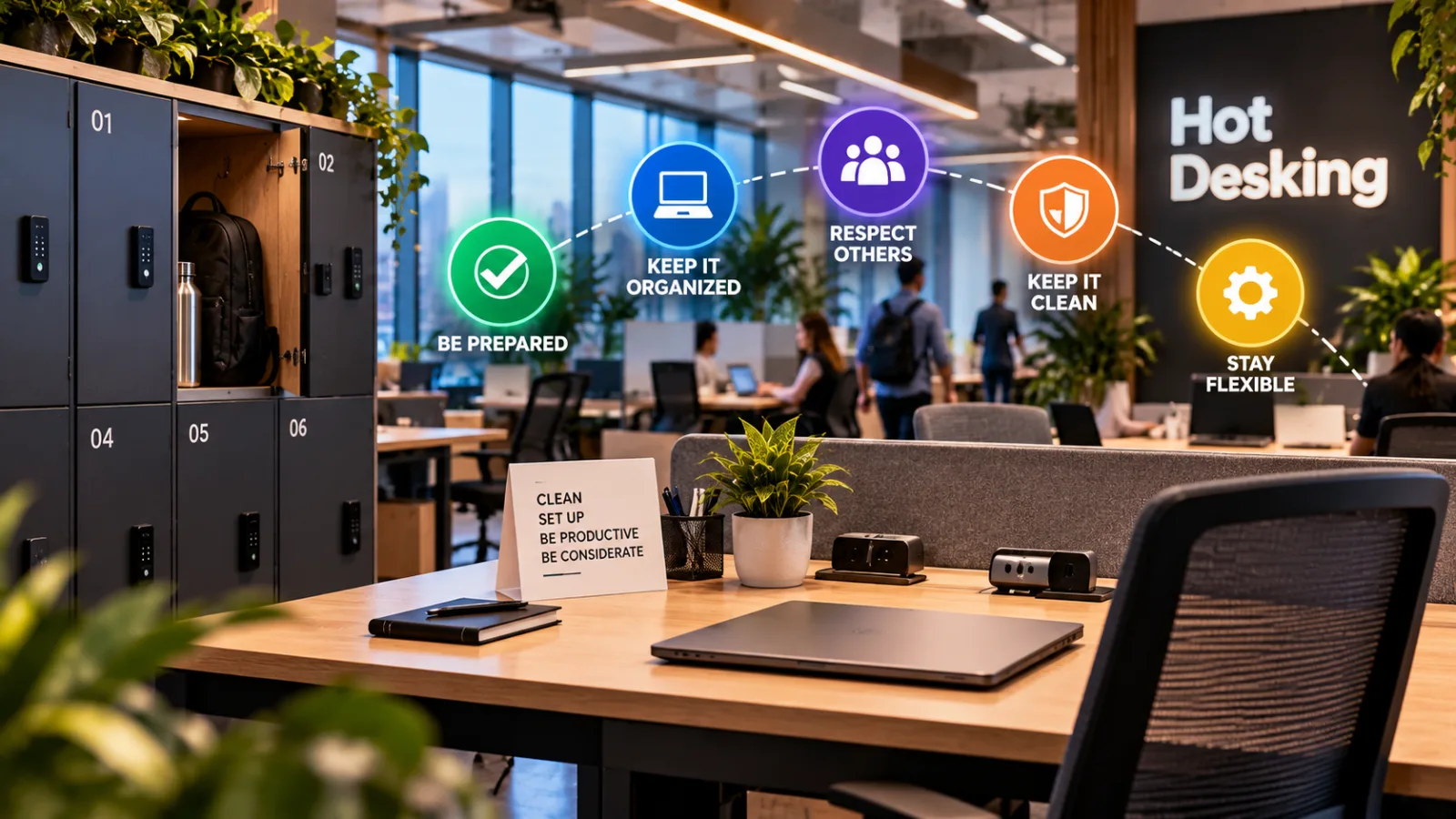
Table of contents
Hot desking can work well when employees know how to reserve workspaces, set up their equipment, protect confidential information, and manage the disruption of changing desks.
If your company uses shared workstations, the most effective approach is to check the booking rules before arriving, carry the essential accessories you need, adjust each workstation to your body, secure company information, and leave the desk ready for the next person.
Employees should also understand how to request a consistent workspace or reasonable accommodation when a rotating desk arrangement creates a disability-related barrier.
Hot desking changes something that traditional offices often take for granted: having a permanent place to work.
Instead of returning to the same desk every morning, employees use available workstations according to their schedules, office attendance, team requirements, or reservation policies.
This arrangement can support hybrid work and help organizations use office space more flexibly.
However, it also creates practical challenges involving desk availability, ergonomics, cybersecurity, personal belongings, and concentration.
The solution is not simply to arrive early and claim a seat.
Employees need a repeatable routine, while employers need a clear policy and suitable workplace facilities.
What Is Hot Desking, and How Does It Work?
Hot desking is a workplace arrangement in which employees do not have permanently assigned desks.
Instead, they use shared workstations when they need to work in the office.
A company might have 100 employees but provide 60 workstations because only a portion of the workforce is expected to attend the office on a typical day.
Employees may reserve desks in advance, select an available workstation when they arrive, or use designated areas according to company rules.
The exact arrangement depends on the employer.
Some organizations use a booking system that lets employees choose a particular desk.
Others organize workstations into shared zones where employees can reserve a space without selecting an exact seat.
For example, Microsoft Places supports both individual desk reservations and desk pools.
Organizations can configure desks as reservable, available for drop-in use, assigned to specific employees, or unavailable.
The actual options employees see depend on how their organization has configured the system.
Three common arrangements are worth distinguishing.

Skedda
Skedda is a workplace and space management platform for booking desks, meeting rooms and other shared facilities, with additional tools for visitor management,…
- Visual floor plans simplify space selection
- Unlimited users on listed workplace plans
- No permanent free workplace plan listed
- Annual billing affects purchasing flexibility
Individual desk booking: An employee reserves a specific workstation, such as Desk 24 on the third floor.
Desk-pool booking: An employee reserves a place within a shared area but may not know the exact workstation until arrival.
First-come, first-served seating: Employees choose from available desks without making advance reservations, subject to the company's rules.
These arrangements can coexist within the same office.
A company might reserve certain workstations for employees who need specialized equipment while making the remaining desks available to the wider workforce.
Understanding which system your employer uses is the first step toward making hot desking work.
1. Learn the Booking Rules Before You Arrive
The most common practical mistake in a hot-desking environment is assuming that a desk will be available simply because it looks empty.
An unoccupied workstation might already be reserved, temporarily unavailable, assigned to a particular employee, or equipped for a specific purpose.
Before traveling to the office, establish how your organization manages seating.
Start with these questions:
Do employees have to reserve desks before arriving?
Can reservations be made on the same day?
Are some workstations reserved for particular teams?
Is there a check-in requirement?
What happens if an employee does not arrive for a reservation?
Can employees change desks during the day?
Are there restrictions on where confidential conversations can take place?
Who should be contacted if the booking system shows no available workstations?
If your company uses a digital booking system, learn how to use it properly.
Depending on the system and your employer's configuration, you may be able to view desk locations, identify available workstations, select a floor, or reserve a desk through a calendar application.
For example, employees in organizations that have configured bookable desks in Microsoft Places may be able to reserve workstations through Microsoft Teams or Outlook.
However, do not assume that every Microsoft 365 organization has enabled these features.
Availability depends on the organization's configuration and applicable licensing requirements.
Reserve the right desk for the work you need to do
Not every workstation is equally suitable for every task.
If you need to spend most of the day on video calls, you may need a desk near an appropriate meeting space or within an area where conversations are permitted.
If you need to work with two monitors, select a workstation that provides the necessary equipment.
If your work involves confidential customer records, choose a location that supports the privacy requirements of your role.
A workstation that is convenient for a short administrative task may be unsuitable for a full day of technical work.
Practical tip: Reserve your desk as soon as your office attendance is confirmed if your employer permits advance booking.
Check the location, available equipment, and reservation details before leaving home.
2. Arrive With a Simple Workstation Setup Plan
A permanent desk allows employees to leave their preferred equipment in place.
Hot desking removes much of that convenience.
You may arrive at a workstation with a different monitor, chair, keyboard, docking station, or desk height from the one you used previously.
Without a consistent setup routine, employees can lose valuable time adjusting equipment or begin working in uncomfortable positions.
The answer is to create a short workstation checklist that you can repeat every time you arrive.
Check the chair and desk first
Before opening your laptop, examine the workstation.
Skedda
Skedda is a workplace and space management platform for booking desks, meeting rooms and other shared facilities, with additional tools for visitor management,…
- Visual floor plans simplify space selection
- Unlimited users on listed workplace plans
- No permanent free workplace plan listed
- Annual billing affects purchasing flexibility
Confirm that the chair is stable, the desk is usable, and the surrounding area provides enough space for your equipment.
If the chair is adjustable, set its height so your feet can rest comfortably on the floor or on an appropriate footrest.
Adjust the backrest to support your back, and position yourself so that your shoulders remain relaxed.
Your keyboard and mouse should be close enough to avoid excessive reaching.
Keep your wrists in a comfortable, neutral position rather than repeatedly bending them upward or sideways.
The precise setup will vary with your height, equipment, and work requirements.
Position the monitor correctly
Monitor placement can affect neck comfort, posture, and visual fatigue.
Position the screen directly in front of you when practical, at a comfortable viewing distance.
Adjust its height and angle so you can read the content without repeatedly leaning forward or bending your neck.
The top of the screen is a useful starting reference for many people, but it is not a universal rule.
Screen size, visual needs, corrective lenses, and individual comfort can influence the best position.
If you work primarily on a laptop, consider using an external monitor, keyboard, and mouse when available.
A laptop's integrated screen and keyboard can make it difficult to maintain a comfortable viewing position while keeping your hands in a suitable position for typing.
The U.S. Occupational Safety and Health Administration provides guidance on computer workstation components, including monitor placement, keyboard positioning, and desk design.
Do not ignore a faulty workstation
If a chair is broken, a monitor cannot be adjusted adequately, or electrical equipment appears damaged, report the problem through your company's established process.
Do not assume that every workstation is safe simply because it is part of an office.
A brief inspection can help identify problems before they interfere with your work.
Practical tip: Make workstation adjustment the first task of the day, not something you postpone until your neck, shoulders, or back become uncomfortable.
3. Build a Small Hot-Desking Kit
Employees who change desks frequently benefit from carrying a small set of personal work accessories.
The objective is not to transport an entire office.
It is to avoid repeatedly searching for basic equipment or discovering that an essential item is missing.
A practical kit might contain:
A laptop and its compatible charger.
A mouse and, if useful, a compact keyboard.
Headphones or a headset suitable for work calls.
A charging cable for essential devices.
A notebook and pen.
An access card or security token, where required.
A privacy screen if approved and appropriate for the work.
Any personally assigned accessibility equipment that can safely be transported.
Not everyone needs every item.
Choose accessories based on your actual responsibilities and the equipment your employer provides.
Keep the kit compact
A large bag filled with unnecessary accessories can make moving between workstations inconvenient.
Prioritize equipment that improves your ability to work consistently across different desks.
For example, a software developer who uses keyboard shortcuts throughout the day may benefit from a familiar keyboard.
Skedda
Skedda is a workplace and space management platform for booking desks, meeting rooms and other shared facilities, with additional tools for visitor management,…
- Visual floor plans simplify space selection
- Unlimited users on listed workplace plans
- No permanent free workplace plan listed
- Annual billing affects purchasing flexibility
A finance employee who spends hours reviewing spreadsheets may prefer a mouse and a larger monitor.
An employee who regularly joins virtual meetings may need a reliable headset.
Your kit should reflect your working habits rather than a generic checklist.
Confirm equipment compatibility
Before purchasing accessories, check whether your laptop supports the required connections.
A USB-C connector does not automatically guarantee that every dock, monitor, or charging accessory will work with your device.
Confirm compatibility with your laptop model and your employer's technical requirements.
Some organizations restrict the use of unapproved peripherals or external storage devices for security reasons.
If your company provides a standard docking station, ask IT which accessories are supported.
Practical tip: Keep your essential accessories together in one dedicated compartment so that packing up at the end of the day becomes a quick, predicta
Microsoft Learn — Desks in Microsoft Places
https://learn.microsoft.com/en-us/microsoft-365/places/room-desk-booking/desks
Supports the explanation of individual desk reservations, desk pools, and desk availability modes.
Microsoft Support — Get Started with Microsoft Places
https://support.microsoft.com/en-us/places/get-started-with-microsoft-places
Supports the explanation of workspace booking and workplace coordination features.
Microsoft Support — Use Bookable Desks with Microsoft Teams
https://support.microsoft.com/en-us/teams/calls-devices/use-bookable-desks-with-microsoft-teams
Supports the practical discussion of reserving individual desks and desk pools through supported Microsoft Teams and Outlook experiences.
U.S. Occupational Safety and Health Administration — Computer Workstations: Overview
https://www.osha.gov/computer-workstations
Supports the discussion of workstation-related ergonomic considerations and workplace hazards.
U.S. Occupational Safety and Health Administration — Computer Workstations: Workstation Components
https://www.osha.gov/etools/computer-workstations/components/
Supports the practical guidance on desk design, monitors, keyboards, pointing devices, and workstation positioning.
U.S. Equal Employment Opportunity Commission — Disability Discrimination and Employment Decisions
https://www.eeoc.gov/disability-discrimination-and-employment-decisions
Supports the discussion of disability-related workplace accommodations and relevant employer obligations under U.S. law.
