
How to Enable Android Developer Options: Step-by-Step Guide for Samsung, Google Pixel, and More
By Noura Mint Ely · October 28, 2026
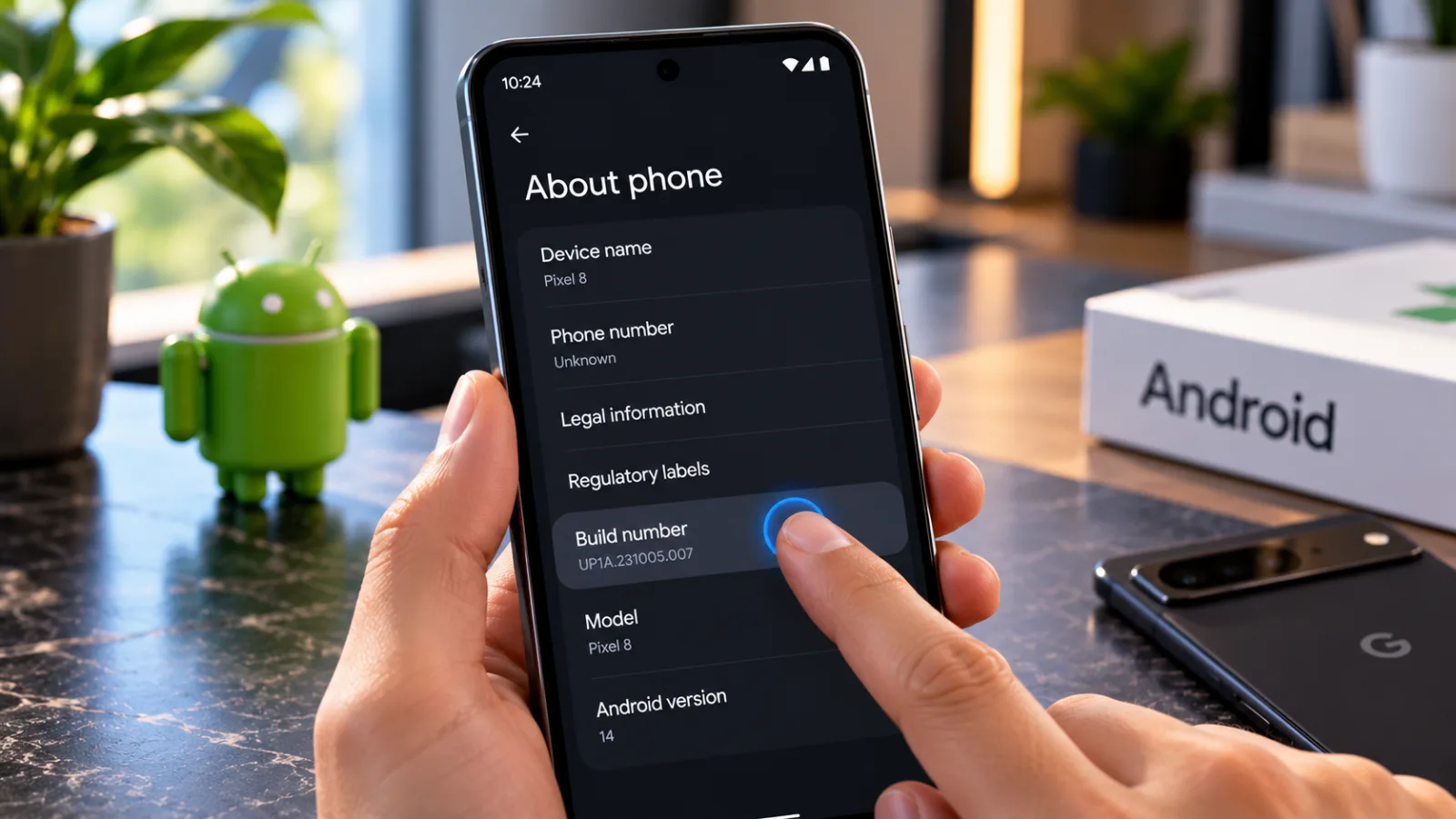
Table of contents
- Enable Developer Options in Five Steps
- How to Enable Developer Options on Samsung Galaxy
- How to Enable Developer Options on Google Pixel
- How to Enable Developer Options on Motorola and Other Android Phones
- What Are Android Developer Options Used For?
- Is It Safe to Enable Developer Options?
- How to Turn Off Developer Options on Android
- Why You Can't Find Developer Options
- Sources
- Frequently Asked Questions
To enable Developer Options on an Android phone, open Settings, go to About phone, find Build number, and tap it seven times.
If prompted, enter your PIN, password, or screen-lock pattern.
Return to Settings and open Developer options.
On some devices, the menu appears under System or another manufacturer-specific section.
The process works on most modern Android phones, including Google Pixel, Samsung Galaxy, and Motorola devices, although the exact menu names vary.
Enabling Developer Options reveals advanced controls; it does not automatically enable USB debugging, unlock the bootloader, or root the phone.
Google documents the seven-tap procedure in its Android developer documentation, while Samsung provides a similar process for Galaxy devices.
Enable Developer Options in Five Steps
Step 1: Open the Settings App
Unlock your Android phone and open Settings, usually represented by a gear icon.
You do not need to install an application or download a separate developer tool to reveal this menu.
The feature is built into Android.
Step 2: Find About Phone
Scroll through Settings and select About phone or About device.
Depending on the manufacturer and Android version, the option may appear near the bottom of the main Settings screen or inside another section.
On some devices, you may need to open System before finding the relevant device-information menu.
Step 3: Locate Build Number
Find the entry labeled Build number.
On many Google Pixel phones, it appears under Settings > About phone.
On Samsung Galaxy phones, the usual route is Settings > About phone > Software information > Build number.
Other manufacturers may place it under Software information, Android version, or a similarly named section.
If you cannot find it, use the Settings search field and search for "Build number."
Step 4: Tap Build Number Seven Times
Tap Build number seven times in quick succession.
Your phone may display a countdown indicating how many taps remain.
If you use a screen lock, Android may ask you to verify your identity before enabling the feature.
After the final tap, you should see a confirmation message such as "You are now a developer!" The exact wording varies by device.
If the phone reports that Developer Options are already enabled, you do not need to repeat the process.
Step 5: Open Developer Options
Return to the Settings menu and locate Developer options.
Depending on your device, it may appear directly in Settings or under a path such as Settings > System > Developer options.
On some Samsung Galaxy models, it appears near the bottom of the main Settings screen.
You can now inspect the available tools.
You do not need to change any settings simply because the menu is visible.
How to Enable Developer Options on Samsung Galaxy
Samsung places the Build number setting inside Software information on most recent Galaxy phones.
Follow this path:
Open Settings.
Tap About phone.
Select Software information.
Tap Build number seven times.
Enter your PIN, password, or pattern if requested.
Return to Settings and locate Developer options.
Samsung confirms that menu labels and available settings can vary by model and software version.
Once Developer Options is enabled, you can access supported development tools, including USB debugging.
Keep in mind that enabling the menu and enabling USB debugging are separate actions.
How to Enable Developer Options on Google Pixel
On a Google Pixel phone, the standard process is straightforward:
Open Settings.
Tap About phone.
Scroll to Build number.
Tap Build number seven times.
Authenticate if prompted.
Return to Settings and open System > Developer options, where applicable.
Google's Android documentation identifies About phone > Build number as the usual route for Pixel devices.
Menu placement may differ across Android versions.
How to Enable Developer Options on Motorola and Other Android Phones
Motorola devices generally follow the same seven-tap process.
Open Settings, select About phone, and find Build number.
Depending on the software version, About phone may be located under System.
After tapping Build number seven times, return to the previous Settings screen and look for Developer options.
Motorola's official support documentation describes this process and notes that the menu is hidden to reduce accidental changes.
Other Android manufacturers also commonly use the seven-tap method, but the precise menu path is not universal.
If the instructions above do not match your phone, search the Settings app for Build number or consult the manufacturer's official support documentation.
What Are Android Developer Options Used For?
Developer Options is an advanced settings menu designed primarily for Android developers, testers, and users who need more control over certain system behaviors.
It includes tools for app debugging, performance analysis, visual feedback, and communication between an Android device and a development computer.
The available settings depend on the phone and its software version.
You do not need to be a professional developer to enable the menu, but you should understand what a setting does before changing it.
USB Debugging
USB debugging allows compatible development tools on a computer to communicate with an Android device through the Android Debug Bridge, commonly called ADB.
Developers use it to install and test apps, inspect device behavior, and troubleshoot software.
It is also useful when following certain technical procedures that explicitly require ADB.
USB debugging is not required just to enable Developer Options.
Turn it on only when you have a specific reason to use it, and do not authorize computers you do not trust.
Animation Scale Settings
Developer Options may include controls for window, transition, and animator duration scales.
These affect how quickly certain interface animations play.
Reducing animation duration can make transitions appear faster, but it does not necessarily improve the phone's actual processing speed, increase its available memory, or make apps perform more efficiently.
The exact controls and available values depend on the Android version and manufacturer.
Stay Awake While Charging
Some Android devices include a setting that keeps the screen on while the phone is charging.
This can be useful when monitoring an app, demonstrating a feature, or testing software.
However, keeping the screen illuminated for extended periods consumes power and may be inconvenient during everyday use.
Show Taps and Pointer Location
Depending on the device, Developer Options can display visual indicators when the screen is touched or show additional information about touch movement.
These features are helpful for app demonstrations, troubleshooting touchscreen behavior, and recording instructional videos.
They are generally unnecessary for routine phone use.
Wireless Debugging
Supported Android versions include a Wireless debugging option that allows compatible development tools to connect to the device over Wi-Fi.
This can reduce reliance on a USB cable during app development.
However, wireless debugging requires an appropriate development setup and should be used only on networks and with devices you trust.
Google's Android documentation explains the available debugging options and the requirements for connecting development tools to Android devices.
Is It Safe to Enable Developer Options?
Enabling Developer Options is generally straightforward, but changing advanced settings without understanding their purpose can affect device behavior, security, or stability.
The menu itself does not automatically root your phone, erase your data, or unlock its bootloader.
Those are separate actions or processes.
The main concern is what you do after enabling it.
Some options affect debugging, application behavior, rendering, or other system functions.
Incorrect changes may cause unexpected behavior or make troubleshooting more difficult.
For everyday users, the safest approach is to enable Developer Options only when needed and leave unfamiliar settings unchanged.
Take particular care with the following:
USB debugging: Allow only trusted computers to connect through debugging tools.
OEM unlocking: Do not enable this simply because it appears in the menu.
Bootloader unlocking has separate requirements and can have security and data-loss implications.
Background process limits: Changing these may alter how applications behave when running in the background.
Graphics and rendering options: These can affect compatibility, visual output, or performance.
System and debugging controls: Some are intended for testing environments rather than everyday use.
Samsung also warns that Developer Options are advanced settings that can affect device behavior and are generally intended for people familiar with development.
If you are following a tutorial that asks you to enable a particular option, verify that the instructions apply to your Android version and phone model.
Avoid enabling unrelated options along the way.
How to Turn Off Developer Options on Android
If you no longer need the menu, you can usually disable it through its main switch.
Open Settings.
Find Developer options.
On some devices, it is under System.
Open the menu.
Turn off the main Developer options switch, if your device provides one.
On supported Samsung Galaxy phones, the main switch hides or disables the Developer Options menu.
Samsung documents this procedure in its official support guidance.
The effect of disabling the menu can vary by device and Android version.
Do not assume that turning off Developer Options reverses every individual change you previously made or removes every debugging authorization.
If you enabled USB debugging or changed another specific setting, review that setting separately when appropriate.
If you are troubleshooting a problem that started after changing a developer setting, restore the affected option to its previous value when possible.
Disabling the main menu is not a substitute for understanding which setting caused the problem.
Why You Can't Find Developer Options
If Developer Options does not appear in Settings, there are several possible explanations.
You have not tapped Build number seven times. On most modern Android devices, the menu is hidden until you complete this step.
You are looking in the wrong section. Samsung commonly places Build number under Software information.
Other manufacturers may organize device information differently.
Your phone uses a customized Android interface. Manufacturers can change menu names and locations, so instructions for a Pixel phone may not match a Galaxy, Motorola, or another Android device.
Your device is managed by an organization. Work-managed or restricted devices may limit access to certain settings.
If the menu remains unavailable after following the manufacturer's instructions, contact the administrator responsible for the device.
Your phone uses a different Android version or device type. Android-based tablets and other devices may have different settings layouts.
Google notes that the Developer Options screen can be located or named differently across devices.
The quickest troubleshooting method is to open Settings and search for Build number.
If that does not work, check the manufacturer's documentation for your exact model.
Activation method: Tap Build number seven times on most modern Android devices.
Samsung Galaxy: Settings > About phone > Software information > Build number.
Google Pixel: Settings > About phone > Build number.
Main purpose: Access advanced debugging, testing, and system configuration tools.
Security consideration: Enabling Developer Options does not automatically enable USB debugging or root the phone.
Sources
Android Developers — Configure On-Device Developer Options
https://developer.android.com/studio/debug/dev-options.html
Google's technical documentation for enabling Developer Options, finding Build number on different devices, and configuring debugging features.Android — How to Enable Developer Options Mode on Your Device
https://www.android.com/intl/en_uk/articles/enable-android-developer-settings/
General instructions for enabling and accessing Developer Options, with an overview of common uses and precautions.Samsung Support — Turn On the Developer Options Menu on Your Galaxy Phone
https://www.samsung.com/us/support/answer/ANS10003430/
Samsung's official instructions for enabling, locating, and disabling Developer Options on supported Galaxy devices.Motorola Support — Developer Options
https://en-gb.support.motorola.com/app/answers/detail/a_id/160067/~/developer-options
Motorola's official instructions for enabling Developer Options and locating the menu in Settings.
Menu paths and available features vary by manufacturer, device model, and Android version.
The seven-tap Build number procedure applies to most modern Android devices, but the exact location of the setting may differ.
This guide does not imply that every Developer Option is available on every phone or that changing these settings will improve performance.
The instructions are based on official Android and manufacturer documentation; no independent device testing was conducted for this article.
