

ChromeOS now uses Baguette for new Linux setups, changing app installation
 Published byAfonso MacossoFounder and CEO of DeskingAfonso MacossoFounder and CEO of Desking Verified authorI've spent more than two decades working at the intersection of technology, business, and digital transformation. I'm Afonso Macosso, Founder and CEO of Desking, where I…Author Profile
Ad disclaimer For links on this page, DESKING APP may earn a commission from the provider. This supports our work and has no influence on our editorial rating.
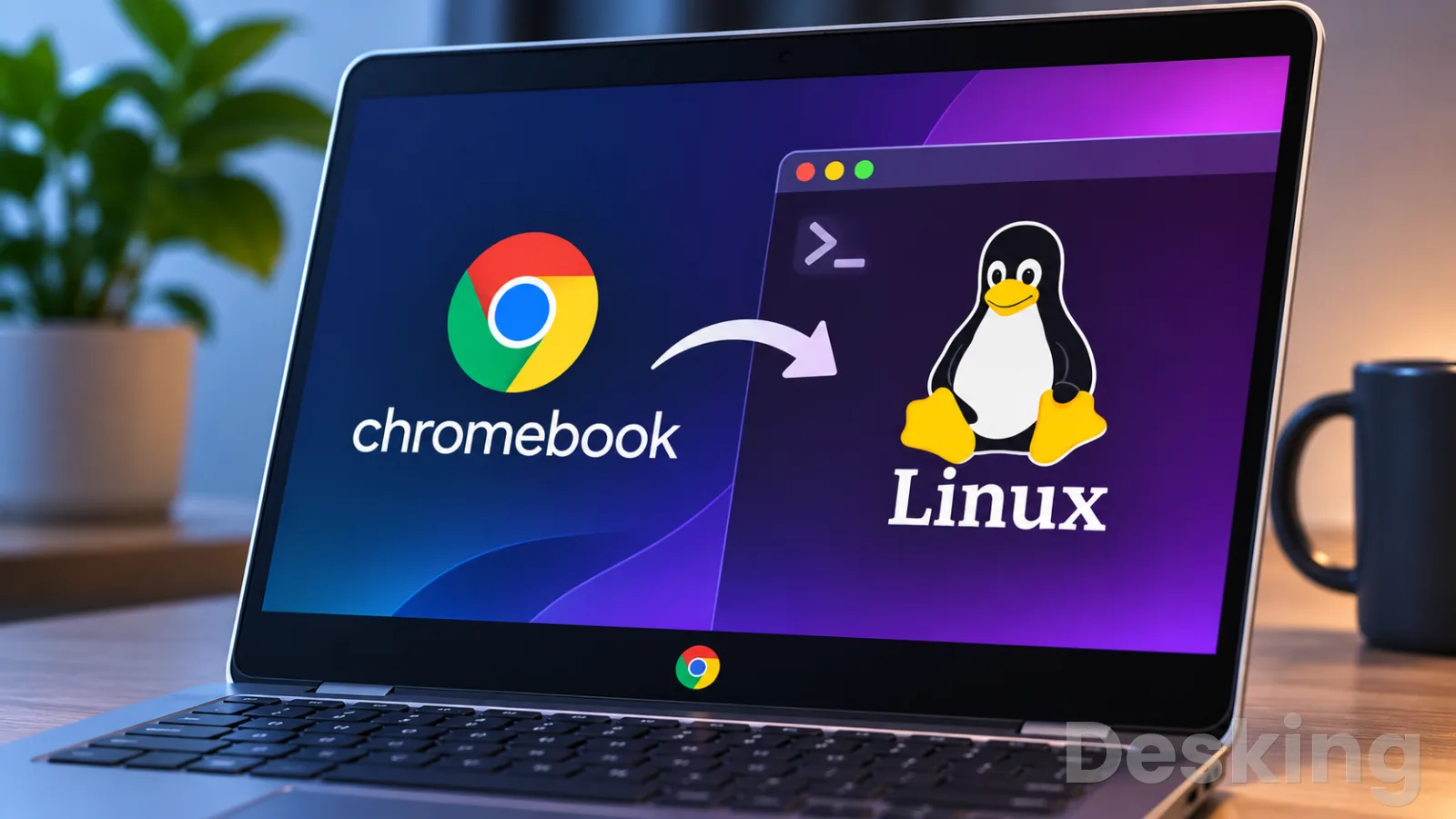
Table of contents
- 1. Choose the Linux setup that fits
- 2. Check the Chromebook before setup
- 3. Enable the built in Linux environment
- 4. Update Debian and install applications
- 5. Share files and check device access
- 6. Fix setup problems and protect data
- 7. Use full Linux with supported firmware
- 8. Understand the limits before choosing
- Frequently Asked Questions
1. Choose the Linux setup that fits
Most Chromebook owners should start with the Linux development environment built into ChromeOS.
It installs Debian inside a managed virtual machine, leaves ChromeOS in place, and requires no Developer Mode or firmware changes.
It supports command line tools, programming languages, editors, databases, and many graphical applications.
This is the right route if you want Linux software while keeping the Chromebook familiar.
The phrase “install Linux” can describe three different operations.
ChromeOS already uses the Linux kernel, but that does not give you a conventional Linux desktop or unrestricted control of the machine.
The built in environment, commonly called Crostini, runs Linux applications alongside ChromeOS.
Dual boot adds a separate Linux operating system while retaining ChromeOS, while a full replacement removes ChromeOS and boots Linux directly.
Those last two routes depend on the Chromebook model and firmware.
| What you want | Suitable method | Main consequence |
|---|---|---|
| Linux terminal, developer tools and desktop apps | Linux development environment | ChromeOS stays installed |
| Choose ChromeOS or Linux at startup | Supported RW_LEGACY method | Developer Mode and model specific firmware |
| Use Linux as the only operating system | Supported UEFI Full ROM method | ChromeOS is removed |
The distinction matters because instructions for one method can damage a device when applied to another.
A tutorial that begins by pressing Esc and Refresh is usually preparing a Chromebook for Developer Mode or recovery, not enabling its normal Linux environment.
For a first installation, do not change firmware or repartition storage.
Confirm that the built in option cannot meet your requirements before considering a full operating system installation.
2. Check the Chromebook before setup
Check the exact model, ChromeOS version, processor, storage, and management status before installing Linux.
Open Settings, choose About ChromeOS, and install any available update.
Google maintains a supported systems list, so check the exact model before installation.
Similar product names can hide different boards, so use the full model number rather than the name printed on the lid.
Processor architecture determines which applications can run.
Intel and AMD models normally use x86_64 software, while ARM Chromebooks need ARM64 packages or applications that explicitly support ARM.
A package built only for x86_64 will not become compatible because Debian can download it.
Starry Hope's October 2026 walkthrough showed a recommended 10 GB Linux allocation on ChromeOS 154, but development kits and local containers can need more.
Devices with 4 GB RAM may also feel constrained when Linux apps and many browser tabs run together.
Check these conditions before continuing:
- Device ownership: A school or company administrator can disable Linux or Developer Mode. Ask the administrator rather than bypassing policy.
- Processor type: Match applications to Intel, AMD, or ARM architecture.
- Free storage: Leave room for ChromeOS updates, Linux packages, and personal files.
- Software requirements: Check camera, GPU, emulator, kernel module, and USB needs.
- Recovery access: Back up local files before changing Developer Mode or firmware.
If the Linux development environment setting is missing, the Chromebook is not necessarily defective.
The model may be unsupported, managed, or awaiting a ChromeOS update.
Google advises work and school users to contact their administrator when the feature is unavailable.

Hostinger VPS
Hostinger VPS delivers KVM virtualization, NVMe storage and full root access at prices that undercut most competing cloud providers.
- Strong price to specification ratio overall
- NVMe storage included on every tier
- Renewal rates climb steeply after promo
- Self managed means security is your job
Developer Mode is not a workaround for an administrator restriction and changes the device's security state.
3. Enable the built in Linux environment
Select the time in the lower right corner, open Settings, choose About ChromeOS, and locate the Developers section.
Beside Linux development environment, select Set up.
Follow the installation window, choose a Linux username, review the proposed disk allocation, and select Install.
Google says setup can take 10 minutes or more, depending on the Chromebook, connection, and virtual machine initialization.
When it finishes, ChromeOS opens the Terminal application.
The initial system is Debian based, so the APT package manager is available.
Terminal appears in the launcher, and compatible graphical applications can appear there after installation.
ChromeOS remains the operating system used to sign in, browse, manage updates, and launch Linux tools.
The setup window may offer a recommended disk size and a custom option; choose according to your planned software, remembering that packages and Linux files use storage separately from ordinary ChromeOS folders.
New installations use Google's Baguette architecture by default in current ChromeOS releases.
Baguette removes the older LXC container layer and runs Linux directly in a virtualized guest.
Starry Hope documented this arrangement on ChromeOS 154 with Debian 13, while a July 2026 Reddit user described deleting and recreating Linux to receive the new installation.
Existing installations are not automatically converted simply by opening Terminal, so back up the old environment before recreating it.
4. Update Debian and install applications
Update Linux before adding applications.
Open Terminal and run sudo apt update to refresh the package lists.
When the command finishes, run sudo apt upgrade to install available updates.
Read the package summary before confirming; APT displays what it plans to download, install, or remove.
These commands update the Linux guest, not ChromeOS, which has its own update mechanism.
The two commands do different jobs.
apt update refreshes information about available packages, while apt upgrade installs newer versions of packages already present.
Neither command updates ChromeOS itself, because ChromeOS and the Linux guest have separate update mechanisms.
Google recommends updating Linux packages when troubleshooting, and its help page gives sudo apt-get update && sudo apt-get dist-upgrade as a repair step.
On a new Debian environment, the shorter apt update and apt upgrade sequence is a clear first maintenance routine.
You can install software from Debian's repositories with sudo apt install package-name.
For example, sudo apt install gimp installs GIMP if a compatible package exists for the Chromebook's architecture and Debian release.
APT lists dependencies and disk space before asking you to continue.
Search first with apt search firefox or the name of the application, then check the description and architecture.
After installation, look in the ChromeOS launcher under Linux apps; the first launch may take longer while the program initializes.
The following commands cover routine package management:
- Refresh package information: Run
sudo apt updatebefore installing software. - Install updates: Run
sudo apt upgradeand review the changes. - Find a package: Run
apt search package-namewith the name you need. - Install an application: Run
sudo apt install package-nameafter checking compatibility. - Remove an application: Run
sudo apt remove package-name; usesudo apt autoremoveif APT identifies unused dependencies.
Google's newer Baguette documentation lists graphical installation and removal of downloaded .deb files through the ChromeOS Files app as a deprecated feature.
Older Android Authority instructions describe double clicking a .deb file and using an installation window; that advice is out of date for current Linux installations.
Use APT for repository packages, and follow the application's current Debian instructions for packages distributed separately.
Flatpak is another option when the required release is missing from Debian, although its runtimes can consume extra storage.
Linux applications do not all need a separate desktop session.
ChromeOS integrates supported graphical applications into its launcher, so an editor or image tool can open in its own window beside browser and Android apps.
Debian's repositories are the simplest first source because APT resolves dependencies and receives updates through the package system.
Some developers also distribute software through Flatpak, which Starry Hope documents as an alternative when the required release is missing from Debian's repositories.
Flatpak may use additional disk space because it can install shared runtimes alongside applications.
5. Share files and check device access
ChromeOS keeps Linux files separate from the main user folders as part of its security model.
In the Files app, the Linux files folder is visible as a place to store documents that Linux applications need to open.
To make an existing ChromeOS folder available, right click it and choose Share with Linux.
Starry Hope's current walkthrough confirms this route for folders such as Downloads.
The shared location then appears inside Linux, allowing an editor or command line tool to work with those files.
This sharing step explains many apparent file access failures.
Hostinger VPS
Hostinger VPS delivers KVM virtualization, NVMe storage and full root access at prices that undercut most competing cloud providers.
- Strong price to specification ratio overall
- NVMe storage included on every tier
- Renewal rates climb steeply after promo
- Self managed means security is your job
A document visible in ChromeOS Downloads is not automatically visible to every Linux application.
Share the specific folder that contains the files you need, then open it from the Linux file picker or the mounted ChromeOS path.
Avoid sharing the entire user directory without a reason, because Google states that files and permissions shared with Linux are available to all Linux applications in the environment.
Peripheral support has limits.
Google documents microphone access through Linux settings, but lists cameras, Android emulators, and hardware acceleration including GPU and video decoding as unsupported.
Android devices can be supported over USB, while other USB devices are not generally supported in the same way.
A camera or video feature working in ChromeOS does not guarantee Linux app access.
6. Fix setup problems and protect data
If setup does not complete, identify the failed stage before changing settings.
If Set up is missing, update ChromeOS, check the model against Google's support information, and ask the administrator whether Linux is blocked.
If the setup window stalls, keep the Chromebook connected to power and a stable network, then allow time for the virtual machine download.
Google says setup may take 10 minutes or more, so a delay alone is not proof of failure.
If Terminal opens but package installation fails, refresh package lists and read the error.
A repository error can indicate a network problem, a temporary mirror issue, or a package name unavailable for that Debian release.
An architecture error usually means the package does not match the Chromebook's processor.
For an app that will not launch, restart the Chromebook and update Linux packages, as Google recommends.
If it needs GPU acceleration, camera access, an Android emulator, or a custom kernel module, the cause may be a platform limit rather than a damaged installation.
A Reddit user who switched to Baguette in July 2026 described deleting the previous Linux environment in Settings and enabling it again to receive the new virtual machine architecture.
The user reported lower idle memory use and smoother applications, but those figures are an individual report, not a controlled benchmark.
Recreating Linux can change its architecture, but it also removes the old environment's local data unless you back it up first.
Linux stores its own files, applications, settings, and projects.
Before selecting Remove, copy anything important to storage outside the environment; Google provides backup and restore guidance for Linux files and applications.
To remove it, open Settings, go to About ChromeOS, select Developers, open Linux development environment, and choose Remove.
ChromeOS remains installed, but files stored only inside Linux are deleted.
A new setup starts without the old packages and local files.
7. Use full Linux with supported firmware
A full Linux installation is for owners who need a conventional operating system, direct kernel control, or hardware access unavailable to the ChromeOS Linux environment.
It is not an extension of the Settings procedure.
Chromebook firmware differs by model, and a method that works on one board may fail on another.
MrChromebox currently limits its firmware route to supported x86_64 Intel and AMD devices; ARM based Chromebooks are not supported by that process.
Identify the Chromebook's board name or hardware ID before attempting it.
You can find the HWID in the Recovery or Developer Mode screen; record the board name exactly.
Compare that identifier with the supported device list, including firmware type and end of life status.
MrChromebox warns that firmware changes are unsupported, can affect warranty coverage, and can make a device unusable if the wrong image or procedure is used.
Back up local data before enabling Developer Mode because that transition erases user data.
The two firmware paths have different consequences:
| Firmware route | Keeps ChromeOS | Write protection | Intended use |
|---|---|---|---|
| RW_LEGACY | Yes | Usually stays enabled | Supported dual boot or USB boot |
| UEFI Full ROM | No | Must be disabled for initial flash | Replace ChromeOS with Linux |
For supported dual boot, MrChromebox describes enabling Developer Mode, opening the ChromeOS VT2 terminal with Ctrl, Alt, and F2 at the login screen on ChromeOS 117 or later, and signing in as chronos.
The Firmware Utility Script offers an RW_LEGACY option when the device supports it.
After the update, Ctrl and L at the Developer Mode warning screen opens the legacy boot path, from which a Linux USB drive can be selected.
Installing Linux on internal storage beside ChromeOS requires separate partitioning and is not covered by this USB boot method.
The chrx project documents a separate two phase route that first reserves disk space and then installs a chosen distribution, but its device list and available releases need checking before use.
A full replacement uses UEFI Full ROM.
It requires confirming UEFI support, disabling firmware write protection by the method for the exact board, running the firmware utility, and backing up the stock firmware when prompted.
The instructions then require powering off rather than immediately rebooting, reconnecting any battery that was disconnected, and booting Linux installation media.
MrChromebox estimates 30 to 60 minutes for RW_LEGACY and one to three hours for Full ROM, before extra research or troubleshooting.
If you cannot identify the write protection method or recover the original firmware, stop before flashing.
Hostinger VPS
Hostinger VPS delivers KVM virtualization, NVMe storage and full root access at prices that undercut most competing cloud providers.
- Strong price to specification ratio overall
- NVMe storage included on every tier
- Renewal rates climb steeply after promo
- Self managed means security is your job
A Chromebook that is merely slow or short on applications is not a good reason to accept that risk.
After the firmware stage, prepare a bootable USB with the ISO for a Linux distribution confirmed for the Chromebook's board.
Use another computer to create the media, since the process erases the USB drive.
Insert it, open the Chromebook's boot menu using the key sequence documented for its firmware, select the USB device, and follow the distribution installer.
If you choose to replace ChromeOS, select the internal drive only after confirming that its contents can be erased; for dual boot, do not accept an automatic disk erase or repartitioning choice without device specific instructions.
8. Understand the limits before choosing
Crostini and Baguette run Linux development tools and compatible desktop software inside ChromeOS's security model.
They do not turn every Chromebook into a standard Linux laptop.
Google lists camera access, Android emulators, and hardware acceleration including GPU and video decoding as unsupported in its Chromebook Help documentation.
Its developer update also says graphics acceleration is no longer supported as a feature Google intends to fix if it breaks.
These limits matter for video production, 3D work, games, hardware testing, and software that depends on custom kernel modules.
A package can install successfully and still fail because it expects an x86_64 processor, direct access to a device, a different graphics stack, or a kernel feature unavailable to the guest.
Test the exact software and peripheral combination before moving a critical workflow to the Chromebook.
For ordinary coding, shell utilities, text editors, lightweight desktop apps, and local development services, the built in environment is usually the sensible starting point.
Frequently Asked Questions
Does Linux erase ChromeOS when enabled?
Can I install Ubuntu instead?
Will Linux work on ARM Chromebooks?
Linux without Developer Mode?
How do I restore ChromeOS?
Sources5
- Google Developers on Baguette changes
- Google Chromebook Help on Linux setup
- MrChromebox on Chromebook firmware
- iFixit on Chromebook Linux dual boot
- Starry Hope on Chromebook Linux setup
External pages are independent third-party sources. Desking App does not control or endorse their content and accepts no responsibility for it. Visiting them is at your own responsibility and risk.