

How to use AnyDesk for free, create an account and connect devices
By Noura Mint Ely · November 18, 2026
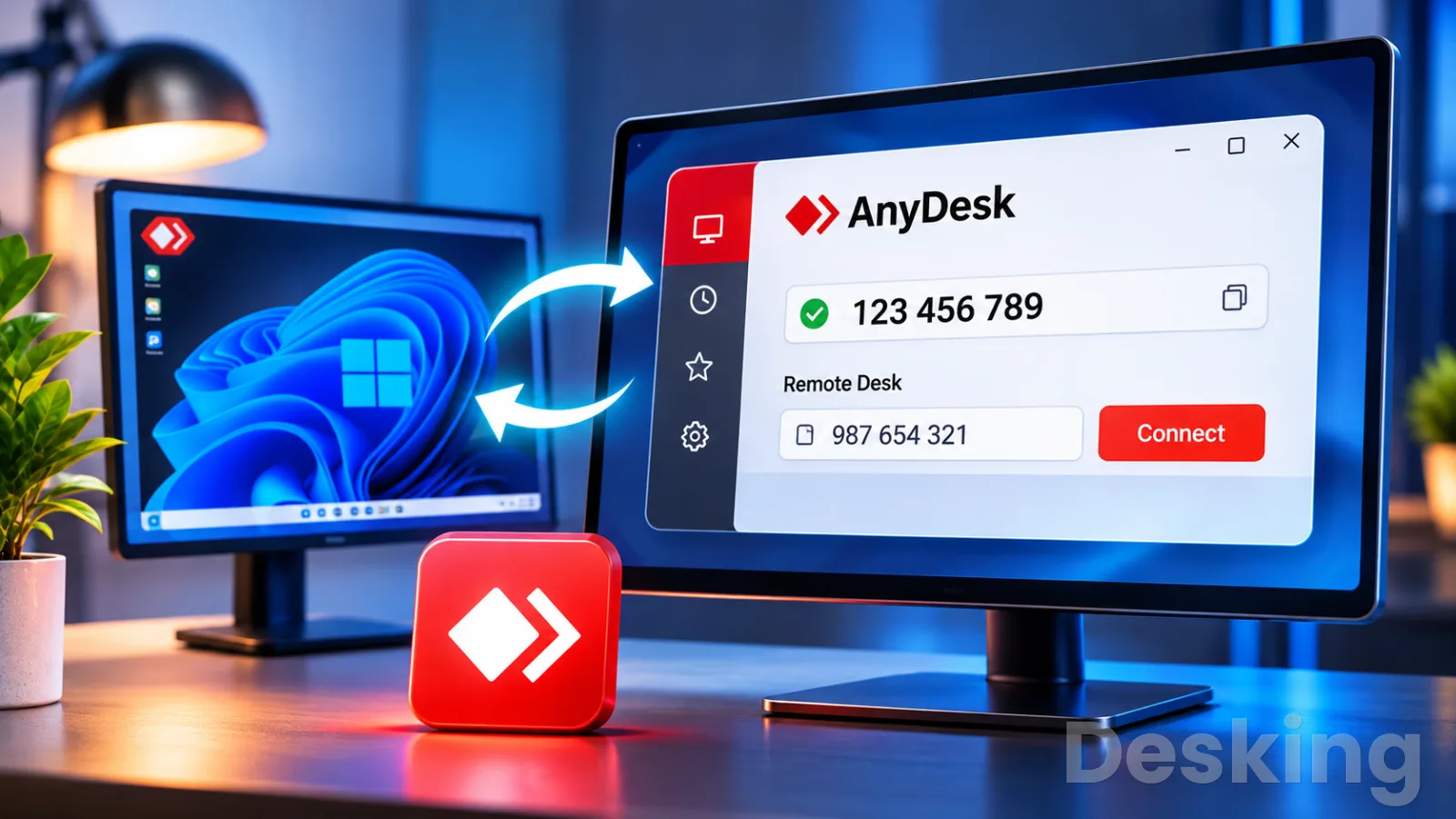
Table of contents
- How to use AnyDesk for free without interruptions
- 1. Understand free access
- 2. Download AnyDesk safely
- 3. Create a free account
- 4. Connect two devices
- 5. Set unattended access
- 6. Use AnyDesk without ads
- 7. Resolve false detections
- 8. Understand session limits
- 9. Consider free alternatives
- 10. Protect remote sessions
- Frequently Asked Questions
How to use AnyDesk for free without interruptions
AnyDesk provides free remote access for personal, noncommercial use, and its Android app listing describes the application as ad-free.
You can use it to access your own computers, help family members, and transfer files between personal devices.
A free account adds useful management and security features, including an address book, multifactor authentication, and longer remote sessions.
Professional support, business operations, and access to a computer used for work fall outside the free license.
The distinction between advertising and licensing notifications matters.
AnyDesk's free offering is not presented as an advertising supported service, but the application can display commercial use warnings when its monitoring system suspects professional activity.
Those warnings are not ordinary advertisements, and an account does not authorize business use.
The steps below explain how to download the genuine application, create a free account, connect two devices, configure unattended access, and address restrictions without bypassing the license terms.
1. Understand free access
AnyDesk's free version is intended for individuals who connect to devices for private purposes without a business or professional activity.
Examples include controlling a home computer from another personal device, helping a relative troubleshoot a laptop, or transferring a file between computers you own.
AnyDesk's licensing explanation also classifies access to a work computer from home as professional use, even if the person connecting is not charging for the session.
The free version is therefore appropriate for occasional personal remote access.
It is not a free license for a company's IT department, a technician who supports customers, or a freelancer who manages client devices.
AnyDesk's terms also restrict free use for trade, business, professional activity, and purposes that generate direct or indirect remuneration.
A connection does not become personal simply because it takes place outside normal office hours or from a home internet connection.
1.1 Personal use
Personal use covers remote connections that serve private needs and have no work or business purpose.
Accessing your home desktop from your personal laptop, helping a family member install a printer, or assisting a friend with a computer problem are examples that fit the stated purpose of the free version.
AnyDesk's public explanation specifically identifies helping friends and family and accessing personal devices as appropriate free use cases.
The number of devices you own is not the only factor that determines whether your use is personal.
A user may own several computers and still use remote access privately, while a single connection to a company workstation may be professional.
AnyDesk says it evaluates usage patterns to identify activity that appears commercial.
The practical test is the purpose of the connection, not simply the number of devices or the location from which you connect.
1.2 Commercial restrictions
Commercial use includes remote work, professional remote support, and access to devices used for a job.
It can also include a technician connecting to a customer's computer as part of a paid service, even if the session itself is short.
AnyDesk's current commercial use guidance explicitly treats access to an office workstation from home as professional activity.
A free account does not change that classification or provide a workaround for licensing.
This distinction is especially relevant to IT consultants, system administrators, managed service providers, and business owners.
If you use AnyDesk to manage servers, troubleshoot company laptops, access a client's workstation, or provide technical support as part of your job, you should select a suitable commercial license.
AnyDesk's licensing model places the responsibility on the user who initiates commercial sessions, while incoming devices that only accept or reject connections do not need their own paid license.
1.3 Free features
AnyDesk's free personal version includes the basic functions needed for private remote access.
Its published free feature list includes file transfer, mobile device support, limited TCP tunneling, one address book, two factor authentication, text chat, whiteboard, session invitations, and access to the Help Center.
The number of managed devices is limited to three in the feature list published by AnyDesk.
These limits are relevant when you decide whether the free version fits your personal setup.
The free tier does not provide the full administration and deployment features designed for businesses.
Centralized user permissions, organization level management, custom client deployment, and broader administrative controls belong to paid offerings.
Independent reviews also identify commercial restrictions and limited support as important considerations when comparing AnyDesk with other remote desktop tools.
For a person connecting to a few private devices, the free functions may be sufficient; an organization should assess the paid license requirements before deployment.
2. Download AnyDesk safely
The Windows application is available from AnyDesk's official download service, including a version compatible with Windows 10.
The official Windows download page provides the current client and describes compatibility with earlier Windows versions.
Downloading the application itself does not require buying a paid subscription, but the free license terms still apply to how you use it.
Avoid third party download sites that bundle remote access software with unrelated installers or modified files.
2.1 Windows 10 download
To download the application on Windows 10, use the official AnyDesk Windows download page rather than a software mirror.
The Windows client is distributed as an executable file, which can run in portable mode or be installed on the computer.
AnyDesk also provides an MSI installer for managed installation, but the MSI package is not the portable option.
For a normal personal computer, the executable is the simplest starting point.
Follow these steps to obtain the Windows version:
Open a browser on the Windows 10 computer and visit the official AnyDesk website.
Open the Downloads section and select the Windows version.
Select the download option for the Windows client and save the executable file.
Wait for the download to finish, then open the downloaded file from the browser's Downloads list or File Explorer.
If Windows displays a User Account Control prompt, check that the publisher is AnyDesk before allowing the application to run.
Choose to run the portable client or select Install AnyDesk if you want the full installation.
Follow the installation prompts and open AnyDesk when setup finishes.
The application should open to its main screen and display the address assigned to that device.
Depending on the client version, the address may be labelled AnyDesk ID, This Desk, or Your Address.
It is the identifier another person needs to initiate a connection to your computer.
Keep it private enough to avoid unwanted connection requests, and never share an unattended access password with someone you do not trust.
2.2 Portable or installed
The portable version runs without a full installation, which is useful for a one time support session or a computer where you do not have administrator rights.
You open the executable and use the client directly.
However, portable mode does not automatically start with Windows, and it closes active sessions when the application closes or the user signs out.
Some administrative features, including interaction with certain Windows security prompts, are also limited unless the client is elevated.
The installed version adds the AnyDesk service, which allows the application to run in the background and remain available after a restart or user sign out.
It is the more suitable configuration when you regularly access your own computer remotely.
Installation also enables features such as unattended access and remote restart, subject to the version and settings.
Use portable mode for temporary access, and install the application when you need persistent availability on a personal device.
2.3 Verify the publisher
Remote access software has extensive control over the computer, so the download source matters.
A fake installer can give an attacker the same type of access that you intended to grant to a trusted helper.
Check the publisher name shown by Windows before running an executable, and avoid files advertised as cracked, pre activated, modified, or unlocked.
AnyDesk's official download page is the appropriate source for the Windows client and its updates.
If a website asks you to disable Microsoft Defender, install an unrelated browser extension, or run a separate activation utility before AnyDesk will open, stop the process.
Those instructions are not required for ordinary personal use of the official client.
Delete the suspicious installer and obtain a fresh copy from the publisher.
This precaution is especially important when someone you do not know asks you to install remote access software during a phone call or support chat.
3. Create a free account
You can use AnyDesk without registering an account, but a free account adds features that make regular personal connections easier to manage.
AnyDesk says a free account can provide longer sessions, an address book for frequently accessed devices, multifactor authentication, and access to session and client information through its management portal.
The account does not convert a commercial connection into permitted personal use, and it does not activate a paid license.
3.1 Register online
You can create an account through the AnyDesk management portal or from the application.
The online route is useful when you want to complete registration before configuring the remote computers.
Use an email address you control, choose a strong password, and protect the account with multifactor authentication when the option is available.
The account provides a central place to manage personal devices and review connection information.
Open the AnyDesk account registration page from the official website.
Select the option to create a new account.
Enter the requested registration details and an email address that you can access.
Create a strong account password and complete any email verification step.
Sign in to the my.anydesk management portal.
Open the account security settings and enable multifactor authentication if available.
Return to the AnyDesk application and sign in with the new account.
The exact labels may vary with the client version, but the account can be accessed through the user profile area in the application or through the my.anydesk portal.
After signing in, check that the correct account appears in the client.
If the verification email does not arrive, check the spam folder and confirm that the address was entered correctly before creating another account.
3.2 Register in the app
The application may also provide an account sign in or registration route through its profile menu.
This is convenient when AnyDesk is already installed on the computer you plan to use.
Open the user profile area and follow the registration prompts.
Once the account has been created, sign in on the devices you want to associate with your personal setup.
A free account is not the same thing as a license key.
A license key activates a paid plan and unlocks the features included in that subscription, while a free account provides account and device management functions.
If you only need personal remote access, you do not need to enter a paid license key to create the free account.
If you have purchased a business subscription, register it using the account or license key supplied for that subscription.
4. Connect two devices
A standard AnyDesk connection needs the application on both devices and the address of the computer you want to control.
The remote device displays an AnyDesk ID or alias, which the connecting user enters in the Remote Desk field.
The person at the remote computer must normally accept the request unless unattended access has already been configured.
This arrangement is suitable for helping a relative or accessing a personal computer while someone is present at the other end.
4.1 Start a session
Open AnyDesk on the computer you want to access and locate its displayed address.
On the device you are using, enter that address in the Remote Desk field and select Connect.
The remote computer should receive a connection request that identifies the device attempting to connect.
The person at that computer can review the request and accept or reject it.
Start AnyDesk on both computers and confirm that each device has an internet connection.
On the remote computer, locate the AnyDesk ID or alias displayed in the main window.
On your local computer, enter that address in the Remote Desk field.
Select Connect and wait for the request to reach the remote computer.
Ask the person at the remote computer to review the request and accept it.
Wait for the remote desktop to appear, then use the mouse and keyboard to control it.
End the connection from the session toolbar when the task is complete.
The connection may fail if the address is mistyped, the remote computer is offline, or a firewall or network policy blocks the connection.
Confirm the remote ID before changing any network settings.
If the other person does not see the request, ask them to check whether AnyDesk is open and whether the application is displaying an incoming connection prompt.
4.2 Control the remote screen
After the remote user accepts the request, the remote desktop appears inside the AnyDesk window.
You can use the keyboard and mouse to open applications, change settings, and work with files according to the permissions granted by the remote user.
Some actions may require administrator privileges on the remote computer, and the user at that computer may need to approve a Windows security prompt.
The remote user should understand what the connection allows before accepting it.
Remote access can expose open documents, browser sessions, saved files, and other information visible on the desktop.
If you are helping someone, explain the actions you intend to take and ask them to close private material that is not relevant to the support session.
End the session when the task is finished rather than leaving a connection open unnecessarily.
4.3 Transfer files
AnyDesk includes file transfer for moving files between connected devices.
Depending on the client version and session permissions, you can use the file transfer interface or the file transfer controls available during a remote session.
This is useful for sending a document to a family member or retrieving a file from your own home computer.
Check the destination folder before transferring files, especially when several user profiles exist on the remote device.
Only transfer files that you have permission to access and share.
Remote access does not grant ownership of another person's documents, and a person who accepts a screen sharing request may not understand that file transfer is also available.
Explain the transfer first and confirm the destination.
For sensitive documents, use an approved encrypted storage or sharing method rather than leaving copies in a temporary downloads folder.
5. Set unattended access
Unattended access allows you to connect to a computer without someone manually accepting every connection request.
The remote computer must be configured in advance with an access password and suitable security settings.
It is useful when you want to reach your own home desktop while away, but it also creates a persistent remote access path that needs careful protection.
5.1 Enable access
Install AnyDesk on the computer you want to access and open its settings.
Go to Settings, then Access, and locate the Unattended Access section.
Select the option to set a password and create a strong password that is different from your AnyDesk account password.
AnyDesk's guidance specifies that the password must be at least eight characters long and should avoid simple or repeated patterns.
After setting the password, keep the remote computer powered on and connected to the internet when you need to reach it.
The installed version is preferable for this purpose because its service can run in the background and remain available after sign out or restart.
A portable session ends when the application closes or the user signs out, so it is less suitable for a computer that must remain accessible without local intervention.
5.2 Connect remotely
On the device you are using, open AnyDesk and enter the address of the computer configured for unattended access.
Select Connect and enter the unattended access password when prompted.
If the password is correct and the remote computer is online, the session can start without a person at the remote keyboard accepting the request.
Do not send the password through an open chat or leave it in a shared document.
Anyone who obtains the address and password may be able to access the computer, subject to its security settings.
Use a unique password, enable multifactor authentication on your AnyDesk account, and review the access permissions available in the client.
If you no longer need unattended access, disable it or change the password.
5.3 Limit permissions
AnyDesk provides session permission controls that can limit what a connecting user can do.
Depending on the version and configuration, the remote user can restrict keyboard and mouse control, clipboard access, file transfer, audio, or other session capabilities.
Grant only the permissions required for the task.
For example, a person who only needs to view a screen should not automatically receive full control of the remote computer.
This is particularly important when you provide help to someone who is unfamiliar with remote support software.
The person at the remote computer should know how to terminate the session and should never approve a request they did not expect.
A legitimate support technician will not need you to disclose online banking passwords, one time authentication codes, or other credentials unrelated to the computer problem.
6. Use AnyDesk without ads
AnyDesk's Google Play listing describes its Android application as ad-free and free for personal use.
That statement addresses advertising inside the mobile application, not every notification that may appear in the Windows client.
AnyDesk can display messages about commercial use, licensing, session limits, or account features.
Those are product and licensing notifications rather than third party advertising.
6.1 Separate ads from warnings
An advertisement promotes a product or service.
A commercial use warning tells you that AnyDesk believes your connection pattern may be professional and may fall outside the free license.
The distinction matters because an ad blocker cannot resolve a licensing warning, and hiding a notification does not change the terms of use.
AnyDesk explains that its monitoring system can identify usage patterns that appear professional.
It may display a warning when the free client is suspected of being used for work or business activity.
The company also provides a process for users who believe they have been incorrectly classified.
The right response is to check the purpose of the connections and request a review if your use is genuinely personal.
6.2 Avoid fake ad removers
Do not download modified AnyDesk clients that claim to remove advertisements, disable license checks, or provide unlimited commercial sessions.
Such installers can be altered to capture credentials or provide unauthorized access to the computer.
They may also break updates or cause the client to stop working.
The official client is the safer choice for personal use, and the free account is the supported way to access the additional account features.
If a website offers a patched executable, a cracked license, or a script that changes AnyDesk's licensing behavior, treat it as untrusted.
Remote desktop applications have permission to view and control a computer, so a malicious replacement can expose far more than a normal browser download.
Keep the client updated through the official download source and do not run scripts supplied by strangers in forums or video comments.
6.3 Reduce unnecessary prompts
For personal use, sign in to your free AnyDesk account and keep the application updated.
AnyDesk says that an account can help extend session time and reduce timeouts for free users.
The account also provides an address book and multifactor authentication, which can make repeat connections easier to manage.
It does not remove legitimate commercial use restrictions or guarantee that every session will remain open indefinitely.
If a prompt appears, read its wording before taking action.
A message about commercial use needs a licensing review, while a message asking you to accept an incoming connection is part of the remote access process.
A product upgrade notice is different again.
Identifying the message correctly helps you choose the appropriate response instead of installing an unofficial utility that claims to remove all notifications.
7. Resolve false detections
AnyDesk may incorrectly classify a private user as a professional user.
The company acknowledges that this can happen and provides a whitelist request process for people who believe their activity has been misclassified.
A warning should prompt you to review your connection pattern and the purpose of each session.
If your activity is genuinely personal, use the official review process instead of repeatedly reinstalling the application or changing device identifiers.
7.1 Request a review
The whitelist request form asks for your name, email address, AnyDesk ID, and an explanation of how you use the software.
The AnyDesk ID is the number shown in the application's main window on the device from which you initiate connections.
Explain the personal purpose clearly and accurately, such as accessing your own home computer or helping family members.
Do not describe business support as personal use to obtain free access.
The request is associated with the AnyDesk ID you submit.
AnyDesk warns that uninstalling and reinstalling the client can create a different ID, which means you may need to submit another request for the new identifier.
For that reason, do not reinstall the application simply because a warning appears.
First submit the correct ID and wait for the review process.
Keep a copy of the request details for your own records.
7.2 Explain your usage
A useful request explains what devices you connect to, who owns them, and why you need remote access.
State whether the sessions are for personal device maintenance or help for friends and family.
If you connect to a computer at your workplace, provide an accurate description rather than claiming it is a home device.
AnyDesk's published policy specifically identifies remote access to a work computer as professional use.
Community discussions on Reddit show why this review process matters.
Users report different experiences with session disconnections and commercial use warnings, including cases where they believe their personal activity was incorrectly flagged.
These reports are individual experiences, not a published guarantee of session length or a definitive explanation of AnyDesk's detection system.
The company's own review process remains the appropriate route for a genuine false positive.
8. Understand session limits
A free AnyDesk session may disconnect or become restricted, and users should not assume that every connection has a guaranteed duration.
AnyDesk says that creating a free account can help extend connection time and avoid timeouts.
A 2026 Reddit discussion includes reports of sessions disconnecting after around 30 minutes, while other users describe longer connections.
These reports indicate that actual experiences vary, so a fixed time limit should not be presented as a universal rule.
8.1 Use an account
If you currently use AnyDesk without an account, create the free account and sign in on the client.
This provides the additional account features and longer session support described by AnyDesk.
It also makes it easier to manage devices and apply multifactor authentication.
Signing in is a legitimate configuration improvement for personal use, not a method for extending commercial access without a license.
8.2 Check the network
An unstable internet connection can interrupt a remote session independently of licensing.
Check the connection on both computers, because the remote device needs a stable upload connection while the local device needs enough download capacity to receive the screen.
Wired Ethernet can be more consistent than a weak wireless signal, particularly when the remote computer is also transferring files.
If the connection drops, test each device's internet access before assuming that AnyDesk has imposed a restriction.
8.3 Identify the warning
Read the exact notification before changing the installation.
A commercial use warning points to a possible license classification problem, while a network error suggests a connection issue.
A password prompt is part of the access process, and a request to accept an incoming session is a normal security control.
The correct response depends on the message, so record its wording and any displayed error details before contacting support or submitting a whitelist request.
9. Consider free alternatives
If AnyDesk's personal use conditions do not fit your needs, another remote desktop product may be a better choice.
Chrome Remote Desktop is a straightforward option for accessing personal computers through a browser, while RustDesk is an open source alternative with self hosting options.
AlternativeTo also lists Parsec and TightVNC among free Windows alternatives.
Check each product's current license and security model before using it for business activity.
9.1 Chrome Remote Desktop
Chrome Remote Desktop is suitable for users who want to reach a personal computer through a browser.
WIRED's setup instructions describe enabling remote access on the target computer, assigning it a name, and creating a six digit PIN.
You then sign in from another computer and select the configured device.
It is a useful option for straightforward personal access, although its workflow and features differ from AnyDesk's remote support interface.
9.2 RustDesk
RustDesk is an open source remote access option for users who want more control over the software and its infrastructure.
It supports self hosting, which allows a technically capable user or organization to operate its own relay server.
That option adds server administration and maintenance, so it is not automatically simpler than AnyDesk.
Independent comparisons identify RustDesk as a strong free alternative, but users should still review its current licensing, deployment requirements, and security configuration.
9.3 Choose by purpose
For occasional personal access, AnyDesk's free tier or Chrome Remote Desktop may be sufficient.
RustDesk is worth considering when open source software and self hosting are important.
A business that provides remote support should evaluate commercial licenses, administration controls, audit requirements, and support arrangements rather than selecting a consumer free tier.
The right choice depends on the operating environment and the consequences of a connection failing during a support task.
10. Protect remote sessions
Remote access should be treated as privileged access to a computer.
A person who controls the remote screen may be able to open files, install software, change settings, or view information already available to the signed in user.
Only accept connection requests from people you recognize and for tasks you understand.
If an unknown caller asks you to install AnyDesk and read out an ID or password, end the conversation and verify the request through a trusted channel.
Use a unique unattended access password and enable multifactor authentication on your account.
Keep AnyDesk updated, review session permissions, and disable unattended access when you no longer need it.
Do not allow a stranger to guide you through banking, payment, or account recovery screens while connected remotely.
These precautions matter because remote access scams often rely on persuading a user to approve a legitimate connection that the attacker then abuses.
Frequently Asked Questions
Does AnyDesk show ads on Windows?
Can I use AnyDesk without creating an account?
Can I use AnyDesk for free to access my office computer?
Will reinstalling AnyDesk remove a commercial use warning?
Can I use AnyDesk on Windows 10?
Sources8
- Google Play on the ad-free AnyDesk app
- AnyDesk on commercial use restrictions
- Lightspeed on AnyDesk remote access setup
- Reddit on free AnyDesk session limits
- AlternativeTo on free AnyDesk alternatives
- RudyDesk on free remote desktop software
- Rankite on remote access for personal use
- WIRED on accessing computers remotely
External pages are independent third-party sources. Desking App does not control or endorse their content and accepts no responsibility for it. Visiting them is at your own responsibility and risk.