

How to Reset Network Settings on iPhone, Android, Windows and Mac
By Eva Elekcha · November 17, 2026
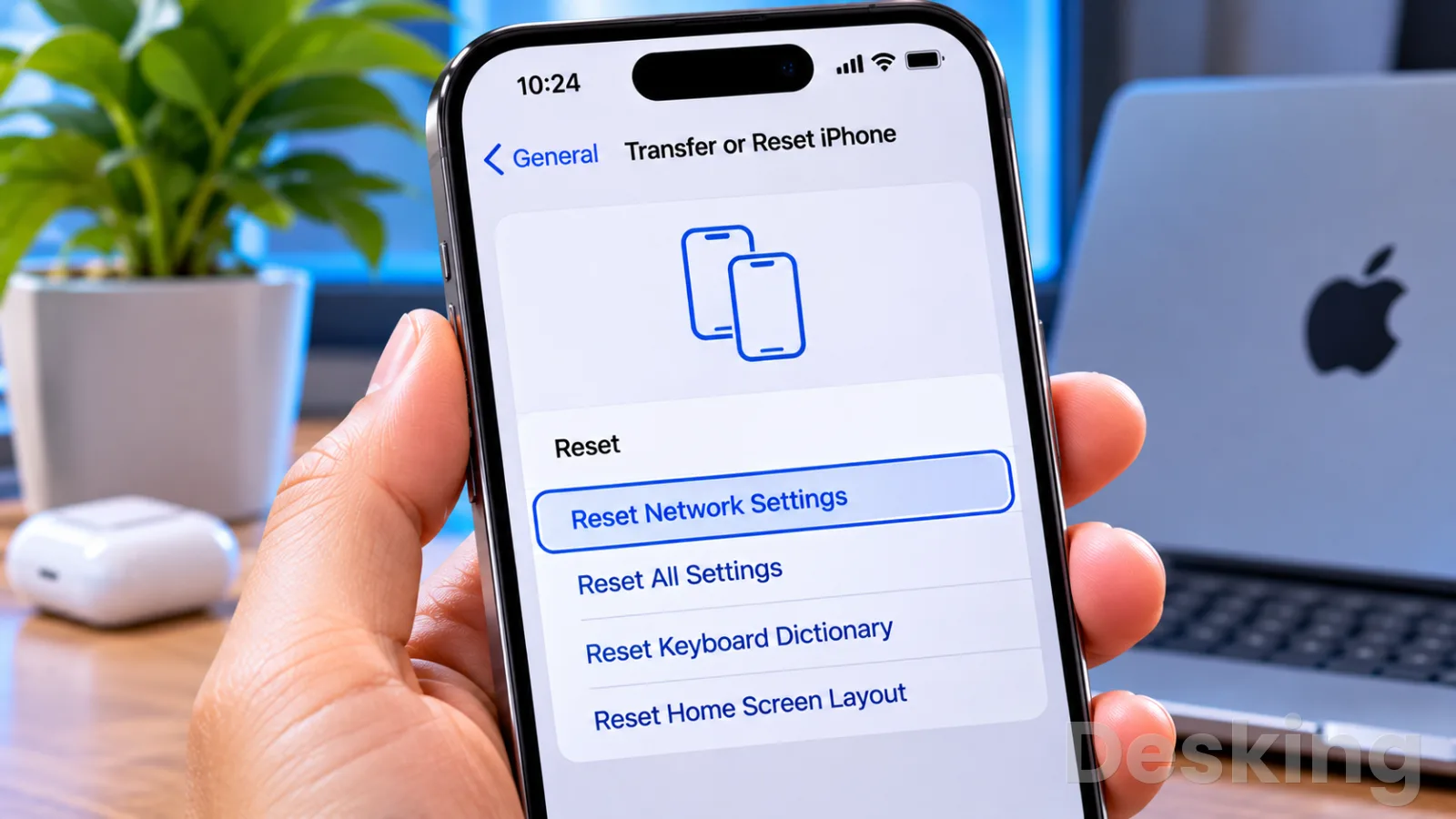
Table of contents
- 1. What resetting network settings means
- 2. When to reset network settings
- 3. how to reset network settings on iphone
- 4. how to reset network settings windows 11
- 5. how to reset network settings on samsung
- 6. how to reset network settings on mac
- 7. how to reset network settings windows 10
- 8. how to reset network settings in android
- 9. how to reset network settings on ipad
- 10. how to reset network settings on iphone 17
- 11. how to reset network settings on laptop
- 12. Troubleshooting after reset
- 13. Mistakes to avoid
- Frequently Asked Questions
Resetting network settings can resolve persistent Wi-Fi, Bluetooth, mobile data, and internet connection problems by restoring network configurations to their default values.
The procedure differs between Windows, macOS, iPhone, iPad, Samsung Galaxy, and other Android devices.
A network settings reset is a troubleshooting procedure that removes or restores network-related configurations without deleting your personal files, photographs, applications, or documents.
Depending on the operating system, it can remove saved Wi-Fi passwords, Bluetooth pairings, VPN configurations, custom DNS addresses, and mobile network preferences.
The process is useful when a device repeatedly loses its internet connection, refuses to connect to a previously available Wi-Fi network, experiences mobile data problems, or behaves unpredictably after a network configuration change.
However, each platform handles the operation differently.
Windows reinstalls network adapters, Apple devices provide a dedicated network reset option, and Android manufacturers can separate wireless and cellular settings into different reset procedures.
1. What resetting network settings means
Resetting network settings means returning the device's network configuration to its default state.
The operating system removes selected connection preferences and restores the standard networking configuration, allowing you to establish connections again.
Network configurations control how a device communicates with routers, wireless access points, cellular networks, Bluetooth accessories, VPN services, and other connected systems.
Incorrect DNS addresses, outdated connection profiles, damaged network configurations, or conflicting adapter settings can interfere with these communications.
A network reset removes certain custom configurations that may contribute to connectivity problems.
After the operation, you may need to reconnect to your Wi-Fi network, enter its password, pair Bluetooth accessories again, or configure your VPN client.
What gets removed?
The exact changes depend on the operating system and the reset option selected.
The following items are commonly affected:
Saved Wi-Fi networks: Previously stored wireless connections and their passwords may be removed.
Bluetooth pairings: Some platforms remove paired headphones, keyboards, speakers, vehicles, and other accessories.
VPN configurations: Manually configured VPN connections may be removed or require additional setup.
Mobile network settings: Cellular preferences, custom access point names (APNs), and other carrier configurations may return to their defaults.
Network adapters: Windows removes installed network adapters and reinstalls them with default configurations.
Custom DNS and IP settings: Manually configured network addresses and other connection preferences may need to be restored.
What does not get deleted?
A standard network reset does not normally erase personal information.
Your photographs, videos, documents, installed applications, contacts, and messages remain on the device.
However, this distinction matters: Reset Network Settings is different from Factory Reset, Reset All Settings, and Erase All Content and Settings. Selecting the wrong option can result in unnecessary configuration changes or complete data loss.
Before proceeding, identify the exact reset option available on your device and read its confirmation message.
2. When to reset network settings
A network reset is appropriate when ordinary troubleshooting has failed and the problem appears to involve the device's network configuration.
For example, a computer that repeatedly fails to obtain an IP address may have an adapter configuration problem.
A smartphone that refuses to reconnect to a previously working wireless network may have an outdated or corrupted saved connection profile.
Consider this procedure when you experience the following problems:
Persistent Wi-Fi disconnections: Your device repeatedly disconnects from wireless networks despite a stable router connection.
Incorrect network configurations: Internet access stops after changes to DNS, proxy, IP addresses, or other network preferences.
Mobile data problems: Cellular internet stops working after a SIM change, software update, or configuration adjustment.
VPN connection failures: A VPN client cannot establish a connection because of conflicting network configurations.
Bluetooth connectivity issues: Wireless accessories repeatedly fail to connect on platforms where the reset also clears Bluetooth pairings.
Problems after software updates: Network adapters or wireless connections behave unexpectedly after an operating system upgrade.
A reset is less likely to help when the underlying problem comes from an internet service provider, damaged router, faulty Ethernet cable, SIM card restriction, or temporary service outage.
Try these checks first
Before removing existing network configurations, perform a few basic checks.
They can resolve common connectivity problems without requiring you to configure your connections again.
Restart the device: Save your work, restart the computer or smartphone, and check whether the connection returns.
Restart the router: Disconnect the router from its power supply, wait approximately 30 seconds, reconnect it, and allow it to establish its internet connection.
Test another network: Connect the device to a different Wi-Fi network or a mobile hotspot to determine whether the problem follows the device.
Forget and reconnect: Remove the affected Wi-Fi network from the saved connections list and enter its password again.
Check network services: Confirm that your internet provider, mobile carrier, or VPN provider does not have an active service interruption.
If the device continues to experience connectivity problems across different networks, resetting its network configuration becomes a reasonable next step.
3. how to reset network settings on iphone
An iPhone includes a dedicated Reset Network Settings option that restores its network configurations to their default values.
The procedure is available through the General settings menu and does not delete personal information, photographs, applications, or messages.
It is particularly useful when an iPhone cannot connect to Wi-Fi, repeatedly loses cellular data, or experiences problems with manually configured VPN connections.
Apple also recommends considering this procedure when other Wi-Fi troubleshooting methods have failed.
Before resetting your iPhone
Prepare the information you may need to reconnect your device after the operation.
Wi-Fi password: Make sure you know the password for your home, office, or other frequently used wireless networks.
VPN information: Keep your VPN provider's configuration details available if you use a manually configured connection.
 4.3Web Hosting
Hostinger VPS
4.3Hostinger VPS delivers KVM virtualization, NVMe storage and full root access at prices that undercut most competing cloud providers.
- Strong price to specification ratio overall
- NVMe storage included on every tier
- Renewal rates climb steeply after promo
- Self managed means security is your job
APN settings: If your mobile carrier requires custom Access Point Name settings, record the necessary information.
Corporate configurations: Contact your IT administrator if your iPhone uses company-managed network settings or certificates.
Apple explains that previously used Wi-Fi networks and certain VPN configurations are removed during this operation.
Manually trusted certificates can also return to an untrusted state, so devices used for business access may require additional attention.
Step-by-step reset procedure
Follow these instructions to restore your iPhone's network settings.
1. Open Settings: Locate and open the Settings application from your iPhone's Home Screen or App Library.
2. Select General: Scroll through the available settings and tap General.
This section contains system information, device management, software updates, and reset options.
3. Open Transfer or Reset iPhone: Scroll towards the bottom of the General menu and select Transfer or Reset iPhone.
4. Select Reset: Tap Reset to display the available configuration reset options.
You will see several choices, including Reset All Settings and Reset Network Settings.
5. Choose Reset Network Settings: Select the network-specific option.
Do not select Erase All Content and Settings, because that option removes personal information.
6. Authenticate the operation: Enter your iPhone passcode if requested and confirm the network reset.
7. Reconnect to Wi-Fi: Once the operation finishes, open Wi-Fi settings, select your wireless network, and enter its password.
After the reset, test your internet connection using Safari or another application that requires internet access.
If you use mobile data, check that cellular connectivity is enabled and that your carrier settings are correct.
What happens after the reset?
Your iPhone removes previously used network configurations and restores several connection preferences to their defaults.
Cellular data roaming may also be switched off, depending on the previous configuration.
Importantly, Reset Network Settings does not mean Delete All eSIMs.
These are separate options in the iPhone reset menu.
Do not select the eSIM deletion option unless you specifically intend to remove stored eSIM profiles.
If your iPhone belongs to an organization, certain configurations installed through mobile device management (MDM) or configuration profiles may remain under the organization's control.
Contact the administrator before attempting to remove managed profiles.
4. how to reset network settings windows 11
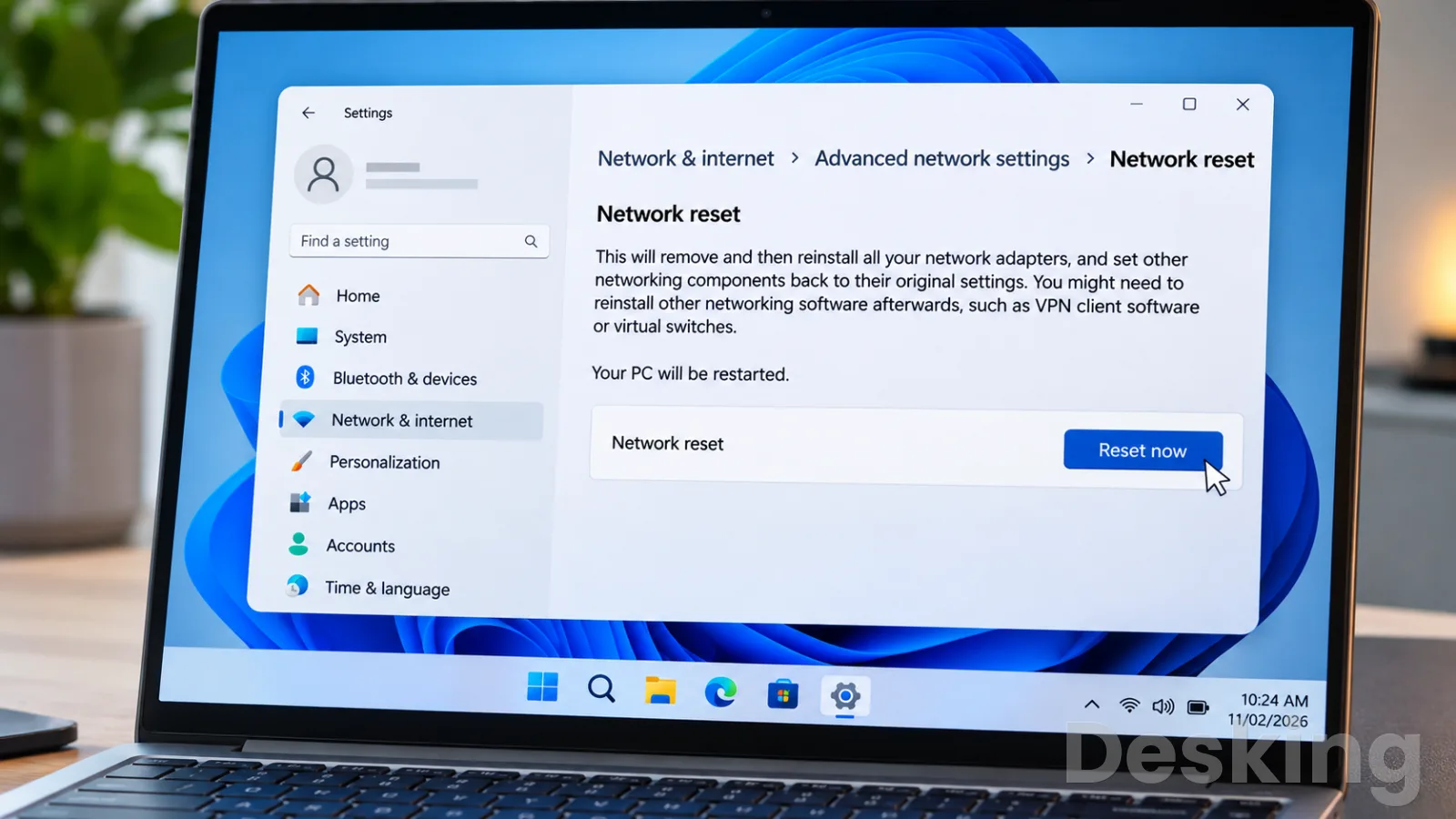
Windows 11 provides a dedicated Network reset feature that removes installed network adapters and reinstalls them with their default settings.
It can help resolve persistent Wi-Fi, Ethernet, and network configuration problems that remain after ordinary troubleshooting.
Microsoft recommends using this option as a later troubleshooting step because it can affect VPN clients, virtual network switches, and manually configured connections.
What Windows 11 resets
The operation affects the networking components installed on Windows rather than the physical router or internet service.
Windows reinstalls the network adapters after the computer restarts, restoring their standard configurations.
You may need to restore certain settings afterwards, including:
Saved wireless network connections and passwords.
Manually configured IP addresses and DNS servers.
VPN client software and connection profiles.
Hyper-V virtual switches and other network virtualization configurations.
Network profiles that previously identified a connection as private.
The last point deserves attention.
Microsoft warns that known network connections may change to a Public network profile after a reset.
This affects network discovery and file sharing between computers.
Step-by-step reset procedure
Follow this sequence on your Windows 11 computer.
1. Open Settings: Press Windows + I on your keyboard to open the Windows Settings application.
2. Select Network & internet: Locate this section in the left sidebar.
It contains Wi-Fi, Ethernet, VPN, proxy, and other networking controls.
3. Open Advanced network settings: Scroll through the available options and select Advanced network settings.
4. Locate Network reset: Under the additional network settings, select Network reset.
Windows will display information about the operation and its consequences.
5. Select Reset now: Click the Reset now button to initiate the process.
6. Confirm the operation: Select Yes when Windows requests confirmation.
7. Allow Windows to restart: Save any open work and allow the computer to restart.
Windows will reinstall the network adapters as part of the reset process.
8. Reconnect to your network: After signing in, open the Wi-Fi or Ethernet settings and check whether internet access has returned.
Restore your network configuration
A successful reset may require additional configuration, particularly on computers used for professional or corporate activities.
If you previously used a static IP address, open the relevant adapter settings and restore the address, subnet information, gateway, and DNS configuration supplied by your network administrator.
For VPN users, check whether the VPN application still exists and whether its connection profile requires reinstallation.
If you use Hyper-V, review the virtual switches and confirm that virtual machines can communicate with their assigned networks.
Also inspect the Windows network profile.
If a trusted home or office network has changed to Public, review the connection properties and restore the Private profile where appropriate.
Important: A network reset does not repair a damaged Wi-Fi driver or faulty network card automatically.
If Windows cannot reinstall the correct driver, obtain the appropriate driver from your computer manufacturer or network adapter manufacturer.
5. how to reset network settings on samsung
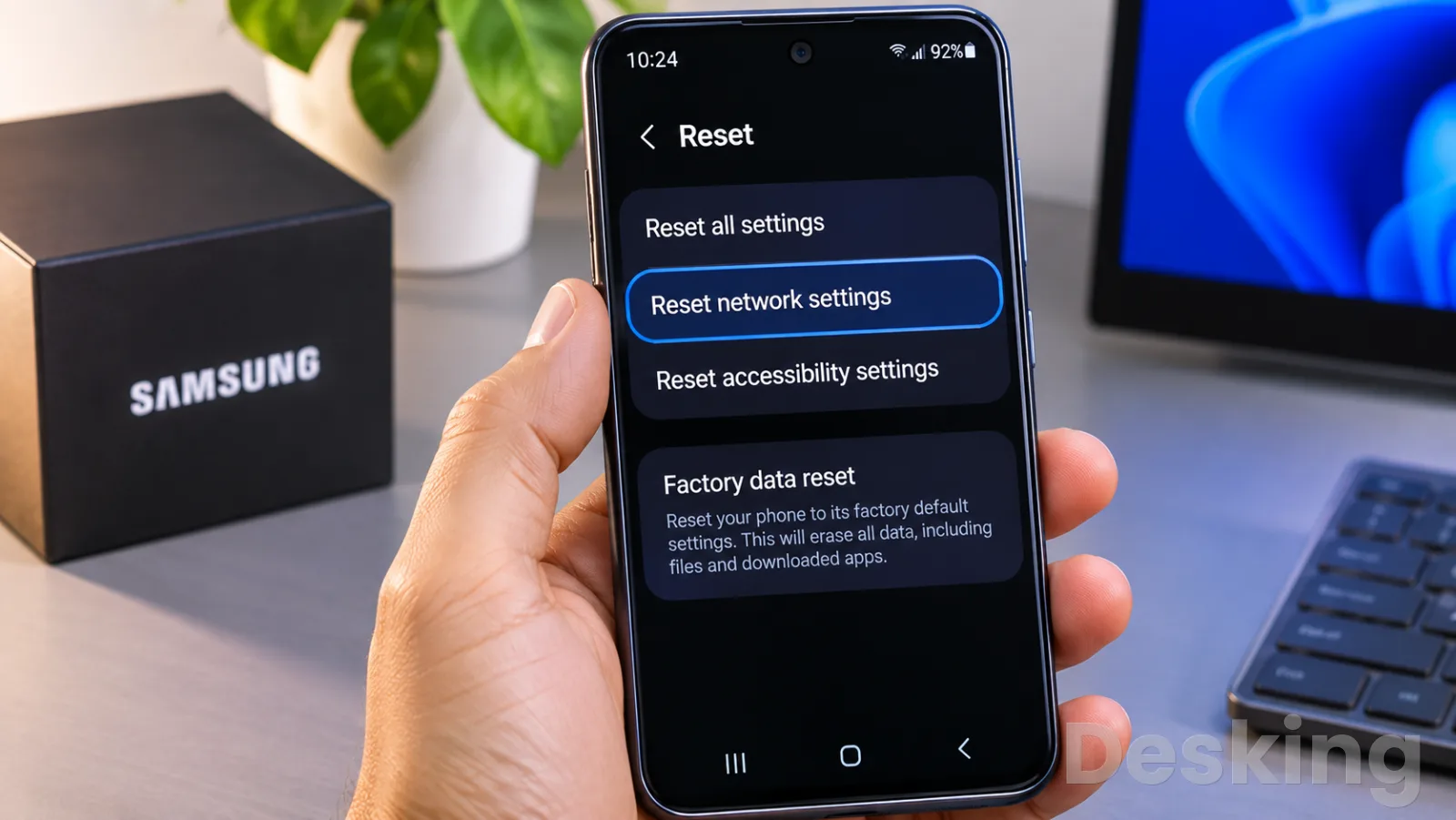
Samsung Galaxy smartphones and tablets provide network reset controls through General management in the Settings application.
Depending on the One UI version and device model, Samsung may present separate options for Wi-Fi and Bluetooth settings and mobile network settings.
This distinction is important because a problem with cellular data does not necessarily require you to remove saved wireless connections.
Likewise, a Bluetooth pairing problem does not always justify resetting mobile network configurations.
Samsung confirms that these network-specific operations do not erase installed applications or personal data.
Identify the correct reset option
Before starting, determine which connection is experiencing problems.
Wi-Fi problems: Use the Wi-Fi and Bluetooth reset option when wireless networks fail to connect or Bluetooth accessories behave incorrectly.
Mobile data problems: Use the mobile network reset option when cellular data, calls, or carrier configurations experience persistent problems.
Combined connectivity problems: If several connection types are affected, you may need to perform the relevant resets separately.
Some older Galaxy devices display a single option called Reset network settings.
Newer versions may separate these functions.
Step-by-step reset procedure
For current Galaxy devices with separate reset options, follow these instructions.
1. Open Settings: Locate the Settings application on your Samsung Galaxy smartphone or tablet.
2. Select General management: Scroll through the settings menu and tap General management.
This section contains language, keyboard, date, time, and reset controls.
3. Open Reset: Select Reset to display the available reset options.
4. Choose the appropriate network option: Select Reset Wi-Fi and Bluetooth settings for wireless connectivity problems, or Reset mobile network settings for cellular connectivity problems.
5. Review the confirmation message: Read the information displayed on the screen to understand which configurations will be removed.
6. Tap Reset settings: Confirm the operation.
Depending on the selected option, Samsung may request your PIN, password, or another security credential.
7. Reconnect your devices: Open the relevant connection settings and reconnect to your Wi-Fi network, Bluetooth accessories, or mobile carrier.
Older Samsung Galaxy models
Some Galaxy smartphones running earlier versions of Android or One UI display a combined network reset option.
In those versions, the procedure is generally:
Open Settings.
Tap General management.
Select Reset.
Choose Reset network settings.
Tap Reset settings.
Enter your device PIN if requested.
Confirm the operation.
If you cannot find the option, use the search field at the top of Settings and search for Reset network settings.
What happens to saved connections?
After resetting Wi-Fi and Bluetooth settings, you may need to reconnect to previously saved wireless networks and pair your accessories again.
A mobile network reset affects cellular configurations instead.
Depending on the carrier and device, you may need to check your preferred network mode, mobile data settings, and APN information.
Do not confuse these options with Factory data reset.
A factory reset removes personal information and installed applications, whereas a network-specific reset targets connectivity configurations.
Samsung notes that menu names and available options can vary according to the Galaxy model, software version, and wireless service provider.
6. how to reset network settings on mac
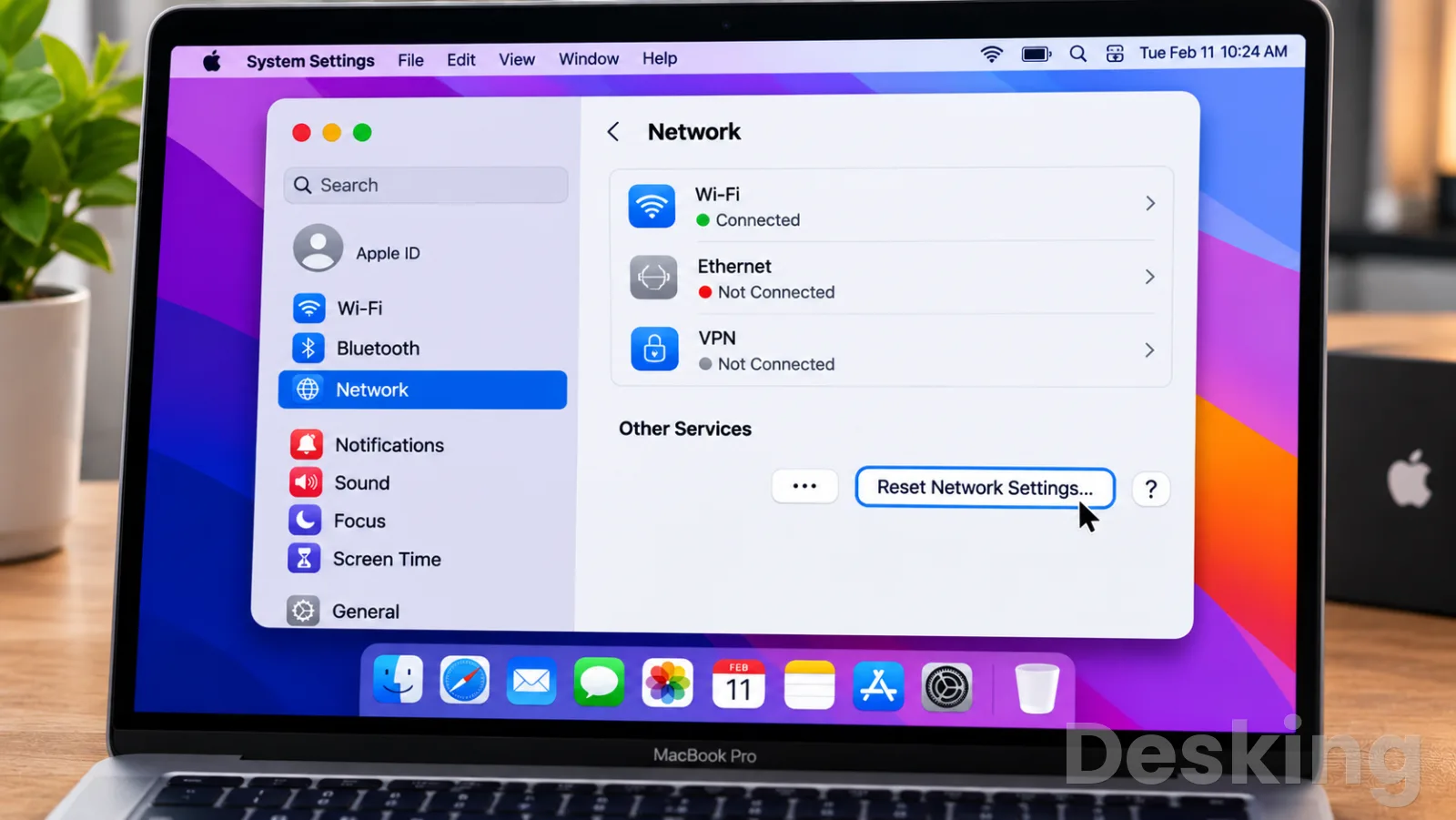
macOS does not provide the same single Reset Network Settings button found on iPhone, iPad, and Windows.
Instead, you can create a new network location to test a fresh network configuration while preserving your existing location and its settings.
This is particularly useful when a Mac has conflicting Wi-Fi or Ethernet configurations, or when different network preferences are required at home and at work.
Apple documents the network location feature as a way to switch between separate sets of network configurations without losing the previous settings.
Create a new network location
The following procedure applies to macOS Ventura and later versions.
1. Open System Settings: Click the Apple menu in the upper-left corner of the screen and select System Settings.
2. Select Network: Locate Network in the sidebar and open the network configuration panel.
3. Open the More menu: Find the More menu below the list of network services.
4. Select Locations: Choose Locations, followed by Edit Locations.
5. Create a new location: Click the plus button and enter a name such as Fresh Network or Network Test.
6. Save the new location: Click Done to create the configuration.
7. Apply the new configuration: Exit Network settings or close System Settings to save the changes.
8. Configure your connection: Return to Network settings, select the new location if necessary, and connect to your Wi-Fi or Ethernet network.
Your previous network location remains available.
This gives you a way to compare the original configuration with the new one and return to the original settings if the test does not solve the problem.
Remove a problematic Wi-Fi connection
If the problem affects only one wireless network, removing that saved network may be sufficient.
Open the Apple menu and select System Settings.
Click Wi-Fi in the sidebar.
Locate the connected network and select Details.
Choose Forget This Network.
Confirm the removal.
Return to the available networks list and reconnect.
Enter the wireless password when prompted.
For other saved networks, open the Advanced section and locate the Known Networks list.
Select the More menu next to the network you want to remove and choose Remove From List.
Older macOS versions
On earlier versions, the interface uses System Preferences instead of System Settings.
Hostinger VPS
Hostinger VPS delivers KVM virtualization, NVMe storage and full root access at prices that undercut most competing cloud providers.
- Strong price to specification ratio overall
- NVMe storage included on every tier
- Renewal rates climb steeply after promo
- Self managed means security is your job
Open the Apple menu, select System Preferences, and choose Network.
Open the Location menu, select Edit Locations, and create a new location using the plus button.
The new location provides a separate configuration for testing network connections without changing the previous location.
Important: Creating a new network location is not equivalent to deleting every network configuration or resetting all macOS networking components.
It provides an isolated configuration for troubleshooting while preserving the original settings.
7. how to reset network settings windows 10
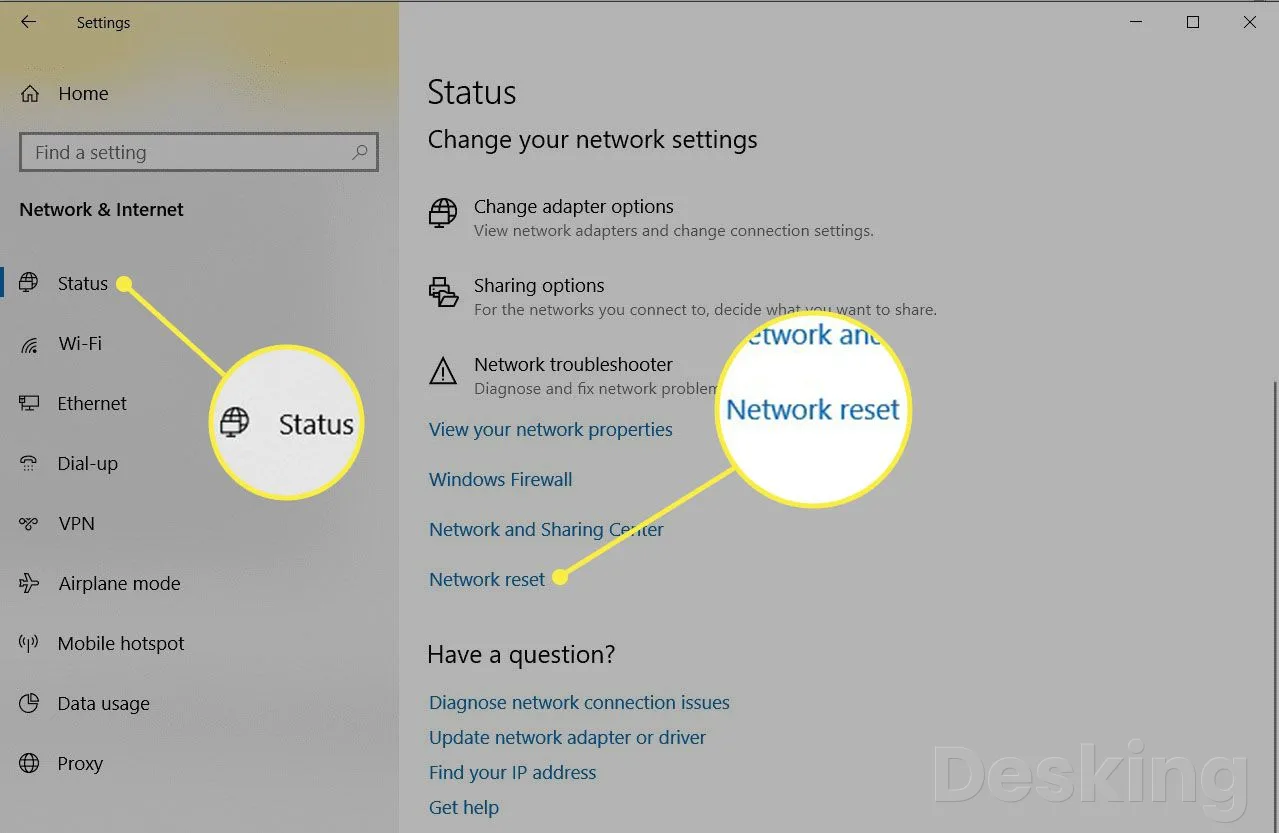
Windows 10 includes a built-in Network reset feature that removes installed network adapters and reinstalls them after restarting the computer.
The operation restores most network components to their default configurations and can resolve connectivity problems caused by incorrect adapter settings.
The procedure is similar to Windows 11, but the location of the reset option is different.
Step-by-step reset procedure
Follow these instructions on a Windows 10 computer.
1. Open the Start menu: Click the Windows Start button in the bottom-left corner of the desktop.
2. Open Settings: Select the gear icon to access Windows Settings.
3. Select Network & Internet: Open the section that contains your Wi-Fi, Ethernet, VPN, and other network settings.
4. Open Status: Select Status in the left sidebar.
This page displays the current network connection information.
5. Locate Network reset: Scroll down and select Network reset.
6. Select Reset now: Click the button to begin restoring the network configuration.
7. Confirm the operation: Select Yes when Windows requests permission to continue.
8. Restart the computer: Allow Windows to complete the reset and reinstall the network adapters.
9. Reconnect to the internet: After the computer restarts, select your wireless network and enter the password again if required.
What should you check afterwards?
Once Windows 10 restarts, confirm that the network adapter appears correctly in Device Manager.
Right-click Start, select Device Manager, and expand Network adapters.
Check whether your Wi-Fi or Ethernet adapter appears without a warning symbol.
If the adapter is missing or displays an error, Windows may not have installed the correct driver.
Download the appropriate driver from the manufacturer's support website using another internet-connected device if necessary.
You should also review any custom network configurations.
Static IP addresses, DNS preferences, VPN software, and network virtualization tools may require additional setup.
The reset does not modify your router or cancel your internet subscription.
If several devices connected to the same router have lost internet access, investigate the router or service provider before repeating the Windows reset.
8. how to reset network settings in android
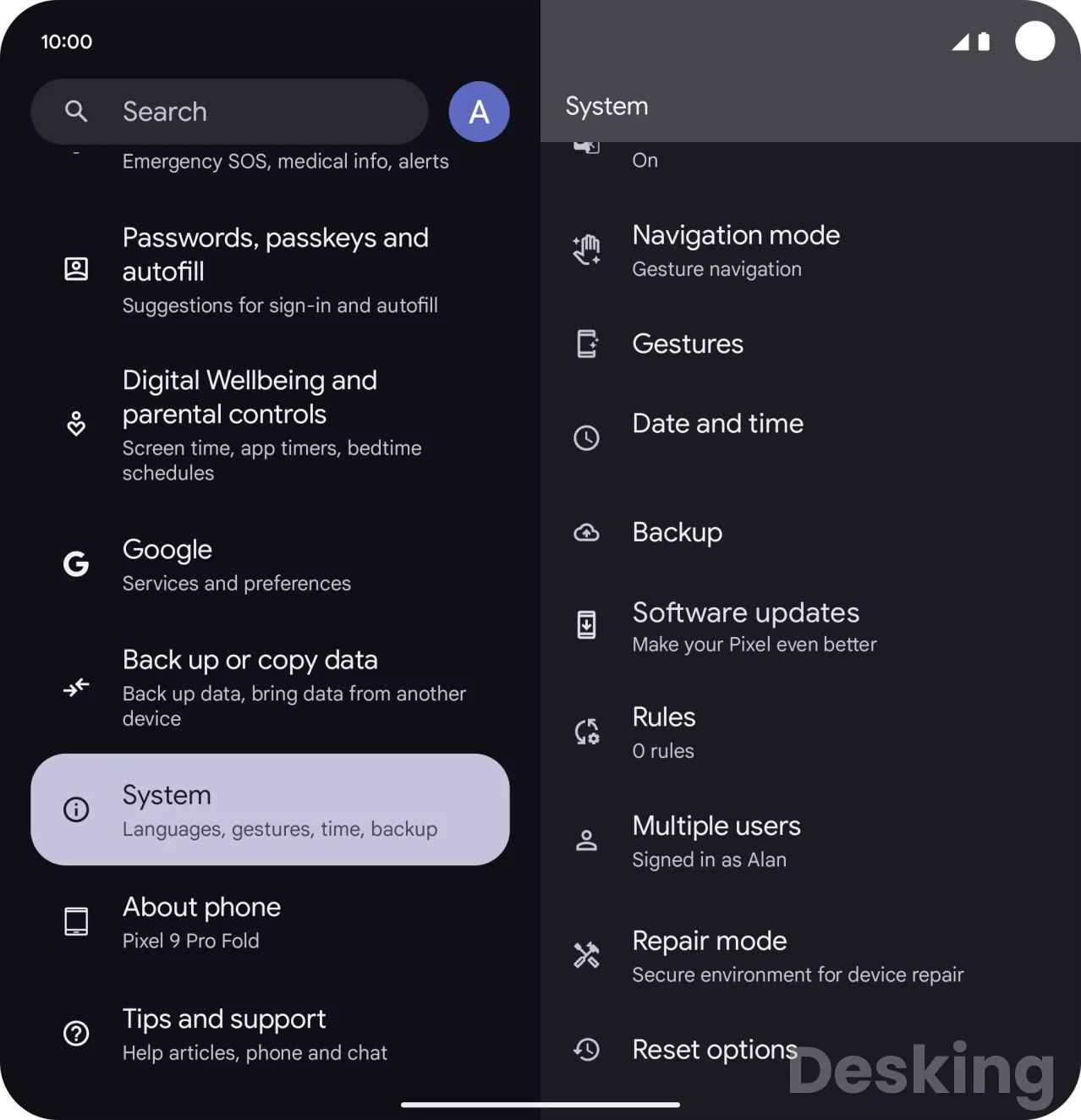
Android provides network reset options that can restore Wi-Fi, Bluetooth, and mobile connectivity configurations.
However, the exact menu names depend on the manufacturer, Android version, and device model.
On Google Pixel devices, recent Android versions may separate mobile network settings from Wi-Fi and Bluetooth settings.
This allows you to address a particular connectivity problem without necessarily resetting every connection type.
Identify your Android version
Before proceeding, check which Android version is installed on your device.
Open Settings, scroll to About phone, and locate Android version.
The available reset options may differ between Android releases and manufacturer interfaces.
Step-by-step reset procedure
For Google Pixel devices with separate network reset options, follow these steps.
1. Open Settings: Launch the Settings application from the Home Screen or application drawer.
2. Select System: Scroll towards the bottom of the settings menu and tap System.
3. Open Reset options: Locate Reset options.
This section contains the available system reset procedures.
4. Choose the relevant reset: Select Reset Mobile Network Settings if the problem concerns cellular connectivity.
For wireless connection problems, select Reset Bluetooth and Wi-Fi if that option is available.
5. Review the reset information: Check the warning displayed on the screen before confirming the operation.
6. Authenticate if required: Enter your device PIN, password, or security credentials when requested.
7. Confirm the reset: Tap the confirmation option to restore the selected network configurations.
8. Reconnect your device: Return to the relevant network settings and reconnect to Wi-Fi, Bluetooth accessories, or your mobile carrier.
What about other Android smartphones?
Manufacturers such as Motorola, Xiaomi, OnePlus, and other Android device makers can use different menu structures.
If your device does not have the same System menu, use Settings search and enter one of the following terms:
Reset network settings.
Reset Wi-Fi and Bluetooth.
Reset mobile network.
Reset connections.
Reset options.
Select the network-specific option presented by your manufacturer and read the confirmation message before proceeding.
Avoid deleting your eSIM
Some Android devices display an additional option to erase downloaded SIM profiles during mobile network reset procedures.
Do not select Erase SIMs unless you specifically intend to remove your stored eSIM profiles. Resetting network settings and deleting an eSIM are separate actions on devices that offer both options.
After the reset, check whether mobile data is enabled and whether your carrier's APN configuration is correct.
If the device cannot register on the cellular network, contact your mobile provider before attempting a factory reset.
9. how to reset network settings on ipad
An iPad has a dedicated Reset Network Settings option that removes saved network configurations and restores network preferences to their default state.
The process is similar to the iPhone procedure because both devices use Apple's reset settings interface.
This operation can help when an iPad repeatedly disconnects from Wi-Fi, cannot access a previously available wireless network, or experiences problems with certain VPN configurations.
Step-by-step reset procedure
Follow these instructions to reset the network settings on your iPad.
1. Open Settings: Locate and open the Settings application on your iPad.
2. Select General: Tap General in the sidebar or settings menu.
3. Open Transfer or Reset iPad: Scroll towards the bottom of the General section and select Transfer or Reset iPad.
4. Tap Reset: Open the available reset options.
5. Select Reset Network Settings: Choose the network-specific reset option from the list.
6. Enter your passcode: Authenticate the operation if your iPad requests your device passcode.
7. Confirm the reset: Approve the operation and allow the iPad to complete the reset.
8. Reconnect to Wi-Fi: Open Wi-Fi settings, select your network, and enter the password again.
What changes after resetting an iPad?
Apple states that resetting network settings removes network configurations and also restores the assigned device name to its default name, iPad.
Manually trusted certificates, including certificates used for website trust, can also become untrusted after the operation.
This is particularly relevant for users who access company resources, institutional networks, or services that require specific certificates.
The reset does not delete your photographs, applications, documents, messages, or other personal media.
Reset Network Settings versus Reset All Settings
These two options have different consequences.
Reset Network Settings affects network configurations and related preferences.
Reset All Settings restores a much wider range of system preferences, including location, privacy, keyboard, and other settings.
Apple confirms that this broader operation does not delete personal media, but it can require substantial reconfiguration.
For a Wi-Fi connectivity problem, select the network-specific option rather than Reset All Settings or Erase All Content and Settings.
10. how to reset network settings on iphone 17
The iPhone 17 uses the same general iOS network reset procedure as other supported recent iPhone models.
You can access the dedicated reset option through General settings without erasing your applications, photographs, messages, or documents.
The procedure applies to the iPhone 17 family, including the iPhone 17, iPhone 17 Pro, iPhone 17 Pro Max, and iPhone 17 Air, provided they use the corresponding iOS settings interface.
Step-by-step reset procedure
1. Open Settings: Tap the Settings application on your iPhone 17.
2. Select General: Locate General and open the system configuration menu.
3. Tap Transfer or Reset iPhone: Scroll towards the bottom of the menu and select this option.
4. Open Reset: Tap Reset to display the available reset operations.
5. Select Reset Network Settings: Choose the network-specific option.
Avoid selecting Reset All Settings or Delete All eSIMs.
6. Enter your passcode: Authenticate the operation if requested.
7. Confirm the reset: Approve the operation and allow the iPhone to restore its network configurations.
8. Reconnect to Wi-Fi: Return to Settings, open Wi-Fi, select your wireless network, and enter its password.
Important iPhone 17 considerations
The reset can remove previously used Wi-Fi networks and certain manually configured VPN and cellular settings.
Your Bluetooth accessories may also need to reconnect, depending on the connection configuration and software behavior.
If you use a physical SIM or eSIM, distinguish the network reset from the separate option that deletes stored eSIM profiles.
Reset Network Settings is not the same as Delete All eSIMs.
For users who rely on corporate VPNs, manually trusted certificates, or managed network profiles, check the configuration requirements before proceeding.
After the reset, test Wi-Fi first, then mobile data and any VPN connection.
If Wi-Fi works but mobile data does not, investigate the SIM, carrier account, APN configuration, and cellular coverage rather than repeating the network reset.
The iPhone 17 reset procedure is confirmed by device-specific support instructions from AT&T and Apple's general iPhone reset documentation.
11. how to reset network settings on laptop
A laptop can run Windows, macOS, or another operating system, so the correct reset procedure depends on the software installed rather than the computer's manufacturer.
For example, a Dell, HP, Lenovo, ASUS, or Acer laptop running Windows 11 uses the same built-in Network reset feature.
A MacBook uses macOS network locations and individual network configuration controls instead.
Identify your laptop operating system
Before changing any network settings, establish which operating system your laptop uses.
Windows 11: Open Settings, select Network & internet, then Advanced network settings.
Windows 10: Open Settings, select Network & Internet, then Status.
MacBook: Open the Apple menu and select System Settings, followed by Network.
Other operating systems: Consult the manufacturer's network configuration and reset instructions.
Once you identify the operating system, follow the corresponding procedure described earlier in this article.
Prepare your laptop before resetting
Laptops used for work, remote access, or business networks can contain additional configurations that need to be restored.
Before performing a reset, check the following:
Wi-Fi credentials: Record the passwords for wireless networks you regularly use.
Static IP configuration: Record the IP address, subnet mask, default gateway, and DNS servers if your network uses manual configuration.
VPN software: Identify the VPN client and confirm that you have the information needed to restore its connection.
Corporate network access: Contact your IT administrator if the laptop uses managed certificates, authentication profiles, or company network policies.
Virtual networking: Check whether your laptop uses Hyper-V, VMware, VirtualBox, or other software that creates virtual network adapters.
These precautions are particularly important for IT professionals and administrators who manage servers, virtual machines, remote connections, and office networks.
Verify the connection after resetting
After completing the reset, test the laptop's connectivity before restoring additional configurations.
Check the network adapter: Confirm that Windows or macOS recognizes the wireless or Ethernet interface.
Connect to Wi-Fi: Select the correct wireless network and enter its password.
Test internet access: Open a browser and visit a reliable website.
Check DNS resolution: Confirm that websites load correctly rather than relying only on an established Wi-Fi connection.
Restore business settings: Reconfigure VPN connections, static IP addresses, network drives, and other required services.
A laptop can display Connected even when internet access is unavailable.
This usually means the wireless connection has been established, but another component, such as DNS, the gateway, or the internet service, may still be failing.
If the problem persists after the reset, investigate the network adapter driver, router, DHCP service, DNS configuration, and internet provider.
Repeating the same reset without identifying the underlying fault is unlikely to produce a different result.
12. Troubleshooting after reset
A network reset does not guarantee that internet connectivity will return immediately.
The operation restores selected configurations, but the device may still have problems with its network adapter, router, DNS server, SIM card, or internet service provider.
The next step is to identify where communication is failing.
Start with the connection itself, then check whether the device can reach the router, resolve website addresses, and communicate with external services.
Connected without internet
A device can successfully connect to a Wi-Fi network while remaining unable to access the internet.
This happens because connecting to a wireless access point and establishing internet connectivity are separate processes.
Check the following:
Router connection: Confirm that the router has an active connection to your internet provider.
-
4.3Web Hosting
Hostinger VPS
4.3Hostinger VPS delivers KVM virtualization, NVMe storage and full root access at prices that undercut most competing cloud providers.
- Strong price to specification ratio overall
- NVMe storage included on every tier
- Renewal rates climb steeply after promo
- Self managed means security is your job
IP address: Check whether the device has received a valid IP address from the router.
Default gateway: Verify that the device has a valid gateway through which it can reach external networks.
DNS resolution: Check whether domain names can be translated into IP addresses.
Internet service: Confirm that the provider has not suspended the connection or reported an outage.
If other devices connected to the same router also have no internet access, the problem probably does not originate from the computer or smartphone you reset.
Wi-Fi keeps disconnecting
Repeated disconnections can result from weak wireless coverage, interference, router configuration, power management, or an outdated network driver.
Move closer to the router and test the connection again.
If the connection becomes stable, investigate wireless coverage and interference before changing additional settings.
On Windows laptops, check Device Manager for wireless adapter errors and inspect the manufacturer's driver updates.
On smartphones, test another Wi-Fi network to establish whether the problem follows the device.
DNS problems persist
DNS, or Domain Name System, translates human-readable website names into the IP addresses used by network devices.
If an internet connection works but websites fail to load correctly, DNS may be responsible.
Check whether the device uses a custom DNS server, a VPN-provided DNS configuration, or a router-based DNS service.
On Windows, you can inspect the DNS configuration through the network adapter properties.
If the network administrator uses a specific DNS server, restore the supplied configuration rather than selecting an arbitrary public server.
Network adapter is missing
Windows may fail to reinstall a network adapter correctly after a reset, particularly when the required driver is unavailable or damaged.
Open Device Manager, expand Network adapters, and inspect the available hardware.
If the adapter is missing, check the Other devices section for unidentified hardware and obtain the correct driver from the laptop or adapter manufacturer's official support page.
If the computer has no internet connection, download the driver using another device and transfer it through a USB drive.
Avoid installing drivers from unknown websites, since an incorrect or modified driver can create additional problems.
Mobile data still does not work
If cellular internet remains unavailable after a smartphone reset, check the SIM card, carrier coverage, mobile data status, and APN configuration.
An APN is a set of parameters that tells a mobile device how to connect to its carrier's packet data network.
Some operators configure these automatically, while others require specific values.
Contact your carrier if the device cannot register on the mobile network, displays No Service, or refuses to establish a data connection despite adequate coverage.
13. Mistakes to avoid
Network troubleshooting can become unnecessarily complicated when users repeatedly reset devices without identifying the original problem.
A better approach is to understand what each reset option changes and preserve the information required to restore the previous configuration.
The following mistakes are particularly relevant to computers and smartphones used for personal and professional activities.
Selecting the wrong reset option
Operating systems often display several reset options next to each other.
Their names can look similar, but their consequences are considerably different.
For example, iPhone and iPad users should distinguish Reset Network Settings from Reset All Settings and Erase All Content and Settings.
Samsung users should distinguish network-specific resets from Factory data reset.
Always read the confirmation message before approving an operation.
If the description mentions deleting applications, documents, or personal information, stop and verify that you selected the intended option.
Ignoring business configurations
Corporate computers and mobile devices frequently use configurations supplied by IT administrators.
These can include static IP addresses, VPN profiles, digital certificates, proxy servers, DNS settings, and managed Wi-Fi connections.
Resetting these configurations without preparation can interrupt access to company applications, internal servers, shared folders, and remote systems.
Before proceeding, document the existing configuration and identify who manages it.
If the device belongs to an organization, obtain approval from the IT administrator when necessary.
Resetting the router unnecessarily
A device network reset and a router factory reset are two different operations.
A device network reset changes configurations on the smartphone or computer.
A router factory reset restores the router's configuration, which can remove its wireless network name, password, internet connection settings, port forwarding rules, and other customized preferences.
Do not press the physical Reset button on a router simply because a laptop cannot connect to Wi-Fi.
First determine whether the issue affects one device or the entire network.
Repeating the reset without testing
Performing several resets without checking the results makes troubleshooting less efficient.
You may remove useful configuration information without resolving the actual cause.
Instead, test one connection at a time.
Start with Wi-Fi, then check mobile data or Ethernet, and finally test VPN and other network-dependent services.
Record the results after each test.
This makes it easier to identify whether the failure concerns the device, the wireless network, the router, or the internet provider.
Frequently Asked Questions
Does resetting network settings delete saved Wi-Fi passwords?
How long does resetting network settings take?
Can resetting network settings improve internet speed?
Should I reset network settings or restart my router?
Will resetting network settings remove my eSIM?
Can I reset network settings without an administrator password?
Sources4
- Apple on iPad network settings reset
- Microsoft on Windows network troubleshooting
- Beebom on iPhone network settings
- Android Authority on Samsung network resets
External pages are independent third-party sources. Desking App does not control or endorse their content and accepts no responsibility for it. Visiting them is at your own responsibility and risk.